
1. Introduction
This manual provides detailed instructions for the Minthouz USB C Docking Station MT-UMD312. This device expands the connectivity of your USB-C enabled laptop, tablet, or phone, allowing for multiple display outputs, high-speed data transfer, network connectivity, and power delivery. Please read this manual thoroughly before use to ensure proper operation and to maximize the product's capabilities.

Figure 1: The Minthouz USB C Docking Station MT-UMD312, highlighting its slim and compact design for portability.
2. Safety Information
- Do not expose the device to water, moisture, or extreme temperatures.
- Avoid dropping or subjecting the device to strong impacts.
- Do not attempt to disassemble or repair the device yourself. Contact qualified service personnel for assistance.
- Use only compatible power adapters and cables as specified.
- Keep the device away from children.
3. Package Contents
- Minthouz USB C Docking Station MT-UMD312
- User Manual
4. Product Overview
The Minthouz USB C Docking Station MT-UMD312 is a 12-in-1 multi-port adapter designed to enhance your workstation's connectivity. It features a comprehensive array of ports for various peripherals and display setups.

Figure 2: Front and rear view of the Minthouz USB C Docking Station MT-UMD312 with all ports clearly labeled.
Port Descriptions:
- USB-C Host Connection: Connects to your laptop/device's full-featured USB-C port.
- HDMI 1 (4K@60Hz): Connects to an HDMI display for video and audio output.
- HDMI 2 (4K@60Hz): Connects to a second HDMI display for video and audio output.
- DisplayPort (4K@144Hz): Connects to a DisplayPort display for high-resolution video and audio output.
- USB-C PD 100W Input: Connect your laptop's power adapter here to provide up to 85W pass-through charging to your host device.
- 2x USB 3.0 (5Gbps): For high-speed data transfer with USB-A devices.
- 2x USB 2.0 (480Mbps): For connecting peripherals like keyboards, mice, or other USB-A devices.
- Gigabit Ethernet (1000Mbps): Provides a stable wired network connection.
- SD Card Slot (104MB/s): For reading standard SD memory cards.
- TF (MicroSD) Card Slot (104MB/s): For reading MicroSD memory cards.
- 3.5mm Audio/Mic (2-in-1): For connecting headphones or speakers with a microphone.
5. Setup
Follow these steps to set up your Minthouz USB C Docking Station:
5.1 Connecting to Your Laptop/Device
- Ensure your laptop or host device has a full-featured USB-C port that supports DisplayPort Alternate Mode (DP Alt Mode) and Power Delivery.
- Connect the integrated USB-C cable from the docking station to the USB-C port on your laptop/device.
5.2 Power Connection
- For optimal performance and to charge your laptop, connect your laptop's original or a compatible 100W USB-C Power Delivery (PD) charger to the USB-C PD 100W input port on the docking station. The docking station will deliver up to 85W to your laptop while powering connected peripherals.

Figure 3: Power delivery setup, illustrating 100W input to the docking station and 85W output to the laptop.
5.3 Display Connections
- Connect your external monitors to the HDMI 1, HDMI 2, and/or DisplayPort outputs on the docking station using appropriate cables.
- The docking station supports up to three external monitors simultaneously.

Figure 4: Visual representation of connecting a display to the docking station for 4K resolution.
5.4 Peripheral Connections
- Connect USB devices (e.g., keyboard, mouse, external hard drives) to the USB 3.0 or USB 2.0 ports.
- Insert SD or MicroSD cards into the respective card reader slots for data access.
- Connect an Ethernet cable to the Gigabit Ethernet port for a wired network connection.
- Plug headphones or speakers into the 3.5mm Audio/Mic port.

Figure 5: Data transfer capabilities with various USB and card reader connections.

Figure 6: Essential connectivity for wired network and audio devices.
6. Operating Instructions
6.1 Display Configuration
The docking station supports various display modes depending on your operating system and laptop's USB-C port capabilities. No driver installation is typically required for basic plug-and-play functionality.
Windows Systems:
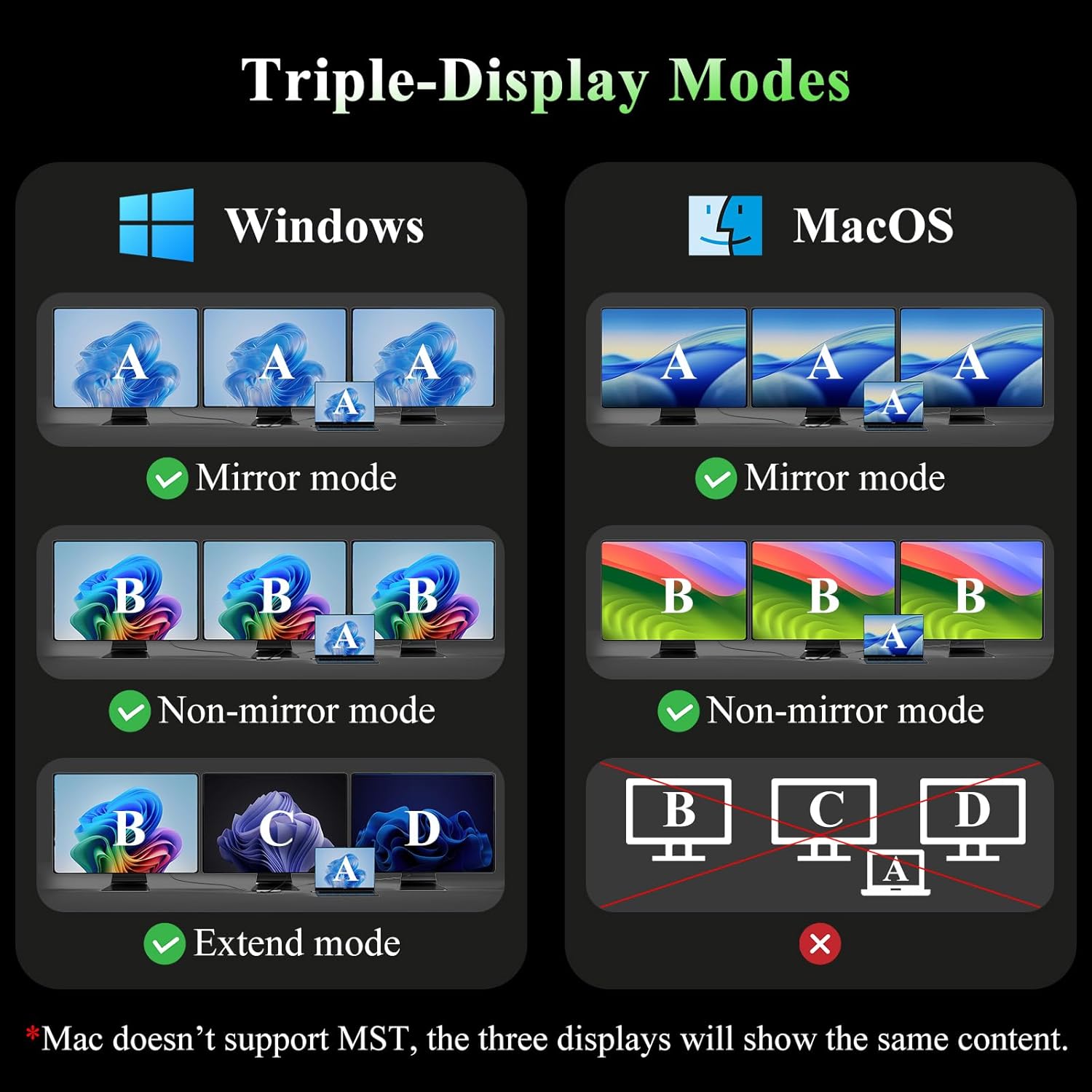
Figure 7: Triple-display modes for Windows and macOS systems.
| Display Mode | DP1.2 | DP1.4 | DP1.4 & DSC1.2 |
|---|---|---|---|
| Single Display | 4K@30Hz | 4K@60Hz | HDMI 1/2: 4K@60Hz, DP: 4K@144Hz |
| Dual Display | 2*1080P@60Hz | 4K@30Hz+1080P@60Hz | 2*4K@60Hz |
| Triple Display | Two 1080P@60Hz + one lower than 1080P@60Hz | 3*1080P@60Hz | 4K@60Hz+2*4K@30Hz |
macOS Systems:
| Display Mode | DP1.2 | DP1.4 | DP1.4 & DSC1.2 |
|---|---|---|---|
| Single Display | 4K@30Hz | 4K@60Hz | DP: 4K@144Hz |
| Dual Display | 2*4K@30Hz | 2*4K@60Hz | 2*4K@60Hz |
| Triple Display | 3*4K@30Hz | 3*4K@60Hz | 3*4K@60Hz |
Note: Multi-Stream Transport (MST) is not supported on Mac laptops. For macOS, the three external displays will show the same content (mirror mode) or two extended displays with the laptop screen as a third extended display, but not three independent extended displays.
Important Compatibility Note Before Purchase:
Please confirm that the USB-C port of your host device supports charging and video output (DisplayPort Alt Mode). If your USB-C port only supports data transfer or charging, the video output functions may not work.

Figure 8: Examples of USB-C port types and their compatibility with video output and charging.
6.2 Data Transfer
The USB 3.0 ports offer data transfer speeds up to 5Gbps, ideal for external hard drives and flash drives. The USB 2.0 ports are suitable for connecting standard peripherals. The SD/TF card slots support speeds up to 104MB/s, facilitating quick transfer of photos and videos.
6.3 Power Delivery
The USB-C PD input port supports up to 100W power input, providing up to 85W pass-through charging to your connected laptop. This allows you to charge your laptop while using the docking station, eliminating the need for a separate charger for your laptop.
6.4 Ethernet Connection
The Gigabit Ethernet port provides a stable and reliable wired network connection at speeds up to 1000Mbps, which is beneficial for online gaming, video conferencing, and large file transfers, reducing reliance on potentially unstable Wi-Fi connections.
6.5 Audio Connection
The 3.5mm audio/mic port allows you to connect headphones, speakers, or a headset for audio input and output, providing a convenient solution for audio needs.
7. Compatibility
The Minthouz USB C Docking Station is broadly compatible with various devices and operating systems that feature a full-featured USB Type-C port (supporting DisplayPort Alt Mode, charging, and data transfer protocol).

Figure 9: Universal compatibility of the docking station with different devices and operating systems.
- Compatible Laptops: MacBook Pro/Air, Dell XPS 13/15/17, Dell Latitude 5420/7420, Lenovo ThinkPad, Lenovo Yoga, HP EliteBook 840, HP Envy, Surface Pro 7/8, and other laptops with full-featured USB-C ports.
- Compatible Systems: Windows, macOS, Chrome OS, Android, HarmonyOS, iOS, iPadOS.
- USB-C / Thunderbolt Support: Compatible with USB-C, Thunderbolt 3/4/5 ports.
8. Maintenance
- Keep the device clean by wiping it with a soft, dry cloth.
- Avoid using harsh chemicals or abrasive cleaners.
- Store the device in a cool, dry place when not in use.
- Ensure cables are not bent sharply or under excessive strain.
9. Troubleshooting
- No display output: Ensure your laptop's USB-C port supports video output (DisplayPort Alt Mode). Check all cable connections. Try connecting one monitor at a time to isolate the issue.
- No power delivery: Confirm your USB-C power adapter is connected to the PD input port and is at least 100W. Ensure your laptop's USB-C port supports power input.
- USB devices not recognized: Reconnect the USB device. Try a different USB port on the docking station. Ensure the docking station is properly powered.
- Ethernet connection issues: Check the Ethernet cable connection. Verify your network settings on your host device.
- Audio not working: Ensure your audio device is properly plugged into the 3.5mm jack. Check audio output settings on your host device.
- Overheating: While normal for the aluminum casing to get warm during heavy use, ensure adequate ventilation around the docking station.
10. Specifications
| Feature | Specification |
|---|---|
| Model Number | MT-UMD312 |
| Product Dimensions | 5.59 x 2.2 x 0.71 inches |
| Item Weight | 4.4 ounces |
| Host Connection | USB-C (Full-featured, Thunderbolt 3/4/5 compatible) |
| Video Output | 2x HDMI (up to 4K@60Hz), 1x DisplayPort (up to 4K@144Hz) |
| USB Ports | 2x USB 3.0 (5Gbps), 2x USB 2.0 (480Mbps) |
| Power Delivery | USB-C PD Input (100W), Output to Host (up to 85W) |
| Ethernet | Gigabit Ethernet (10/100/1000Mbps) |
| Card Reader | SD, MicroSD (up to 104MB/s) |
| Audio | 3.5mm Audio/Mic (2-in-1) |
| Material | Aluminum Alloy |
| Color | Silver |
11. Warranty and Support
Minthouz products come with a standard manufacturer's warranty. For detailed warranty information, product support, or technical assistance, please refer to the official Minthouz website or contact their customer service directly. Keep your purchase receipt for warranty claims.
12. Product Demonstration Video
Watch this video for a visual guide on the Minthouz USB C Docking Station, including unboxing and setup demonstrations.
Video 1: Unboxing and demonstration of the Minthouz USB C Docking Station's features and connectivity.