1. Introduction
Thank you for choosing the Inexaccessories Double Din Car Stereo. This manual provides detailed instructions for the installation, operation, and maintenance of your new car stereo system. Please read this manual thoroughly before use to ensure proper functionality and to maximize your user experience.

Image 1.1: Front view of the Inexaccessories Double Din Car Stereo, showcasing its 6.2-inch touch screen with Apple CarPlay interface, a CD/DVD slot, and included accessories like a microphone and backup camera.
2. Package Contents
Verify that all items are present in the package:
- Double Din Car Stereo Unit
- Rear View Camera
- Camera Cable
- Connecting Line (RCA cables)
- Disassembly Tool
- Mounting Brackets
- External Microphone
- Power Cable / Wiring Harness
- Instruction Manual (this document)

Image 2.1: Visual representation of the car stereo unit and its complete set of accessories included in the package.
3. Setup and Installation
3.1 Pre-Installation Check
- Ensure your vehicle's dashboard opening size is compatible with the stereo dimensions (approximately 6.8 x 3.86 inches or 7 x 4.05 inches, with an extra frame for adjustment).
- Verify that your car's electrical system does not exceed 16V.
- Disconnect the vehicle's battery before starting installation to prevent electrical shorts.

Image 3.1: Dimensional diagram of the car stereo, illustrating its physical size and the adjustable frame for fitting into different car dashboard openings.
3.2 Wiring Connections
Refer to the wiring diagram provided with your unit and the image below for proper connections. Connect the power harness, speaker wires, and accessory wires according to your vehicle's wiring scheme.
- Power: Connect the main power cable to the vehicle's power supply.
- Rear Camera Input: Connect the included backup camera to the designated input.
- Front Camera Input: (If applicable) Connect an optional front camera.
- Video Input/Output: For external video sources or displays.
- Audio Input/Output: RCA connections for left and right channels, subwoofer output.
- USB/TF/AUX: Front panel ports for media input.
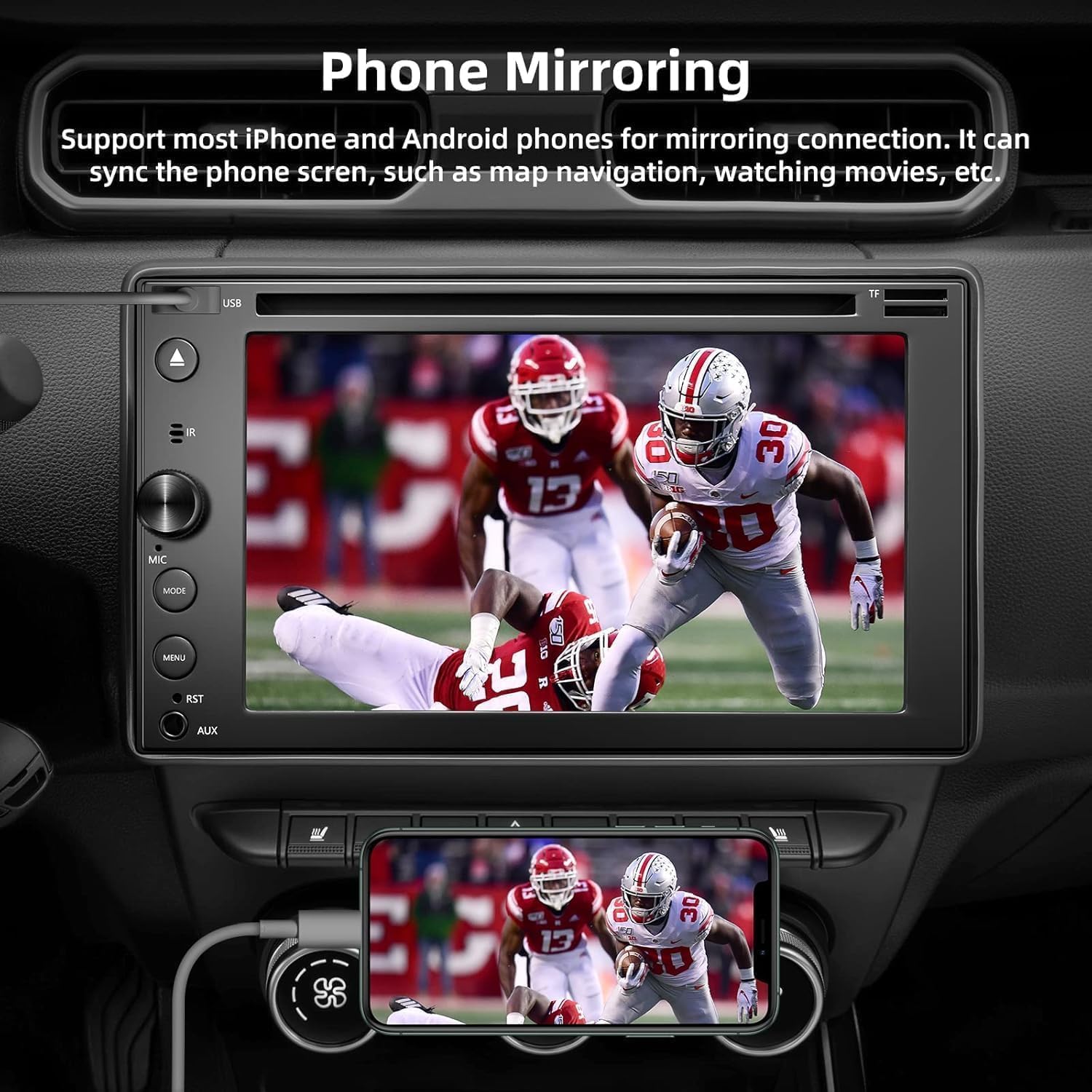
Image 3.2: Detailed view of the rear panel of the car stereo, indicating the various input and output connections for power, audio, video, and cameras.
3.3 CD/DVD Player Preparation
Before using the CD/DVD player for the first time, ensure you remove the two transport screws located on the top of the car radio. Failure to do so may prevent discs from loading or ejecting properly.

Image 3.3: Illustration of the CD/DVD player in use, emphasizing the importance of removing transport screws before operation.
4. Operating Instructions
4.1 Basic Controls
- Power/Volume Knob: Press to turn on/off, rotate to adjust volume.
- Mode Button: Cycles through available audio sources (Radio, CD/DVD, USB, AUX, Bluetooth).
- Menu Button: Accesses main menu or settings.
- RST (Reset) Button: Use a thin object to press for system reset.
- AUX Input: Connect external audio devices via 3.5mm jack.
4.2 Apple CarPlay & Android Auto
Connect your iPhone or Android smartphone via a USB cable to enable Apple CarPlay or Android Auto. This allows access to navigation, music, calls, and messages directly from the stereo's touch screen.

Image 4.1: Wired Apple CarPlay functionality, demonstrating phone integration for navigation and media.

Image 4.2: Wired Android Auto functionality, illustrating seamless integration for Android users.
4.3 Bluetooth 5.0
Pair your smartphone via Bluetooth for hands-free calling and wireless audio streaming. Navigate to the Bluetooth settings on the stereo, enable pairing mode, and select the stereo from your phone's Bluetooth device list.

Image 4.3: Bluetooth 5.0 connectivity for hands-free calls and audio streaming.
4.4 Mirror Link
The Mirror Link function allows you to display your smartphone's screen directly onto the car stereo. This is compatible with most iPhone and Android devices. Connect your phone via USB and follow the on-screen prompts to activate screen mirroring.

Image 4.4: Mirror Link feature demonstrating smartphone screen mirroring onto the car stereo display.
4.5 Rear View Camera
When properly installed, the included backup camera automatically displays the rear view on the stereo screen when the vehicle is shifted into reverse gear. This feature enhances parking safety.

Image 4.5: Backup camera display with parking assistance lines, illustrating its functionality for safer parking.
4.6 Steering Wheel Control
The stereo supports original steering wheel control functions, allowing you to manage audio playback, volume, and calls without taking your hands off the wheel. This provides convenience and enhances driving safety.

Image 4.6: Steering Wheel Control interface, highlighting the ability to manage stereo functions directly from the steering wheel.
4.7 AM/FM Radio
Access local radio stations using the built-in AM/FM tuner. Use the touch screen to scan for stations, save presets, and switch between AM and FM bands.

Image 4.7: AM/FM Radio interface, showing station tuning and signal strength.
5. Maintenance
To ensure the longevity and optimal performance of your car stereo, follow these maintenance guidelines:
- Screen Cleaning: Use a soft, lint-free cloth to gently wipe the touch screen. For stubborn smudges, slightly dampen the cloth with water or a screen-safe cleaner. Avoid harsh chemicals or abrasive materials.
- General Cleaning: Keep the unit free from dust and debris. Use a soft brush or compressed air to clean vents and buttons.
- CD/DVD Slot: Avoid inserting damaged or dirty discs. If discs are not ejecting properly, ensure no foreign objects are obstructing the slot.
- Temperature: Avoid exposing the unit to extreme temperatures for extended periods.
6. Troubleshooting
If you encounter issues with your car stereo, refer to the following common problems and solutions:
- No Power:
Solution: Check all power connections, including the fuse. Ensure the vehicle's ignition is on. If the issue persists, press the RST (Reset) button with a thin object. - No Sound:
Solution: Verify speaker connections. Check volume levels on both the stereo and any connected devices. Ensure the 'Mute' function is not active. - Bluetooth Not Connecting:
Solution: Ensure Bluetooth is enabled on both the stereo and your smartphone. Delete previous pairings and attempt to re-pair. Move your phone closer to the stereo. - Apple CarPlay/Android Auto Not Working:
Solution: Ensure you are using a high-quality USB cable. Check your phone's settings for CarPlay/Android Auto permissions. Restart both your phone and the stereo. - Touch Screen Unresponsive:
Solution: Press the RST (Reset) button. If the problem continues, ensure the screen is clean and free of obstructions. - CD/DVD Not Playing/Ejecting:
Solution: Ensure the two transport screws on top of the unit have been removed. Check if the disc is inserted correctly and is not damaged.
7. Specifications
| Feature | Specification |
|---|---|
| Screen Size | 7 Inches |
| Display Resolution | 1920x1080 |
| Bluetooth Version | 5.0 |
| Compatible Devices | Smartphone (Apple CarPlay, Android Auto, Mirror Link) |
| Media Types Supported | DVD+RW, DVD-RW, DVD-R, DVD-ROM, CD-RW, CD-R, CD-ROM |
| Inputs | USB, TF Card, AUX, Rear Camera, Front Camera, Video In, Audio In (RCA) |
| Outputs | Video Out, Audio Out (RCA), Subwoofer Out |
| Item Weight | 4.31 pounds |
| Package Dimensions | 8.27 x 7.95 x 6.38 inches |
8. Warranty and Support
For warranty information, technical support, or service inquiries, please refer to the contact details provided with your purchase documentation or visit the official Inexaccessories website. Keep your purchase receipt as proof of purchase for warranty claims.