1. Introduction
Thank you for choosing the Homiguar Wired Trackpad. This manual provides detailed instructions for setting up, operating, maintaining, and troubleshooting your new trackpad. Please read this manual thoroughly to ensure optimal performance and a seamless user experience. This trackpad is designed for use with Windows 10 and Windows 11 operating systems.

Image 1.1: Homiguar Wired Trackpad
2. Product Overview
2.1 Key Features
- Wide Compatibility: Designed for Windows 10/11 PCs, laptops, and desktop computers. Not compatible with macOS, Chrome OS, or Linux devices.
- Wired USB-C Connection: Ensures a stable and reliable connection without the need for batteries or wireless pairing.
- High-Precision Multi-Touch: Supports up to four-finger gestures for intuitive control, including clicking, scrolling, zooming, and advanced functions.
- Portable & Ergonomic Design: Ultra-slim aluminum construction reduces wrist strain and saves space, making it suitable for travel.
- Customizable Settings: Allows adjustment of cursor speed and scrolling direction to suit user preferences.
2.2 Package Contents
Please verify that all items are present in your package:
- Homiguar Wired Trackpad (Model B0FP8PTGTC)
- USB-C to USB-A Cable
3. Setup Instructions
The Homiguar Wired Trackpad is designed for simple plug-and-play operation.
- Connect the Trackpad: Insert the USB-C end of the provided cable into the trackpad and the USB-A end into an available USB port on your Windows computer.
- Automatic Driver Installation: Your computer should automatically detect the trackpad and install the necessary drivers. No manual driver installation is required.
- Begin Use: Once the drivers are installed (this may take a few moments), the trackpad is ready for immediate use.

Image 3.1: Stable USB-C Wired Connection
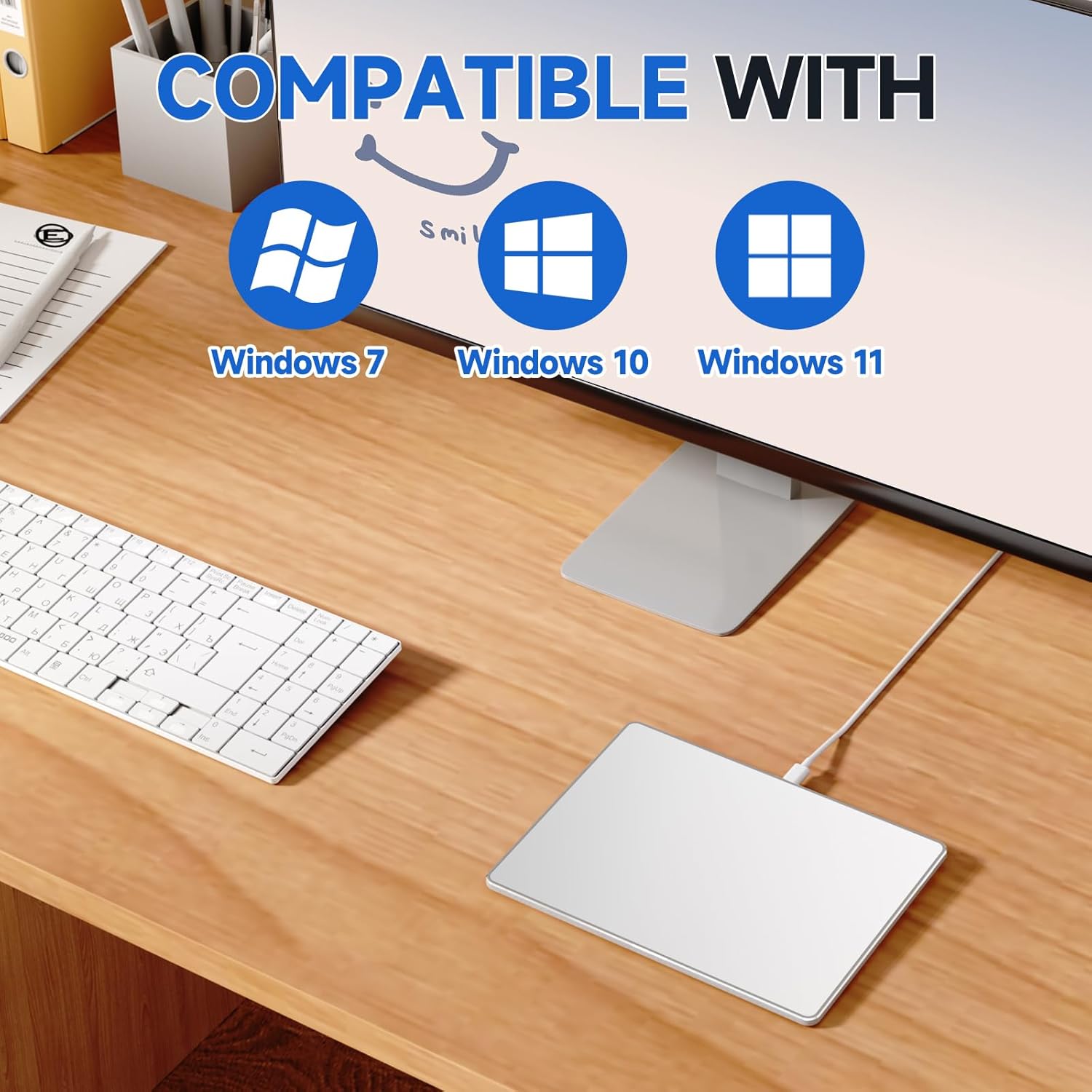
Image 3.2: Windows Compatibility
4. Operating Instructions
The Homiguar Wired Trackpad supports various multi-touch gestures for efficient navigation and control within Windows 10/11.
4.1 Basic Gestures
- Left-Click: Tap the trackpad once with a single finger.
- Right-Click: Tap the trackpad once with two fingers.
- Move Cursor: Slide a single finger across the trackpad surface.
- Scroll Up/Down: Swipe two fingers up or down on the trackpad.
- Pinch/Zoom: Place two fingers on the trackpad and pinch them together to zoom out, or spread them apart to zoom in.
4.2 Advanced Gestures
- Drag Files & Select Text: Quickly double-tap the trackpad with one finger, then immediately hold the finger down and slide to drag files or select text. This action requires a swift double-tap followed by a continuous hold and slide.
- Window Switching: Swipe three fingers horizontally across the trackpad to switch between open applications.
- Open Task View/Desktop Display: Swipe three fingers upwards to open Task View, or swipe downwards to show the desktop.
- Tiled Desktop Window: Swipe four fingers across the trackpad to arrange windows on the desktop.
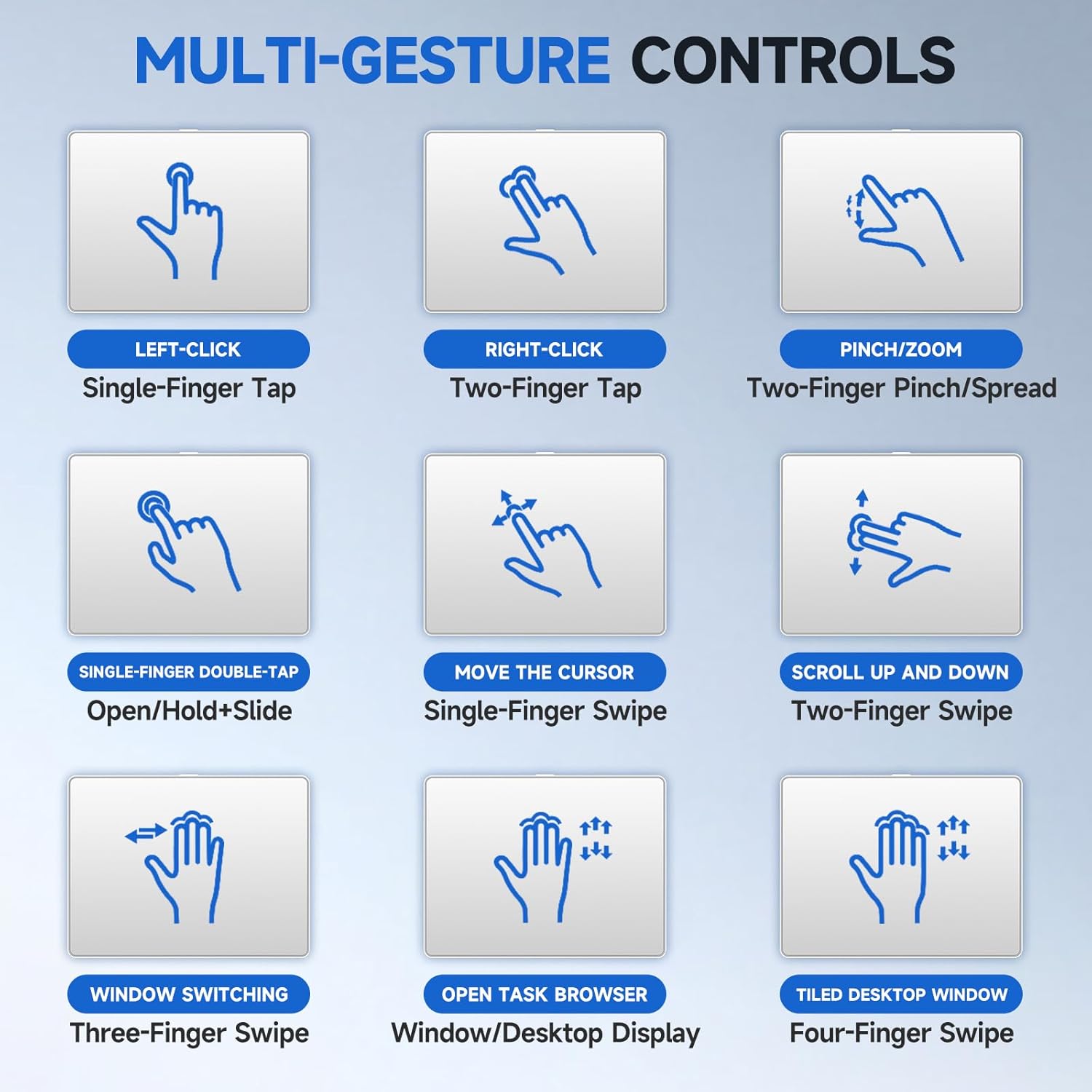
Image 4.1: Multi-Gesture Controls Overview

Image 4.2: How to Drag Files & Select Text
4.3 Customization
You can adjust the trackpad's settings through your Windows operating system:
- Go to Settings > Bluetooth & devices > Touchpad (or Mouse).
- Here you can modify cursor speed, scrolling direction, and other gesture-related settings to personalize your experience.

Image 4.3: High Precision and Customization Options
5. Maintenance and Care
To ensure the longevity and optimal performance of your Homiguar Wired Trackpad, follow these care guidelines:
- Cleaning: Use a soft, lint-free cloth slightly dampened with water or a mild screen cleaner to wipe the trackpad surface. Avoid abrasive materials or harsh chemicals.
- Avoid Liquids: Do not expose the trackpad to excessive moisture or immerse it in any liquid.
- Storage: When not in use, store the trackpad in a clean, dry environment. Its ultra-slim design makes it easy to carry in a laptop bag.
- Handling: Avoid dropping the trackpad or subjecting it to strong impacts, as this may damage internal components.

Image 5.1: Portable and Easy Storage
6. Troubleshooting
If you encounter issues with your Homiguar Wired Trackpad, please refer to the following common solutions:
- Trackpad Not Responding:
- Ensure the USB-C cable is securely connected to both the trackpad and your computer.
- Try connecting the trackpad to a different USB port on your computer.
- Restart your computer.
- Verify that your operating system is Windows 10 or Windows 11. The trackpad is not compatible with macOS, Chrome OS, or Linux.
- Drag and Drop Functionality Issues:
- The drag and drop function requires a specific gesture: a quick double-tap with one finger, immediately followed by holding the finger down and sliding. Ensure the double-tap and hold/slide are performed very quickly and continuously. If there is a delay, the system may interpret it as an attempt to open a file.
- No Physical Left/Right Click Buttons:
- This trackpad is designed without physical left/right mouse buttons. All clicking actions are performed via gestures on the trackpad surface: single-finger tap for left-click and two-finger tap for right-click.
- Cursor Speed or Sensitivity Issues:
- Adjust cursor speed and touchpad sensitivity through your Windows settings: Settings > Bluetooth & devices > Touchpad (or Mouse).
7. Specifications
| Feature | Detail |
|---|---|
| Brand | Homiguar |
| Model | B0FP8PTGTC |
| Connectivity Technology | USB-C Wired |
| Operating System Compatibility | Windows 10, Windows 11 |
| Color | Silver |
| Item Weight | 5.6 ounces (158.76 grams) |
| Package Dimensions | 5.94 x 4.13 x 1.06 inches |
| Style | Modern, Ultra-Slim |
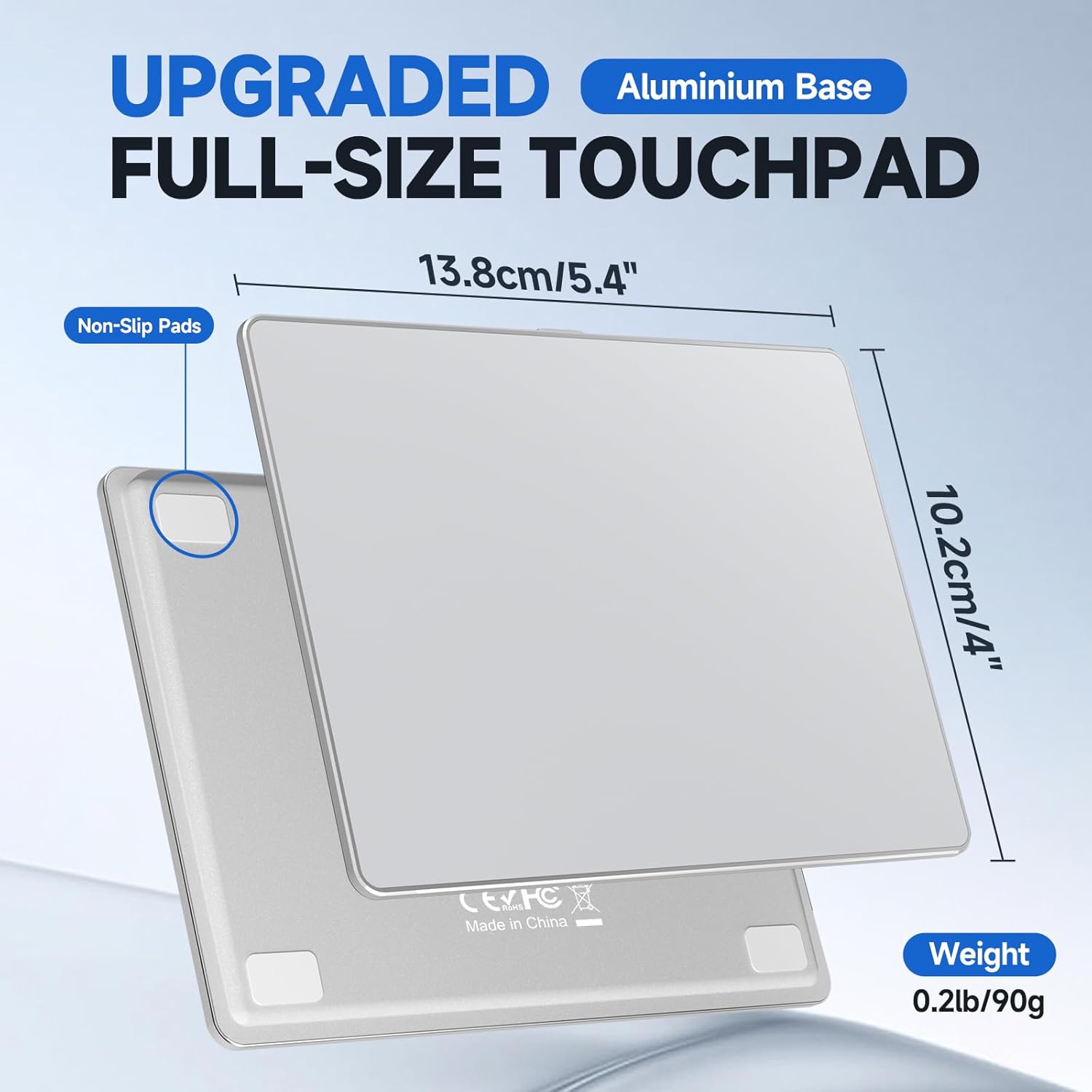
Image 7.1: Trackpad Dimensions and Features
8. Warranty and Support
For warranty information and customer support, please refer to the documentation included with your purchase or contact Homiguar customer service directly. Details for contacting support are typically available on the product packaging or the official Homiguar website.