
Introduction
This manual provides detailed instructions for the installation, operation, and maintenance of your Fortdows 12.1-inch IPS Touchscreen Car Stereo. This advanced multimedia system is designed to enhance your driving experience with features such as wireless CarPlay, Android Auto, GPS navigation, and a high-resolution display. Please read this manual thoroughly before installation and use to ensure proper function and safety.
Vehicle Compatibility
The Fortdows 12.1-inch IPS Touchscreen Car Stereo is specifically designed for the following vehicles:
- Ford F150 models: 2015, 2016, 2017, 2018, 2019, 2020
- Ford F250, F350, F450 models: 2017, 2018, 2019, 2020
It is compatible with vehicles equipped with SYNC 1 or SYNC 2 systems and supports both manual and automatic air conditioning versions. This ensures a seamless fit and integration with your factory setup.
Important Note: This car stereo is NOT compatible with vehicles equipped with the original B&O audio system. Please check for a B&O logo on your door speakers to confirm compatibility.

Image: Vehicle compatibility overview, illustrating various Ford F-Series dashboards and indicating compatibility, with a clear warning against B&O audio systems.
Setup and Installation
Package Contents
Before beginning installation, please verify that all components are present:
- Main Head Unit (12.1-inch IPS Touchscreen)
- Power Cable
- Original USB Cable
- GPS Antenna
- RCA Cable
- CanBus Decoder
- USB Cables (x2)
- Reversing Ling (Video Input Cable)
- Backup Camera (Full HD AHD with night vision)
- External Microphone
- Crowbar (Installation Tool)

Image: Visual representation of the complete package contents, including the main unit and all accessory cables and tools.
Installation Guidelines
Professional installation is highly recommended for this product to ensure correct wiring and integration with your vehicle's electrical system. Incorrect installation can lead to damage to the unit or the vehicle.
- Preparation: Disconnect the vehicle's battery before starting any electrical work.
- Removal: Carefully remove the factory radio and trim panels using the provided crowbar tool.
- Wiring: Connect the power cable, original USB, GPS antenna, RCA cables, and CanBus decoder to the corresponding ports on the new head unit and vehicle harness. Ensure all connections are secure.
- Backup Camera: Install the backup camera at the rear of the vehicle and route its cable to the head unit, connecting it to the 'Reversing Ling' input.
- External Microphone: Connect the external microphone for improved call quality.
- Mounting: Securely mount the new head unit into the dashboard opening.
- Testing: Reconnect the battery and test all functions before reassembling the trim panels.
Operating Instructions
Display and Interface
The unit features a stunning 12.1-inch IPS touchscreen with a resolution of 1024 x 768 pixels and 2.5D tempered glass. This provides crisp, vivid, and realistic images from any viewing angle. It supports full 1080P video playback for crystal-clear picture quality.

Image: Visual comparison demonstrating the enhanced clarity and color saturation of the 1024x768P IPS touchscreen.
Split-Screen Function: Utilize the split-screen feature to run two applications simultaneously, such as navigation and music, for seamless multitasking.
CarPlay and Android Auto
Connect your smartphone effortlessly via wireless CarPlay or wired Android Auto for seamless in-car integration. Access navigation, make calls, send messages, and play music using voice commands, ensuring a safer, smarter, and hands-free driving experience.

Image: Display of Apple CarPlay and Android Auto interfaces, illustrating their functionalities for navigation, music, and phone calls.
Navigation and Connectivity
- GPS Navigation: Stay on track with integrated GPS supporting both online and offline navigation. Get real-time traffic updates with apps like Google Maps or Waze, or switch to offline maps when outside signal range.
- WiFi Connectivity: With WiFi hotspot support, you can download applications, stream music on Spotify, or watch YouTube videos directly from the stereo.
- Bluetooth 5.0: Enjoy hands-free calling and wireless music streaming with BT5.0 connectivity.
Audio Features
- Professional DSP Sound: Experience high-quality sound effects with professional Digital Signal Processing (DSP) technology.
- Equalizer: Customize your audio experience with 48 equalizer adjustments.
- Radio: Built-in FM/AM/RDS radio tuner.

Image: Professional DSP Sound interface, showing equalizer controls and sound staging for optimized audio performance.
Backup Camera and Steering Wheel Controls
- Backup Camera: The unit includes a Full HD AHD backup camera with night vision, a 170° wide-angle lens, and IP69 waterproof protection. The display automatically switches to the rear view when reversing, ensuring safe parking. It supports both OEM camera input and the included camera.
- Steering Wheel Controls (SWC): Maintain focus on the road by operating the center screen via your vehicle's steering wheel controls. This allows for hands-free operation for a safer and more convenient driving experience.

Image: Steering wheel controls integration, illustrating how the car stereo can be operated safely using existing vehicle controls.
Maintenance
To ensure the longevity and optimal performance of your car stereo, follow these maintenance guidelines:
- Cleaning: Use a soft, dry cloth to clean the touchscreen and unit exterior. For stubborn smudges, lightly dampen the cloth with water or a screen-safe cleaner. Avoid abrasive materials or harsh chemicals.
- Software Updates: Periodically check for available software updates to ensure you have the latest features and bug fixes. Updates can typically be performed via WiFi.
- Temperature: Avoid exposing the unit to extreme temperatures, both hot and cold, for extended periods.
- Connections: Ensure all cables and connections remain secure. Loose connections can lead to intermittent issues.
Troubleshooting
If you encounter issues with your Fortdows car stereo, please refer to the following common problems and solutions:
- No Power:
- Check all power connections and ensure they are securely plugged in.
- Verify the vehicle's fuse related to the stereo is not blown.
- Ensure the vehicle's battery is properly connected and charged.
- No Sound:
- Check speaker wire connections.
- Ensure the volume is not muted or set to a very low level.
- Verify audio settings in the system menu (e.g., equalizer, balance, fader).
- Confirm compatibility: The unit is not compatible with original B&O audio systems.
- GPS Not Working / Inaccurate:
- Ensure the GPS antenna is properly installed and has a clear view of the sky (e.g., mounted on the dashboard).
- Check GPS settings in the system menu.
- Update map data if necessary.
- CarPlay / Android Auto Connection Issues:
- For wireless connection, ensure Bluetooth and WiFi are enabled on your phone and the stereo.
- For wired connection, try a different USB cable. Ensure the cable is a high-quality data cable, not just for charging.
- Restart both your phone and the car stereo.
- Backup Camera Not Displaying:
- Check the 'Reversing Ling' video input cable connection at both the camera and the head unit.
- Ensure the camera is receiving power.
- Verify the vehicle is in reverse gear.
- Touchscreen Unresponsive:
- Perform a system reset (refer to the system settings for reset options).
- Ensure the screen is clean and free of debris.
If these steps do not resolve the issue, please contact customer support for further assistance.
Product Specifications
| Brand | Fortdows |
| Screen Size | 12.1 Inches |
| Display Type | IPS LCD Capacitive Touchscreen |
| Resolution | 1024 x 768 Pixels |
| Operating System | Android |
| Processor | 8-Core |
| RAM | 4 GB |
| Internal Storage | 64 GB |
| Connectivity Technology | Bluetooth 5.0, USB, 5G WiFi |
| Special Features | Wireless/Wired CarPlay, Android Auto, Mirroring, 1080P Backup Camera, Professional DSP, SWC Support, GPS Navigation (Online/Offline), FM/AM/RDS Radio, 48 EQ Adjustments, Split-Screen Function |
| Compatible Devices | Smartphone |
| Control Method | Touch |
| Supported Satellite Navigation System | GPS |
| UPC | 754148691506 |
| ASIN | B0FP82W8P6 |
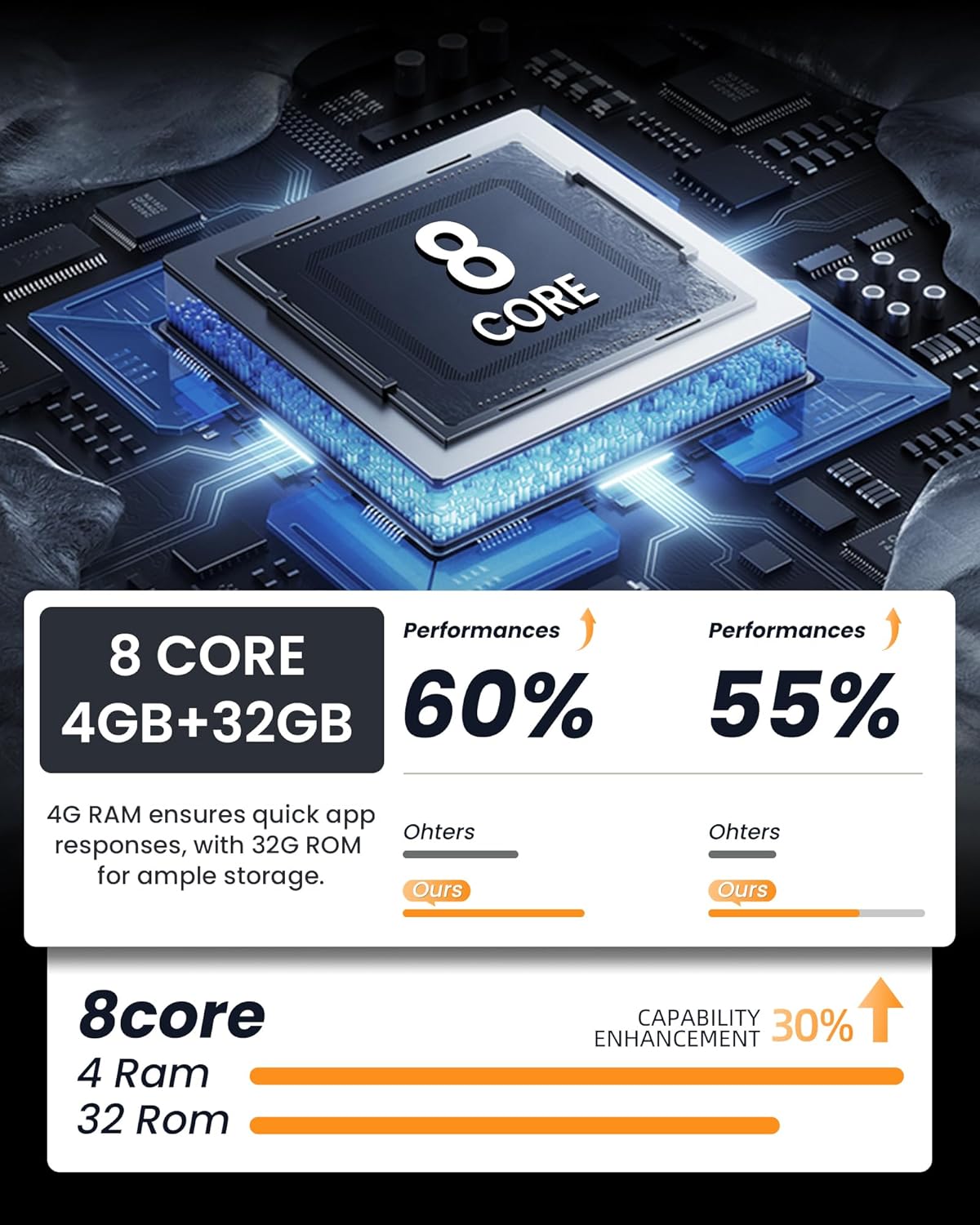
Image: Performance comparison highlighting the 8-core processor with 4GB RAM and its capability enhancement.
Warranty Information
Specific warranty details are not provided in the product description. Please refer to the product packaging or contact Fortdows customer support for information regarding warranty coverage and terms.
Customer Support
Fortdows is committed to providing reliable after-sales support. Our professional technical support team is available to assist you with any installation or usage questions you may have. Enjoy worry-free service with prompt and friendly support whenever you need it.
For technical assistance or inquiries, please refer to the contact information provided on the product packaging or the official Fortdows website.


