
1. Introduction
This manual provides essential instructions for setting up, operating, maintaining, and troubleshooting your FIREBAT Android 15 Tablet. Please read this guide thoroughly to ensure optimal performance and longevity of your device.

Image: The FIREBAT Android 15 Tablet, showcasing its 10.95-inch In-Cell display, 1920x1200 resolution, 18W fast charging, and 8000mAh battery.
The FIREBAT Android 15 Tablet features a 10.95-inch In-Cell IPS touchscreen with a 1920x1200 resolution, powered by a UNISOC Spreadtrum T606 octa-core processor. It includes 12GB RAM (4GB physical + 8GB virtual) and 128GB internal storage, expandable via TF card up to 1TB. The tablet runs on the Android 15 operating system and is equipped with a 5MP front camera and a 13MP rear camera. An 8000mAh battery supports up to 10 hours of usage and 18W PD fast charging.
2. What's in the Box
Upon unboxing, verify that all items are present:
- 1 x FIREBAT AR1 Tablet
- 1 x Protective Film (Pre-installed)
- 1 x Protective Case (Pre-installed)
- 1 x 9V/2A 18W US Power Charger
- 1 x User Manual (This document)
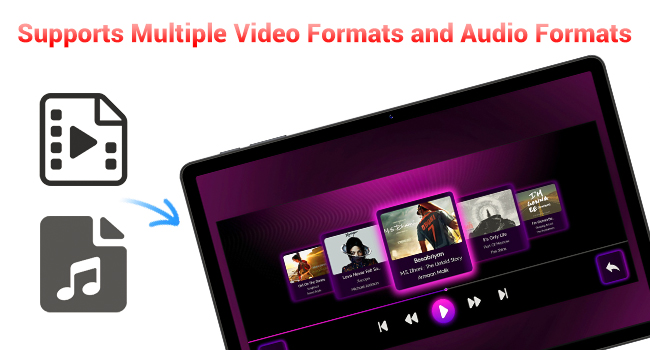
Image: A visual representation of the items included in the FIREBAT Tablet package: the tablet, power charger, and user manual.
Video: An unboxing video demonstrating the contents of the FIREBAT Android 15 Tablet package, including the tablet, protective case, charger, and user guide.
3. Setup
3.1 Initial Charging
Before first use, fully charge your tablet using the provided USB-C cable and 18W power adapter. Connect the USB-C cable to the tablet's USB-C port and the power adapter to a wall outlet. The charging indicator will show the charging status.
3.2 Powering On/Off
- To Power On: Press and hold the Power button located on the side of the tablet until the FIREBAT logo appears.
- To Power Off: Press and hold the Power button until the power options menu appears. Select "Power off" and confirm.
- To Restart: From the power options menu, select "Restart."
3.3 Initial Configuration
Upon first power-on, follow the on-screen prompts to:
- Select your language.
- Connect to a Wi-Fi network (802.11ac supported).
- Sign in with your Google account or create a new one.
- Set up screen lock (PIN, pattern, password).
3.4 Protective Case and Film
Your tablet comes with a pre-installed protective film and a customized protective case. The case is designed to fully encase the tablet, offering protection for both the back and the screen when closed. It can also be folded to act as a stand for hands-free viewing.

Image: The FIREBAT Tablet featuring its delicate texture metal shell, designed for enhanced heat dissipation and improved protection.
4. Operating Your Tablet
4.1 Touchscreen Navigation
The 10.95-inch In-Cell IPS touchscreen offers sensitive and precise touch response. Use standard gestures such as tap, swipe, pinch-to-zoom, and long-press to navigate the interface and interact with applications.

Image: The tablet's In-Cell technology, which embeds touch sensors directly into LCD pixels for a thinner design and more sensitive touch response.
4.2 Android 15 Operating System
Your tablet runs on the latest Android 15 operating system, providing enhanced privacy, security, and customization options. Enjoy wider application compatibility and faster response times.
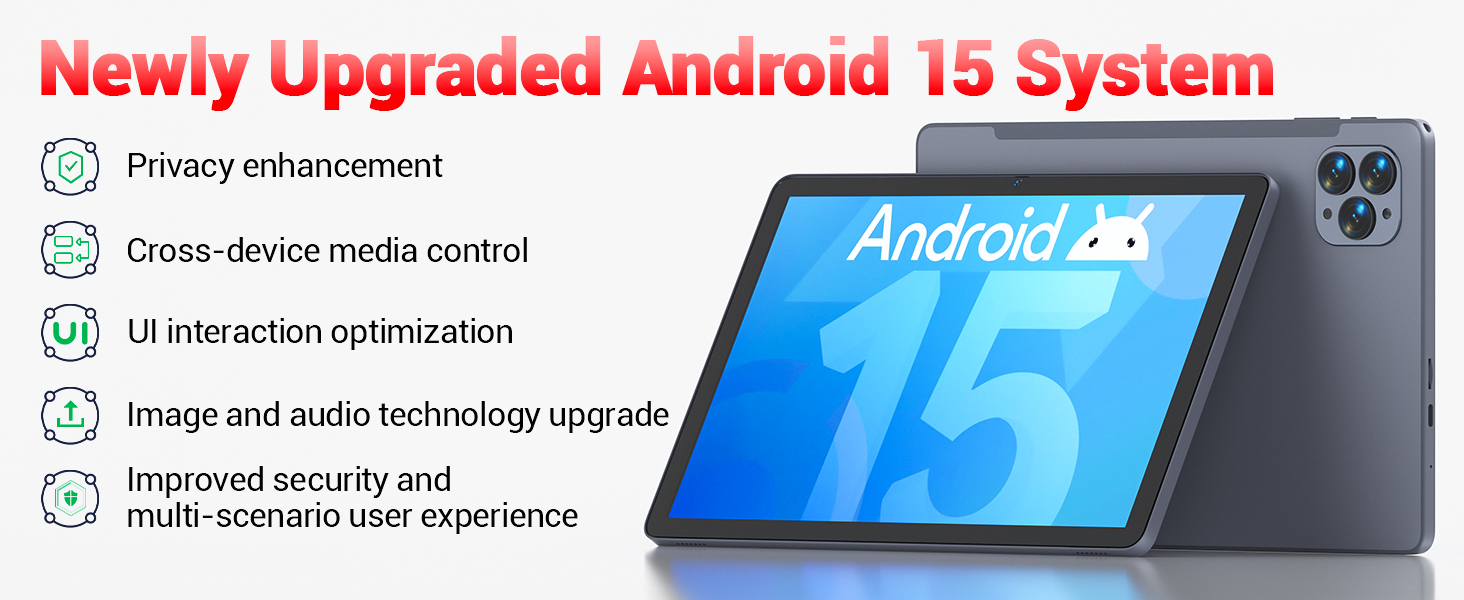
Image: The tablet's Android 15 system, highlighting features such as privacy enhancement, cross-device media control, UI optimization, and improved security.
4.3 Performance and Multitasking
The UNISOC Spreadtrum T606 octa-core processor (dual-core A75 1.6GHz + hexa-core A55 1.6GHz) and MediaTek Mali-G57-3EE-single-core 650MHz GPU ensure smooth operation for most applications and efficient multitasking. The 12GB LPDDR4x memory (4GB physical + 8GB virtual) further enhances performance.

Image: A detailed diagram illustrating the UNISOC Spreadtrum T606 octa-core processor, emphasizing its 2-core + 6-core design for balanced performance and power saving.
4.4 Camera Usage
The tablet is equipped with a 5MP front camera and a 13MP rear camera. Open the Camera app to capture photos, record videos, and make video calls. Adjust settings within the app for optimal results.

Image: The tablet displaying a video call, highlighting the functionality of its 5MP front and 13MP rear cameras for clear communication and photography.
4.5 Storage Management
The tablet includes 128GB of high-speed internal storage. If more space is needed, you can expand it up to 1TB using a TF (microSD) card. Insert the TF card into the designated slot on the side of the tablet.
4.6 Connectivity
- Wi-Fi 5: Connect to 2.4G/5G Wi-Fi networks for internet access.
- Bluetooth 5.0: Pair with Bluetooth-enabled devices such as headphones, speakers, or keyboards.
- FM Radio: Utilize the built-in FM radio feature for listening to local broadcasts.
4.7 Media and Applications
The tablet supports various video and audio formats, and is compatible with a wide range of e-book and office software. Widevine L1 support ensures high-quality streaming from compatible services.
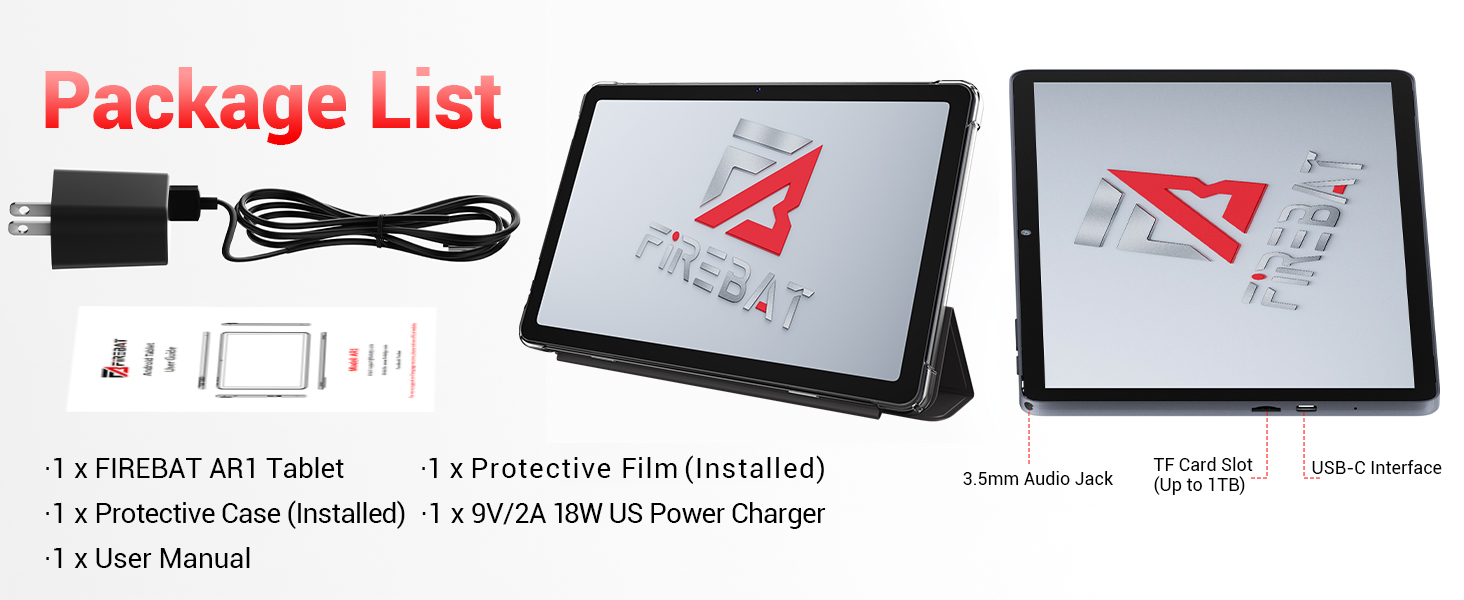
Image: The tablet's capability to support multiple video and audio formats, enhancing its multimedia functionality.
Image: The tablet displaying various e-book and office software applications, demonstrating its versatility for productivity and reading.
Video: A demonstration of the FIREBAT Android 15 Tablet's features, including its responsive touchscreen, protective case functionality, and overall performance for various applications.
5. Maintenance
5.1 Cleaning Your Tablet
Use a soft, lint-free cloth to clean the screen and body of the tablet. For stubborn smudges, slightly dampen the cloth with water or a screen-safe cleaner. Avoid using harsh chemicals or abrasive materials.
5.2 Software Updates
Regularly check for and install system updates to ensure your tablet has the latest features, security patches, and performance improvements. Navigate to Settings > System > System update to check for updates.
5.3 Battery Care
To prolong battery life:
- Avoid extreme temperatures.
- Do not leave the tablet fully charged or fully discharged for extended periods.
- Use the provided charger for optimal charging.
6. Troubleshooting
If you encounter issues with your tablet, refer to the following common solutions:
| Problem | Solution |
|---|---|
| Tablet does not power on | Ensure the battery is charged. Connect to the charger for at least 30 minutes, then try powering on again. |
| Slow performance | Close unused applications, clear cache, or restart the tablet. Consider uninstalling unnecessary apps. |
| Wi-Fi connectivity issues | Restart your Wi-Fi router and the tablet. Forget the network and reconnect. Ensure you are within range. |
| Touchscreen unresponsive | Restart the tablet. If the issue persists, perform a factory reset (data will be erased). |
| Apps crashing | Ensure apps are updated. Clear the app's cache and data (Settings > Apps > [App Name] > Storage). Reinstall if necessary. |
For persistent issues, contact customer support or refer to the official FIREBAT website for further assistance.
7. Specifications
| Feature | Detail |
|---|---|
| Model Name | Tablet Android 15 |
| Operating System | Android 15 |
| Screen Size | 10.95 Inches |
| Screen Resolution | 1920 x 1200 pixels (In-Cell IPS) |
| Processor | UNISOC Spreadtrum T606 Octa-Core (2x A75 1.6GHz, 6x A55 1.6GHz) |
| GPU | MediaTek Mali-G57-3EE-single-core 650MHz |
| RAM | 12GB LPDDR4x (4GB physical + 8GB virtual) |
| Internal Storage | 128GB |
| Expandable Storage | Up to 1TB via TF Card |
| Front Camera | 5MP |
| Rear Camera | 13MP |
| Battery Capacity | 8000mAh |
| Charging | 18W PD Fast Charging (USB-C) |
| Wireless Connectivity | Wi-Fi 5 (802.11ac), Bluetooth 5.0 |
| Other Features | FM Radio, Widevine L1, 3D G-sensor |
| Dimensions | 10 x 6.6 x 0.3 inches |
| Item Weight | 1.1 pounds |
8. Warranty and Support
For warranty information and customer support, please refer to the documentation included with your purchase or visit the official FIREBAT website. Keep your proof of purchase for warranty claims.