1. Introduction
Thank you for choosing the VBESTLIFE Smart Pan Tilt Security Camera. This manual provides essential information for setting up, operating, and maintaining your camera. Please read it carefully before use and retain it for future reference.
This camera offers 1080P HD video, 2.4GHz WiFi connectivity, and a dual-lens design for comprehensive indoor surveillance. Features include pan and tilt functionality, two-way audio, night vision, human detection, and flexible storage options.
2. Product Overview
2.1 Key Features
- 1080P HD Resolution: Provides clear real-time video and images.
- 2.4GHz WiFi Connectivity: Ensures stable and uninterrupted video streaming.
- Pan & Tilt Functionality: 355° horizontal rotation and 90° vertical tilt for wide coverage.
- Dual Lens Design: Allows simultaneous viewing of two different areas.
- Two-Way Intercom: Enables communication through the camera.
- Full Color Night Vision: Enhanced visibility in low-light conditions.
- Human Detection: Advanced motion detection for relevant alerts.
- Cloud Storage & TF Card Storage: Flexible recording options.
- Alarm Push: Instant notifications for detected events.

Image: Overview of the VBESTLIFE Smart Pan Tilt Security Camera highlighting its key features such as 360° Pan Tilt Head, Two-way intercom, Dual mirror, Full colour night vision, Human Detection, Wi-Fi Connection, Cloud Storage, and Alarm Push.
2.2 Camera Components
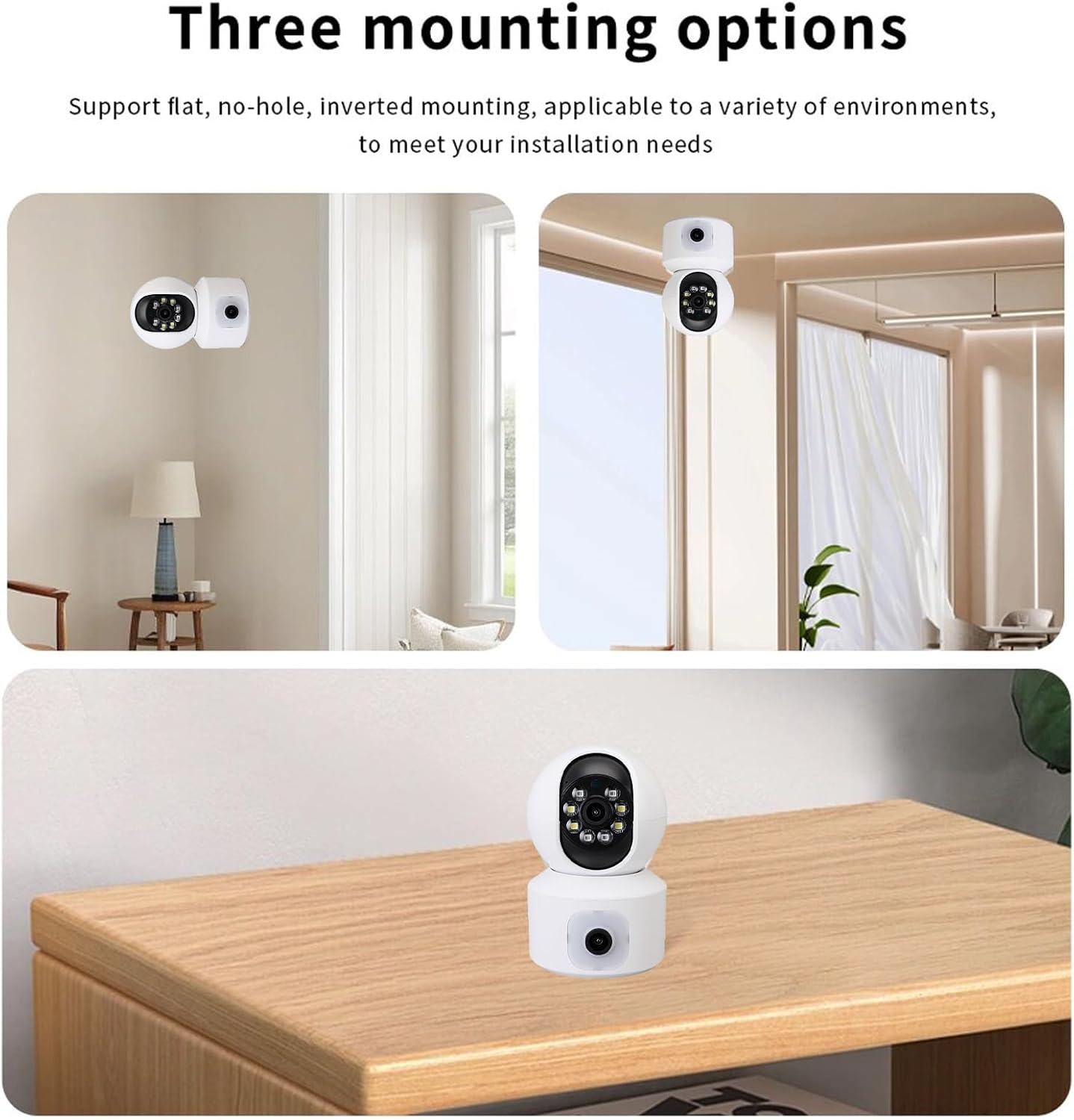
Image: Detailed view of the camera showing labeled components including Camera 1 (upper lens), Infrared light, White light, Photosensitive sensor, Camera 2 (lower lens), Reset key, and Card slot.
- Upper Lens (Camera 1): Main surveillance lens with infrared and white lights for night vision.
- Lower Lens (Camera 2): Secondary fixed lens for broader coverage.
- Infrared Light: For black and white night vision.
- White Light: For full-color night vision.
- Photosensitive Sensor: Detects ambient light for automatic mode switching.
- Reset Key: Used to reset the camera to factory settings.
- Card Slot: For inserting a TF (MicroSD) card for local storage.
3. Setup
3.1 What's in the Box
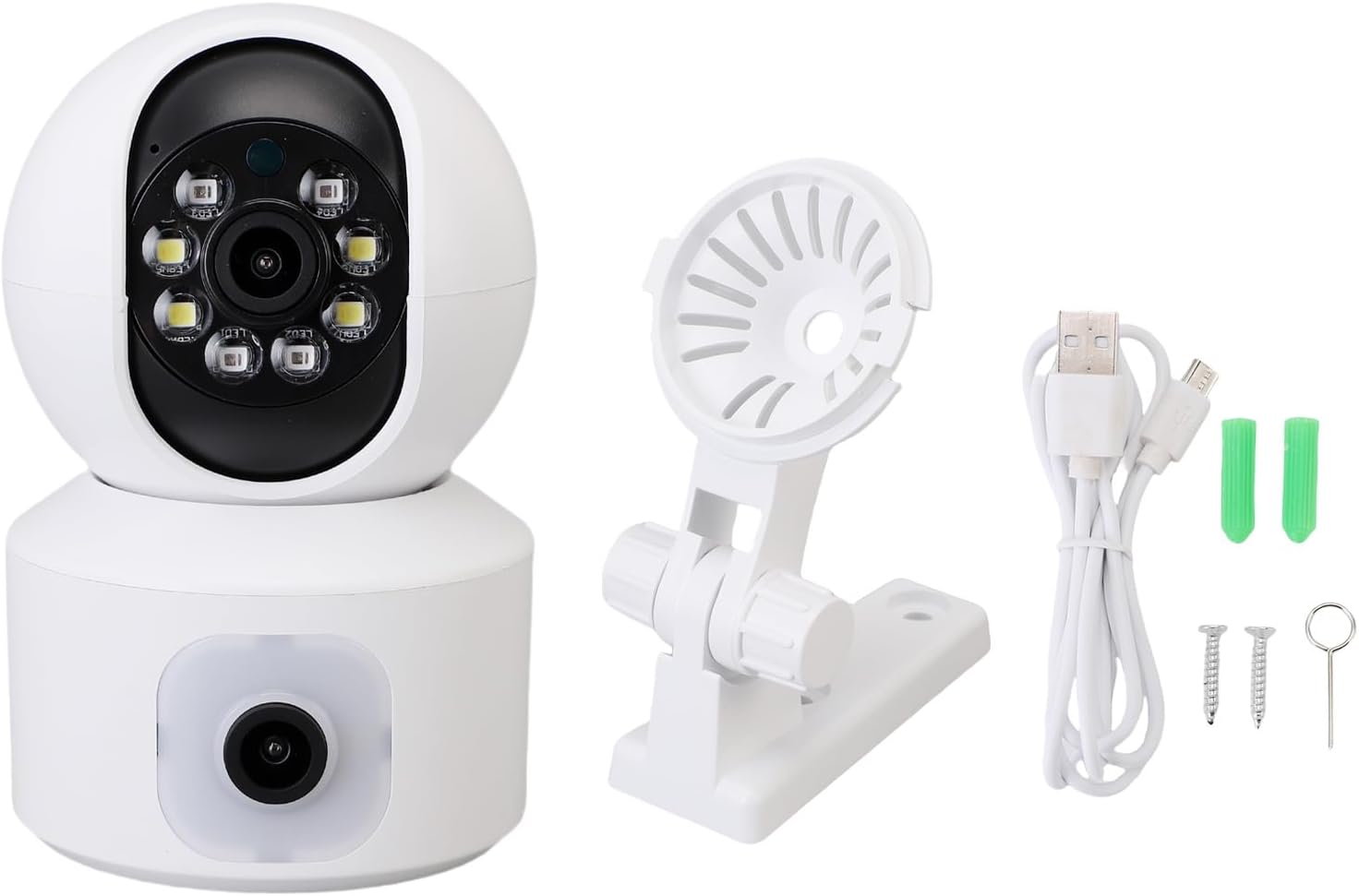
Image: Contents of the product package, including the VBESTLIFE security camera, a mounting bracket, a USB power cable, wall plugs, screws, and a reset pin.
Verify that all components are present:
- VBESTLIFE Smart Pan Tilt Security Camera
- Power Adapter (not explicitly listed but implied for operation)
- USB Power Cable
- Mounting Bracket
- Screws and Wall Plugs
- Reset Pin
- User Manual (this document)
3.2 App Installation and Account Creation
- Download the O-Kam Pro app from your smartphone's app store (iOS App Store or Google Play Store).
- Open the O-Kam Pro app and follow the on-screen instructions to create a new account or log in if you already have one.
3.3 Network Connection
- Power on the camera by connecting it to a power source using the provided USB cable and power adapter.
- Wait for the camera to initialize. You may hear a voice prompt indicating it's ready for connection.
- Open the O-Kam Pro app, tap the '+' icon to add a new device.
- Select your camera model or scan the QR code on the camera (if available).
- Follow the app's instructions to connect the camera to your 2.4GHz WiFi network. Ensure your smartphone is also connected to the same 2.4GHz network during setup. Note: This camera does not support 5GHz WiFi networks.
- Once connected, the camera's indicator light will change, and you will receive a confirmation in the app.
3.4 Mounting Options

Image: Examples of the three mounting options: flat surface placement (e.g., on a table), wall mounting, and inverted ceiling mounting.
The camera supports multiple installation methods to suit various environments:
- Flat Surface Placement: Simply place the camera on a stable, flat surface like a table or shelf.
- Wall Mounting: Use the provided mounting bracket, screws, and wall plugs to secure the camera to a wall.
- Inverted Ceiling Mounting: Attach the mounting bracket to the ceiling and then secure the camera. Remember to adjust the image rotation setting in the O-Kam Pro app if mounted upside down.
4. Operating Instructions
4.1 Live View and Pan/Tilt Control

Image: The camera demonstrating its 355° pan and 90° tilt capabilities, providing wide area coverage.
Once connected, open the O-Kam Pro app and select your camera to view the live feed. Use the on-screen controls to:
- Pan: Rotate the camera horizontally up to 355°.
- Tilt: Adjust the camera vertically up to 90°.
- Zoom: Pinch to zoom on the live feed for a closer look.
4.2 Two-Way Audio
Tap the microphone icon in the live view interface to activate two-way audio. You can speak through your phone, and your voice will be transmitted through the camera's speaker. Similarly, you can hear audio from the camera's environment through your phone.
4.3 Night Vision

Image: A visual comparison demonstrating the superior clarity of 1080P HD video quality compared to 720P.
The camera automatically switches to night vision mode in low-light conditions. It supports both infrared (black and white) and full-color night vision, providing clear visibility even in near darkness (down to 0.01LX).
4.4 Motion Detection and Alerts
Enable motion detection and human detection in the O-Kam Pro app settings. When motion or a human figure is detected, the camera will:
- Send an instant
Related Documents - VBESTLIFE7ques9b1dy

Vbestlife IP12 PRO+ User Manual
Comprehensive user manual for the Vbestlife IP12 PRO+ unlocked Android smartphone, covering phone layout, setup, basic functions, settings, troubleshooting, and safety information.
Vbestlife Handheld Multi-function Thermal Imager - Specifications and Overview
Discover the Vbestlife handheld multi-function thermal imager. This compact device offers a 2.8-inch display, -40°C to +300°C measurement range, and 32x24 resolution, suitable for industrial and home use. Features include USB-C charging, image storage, and detailed specifications.
Vbestlife IP12 PRO+ Unlocked Android Smartphone User Manual
This user manual provides comprehensive instructions for the Vbestlife IP12 PRO+ Unlocked Android Smartphone, covering setup, features, connectivity, troubleshooting, and safety guidelines.
VBESTLIFE Mini Projektor LED HD HDMI - Przenośny Odtwarzacz Multimedialny
Odkryj przenośny projektor LED VBESTLIFE HD HDMI. Idealny do kina domowego, podróży i kempingu. Oferuje rozdzielczość HD 1080p, wbudowane głośniki stereo, liczne porty wejściowe (HDMI, AV, USB) i kompaktową konstrukcję. Zapewnia jasny obraz i wszechstronną rozrywkę.
Vbestlife Ręczna taca stabilizująca do podwodnej kamery - Opis i specyfikacja
Szczegółowy opis Vbestlife Ręcznej tacy stabilizującej ze stopu aluminium do fotografii podwodnej. Zawiera specyfikację techniczną, cechy produktu i zawartość opakowania.
Wizjer VBESTLIFE 11X Mini Director 37mm z filtrem gwintowanym - Akcesorium fotograficzne
Szczegółowy opis wizjera VBESTLIFE 11X Mini Director 37mm z filtrem gwintowanym. Idealne akcesorium dla fotografów i filmowców, oferujące 11-krotne powiększenie i wysoką jakość obrazu.