
1. Introduction
The Bextgoo T16-DT is an advanced multi-function device designed to enhance your personal privacy and security. This compact and portable detector combines six key detection modes to identify various hidden devices, including wireless cameras, audio bugs, RF signals, GPS trackers, and infrared cameras. This manual provides detailed instructions for setup, operation, maintenance, and troubleshooting to ensure optimal performance and effective use of your device.
2. Safety Information
- Keep the device away from water and moisture.
- Do not attempt to disassemble or repair the device yourself. Contact support if issues arise.
- Use only the provided charging cable to prevent damage.
- Avoid direct eye exposure to the infrared LEDs.
- Store the device in a cool, dry place when not in use.
3. Package Contents
- Bextgoo T16-DT Multi-Function Detector
- USB Charging Cable
- User Manual
4. Device Overview
The Bextgoo T16-DT is designed for ease of use with a clear LED display and intuitive controls. Below is an image highlighting the main components of the device.
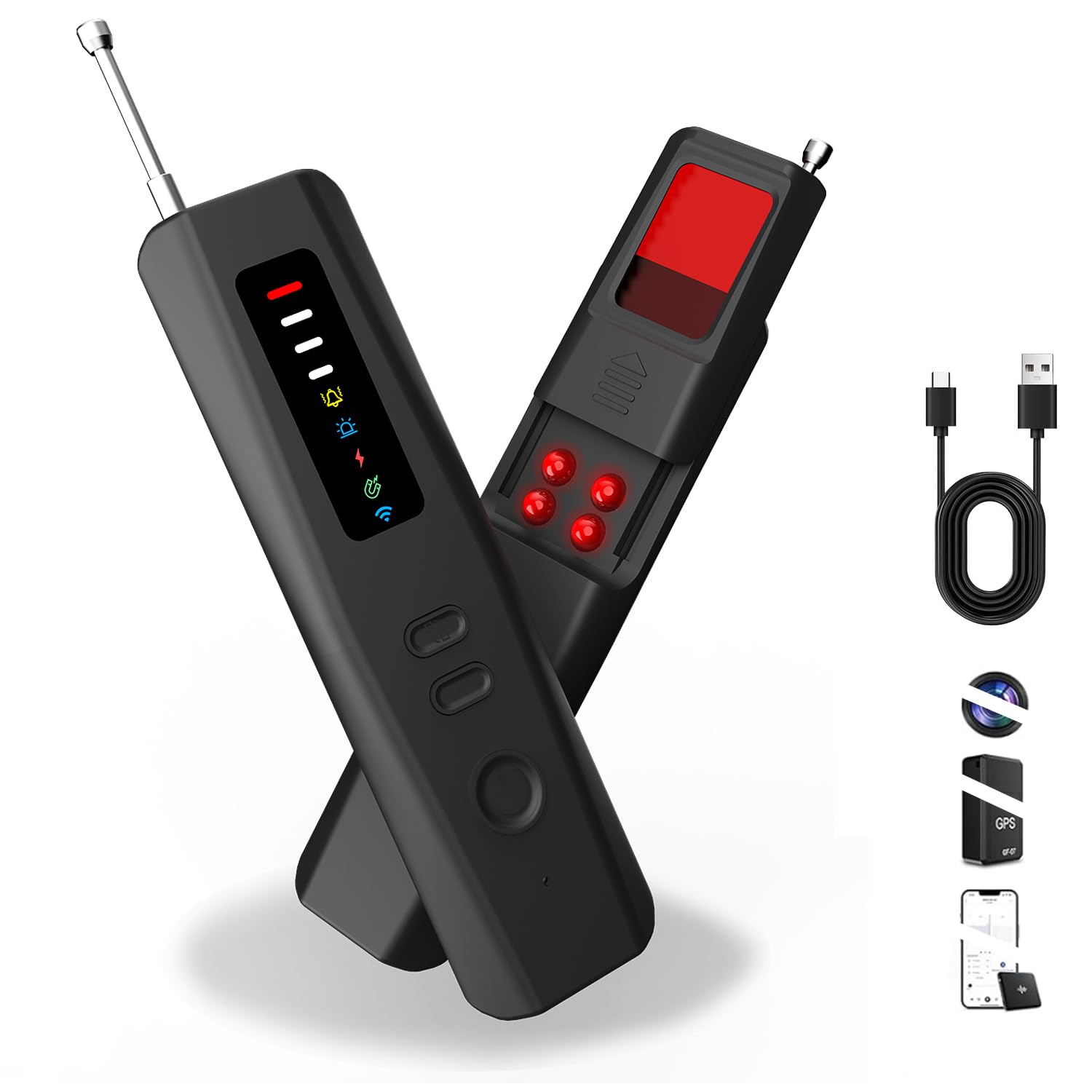
Figure 4.1: Front view of the Bextgoo T16-DT detector showing the display and control buttons.
The device features a compact design, making it easy to carry and operate discreetly. It includes an extendable antenna for enhanced signal detection and a viewing window for infrared camera identification.
5. Setup
5.1. Charging the Device
Before first use, fully charge the Bextgoo T16-DT. The device is equipped with a 1000mAh rechargeable battery.
- Connect the provided USB charging cable to the charging port on the device.
- Connect the other end of the USB cable to a standard USB power adapter (not included), power bank, computer, or car USB charger.
- The battery indicator on the LED display will show charging status. A full charge provides up to 25 hours of continuous use or 60 days of standby time.

Figure 5.1: Illustration of charging the Bextgoo T16-DT using various USB power sources.
5.2. Power On/Off
- To power on: Press and hold the power button for 3 seconds.
- To power off: Press and hold the power button for 3 seconds.
6. Operating Modes
The Bextgoo T16-DT offers multiple detection modes. Use the "MODE" button to cycle through the available modes and the "ADJ" button to adjust sensitivity or other settings within a mode.
6.1. Wireless Signal Detection Mode (RF Detector)
This mode detects wireless signals from hidden cameras, GPS trackers, and listening devices operating within the 1MHz–6.5GHz frequency range.
- Power on the device. The default mode is typically Wireless Signal Detection.
- Extend the antenna for optimal detection.
- Use the "ADJ" button to adjust sensitivity. Higher sensitivity allows detection of weaker signals from a greater distance.
- Slowly scan the area. The signal strength indicator on the LED display will increase as you approach a transmitting device. The device will also emit an audible alert or vibrate (depending on settings).
- For best results, temporarily turn off personal Wi-Fi/Bluetooth devices in the area.
Video 6.1: Demonstration of the Bextgoo T16-DT's wireless signal detection mode, showing how it reacts to nearby electronic devices.

Figure 6.2: Step-by-step guide for using the RF Signal Detection mode to locate transmitting devices.
6.2. Infrared Light Scanning (Hidden Camera Lens Finder)
This mode helps locate hidden camera lenses by reflecting light off their optics, making them visible through the detector's dedicated viewing window.
- Press the "MODE" button until the Infrared Light Scanning icon is displayed.
- Turn off room lights for better visibility.
- Look through the red optical filter on the detector while slowly scanning the area. The 4 high-brightness infrared LEDs will illuminate any hidden camera lenses, causing them to appear as bright red dots.
- Scan all suspicious objects and areas, including smoke detectors, clocks, USB chargers, and mirrors.

Figure 6.3: Visual guide for using the Infrared Light Scanning mode to find hidden camera lenses.
6.3. Infrared Night Vision Detection
This mode specifically identifies hidden cameras that are actively emitting infrared light for night vision capabilities.
- Press the "MODE" button until the Infrared Night Vision Detection icon is displayed.
- Turn off all lights in the room to create a dark environment.
- Slowly scan the area. The detector will identify IR light emitted by night vision cameras and alert you with a beep sound or vibration.

Figure 6.4: Instructions for using the IR Laser Induction Detection mode to find night vision cameras.
6.4. Magnetic Field Detection (GPS Tracker Detector)
This mode is designed to detect hidden magnetic GPS trackers and other strong magnetic devices, often found attached to vehicles or metal surfaces.
- Press the "MODE" button until the Magnetic Field Detection icon is displayed.
- Slowly move the detector along surfaces where magnetic devices might be hidden, such as under car bodies, office desks, or home appliances.
- The device will alert you when a magnetic field is detected, indicating the presence of a magnetic tracker.

Figure 6.5: Guide for using the Magnetic Field Detection mode to locate hidden magnetic devices.
6.5. Anti-Theft Mode
Activate this mode to protect your belongings or secure an area. The device will alert you if it is moved or disturbed.
- Press the "MODE" button until the Anti-Theft Mode icon is displayed.
- Place the device on or near the item you wish to protect, or near an entrance like a door or window.
- If the device detects movement or is knocked over, it will emit a loud alarm or vibrate, alerting you to potential unauthorized access.

Figure 6.6: Illustration of using the Anti-Theft Mode to secure an area.
7. Maintenance
- Clean the device regularly with a soft, dry cloth. Do not use harsh chemicals or abrasive materials.
- Ensure the charging port is free of dust and debris.
- Store the device in its protective pouch when not in use to prevent scratches and damage.
- Avoid extreme temperatures and direct sunlight.
8. Troubleshooting
| Problem | Possible Cause | Solution |
|---|---|---|
| Device does not power on. | Low battery. | Charge the device fully using the provided USB cable. |
| No signal detected in RF mode. | Low sensitivity setting; no active signals; interference from personal devices. | Increase sensitivity using the "ADJ" button. Ensure the antenna is extended. Temporarily disable personal Wi-Fi/Bluetooth devices. |
| Infrared light scanning does not reveal cameras. | Room is too bright; camera lens is too small or well-hidden. | Ensure the room is completely dark. Scan slowly and thoroughly. Adjust viewing angle. |
| Anti-Theft mode triggers falsely or not at all. | Device placed on an unstable surface; sensitivity too high/low. | Place on a stable surface. Adjust sensitivity using the "ADJ" button. |
9. Specifications
| Feature | Detail |
|---|---|
| Model Name | T16-DT |
| Brand | Bextgoo |
| Detection Modes | Wireless Signal Detection (RF), Infrared Night Vision Detection, Infrared Light Scanning, Magnetic Field Detection, Anti-Theft Mode |
| Wireless Detection Range | 1MHz – 6.5GHz |
| Battery Capacity | 1000mAh |
| Continuous Use Time | Up to 25 hours |
| Standby Time | Up to 60 days |
| Charging Port | USB-C (cable included) |
| Item Weight | 4.2 ounces (approx. 119g) |
| Product Dimensions | 4 x 1 x 0.7 inches (approx. 10.16 x 2.54 x 1.78 cm) |
10. Warranty and Support
Bextgoo products are designed for reliability and performance. For warranty information, technical support, or any questions regarding your T16-DT detector, please refer to the contact details provided on the product packaging or visit the official Bextgoo website.
Please retain your proof of purchase for warranty claims.