
1. Introduction
The eppfun 3040Pro Ultra Bluetooth USB Dongle is a high-fidelity wireless audio transmitter designed to provide seamless audio connectivity for various devices. Utilizing the latest Bluetooth 5.4 technology and advanced audio codecs like LDAC and aptX Lossless, this dongle ensures stable, low-latency, and high-quality sound transmission to your Bluetooth headphones or speakers.
This manual provides detailed instructions on how to set up, operate, and troubleshoot your eppfun 3040Pro Ultra Bluetooth USB Dongle to ensure an optimal audio experience.
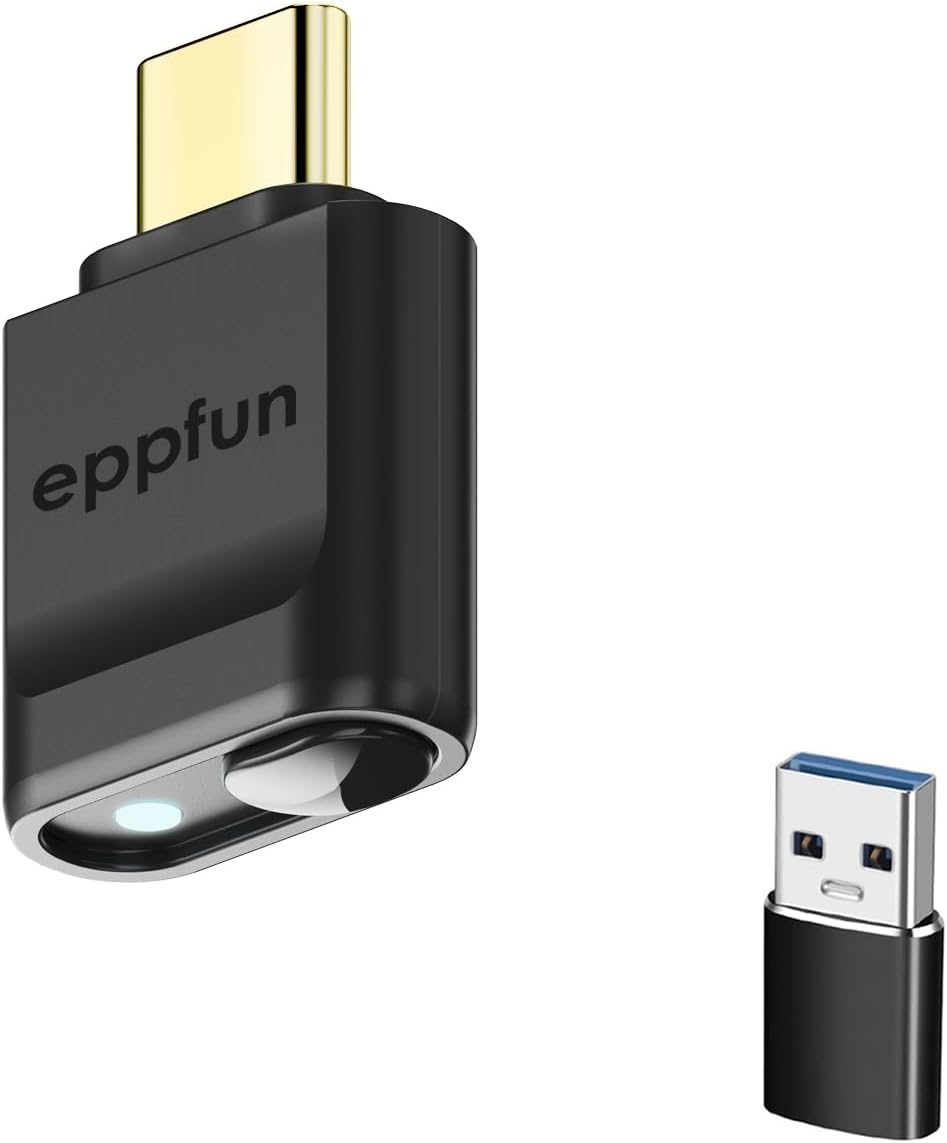
Image 1.1: The eppfun 3040Pro Ultra Bluetooth USB Dongle (USB-C) shown alongside its included USB-A adapter. This compact device facilitates wireless audio transmission.
2. Key Features
- Advanced Bluetooth 5.4: Equipped with the Qualcomm QCC5181 chip, offering enhanced stability, extended range, and improved power efficiency.
- High-Resolution Audio Codecs: Supports LDAC, aptX Lossless, aptX Adaptive, aptX HD, aptX Low Latency, and SBC for superior audio quality.
- Plug & Play Functionality: Driver-free operation across multiple platforms including Windows, Linux, Apple, Android, Nintendo Switch, and PlayStation 5.
- Ultra-Low Latency: Ideal for gaming and video playback, minimizing audio delay.
- Gold-Plated Interfaces: Improves conductivity, enhances oxidation and corrosion resistance, and ensures efficient current transmission.
3. Product Overview
The eppfun 3040Pro Ultra features a single multi-function button and an LED indicator to display connection status and active audio codec.

Image 3.1: Diagram illustrating the LED light display for connection status and the button functions on the eppfun 3040Pro Ultra Bluetooth USB Dongle. The USB Type-C connector is visible at the top.
3.1 Button Function
- Double Click: Enter pairing mode.
- Single Click: Unpair, reconnect, or unlink.
- Long Press (10 seconds): Restore factory settings.
3.2 LED Indicator Guide
The LED light on the dongle indicates the current audio codec in use:
- Blue: SBC codec active.
- Cyan: Qualcomm aptX Adaptive codec active.
- Red: Qualcomm aptX HD codec active.
- Green: Qualcomm aptX Low Latency codec active.
- White: Qualcomm aptX codec active.
- Purple: LDAC codec active.
4. Setup and Installation
The eppfun 3040Pro Ultra is designed for plug-and-play operation, requiring no driver installation on most compatible systems.
4.1 Connecting the Dongle
- Identify an available USB-C port on your device (e.g., computer, game console, mobile phone). If your device only has USB-A ports, use the included USB-A adapter.
- Insert the eppfun 3040Pro Ultra dongle firmly into the USB-C port. If using the adapter, connect the dongle to the adapter first, then insert the adapter into a USB-A port.
- The dongle's LED indicator will light up, indicating it is powered on.

Image 4.1: The eppfun 3040Pro Ultra Bluetooth USB Dongle connected to a laptop, demonstrating its plug-and-play compatibility with various operating systems and devices like earbuds.
4.2 Pairing with Bluetooth Devices
- Ensure your Bluetooth headphones or speakers are in pairing mode. Refer to your audio device's manual for specific instructions on how to enter pairing mode.
- With the eppfun dongle connected to your host device, double-click the button on the dongle to initiate pairing mode. The LED indicator will flash rapidly.
- Place your Bluetooth audio device close to the dongle. The dongle will automatically search for and connect to nearby pairing-ready devices.
- Once connected, the LED indicator on the dongle will change to a solid color corresponding to the active audio codec (e.g., Purple for LDAC, Cyan for aptX Adaptive).

Image 4.2: The eppfun 3040Pro Ultra Bluetooth USB Dongle shown with various compatible devices including desktop computers, notebooks, PS5/PS4, Nintendo Switch, and TVs, highlighting its broad compatibility for wireless audio.
5. Operation
5.1 Audio Playback
After successful pairing, your host device's audio will be transmitted wirelessly to your connected Bluetooth headphones or speakers. Ensure the eppfun dongle is selected as the audio output device in your system settings if necessary.
5.2 Reconnecting Devices
Once paired, the dongle will automatically attempt to reconnect to the last paired device when both are powered on and within range. If reconnection fails, single-click the button on the dongle to initiate reconnection.
5.3 Unpairing Devices
To unpair a currently connected device, single-click the button on the dongle. The LED will flash, indicating it has disconnected from the current device and is ready to pair with a new one.
5.4 Restoring Factory Settings
If you encounter persistent issues or wish to clear all pairing records, you can restore the dongle to its factory settings by pressing and holding the button for 10 seconds. The LED will indicate the reset is complete.
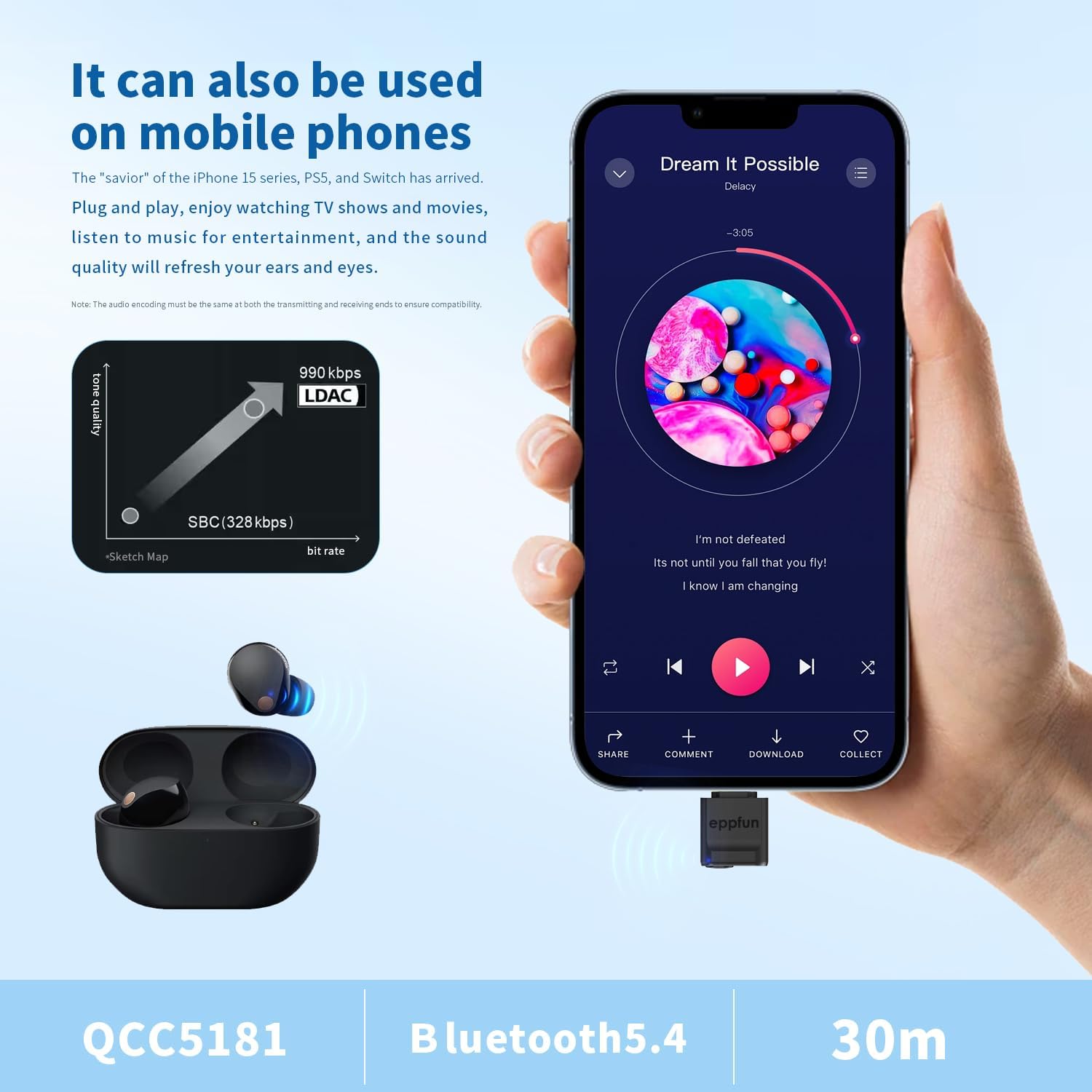
Image 5.1: The eppfun 3040Pro Ultra Bluetooth USB Dongle connected to a mobile phone, demonstrating its use for high-quality music playback with LDAC codec support. The image highlights the QCC5181 chip, Bluetooth 5.4, and a 30-meter range.
6. Compatibility
The eppfun 3040Pro Ultra Bluetooth USB Dongle offers broad compatibility with various operating systems and devices:
- Operating Systems: Windows (XP, 7, 8, 10, 11), Linux, macOS, Android, iOS (via compatible devices).
- Devices: Desktop computers, laptops, PlayStation 4, PlayStation 5, Nintendo Switch, mobile phones (e.g., iPhone 15 series, Android phones), and smart TVs.
The dongle supports a wide range of Bluetooth audio devices, including headphones, earbuds, and speakers.
7. Audio Codec Information
The dongle supports multiple high-quality audio codecs to deliver the best possible sound experience:
- LDAC: Sony's proprietary audio coding technology that allows for the transmission of High-Resolution Audio content, up to 990 kbps, over a Bluetooth connection. This provides significantly higher quality audio than standard Bluetooth codecs.
- aptX Lossless: A new aptX codec designed to deliver bit-for-bit accurate audio, ensuring no data loss during transmission for CD-quality sound.
- aptX Adaptive: Dynamically adjusts to provide robust, low-latency, and high-quality audio based on the surrounding RF environment.
- aptX HD: Supports 24-bit music quality over Bluetooth, offering an enhanced listening experience.
- aptX Low Latency (LL): Designed to minimize audio delay, making it suitable for gaming and video synchronization.
- SBC: The basic Bluetooth audio codec, universally supported by all Bluetooth audio devices.

Image 7.1: An internal view highlighting the Advanced Qualcomm QCC5181 Bluetooth 5.4 chip, which powers the eppfun 3040Pro Ultra. The image also lists the supported audio coding technologies: LDAC, aptX Adaptive, aptX Lossless, aptX HD, aptX Low Latency, and SBC.
8. Troubleshooting
- No Sound or Intermittent Audio:
- Ensure the dongle is firmly connected to the USB port.
- Verify that your Bluetooth audio device is powered on and successfully paired with the dongle (check LED indicator).
- Check your host device's audio output settings to ensure the eppfun dongle is selected.
- Move closer to the dongle to rule out range issues.
- Try unpairing and re-pairing your audio device.
- Unable to Pair:
- Ensure your Bluetooth audio device is in pairing mode.
- Double-click the dongle's button to put it into pairing mode (LED flashes rapidly).
- Ensure no other Bluetooth devices are interfering with the pairing process.
- Try restoring the dongle to factory settings (long press for 10 seconds).
- High Latency (Audio Delay):
- Ensure your audio device supports aptX Low Latency or aptX Adaptive for the best performance. The dongle will automatically select the best available codec.
- Check the dongle's LED color to confirm the active codec.
- Reduce the distance between the dongle and your audio device.
- Volume Issues (e.g., Max Volume on iOS):
- On some iOS devices, the initial volume might be high. Always adjust the volume directly on your headphones or speakers after connecting.
- Ensure your host device's volume is set to a comfortable level before connecting.
9. Specifications
| Model | 3040Pro Ultra |
| Bluetooth Version | 5.4 |
| Bluetooth Chip | Qualcomm QCC5181 |
| Supported Codecs | LDAC, aptX Lossless, aptX Adaptive, aptX HD, aptX Low Latency, SBC |
| Connector Type | USB Type-C (with USB-A adapter included) |
| Color | Black |
| Item Weight | 1.76 ounces (0.05 Kilograms) |
| Package Dimensions | 4.72 x 3.54 x 0.59 inches |
| Manufacturer | eppfun |
| UPC | 717382572727 |
10. Maintenance
To ensure the longevity and optimal performance of your eppfun 3040Pro Ultra Bluetooth USB Dongle:
- Keep the dongle clean and free from dust. Use a soft, dry cloth for cleaning.
- Avoid exposing the dongle to extreme temperatures, direct sunlight, or moisture.
- Do not attempt to disassemble or modify the dongle, as this will void the warranty and may cause damage.
- Store the dongle in a safe place when not in use to prevent physical damage.
11. Warranty and Support
eppfun products are designed for reliability and performance. For specific warranty information, please refer to the warranty card included with your product or visit the official eppfun website.
For technical support, troubleshooting assistance, or any inquiries regarding your eppfun 3040Pro Ultra Bluetooth USB Dongle, please contact eppfun customer service through the contact information provided on the official eppfun website or your purchase platform.


