
1. Product Overview
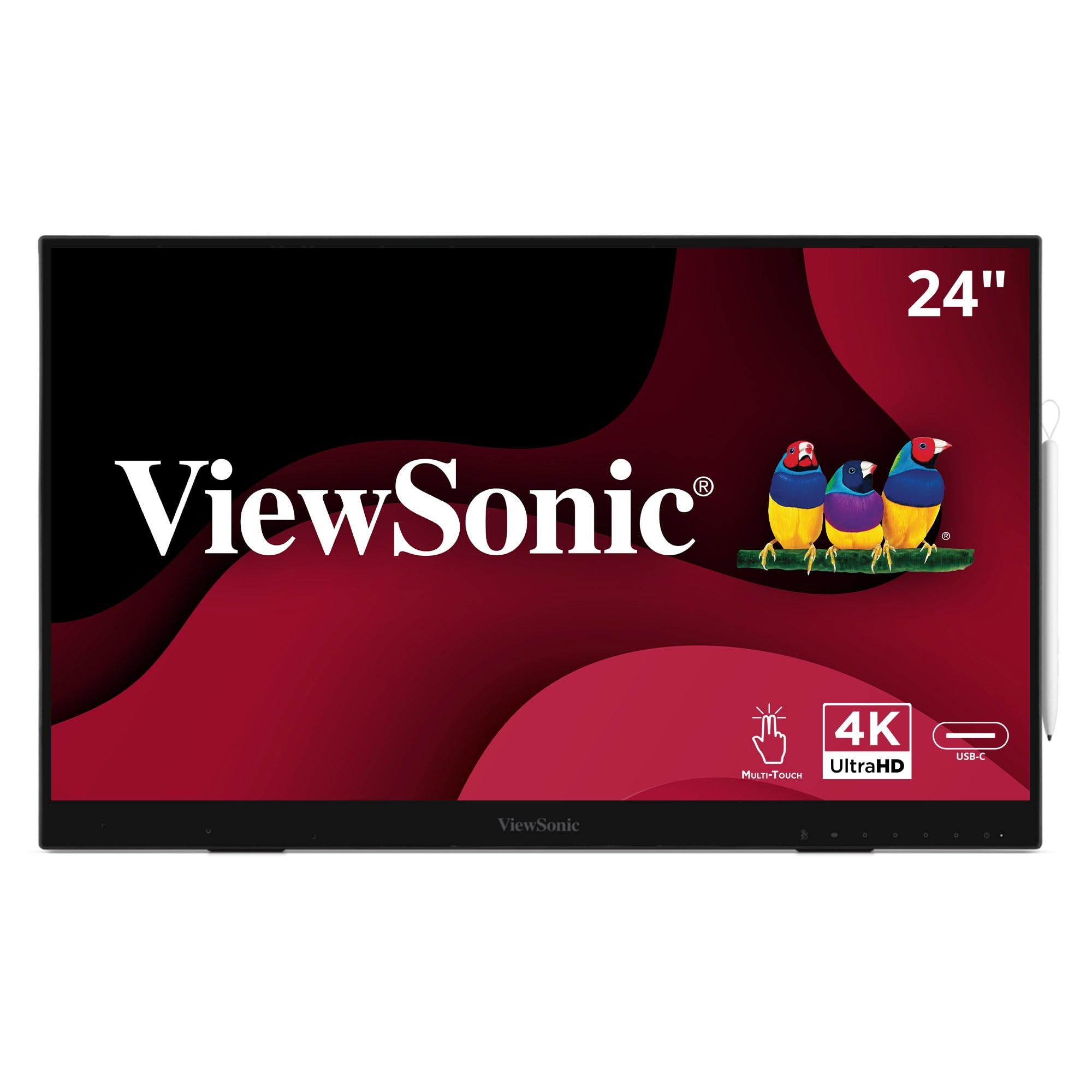
The ViewSonic ID2456-4K is a 24-inch (23.8-inch viewable) 4K UHD interactive pen display designed for dynamic presentations and interactive work. It features PCAP 10-point touch technology and supports an MPP2.0 active stylus for precise writing and annotation. The display includes a built-in kickstand for ergonomic adjustment, a USB hub, HDMI, DisplayPort, and USB-C inputs for versatile connectivity.
Key features include:
- Premium Display: 24-inch UHD (3840x2160p) IPS touch monitor with thin bezels and 60Hz refresh rate.
- Digital Stylus: An active stylus with 8192 levels of pressure sensitivity for detailed input.
- Cross-Platform Touch Support: Compatible with Windows, Android, and Mac OS (vTouch software required on Apple platforms).
- Plug & Play: Simple connection for synchronized screen mode.
- USB-C Connectivity: Single-cable solution for video, audio, data, and power delivery.
2. Setup Guide
2.1 Unboxing and Package Contents
Carefully remove all components from the packaging. Ensure the following items are present:
- ViewSonic ID2456-4K Display
- Power cable (1.8m)
- Type-C cable (1.8m)
- HDMI cable (1.8m)
- USB A/B cable (1.8m)
- MPP2.0 ACP Pen
- Pen tether
- Wireless pen charger
- Quick Start Guide
2.2 Physical Setup
Place the display on a stable, flat surface. The integrated ergonomic kickstand allows for tilt adjustment from 15 to 70 degrees for comfortable viewing and interaction.

2.3 Connecting to Devices
The ID2456-4K offers multiple connectivity options:
- USB-C: For a single-cable solution, connect your laptop, tablet, mobile device, or Chromebook using the provided USB-C cable. This cable transmits video, audio, data (for touch functionality), and power.
- HDMI/DisplayPort: Connect your computer to the display using an HDMI or DisplayPort cable for video input.
- USB A/B: If using HDMI or DisplayPort for video, connect the USB A/B cable from your computer to the display to enable touch functionality.
- USB Hub: Utilize the integrated USB ports on the display to connect peripherals such as a keyboard, mouse, or external storage.


This video demonstrates the connectivity and interactive features of the ViewSonic ID2456-4K, showcasing its use in educational and presentation environments.
3. Operating Instructions
3.1 Power On/Off
Press the power button located on the display's bezel to turn the unit on or off. A blue LED indicator will show the power status.
3.2 Using the Active Stylus and Touch Functionality
The ID2456-4K features a highly responsive PCAP 10-point touch screen and an MPP2.0 active stylus. The stylus offers 8192 levels of pressure sensitivity and ±50° tilt for natural writing and drawing. Palm rejection technology ensures accurate input by ignoring accidental touches from your hand.


3.3 Cross-Platform Compatibility
The display supports touch functionality across various operating systems, including Windows, Android, and Mac OS. For Mac OS, ensure the vTouch software is installed for full touch capabilities.

3.4 Screen Mirroring and Extension
The built-in HDMI output allows you to mirror or extend your desktop to larger front-of-room displays, such as ViewSonic Direct View LED video walls, ViewBoard interactive displays, commercial displays, or projectors. This enables presenters to face their audience while interacting with content on the ID2456-4K.
4. Maintenance
4.1 Cleaning the Display
To clean the display, power it off and disconnect the power cable. Use a soft, lint-free cloth lightly dampened with a non-abrasive, ammonia-free glass cleaner. Do not spray cleaner directly onto the screen. Avoid using harsh chemicals or abrasive materials that could damage the screen surface.
4.2 Stylus Care
Store the active stylus in its wireless charger or a safe place when not in use. Avoid dropping the stylus or exposing it to extreme temperatures. Ensure the stylus tip is clean and free of debris for optimal performance.
5. Troubleshooting
5.1 No Display/Black Screen
- Ensure the power cable is securely connected to both the display and a working power outlet.
- Verify that the display is powered on (check the power LED indicator).
- Check the video cable (USB-C, HDMI, or DisplayPort) connection between the display and your computer. Try reconnecting or using a different cable.
- Confirm your computer's display settings are configured to output to the external display.
5.2 Touch Functionality Not Working
- If using HDMI or DisplayPort for video, ensure the USB A/B cable is connected from your computer to the display to enable touch data transmission.
- If using USB-C, ensure the cable supports data transfer and is properly connected.
- For Mac OS, verify that the vTouch software is installed and running.
- Restart both the display and your connected device.
5.3 Stylus Not Responding
- Ensure the stylus is charged. Place it in the wireless pen charger.
- Check for any physical damage to the stylus tip.
- Restart the display and your connected device.
6. Specifications
| Brand | ViewSonic |
| Model Number | ID2456-4K |
| Screen Size | 24 Inches (23.8" viewable) |
| Resolution | 4K UHD 3840x2160p |
| Refresh Rate | 60 Hz |
| Display Type | IPS LCD with LED backlight |
| Touch Technology | PCAP 10-point touch |
| Stylus Pressure Sensitivity | 8192 levels |
| Connectivity | DisplayPort, HDMI (x2), USB Type-A (x4), USB Type-B (x1), USB Type-C (x1) |
| Dimensions (D x W x H) | 1.7" x 21.44" x 13.11" |
| Weight | 9.7 Pounds |
| Additional Features | Frameless design, Tilt Adjustment, Touchscreen, USB Hub |
7. Warranty and Support
7.1 Warranty Information
The ViewSonic ID2456-4K comes with a 3-Year limited warranty on parts, labor, and backlight. Please refer to the official ViewSonic website or your purchase documentation for complete warranty terms and conditions.
7.2 Customer Support
For technical assistance, product registration, or further inquiries, please visit the official ViewSonic support website or contact their customer service department. Keep your product model number (ID2456-4K) and serial number ready when seeking support.


