1. Introduction
This manual provides detailed instructions for the installation, operation, and maintenance of your Generic 5-inch Motorcycle Multimedia System. Please read this manual thoroughly before using the device to ensure proper function and safety. Keep this manual for future reference.
2. Product Overview and Key Features
The Generic 5-inch Motorcycle Multimedia System is designed to enhance your riding experience with advanced connectivity and navigation features. It integrates seamlessly with your smartphone, offering wireless CarPlay and Android Auto functionality.
Key Features:
- 5-inch IPS Touch Screen: High-resolution (800x480P) display for clear visuals and responsive touch control, even in bright sunlight.
- IP67 Water and Dust Resistance: Ensures durability and reliable performance in various weather conditions, protecting against rain and dust.
- Wireless CarPlay & Android Auto: Connect your smartphone wirelessly for navigation, music, calls, and messages directly on the device screen.
- Dual Bluetooth Connectivity: Pair two devices simultaneously for managing calls, streaming audio, or voice commands.
- Multilingual Support: Supports multiple languages for a personalized user experience.
- Easy Installation: Designed for motorcycle handlebar mounting with a U-shaped bracket.
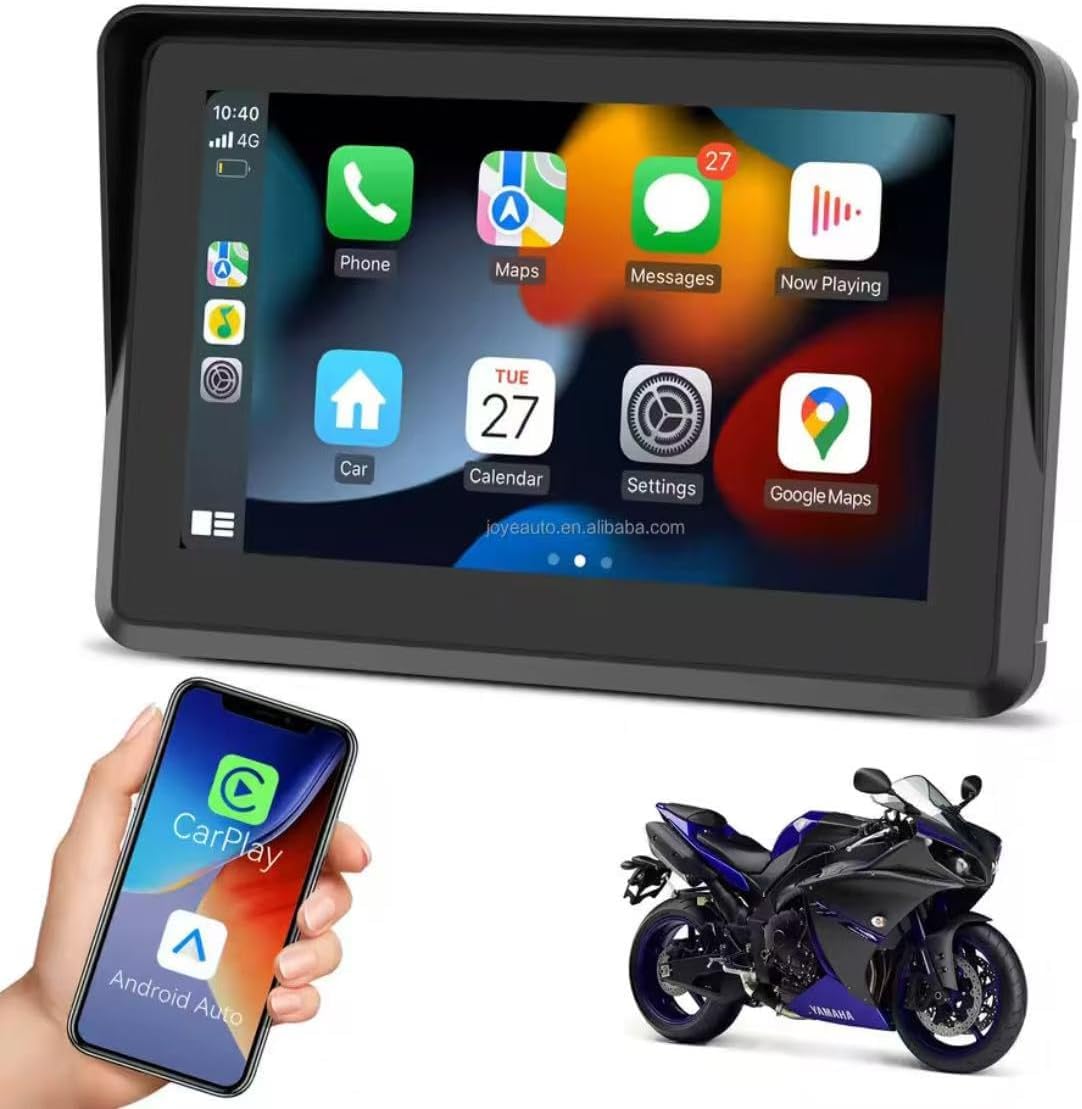
Figure 2.1: Device displaying the CarPlay interface with various applications.

Figure 2.2: Demonstrating the device's resilience in various riding conditions, including snow, dirt, water, and extreme temperatures.
3. Package Contents
Please check the package contents upon unboxing. If any items are missing or damaged, contact your retailer.
- Motorcycle Multimedia System Unit
- U-shaped Handlebar Mounting Bracket (approx. 33 mm diameter)
- Power Cable (9V-12V)
- Mounting Accessories (screws, spacers, ball joints)

Figure 3.1: Included mounting accessories and power cable.
4. Setup and Installation
Follow these steps to properly install your multimedia system on your motorcycle.
4.1 Mounting the Device
- Select a suitable position on your motorcycle handlebar for mounting. Ensure it does not obstruct your view or control of the motorcycle.
- Attach the U-shaped mounting bracket to the handlebar. The bracket is designed for handlebars with an approximate diameter of 33 mm. Use the provided screws and spacers to secure it firmly.
- Connect the multimedia system unit to the mounting bracket using the ball joint and tightening mechanism. Adjust the viewing angle for optimal visibility.

Figure 4.1: Device mounted on a handlebar bracket.
4.2 Power Connection
- Connect the provided power cable to the multimedia system.
- Connect the other end of the power cable to your motorcycle's 9V-12V power supply. Ensure correct polarity (red for positive, black for negative). Consult your motorcycle's manual or a professional if unsure about wiring.
- Secure all cable connections to prevent accidental disconnection or damage during riding.
5. Operating Instructions
This section details how to operate your multimedia system.
5.1 Powering On/Off
- Power On: Once connected to power, the device should automatically power on. If not, press and hold the power button (if available) until the screen illuminates.
- Power Off: To turn off the device, press and hold the power button until a power-off prompt appears, then confirm. Alternatively, disconnect from the power source.
5.2 Touchscreen Navigation
The device features an IPS touch screen for intuitive control.
- Tap: Select an item or activate a function.
- Swipe: Navigate through menus or screens.
- Pinch/Zoom: Adjust map views (where applicable).
5.3 Wireless CarPlay / Android Auto Connection
This device supports wireless connectivity for both Apple CarPlay and Android Auto.
- Ensure your smartphone's Bluetooth and Wi-Fi are enabled.
- On the multimedia system, navigate to the CarPlay or Android Auto icon and tap it.
- The system will enter pairing mode. On your smartphone, search for the device's Bluetooth name (e.g., "MP5-M5" or similar) and pair with it.
- Once Bluetooth is paired, the system will automatically establish a Wi-Fi connection for CarPlay or Android Auto.
- Follow any on-screen prompts on both the device and your smartphone to complete the connection.
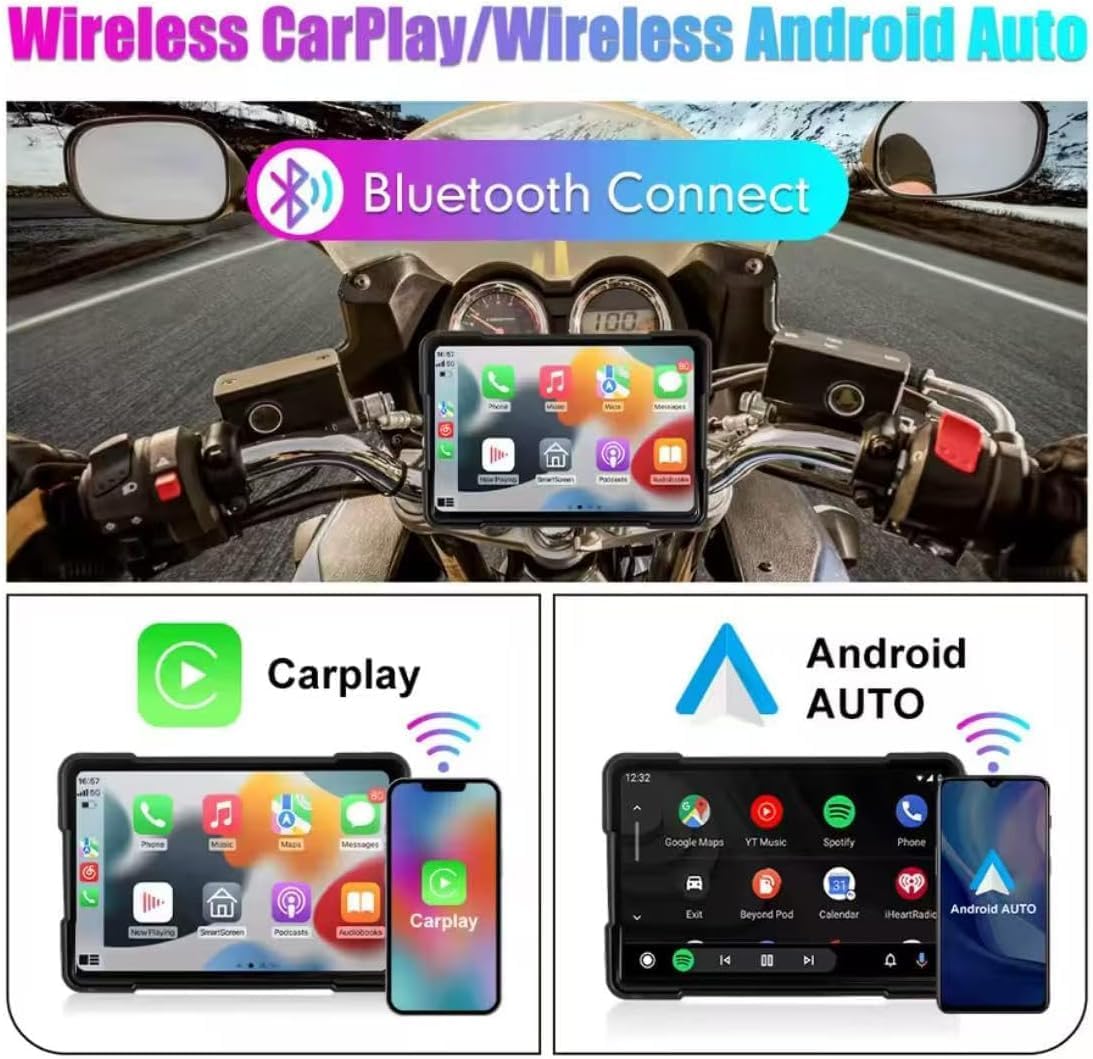
Figure 5.1: Wireless CarPlay and Android Auto connectivity.
5.4 Using Navigation, Music, and Calls
Once connected via CarPlay or Android Auto, you can access your smartphone's features directly from the multimedia system.
- Navigation: Use your preferred map application (e.g., Google Maps, Apple Maps) for turn-by-turn directions.
- Music: Stream audio from your favorite music apps.
- Calls: Make and receive calls hands-free.
- Voice Assistant: Utilize voice commands for various functions (e.g., "Hey Siri" or "Ok Google").

Figure 5.2: Device mounted on a motorcycle, showing key functions.
5.5 Bluetooth Dual Connectivity
The device supports connecting two Bluetooth devices simultaneously. This allows for flexible use, such as connecting your phone for CarPlay/Android Auto and a Bluetooth headset for audio output.
5.6 Language Settings
To change the system language:
- Navigate to the 'Settings' menu on the device.
- Locate and select 'Language' or a similar option.
- Choose your desired language from the list.
6. Maintenance
Proper maintenance ensures the longevity and optimal performance of your multimedia system.
- Cleaning the Screen: Use a soft, lint-free cloth to gently wipe the screen. For stubborn smudges, slightly dampen the cloth with water or a screen-safe cleaner. Avoid harsh chemicals or abrasive materials.
- Water Resistance (IP67): While the device is IP67 rated for water and dust resistance, avoid submerging it for extended periods or exposing it to high-pressure water jets. Ensure all ports are properly sealed if applicable.
- Temperature: Operate the device within the specified temperature range (-20°C to 80°C). Avoid prolonged exposure to extreme heat or cold, which can affect battery life and screen performance.
- Cable Connections: Periodically check all cable connections for tightness and signs of wear.
7. Troubleshooting
If you encounter issues with your multimedia system, refer to the following common problems and solutions.
- Device does not power on:
- Check the power cable connection to both the device and the motorcycle's power source.
- Ensure the motorcycle's power supply is active (e.g., ignition is on).
- Verify the power cable for any damage.
- CarPlay/Android Auto not connecting wirelessly:
- Ensure Bluetooth and Wi-Fi are enabled on your smartphone.
- Forget the device from your phone's Bluetooth settings and try pairing again.
- Restart both the multimedia system and your smartphone.
- Ensure your phone's operating system is up to date.
- Touch screen unresponsive:
- Restart the device.
- Ensure the screen is clean and free of debris or moisture.
- No audio output:
- Check the volume settings on both the multimedia system and your connected smartphone/headset.
- Ensure your Bluetooth audio device is properly paired and selected as the output.
If these steps do not resolve the issue, please contact customer support.
8. Specifications
| Feature | Specification |
|---|---|
| Screen Size | 5 inches |
| Screen Type | IPS Touch Screen |
| Screen Resolution | 800x480P |
| Water Resistance | IP67 |
| Connectivity | Wireless CarPlay, Wireless Android Auto, Bluetooth |
| Power Supply | 9V-12V |
| Operating Temperature | -20°C to 80°C (-4°F to 176°F) |
| Handlebar Mount Diameter | Approx. 33 mm |
| Dimensions (Packaging) | 15 x 10 x 8 cm |
| Weight (Packaging) | 500 g |
| Special Features | Android Auto and Carplay, Touchscreen |
9. Warranty and Support
This product comes with a standard manufacturer's warranty. Please refer to your purchase documentation for specific warranty terms and duration. For technical support, troubleshooting assistance, or warranty claims, please contact your retailer or the manufacturer's customer service department.


