
Introduction
Thank you for choosing the Zunate 8K Digital Camera. This manual provides essential information for setting up, operating, and maintaining your camera. Please read it thoroughly before use to ensure proper functionality and to maximize your photography and videography experience. This camera features 8K video recording, 88MP photo capabilities, a 3-inch 180° flip screen, autofocus, and Wi-Fi connectivity.
Safety Information
- Do not expose the camera to water or moisture.
- Avoid dropping the camera or subjecting it to strong impacts.
- Keep the camera away from direct sunlight or high temperatures for extended periods.
- Use only Zunate-approved accessories and power adapters.
- Do not attempt to disassemble or repair the camera yourself. Contact customer support for assistance.
Setup
1. Unpacking and Contents
Carefully unpack your camera and check for the following items:
- Zunate 8K Digital Camera
- Rechargeable Battery
- USB Charging Cable
- Wrist Strap
- Camera Pouch
- Cleaning Cloth

Image: The Zunate 8K Digital Camera shown with its standard accessories, including a battery, USB cable, wrist strap, camera pouch, and cleaning cloth.
2. Battery Installation and Charging
- Open the battery compartment cover located on the bottom of the camera.
- Insert the rechargeable battery, ensuring the contacts align correctly. Close the cover securely.
- Connect the camera to a power source using the provided USB cable. The charging indicator will illuminate.
- Charging is complete when the indicator light changes or turns off (refer to camera display for exact status).
3. Memory Card Installation
This camera supports small memory cards (Class 10 or higher, up to 256GB). A memory card is required to save photos and videos.
- Locate the memory card slot, usually on the side or bottom of the camera.
- Insert the memory card with the metal contacts facing the correct direction until it clicks into place.
- To remove, gently press the card until it springs out.
4. Initial Power On and Basic Settings
- Press and hold the power button to turn on the camera.
- Follow the on-screen prompts to set the date, time, and language.
Operating the Camera
1. Camera Controls Overview

Image: The back of the Zunate 8K Digital Camera, displaying the open flip screen and various control buttons including menu, display, and directional pad with 'OK' button.
Familiarize yourself with the camera's buttons and ports:
- Power Button: Turns the camera on/off.
- Shutter Button: Press halfway to focus, fully to take a photo.
- Mode Dial: Selects shooting modes (e.g., Photo, Video).
- Menu Button: Accesses camera settings.
- Navigation Buttons (Up/Down/Left/Right/OK): Used for menu navigation and quick settings.
- Display (DISP) Button: Changes information displayed on the screen.
- USB Port: For charging and data transfer.
- MIC Port: For external microphone input.
- HD Port: For connecting to an external display.
2. Taking Photos
The camera supports up to 88MP interpolated photos with various settings.
- Autofocus (AF): The built-in AF system provides fast and accurate focusing. Press the shutter button halfway to engage autofocus. The camera will focus on subjects 10cm (3.9in) or further away.

Image: A visual demonstration of the camera's autofocus capability, showing a bee on a flower before and after the focus mechanism engages, highlighting the clarity achieved.
- Scene Filters: Access 18 creative filters (e.g., black and white, vintage, Japanese style) and beautify mode through the menu to add artistic effects to your photos.

Image: A collage demonstrating the camera's various scene filters, including Normal, Black and White, Negative, Nostalgic, Red, Green, and Blue, applied to a portrait.
- Timed Photo: Set a delay of 3, 5, 10, or 20 seconds before taking a photo.
- Continuous Photo: Capture multiple shots per second (3P/s or 5P/s).
3. Recording Videos
Record high-quality videos up to 8K resolution.
- Resolutions: Choose from 8K (15FPS), 6K (30FPS), 5K (30FPS), 4.7K (30FPS), 4K (60FPS, 30FPS), 2.7K (30FPS), FHD (60FPS, 30FPS), and HD (120FPS, 60FPS, 30FPS).
- Slow Motion: Available at 1080P (4X, 2X) and 720P (8X, 4X).
- Time Lapse Recording: Set intervals of 1, 2, 5, 10, 30, or 60 seconds.
- Loop Recording: Set video lengths of 1, 2, 3, 5, or 10 minutes.
- Recording and Photography: Capture photos at intervals of 5, 10, 30, or 60 seconds during video recording.
4. WiFi Connectivity and App Control
Connect your camera to a smartphone or tablet via Wi-Fi for remote control and easy sharing.

Image: The Zunate 8K Digital Camera demonstrating its wireless Wi-Fi transmission capability, showing a connection to a smartphone for easy sharing.
- Download the Zunate camera app from your device's app store.
- Enable Wi-Fi on your camera via the settings menu.
- Connect your smartphone to the camera's Wi-Fi network (SSID and password will be displayed on the camera screen).
- Use the app to remotely control shooting, preview images, adjust settings, and transfer files.
5. Live Streaming and Webcam Mode
The camera can function as a webcam for live streaming or video calls.
- Connect the camera to your computer using the USB cable.
- Select 'Webcam Mode' on the camera's screen (if prompted).
- Your computer should recognize the camera as a webcam. Select it in your streaming or video call software.
6. 3.0-inch 180° Flip Screen
The versatile flip screen allows for easy selfies and low-angle shots.
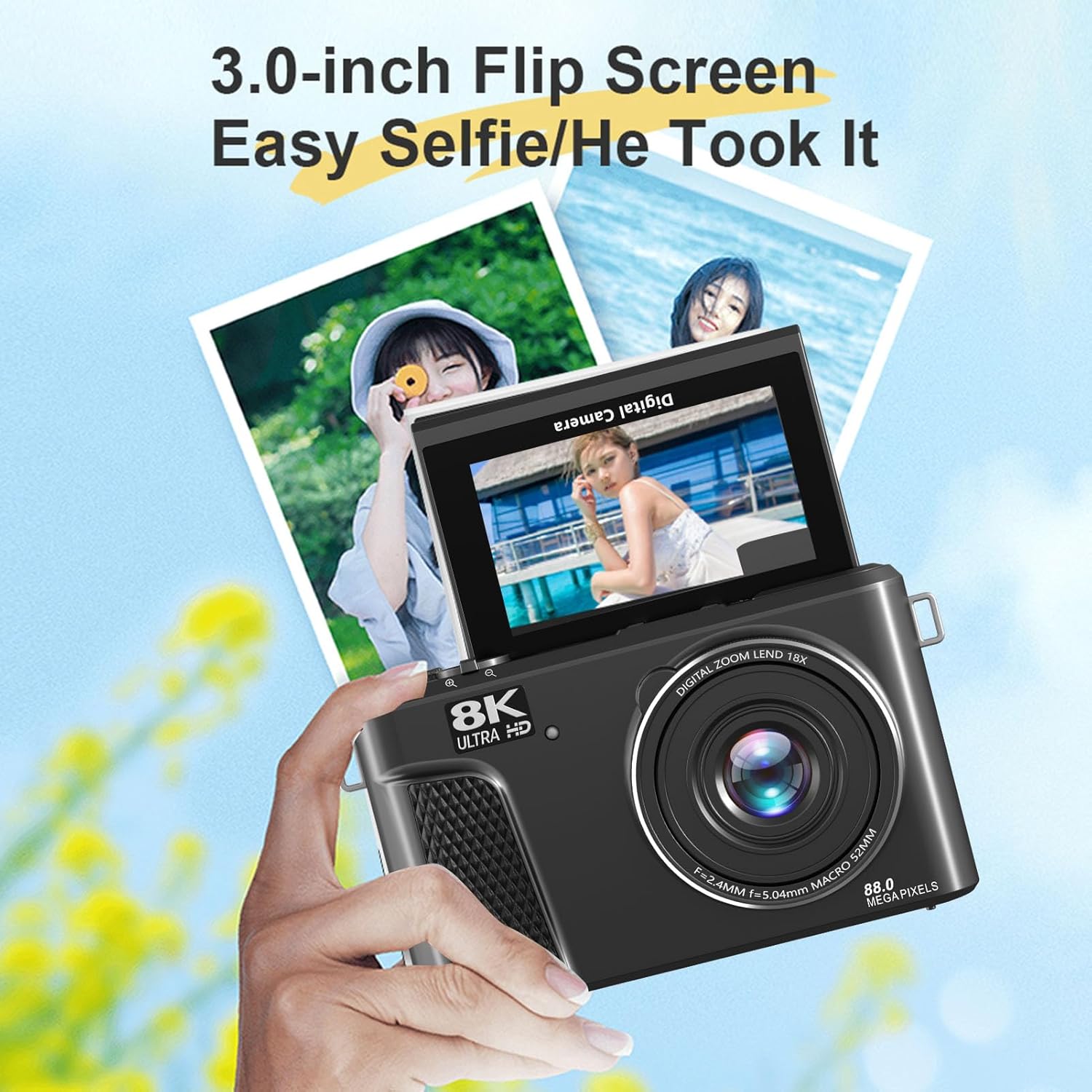
Image: The Zunate 8K Digital Camera held in hand, showcasing its 3.0-inch 180° flip screen in use for taking a selfie, highlighting its flexibility for various shooting angles.
Simply rotate the screen to your desired angle for convenient framing.
Maintenance
1. Cleaning
- Use the provided cleaning cloth or a soft, lint-free cloth to gently wipe the camera body and screen.
- For the lens, use a specialized lens cleaning solution and cloth. Avoid touching the lens directly with your fingers.
- Do not use harsh chemicals or abrasive materials.
2. Storage
- Store the camera in a cool, dry place away from direct sunlight and extreme temperatures.
- If storing for an extended period, remove the battery.
- Use the camera pouch to protect it from dust and scratches.
3. Firmware Updates
Periodically check the Zunate official website for any available firmware updates to ensure optimal performance and access to new features. Follow the instructions provided with the update carefully.
Troubleshooting
- Camera not turning on: Ensure the battery is fully charged and correctly inserted.
- Cannot take photos/record videos: Check if a memory card is inserted and has sufficient free space. Ensure the mode dial is set correctly.
- Images are blurry: Ensure autofocus is engaged by pressing the shutter button halfway. Check for smudges on the lens.
- Wi-Fi connection issues: Ensure Wi-Fi is enabled on both the camera and your smart device. Re-enter the Wi-Fi password if necessary.
- Camera freezes: Remove and reinsert the battery to perform a hard reset.
For further assistance, please refer to the support section on the Zunate website or contact customer service.
Specifications

Image: The Zunate 8K Digital Camera from the front, emphasizing its 8K Ultra HD video and 88.0 Megapixel photo resolution.
| Feature | Specification |
|---|---|
| Image Sensor | CMOS 48MP Sensor, Interpolated Up To 88MP |
| Autofocus (AF) Range | 10cm (3.9in) to ∞ |
| Storage Medium | Small Memory Card (Class 10+, up to 256GB, excluded) |
| Sensitivity | Auto/ISO100/ISO200/ISO400/ISO800/ISO1600/ISO3200 |
| Lens | AF Lens F=2.4mm, F=5.04mm |
| Focusing Method | Auto Focus, Fixed Focus (Manual) |
| Image Format | JPG |
| Photo Pixels | 8MP to 88MP (Interpolated) |
| Video Format | MP4 (H.264 Encoding) |
| Video Resolution | Up to 8K 7168x4032 (15FPS) |
| Digital Zoom | 18X (Maximum) |
| WiFi Control | Supported (via APP) |
| External MIC Interface | Supported |
| LED Fill Light | Photo (Off, Auto, Always On), Video (Off, Always On) |
| White Balance | Auto, Sunny, Cloudy, Incandescent, Fluorescent |
| Exposure Compensation | –3.0EV to +3.0EV |
| Metering Mode | Average, Center Weighted, Spot |
| Time Stamp | On/Off |
| Focus Assist Light | On |
| Screen | 3.0 inch 180° Flip Screen |
| Weight | 1.36 pounds |
| Dimensions | 10.24 x 5.91 x 3.15 inches (Package) |
Warranty and Support
Your Zunate 8K Digital Camera is covered by a manufacturer's warranty. Please refer to the warranty card included with your product for specific terms and conditions. For technical support, troubleshooting, or warranty claims, please visit the official Zunate website or contact their customer service department.
You can find more information and support at the Zunate Store.