
1. Introduction
This manual provides detailed instructions for the safe and effective use of your Zunate 8K Digital Camera. Please read this manual thoroughly before using the camera and keep it for future reference.
The Zunate 8K Digital Camera is designed for high-quality photography and videography, featuring 8K video recording, 88MP photo capabilities, autofocus, a 3-inch 180° flip screen, and Wi-Fi connectivity.
2. Safety Information
- Do not expose the camera to water or moisture.
- Avoid extreme temperatures.
- Keep out of reach of children.
- Use only approved accessories and power adapters.
- Do not attempt to disassemble or repair the camera yourself. Contact customer support for assistance.
- Dispose of batteries and electronic components responsibly according to local regulations.
3. Initial Setup
3.1. Package Contents
Verify that all items are present in the package:
- Zunate 8K Digital Camera
- USB Cable
- Wrist Strap
- Battery
- Pouch
- Cleaning Cloth

Figure 3.1: Camera and included accessories.
3.2. Battery Installation and Charging
- Open the battery compartment cover located on the bottom of the camera.
- Insert the battery, ensuring the correct orientation as indicated inside the compartment.
- Close the battery compartment cover securely.
- Connect the camera to a power source using the provided USB cable to charge the battery. The charging indicator will illuminate.
The camera supports charging while recording.
3.3. Memory Card Installation
The camera requires a Small Memory Card (Class 10 or higher, up to 256GB, not included).
- Locate the memory card slot, usually next to the battery compartment or on the side.
- Insert the memory card with the contacts facing the correct direction until it clicks into place.
- To remove, gently press the card until it springs out.
4. Operating the Camera
4.1. Camera Layout and Controls

Figure 4.1: Rear view of the camera with flip screen and controls.
The camera features a 3.0-inch 180° flip screen for versatile shooting angles, including selfies.

Figure 4.2: Using the 180° flip screen for selfies.
Familiarize yourself with the buttons and ports:
- Power Button: Turns the camera on/off.
- Shutter Button: Press halfway to focus, fully to take a photo.
- Mode Dial: Select shooting modes (e.g., Photo, Video).
- Navigation Buttons (Up/Down/Left/Right/OK): Navigate menus and adjust settings.
- Menu Button: Access camera settings.
- DISP Button: Change display information on the screen.
- USB Port: For charging and data transfer.
- MIC Port: For external microphone connection.
- HD Port: For connecting to an external display.
4.2. Taking Photos
The camera supports up to 88MP interpolated photos.
- Turn on the camera.
- Select Photo mode using the mode dial.
- Frame your shot using the flip screen.
- Press the shutter button halfway to activate autofocus. The camera will focus on the subject.
- Press the shutter button fully to capture the photo.

Figure 4.3: Autofocus in action, showing clear focus on the subject.
Photo Settings:
- Pixels: Select from 8MP to 88MP.
- Timed Photo: Set a delay of 3, 5, 10, or 20 seconds.
- Auto Photo: Capture photos automatically at intervals of 3, 10, 15, 20, or 30 seconds.
- Continuous Photo: Shoot 3P/s or 5P/s.
- Scene Filters: Apply 18 creative filters (e.g., black and white, vintage, Japanese style).
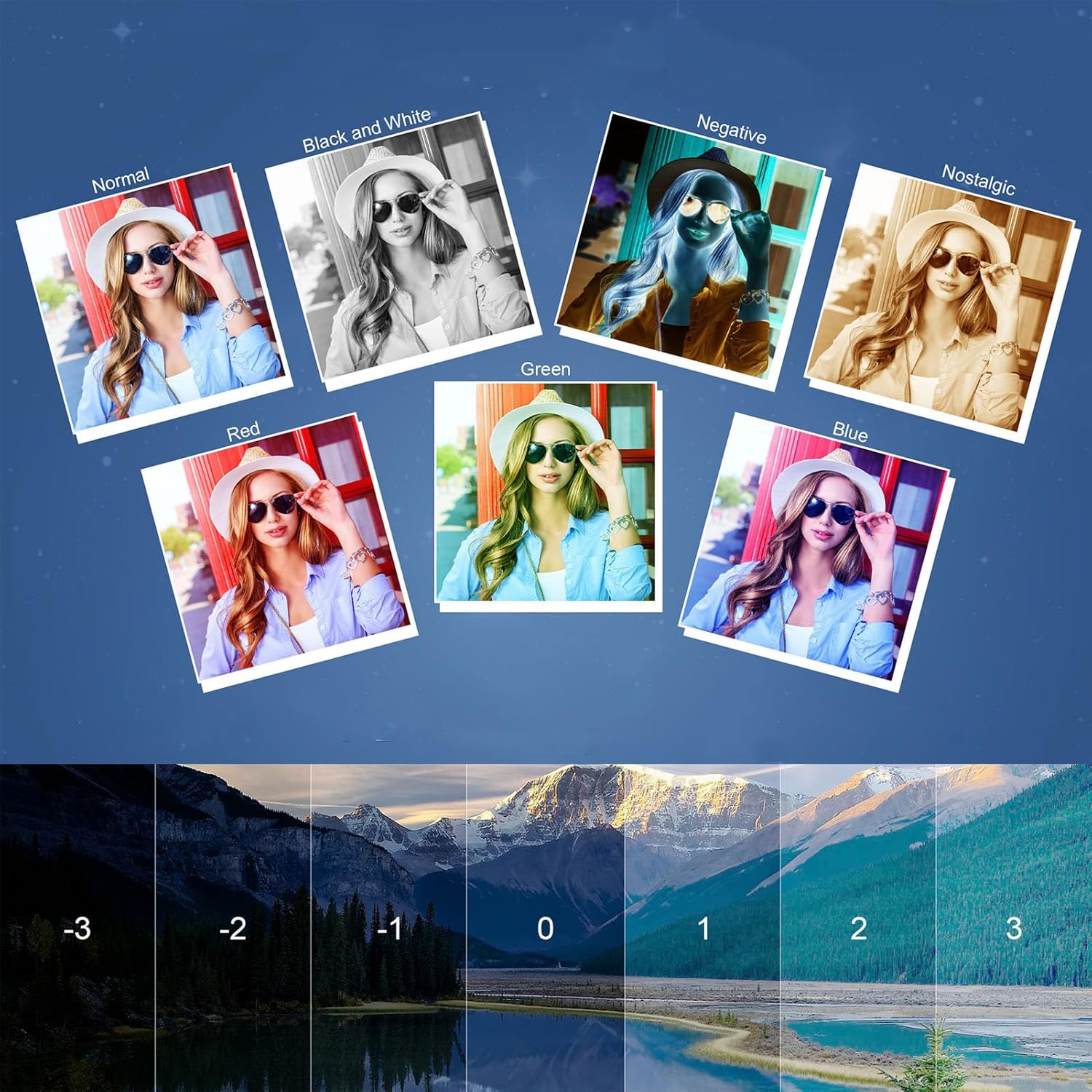
Figure 4.4: Examples of creative scene filters and exposure compensation.
4.3. Recording Videos
The camera supports video recording up to 8K resolution.
- Turn on the camera.
- Select Video mode using the mode dial.
- Press the shutter button to start recording. Press again to stop.
Video Settings:
- Resolution: 8K (7168x4032 at 15FPS), 6K (5760x3240 at 30FPS), 5K (5120x2880 at 30FPS), 4.7K (4608x2592 at 30FPS), 4K (3840x2160 at 60FPS, 30FPS), 2.7K (2688x1520 at 30FPS), FHD (1920x1080 at 60FPS, 30FPS), HD (1280x720 at 120FPS, 60FPS, 30FPS).
- Slow Motion: 1080P 4X, 1080P 2X, 720P 8X, 720P 4X.
- Time Lapse Recording: Recording intervals of 1, 2, 5, 10, 30, or 60 seconds.
- Loop Recording: Video lengths of 1, 2, 3, 5, or 10 minutes.
- Video Pause: Pause and resume recording within a single file.
4.4. Advanced Features
4.4.1. Wi-Fi Wireless Control and Sharing
Connect your camera to a smartphone via the dedicated app for remote control, live preview, settings adjustment, and instant sharing.
- Download the Zunate camera app from your device's app store.
- Enable Wi-Fi on your camera via the menu.
- Connect your smartphone to the camera's Wi-Fi network.
- Open the app to control the camera.

Figure 4.5: Wireless Wi-Fi transmission for easy sharing.
4.4.2. Live Streaming / Webcam Mode
Connect the camera to a computer via USB to use it as a webcam for live streaming or video calls. Compatible with Windows 7 and above, and OS X systems.
- Connect the camera to your computer using the USB cable.
- Select "Webcam Mode" on the camera screen (if prompted).
- Select the camera as your video input device in your streaming or video call software.
4.4.3. External Microphone and LED Fill Light
- External MIC: Connect an external microphone to the MIC port for enhanced audio quality.
- LED Fill Light: Use the built-in LED fill light for improved illumination in low-light conditions. Settings include Off, Auto, Always On for photos, and Off, Always On for videos.
4.4.4. Zoom and Focus
- Digital Zoom: Up to 18X digital zoom. Use the zoom controls on the camera to adjust.
- Autofocus (AF): The camera features an AF system. For subjects beyond 10cm (3.9in), press the shutter button halfway to focus.
- Manual Focus: The camera also supports fixed manual focus.

Figure 4.6: Camera with an external lens for wider field of view.
4.4.5. Exposure and White Balance
- White Balance: Adjust for different lighting conditions (Auto, Sunny, Cloudy, Incandescent, Fluorescent).
- Exposure Compensation: Adjust brightness from –3.0EV to +3.0EV.
- Metering Mode: Choose between Average Metering, Center Weighted Metering, and Spot Metering.
4.4.6. Time Stamp
Enable or disable the time stamp feature to imprint the date and time on your photos and videos.
5. Maintenance and Care
- Cleaning: Use the provided cleaning cloth to gently wipe the camera body and screen. For stubborn smudges, use a lens cleaning solution on the cloth, not directly on the camera.
- Storage: Store the camera in a dry, cool place away from direct sunlight and extreme temperatures.
- Battery Care: Remove the battery if the camera will not be used for an extended period.
- Firmware Updates: Check the manufacturer's website periodically for firmware updates to ensure optimal performance.
6. Troubleshooting
| Problem | Possible Cause | Solution |
|---|---|---|
| Camera does not turn on. | Battery is depleted or incorrectly inserted. | Charge the battery or re-insert it correctly. |
| Cannot take photos/record videos. | Memory card is full, not inserted, or corrupted. | Insert a memory card, free up space, or format the card (this will erase all data). |
| Images are blurry. | Autofocus failed, camera shake, or lens is dirty. | Ensure proper focus, hold the camera steady, or clean the lens. |
| Wi-Fi connection issues. | Incorrect password, camera Wi-Fi not enabled, or app issues. | Verify Wi-Fi settings, restart camera and phone, or reinstall the app. |
7. Specifications
| Feature | Detail |
|---|---|
| Image Sensor | CMOS 48MP Sensor, Interpolated Up To 88MP |
| Autofocus (AF) Range | 10cm (3.9in) to Limitless |
| Storage Medium | Small Memory Card (Class 10 or higher, up to 256GB, excluded) |
| Sensitivity | Auto/ISO100/ISO200/ISO400/ISO800/ISO1600/ISO3200 |
| Lens | AF Lens F=2.4mm, F=5.04mm |
| Image Format | JPG |
| Photo Pixels | 8MP, 12MP, 20MP, 24MP, 30MP, 48MP, 56MP, 64MP, 72MP, 84MP, 88MP |
| Video Format | MP4 (H.264 Encoding) |
| Video Resolution | 8K (15FPS), 6K (30FPS), 5K (30FPS), 4.7K (30FPS), 4K (60FPS, 30FPS), 2.7K (30FPS), FHD (60FPS, 30FPS), HD (120FPS, 60FPS, 30FPS) |
| Zoom | 18X Digital Zoom (Maximum) |
| Display Screen | 3.0 inch 180° Flip Screen |
| Connectivity | WiFi (APP Control), USB, External MIC Recording Interface, HD Output |
| LED Fill Light | Supported |
| White Balance | Auto, Sunny, Cloudy, Incandescent, Fluorescent |
| Exposure Compensation | –3.0EV to +3.0EV |
| Metering Mode | Average Metering, Center Weighted Metering, Spot Metering |
| Dimensions | 26 x 15 x 8 cm (Parcel Dimensions) |
| Weight | 617 g (Parcel Weight) |
| Country of Origin | China |
8. Warranty and Support
For warranty information and customer support, please refer to the documentation included with your purchase or visit the official Zunate website. If you encounter any issues not covered in this manual, please contact Zunate customer service for assistance.
Manufacturer: Zunate
Manufacturer Reference: Zunatepd56i94xgk-13