
1. Introduction
Thank you for choosing the SWZEC Oryzom V1 Pro Smart Air Purifier. This manual provides essential information for the safe and efficient operation, maintenance, and troubleshooting of your device. Please read this manual thoroughly before use and keep it for future reference.
2. Safety Instructions
To reduce the risk of fire, electric shock, or injury, please observe the following safety precautions:
- Always unplug the air purifier before moving, cleaning, or performing any maintenance.
- Do not operate the unit with a damaged cord or plug. If the cord or plug is damaged, contact customer support.
- Keep the power cord away from heated surfaces.
- Do not use the air purifier in wet or damp environments, such as bathrooms.
- Do not insert fingers or foreign objects into any openings.
- Ensure the air intake and outlet are not blocked.
- This appliance is not intended for use by persons (including children) with reduced physical, sensory or mental capabilities, or lack of experience and knowledge, unless they have been given supervision or instruction concerning use of the appliance by a person responsible for their safety.
- Children should be supervised to ensure that they do not play with the appliance.
3. Product Overview
The SWZEC Oryzom V1 Pro is a smart air purifier designed to provide clean and fresh indoor air. It features a powerful HEPA filtration system, PM2.5 sensor for real-time air quality monitoring, and convenient control options via a dedicated app and voice commands.
Key Features:
- High-Efficiency HEPA Filtration: Removes fine dust, pollen, pet dander, and particles as small as 0.3 microns.
- Double-Sided Air Intake: Ensures efficient air purification with a CADR of 300 m³/h, suitable for rooms up to 100 m².
- Real-time PM2.5 Sensor: Monitors air quality and displays readings on the unit and in the app.
- Automatic Mode: Adjusts fan speed based on detected air quality.
- Quiet Sleep Mode: Operates at a low noise level of 24dB with display lights off for undisturbed sleep.
- Smart Control: Full control via a dedicated mobile app and voice commands (compatible with Alexa, Google Assistant).
- Timer and Schedule Functions: Customize operation times to suit your needs.
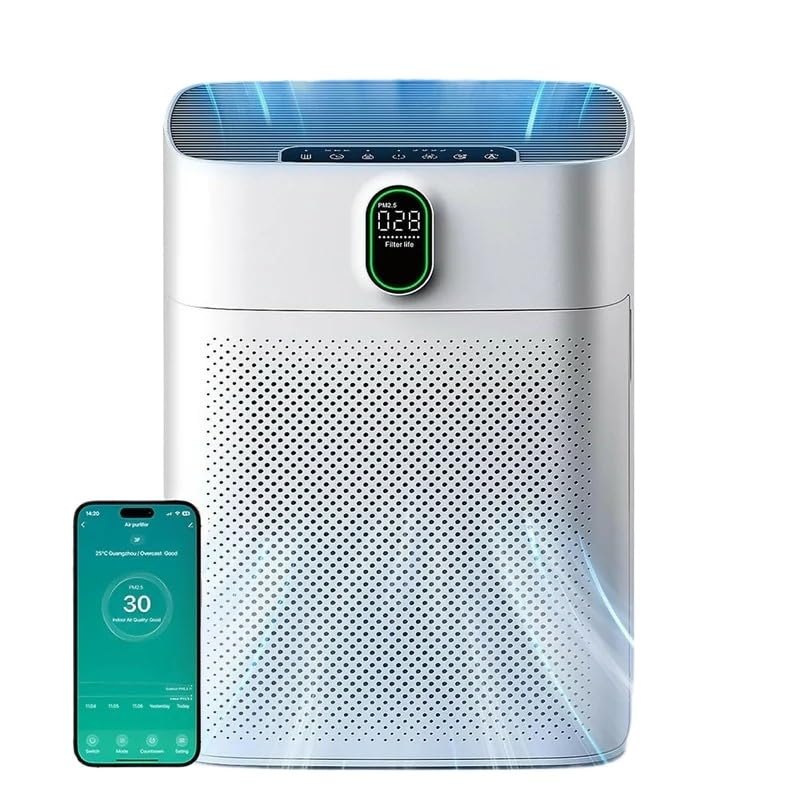
Image: The SWZEC Oryzom V1 Pro Smart Air Purifier, showcasing its sleek design and digital display.
4. Setup
4.1 Unpacking
- Carefully remove the air purifier from its packaging.
- Remove all plastic bags and protective materials.
- Ensure all components are present: air purifier unit, filter(s) (may be pre-installed), and power cord.
4.2 Filter Installation
The filter(s) may come pre-installed but wrapped in plastic. Remove all plastic packaging from the filter(s) before use.
- Turn the air purifier upside down or open the filter compartment cover as indicated by the product design.
- Remove the base cover or side panels.
- Take out the filter(s) and remove any plastic packaging.
- Insert the filter(s) back into the unit, ensuring correct orientation.
- Securely close the base cover or side panels.

Image: Diagram showing the multi-layer filtration system, including pre-filter, True HEPA filter, and honeycomb activated carbon filter.
4.3 Placement and Power Connection
- Place the air purifier on a firm, level surface.
- Ensure there is at least 15-30 cm (6-12 inches) of space around the unit for optimal air circulation.
- Plug the power cord into a standard electrical outlet (100-240V AC).
5. Operating Instructions
5.1 Power On/Off and Basic Controls
After plugging in the unit, press the power button on the control panel to turn the air purifier on or off. Use the touch controls on the top panel to adjust fan speed, mode, and other basic settings.
5.2 Real-time Air Quality Monitoring
The integrated PM2.5 sensor continuously monitors the air quality in your room. The current PM2.5 level is displayed on the unit's screen and in the dedicated mobile app. The display may use color indicators (e.g., green for good, orange for moderate, red for poor) to quickly show air quality status.

Image: The air purifier's display showing PM2.5 levels and a smartphone app interface confirming real-time air quality monitoring with color-coded indicators.
5.3 Automatic Mode
In Automatic Mode, the air purifier intelligently adjusts its fan speed based on the detected air quality. This ensures optimal purification without constant manual adjustments.
- Poor Air Quality: Highest fan speed.
- Medium Air Quality: Medium fan speed.
- Good Air Quality: Lowest fan speed.

Image: Illustration of the automatic mode, showing how fan speed adjusts according to air quality levels.
5.4 Sleep Mode
Activate Sleep Mode for quiet operation during rest periods. In this mode, the display lights are turned off, and the fan operates at its lowest, whisper-quiet setting (approximately 24dB) to ensure an undisturbed environment.

Image: A person sleeping peacefully with the air purifier operating in whisper-quiet sleep mode, highlighting its low noise level.
5.5 App Control
Download the dedicated mobile app (refer to product packaging or manufacturer's website for app name) to unlock advanced control features:
- Connect to Wi-Fi: Follow the in-app instructions to connect your air purifier to your home Wi-Fi network.
- Adjust Schedule: Set specific times for the air purifier to turn on/off or change modes.
- Set Fan Speed: Manually select from multiple fan speed settings.
- Set Timer: Program the unit to operate for a specific duration.
- Check Filter Life: Monitor the remaining lifespan of your filter(s) and receive replacement reminders.
- Remote On/Off: Control the power status from anywhere.

Image: A smartphone displaying the air purifier's control app, showing options for scheduling, fan speed, timer, and filter life check.
5.6 Voice Control
The SWZEC Oryzom V1 Pro supports voice control through smart home assistants like Amazon Alexa and Google Assistant. Ensure your air purifier is connected to the mobile app and linked to your smart assistant account.
- Example Commands:
- "Alexa, turn on the air purifier."
- "Hey Google, set the air purifier to automatic mode."
- "Alexa, turn off the air purifier."

Image: A person interacting with the air purifier using voice commands, demonstrating compatibility with Alexa and Google Assistant.
6. Maintenance
6.1 Filter Replacement
The air purifier's filter(s) have a limited lifespan and need to be replaced periodically to maintain optimal performance. The mobile app will notify you when a filter replacement is due. The filter life is typically 6-12 months, depending on usage and air quality.
- Unplug the air purifier from the power outlet.
- Open the filter compartment (refer to Section 4.2 for guidance).
- Remove the old filter(s) and dispose of them properly.
- Insert new, genuine SWZEC replacement filter(s), ensuring all plastic packaging is removed.
- Close the filter compartment securely.
- Plug in the air purifier and reset the filter life indicator (usually via the app or by pressing a button on the unit for a few seconds).
6.2 Cleaning the Unit
- Always unplug the unit before cleaning.
- Wipe the exterior of the air purifier with a soft, dry cloth.
- Do not use abrasive cleaners, waxes, or solvents.
- Gently vacuum the air intake and outlet grilles to remove dust buildup.
- Do not wash the filter(s).
7. Troubleshooting
If you encounter issues with your air purifier, please refer to the following table for common problems and solutions:
| Problem | Possible Cause | Solution |
|---|---|---|
| Unit does not turn on. | Not plugged in; power outage; filter compartment not closed properly. | Ensure power cord is securely plugged in; check power supply; ensure filter compartment is fully closed. |
| Poor air purification performance. | Filter is dirty or expired; air intake/outlet blocked; unit too small for room size. | Replace filter; clear any obstructions; ensure unit is appropriate for room size (up to 100 m²). |
| Unusual noise. | Filter not installed correctly; foreign object inside; unit on uneven surface. | Reinstall filter; check for foreign objects; place unit on a stable, level surface. |
| App control not working. | Wi-Fi connection issue; incorrect app settings; app not updated. | Check Wi-Fi connection; restart app and air purifier; ensure app is updated to the latest version. |
| Voice control not responding. | Not linked to smart assistant; Wi-Fi issue; incorrect commands. | Ensure air purifier is linked in your smart assistant app; check Wi-Fi; use correct voice commands. |
If the problem persists after trying these solutions, please contact customer support.
8. Specifications
| Feature | Specification |
|---|---|
| Model Number | HOSK |
| Brand | SWZEC |
| Product Dimensions (L x W x H) | Approx. 310 x 180 x 430 mm (12.2 x 7.1 x 16.9 inches) |
| Power Source | Corded Electric |
| Rated Voltage | 100-240 V |
| Rated Frequency | 50-60 Hz |
| Control Method | App, Voice (Alexa, Google Assistant), Touch Controls |
| Filter Type | HEPA (Pre-filter, True HEPA, Activated Carbon) |
| CADR (Clean Air Delivery Rate) | 300 m³/h (177 CFM) |
| Applicable Floor Area | Up to 100 m² |
| Noise Level (Sleep Mode) | 24 dB |
| Color | White |
Note: Product specifications are subject to change without prior notice. Dimensions are approximate.
9. Warranty and Support
For warranty information and customer support, please refer to the warranty card included with your product or visit the official SWZEC website. You can also contact our customer service team for assistance with any product-related inquiries or issues.
Manufacturer: SWZEC
ASIN: B0FP2ZC2FG