
Wobble 65-inch Q1 Series 4K UHD Smart QLED TV User Manual
Model: WB65QDQGR2851D24
1. Important Safety Information
Please read all safety instructions carefully before using your new Wobble Q1 Series 4K UHD Smart QLED TV. Keep this manual for future reference.
- Electrical Safety: Do not expose the TV to rain or moisture. Do not open the TV casing; refer all servicing to qualified personnel. Ensure the power cord is not damaged or pinched.
- Placement: Place the TV on a stable, level surface or mount it securely to a wall. Ensure adequate ventilation around the TV to prevent overheating. Do not block ventilation openings.
- Cleaning: Unplug the TV before cleaning. Use a soft, dry cloth to clean the screen and cabinet. Do not use liquid cleaners or aerosol sprays.
- Children: Supervise children to prevent them from climbing on the TV or stand. Small parts can be a choking hazard.
- Power Source: Connect the TV only to an AC power outlet with the correct voltage as indicated on the TV's label.
2. Package Contents
Verify that all items are present in the box:
- Wobble 65-inch Q1 Series 4K UHD Smart QLED TV Unit
- Remote Control
- Power Cable
- TV Stand (with screws)
- User Manual (this document)
- Warranty Card
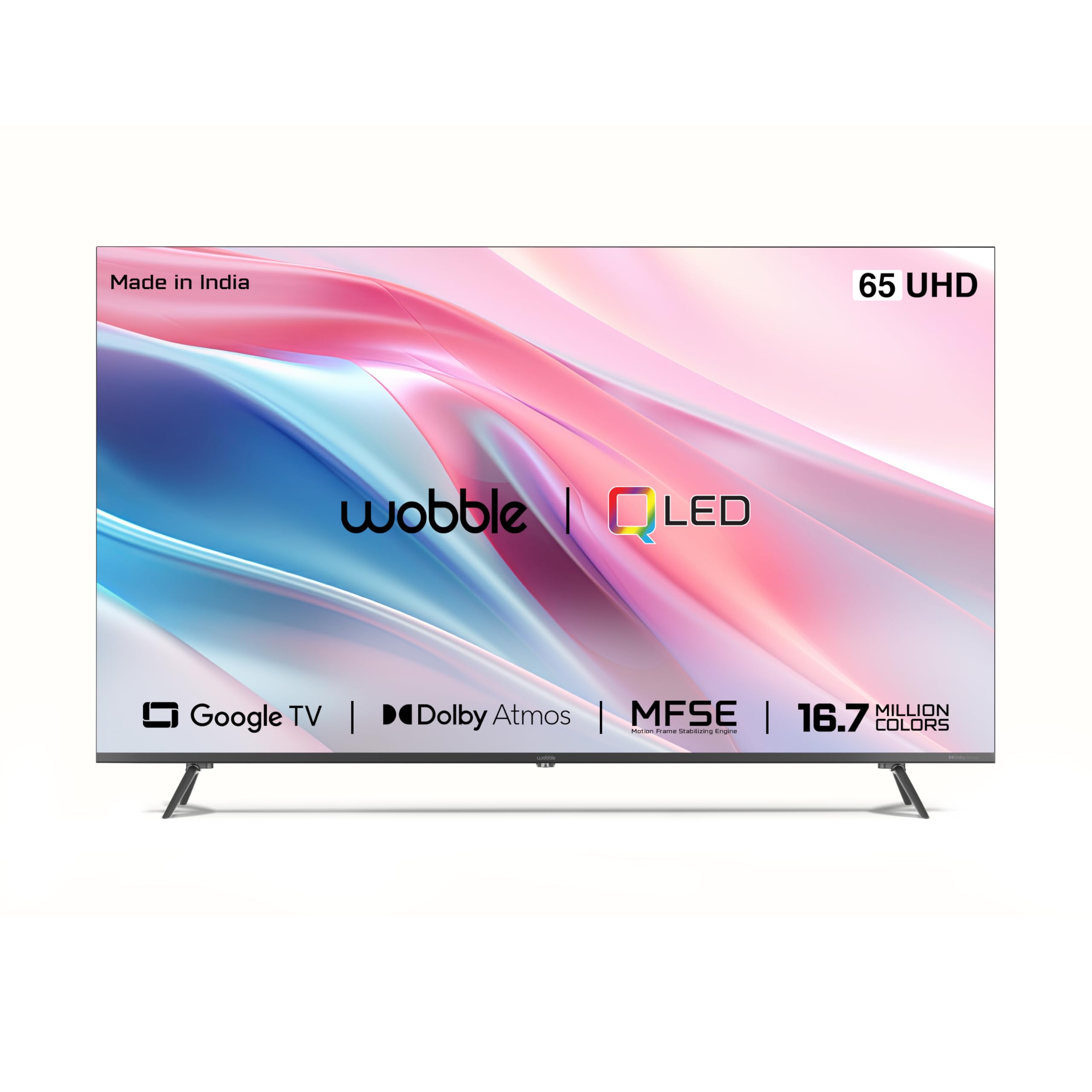
Image: Wobble 65-inch Q1 Series 4K UHD Smart QLED TV with remote and power cable.
3. Setup
3.1 Unpacking and Placement
- Carefully remove the TV from its packaging. It is recommended that two people handle the TV due to its size and weight.
- Choose a suitable location for your TV. Ensure it is on a stable surface or a wall strong enough to support its weight. Leave at least 10 cm (4 inches) of space around the TV for proper ventilation.
3.2 Stand Installation (Optional)
If you are not wall-mounting the TV, attach the included stand:
- Place the TV face down on a soft, clean surface to prevent screen damage.
- Align the stand with the mounting holes on the bottom of the TV.
- Secure the stand using the provided screws. Do not overtighten.
3.3 Connecting External Devices
Your TV features multiple ports for connecting various devices:
- HDMI Ports (x3): Connect Blu-ray players, gaming consoles, set-top boxes, etc.
- USB 3.0 Port (x1): Connect USB drives for media playback.
- Bluetooth: Pair wireless headphones, soundbars, or other Bluetooth devices.
- Wi-Fi: Connect to your home wireless network for internet access.
Ensure all cables are securely connected before powering on the TV.
3.4 Initial Power On and Google TV Setup
- Plug the power cable into the TV and then into a wall outlet.
- Press the Power button on the remote control or on the TV itself.
- Follow the on-screen instructions to complete the initial setup, including language selection, network connection (Wi-Fi), and Google account sign-in.
- The Google TV interface will guide you through setting up live TV channels (if applicable) and installing your favorite streaming apps.
4. Operating Your TV
4.1 Remote Control Overview
The remote control allows you to navigate the TV's features. Common buttons include:
- Power: Turns the TV on or off.
- Volume (+/-): Adjusts the sound level.
- Channel (+/-): Changes TV channels (if connected to an antenna/cable).
- Navigation (Up/Down/Left/Right/OK): Moves through menus and selects options.
- Home: Returns to the Google TV home screen.
- Back: Returns to the previous screen.
- Input: Selects the input source (HDMI 1, HDMI 2, USB, etc.).
- App Buttons: Dedicated buttons for popular streaming services like Netflix, Prime Video, and YouTube.
- Google Assistant: Activates voice control for searching and commands.
4.2 Google TV Interface
The Google TV interface organizes your content from various apps and subscriptions. You can:
- Browse personalized recommendations.
- Access your installed apps (Netflix, Prime Video, YouTube, etc.).
- Use Chromecast built-in to cast content from your mobile devices.
- Manage your watch list and library.
4.3 Picture and Sound Settings
Access the TV's settings menu to customize your viewing and listening experience:
- Picture Modes: Choose from Standard, Vivid, Cinema, Game, or custom settings. Adjust brightness, contrast, color, and sharpness.
- Sound Modes: Select from Standard, Music, Movie, Speech, or custom equalizer settings.
- Dolby Atmos & Dolby Vision: Ensure these are enabled in settings for compatible content to experience enhanced audio and visual quality.
- Micro Dimming & MFSE: These features enhance picture quality by optimizing contrast and motion.
5. Maintenance
5.1 Cleaning Your TV
- Screen: Gently wipe the screen with a soft, lint-free, dry cloth. For stubborn marks, lightly dampen the cloth with water (do not spray directly on the screen).
- Cabinet: Use a soft, dry cloth to wipe the TV cabinet.
- Do NOT use: Alcohol, benzene, thinners, or other volatile substances, as they may damage the TV's surface.
5.2 Software Updates
Your Wobble TV may receive software updates to improve performance and add new features. Ensure your TV is connected to the internet. Updates are typically downloaded and installed automatically, or you may be prompted to install them. You can also check for updates manually in the TV's settings menu.
5.3 Storage Management
The TV has 16GB of internal storage. If you experience performance issues or run out of space for apps, consider:
- Uninstalling unused applications.
- Clearing cache data for apps in the TV's settings.
6. Troubleshooting
If you encounter problems with your TV, refer to the following common issues and solutions:
| Problem | Possible Solution |
|---|---|
| No power | Ensure the power cable is securely plugged into the TV and the wall outlet. Check if the outlet is working by plugging in another device. |
| No picture, but sound is present | Check the input source. Press the 'Input' button on the remote to cycle through sources (HDMI 1, HDMI 2, etc.). Ensure the external device is powered on and connected correctly. |
| No sound, but picture is present | Increase the volume. Check if the TV is muted. Verify audio settings in the TV menu. If using external speakers, ensure they are connected and powered on. |
| Remote control not working | Replace the batteries. Ensure there are no obstructions between the remote and the TV's IR sensor. |
| Wi-Fi connection issues | Restart your Wi-Fi router. Check network settings on the TV. Ensure the TV is within range of your router. |
| Apps are slow or crashing | Clear the cache for the affected app in the TV's settings. Restart the TV. Ensure the TV's software is up to date. |
7. Specifications
| Feature | Specification |
|---|---|
| Model Name | Q1 Series |
| Model Number | WB65QDQGR2851D24 |
| Screen Size | 65 Inches (163.9 cm) |
| Display Technology | QLED |
| Resolution | 4K UHD (3840 x 2160) |
| Refresh Rate | 60 Hz |
| Operating System | Google TV 5.0 |
| Processor | A55 Quad Core Processor |
| RAM | 2GB |
| Storage | 16GB |
| Audio Output | 30W Ultra Speakers (2.1 Channel) |
| Sound Format | Dolby Atmos |
| HDR Support | HDR10-HLG, Dolby Vision |
| Connectivity | Wi-Fi, Bluetooth, 3x HDMI, 1x USB 3.0 |
| Special Features | Micro Dimming, MFSE, AI-Output Augmentation, Chromecast Built-in, Bezel-Less Design, 1.07 Billion Colours |
| Product Dimensions (D x W x H) | 28.5D x 144.6W x 91.2H Centimeters |
| Item Weight | 17.1 Kilograms |
8. Warranty and Support
8.1 Warranty Information
Your Wobble 65-inch Q1 Series 4K UHD Smart QLED TV comes with a 1 Year Manufacturer Warranty from the date of purchase. This warranty covers manufacturing defects under normal use. Please retain your purchase receipt as proof of purchase.
The warranty does not cover damage caused by misuse, accidents, unauthorized repairs, or acts of nature. For detailed terms and conditions, please refer to the warranty card included in your package.
8.2 Customer Support
For technical assistance, troubleshooting beyond this manual, or warranty claims, please contact Wobble customer support. Refer to the contact information provided on your warranty card or visit the official Wobble website for the most up-to-date support details.