
1. Introduction
Thank you for choosing the Haudio 7 Inch Portable Carplay Screen. This device is designed to enhance your driving experience by integrating wireless Apple CarPlay and Android Auto functionalities directly into your vehicle. Featuring a 7-inch HD LCD touchscreen, 1080P backup camera support, and multiple audio output options, this system offers convenient navigation, communication, and entertainment while prioritizing safety.
2. What's in the Box?
Please ensure all components are present before proceeding with installation.
- 7-inch Portable Carplay Screen
- Mounting Bracket (Suction Cup or Dashboard Adhesive)
- 1080P AHD Backup Camera
- Power Cable (12V Car Charger with USB-C connector)
- AUX Cable
- User Manual

Image: All components included in the Haudio 7 Inch Portable Carplay Screen package.
3. Setup & Installation
The Haudio Portable Carplay Screen is designed for plug-and-play installation, requiring no complex wiring for basic operation.
3.1 Mounting the Display
Choose between the suction cup mount for windshield placement or the adhesive dashboard mount for a secure dashboard installation. Ensure the mounting surface is clean and dry before applying the mount.

Image: The 7-inch portable car stereo mounted on a car dashboard, highlighting its new design and thin bezel.
3.2 Power Connection
Connect the USB-C end of the power cable to the Type-C power plug on the side of the display. Plug the 12V car charger end into your vehicle's 6-12V power port (cigarette lighter socket). The unit will power on automatically.
3.3 Backup Camera Installation (Optional)
The included 1080P AHD rearview camera can be installed for enhanced parking safety. For automatic activation when reversing, the camera's power wire must be connected to your vehicle's reverse light circuit. Professional installation is recommended for this step.

Image: A 1080P AHD rearview camera providing a 130-degree wide-angle view with parking assistance lines displayed on the screen.
3.4 Suction Cup Bracket Installation Process
Video: This video demonstrates the step-by-step process of installing the suction cup bracket for the portable car stereo. It shows how to attach the bracket to the device, clean the dashboard surface, remove the protective film from the suction cup, place the mount, press down to expel air, and secure it with the locking switch. It also provides a tip for cleaning the suction cup if it accumulates dust.
3.5 Magnetic Mount Installation (Key Tips)
Video: This video provides key tips for installing the magnetic mount for the portable car stereo. It shows how to attach the magnetic mount to the device, prepare the dashboard surface, and securely place the device for optimal stability.
4. Operating Instructions
The device features a user-friendly interface with intuitive controls.
4.1 User Interface Overview
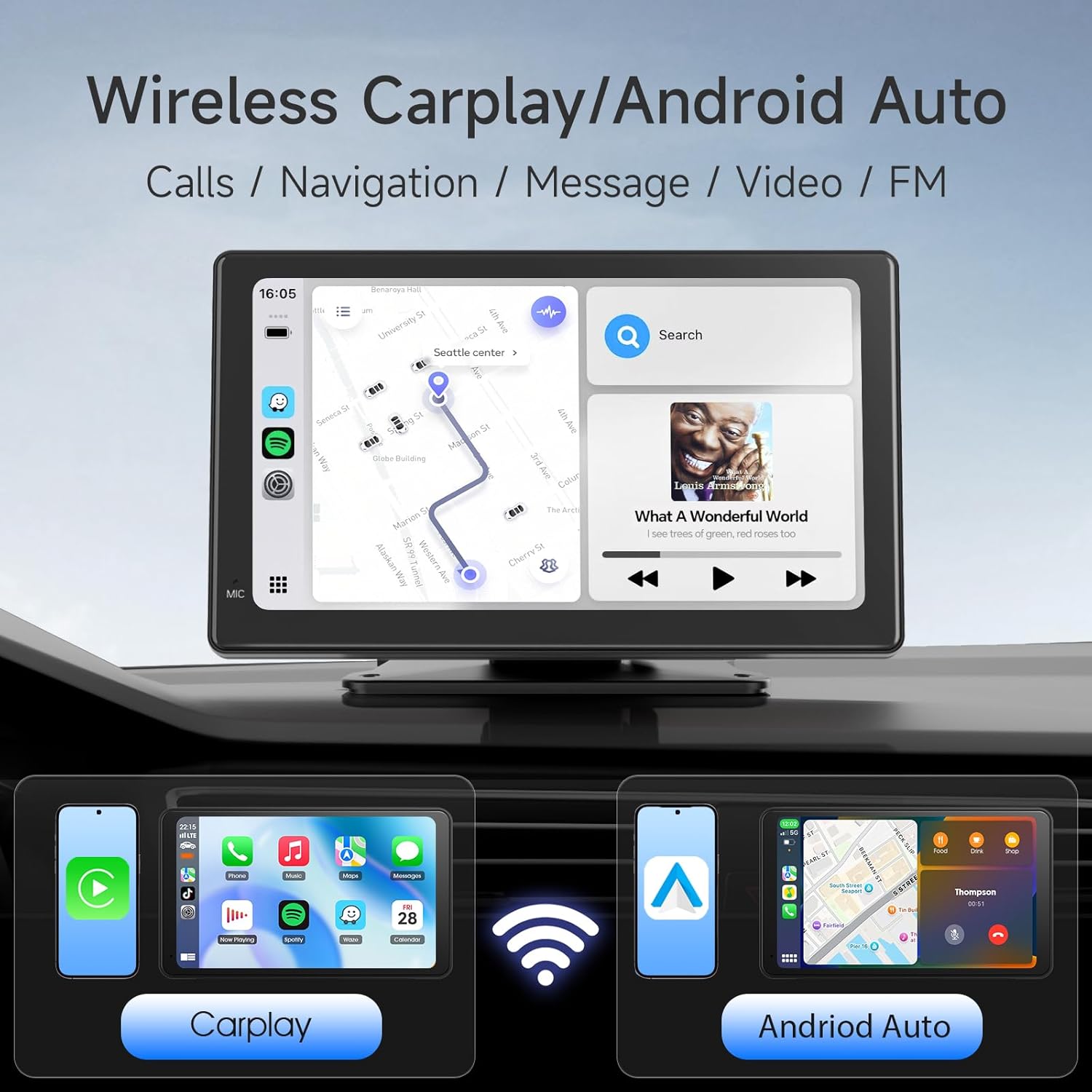
Image: The main screen of the portable car stereo showing wireless CarPlay and Android Auto interfaces, with options for calls, navigation, messages, video, and FM radio.
4.2 Wireless Apple CarPlay & Android Auto
Experience seamless integration with your smartphone. Connect your iPhone or Android device wirelessly via Bluetooth 5.0 to mirror your phone's interface onto the 7-inch HD LCD touchscreen. This allows access to navigation, music, calls, and messages directly from the display.
- Ensure Bluetooth is enabled on your smartphone.
- On the Carplay screen, select the 'CarPlay' or 'Android Auto' icon.
- On your smartphone, search for and connect to the device's Bluetooth name (e.g., 'CarKit-066C' or 'CarKit-1E97').
- Confirm pairing on both devices.
- Once connected, your phone's interface will appear on the Carplay screen.

Image: The portable car stereo showcasing its wireless CarPlay and Android Auto capabilities, emphasizing dual-system connectivity and sensitive touch control for added safety and convenience.
4.3 PhoneLink / MirrorLink (Airplay)
For direct screen mirroring of your smartphone, use the PhoneLink or MirrorLink feature. This is ideal for streaming videos or other content not directly supported by CarPlay/Android Auto.

Image: The wireless HD Mirror Link feature is shown, allowing users to project their phone screen to the car system for high-definition videos, map navigation, and more, with examples like YouTube, Netflix, and TikTok.
4.4 Voice Control (Siri/Google Assistant)
Utilize voice commands for hands-free operation. The device supports

