
1. Overview
The Element 32-inch 720p HD Xumo Smart TV offers reliable performance and smart functionality in a compact design. Ideal for smaller spaces such as kitchens, dorm rooms, guest rooms, or offices, this television combines a clear HD display with a versatile smart platform and modern connectivity options.
Key features include a 720p resolution display, a 120Hz effective refresh rate for smooth motion, and the integrated Xumo OS for access to numerous streaming applications and free live channels. Connectivity is robust with multiple HDMI ports, USB, LAN, Bluetooth, and Apple AirPlay support. The TV also comes with a voice remote for convenient navigation.
2. What's in the Box
Upon unboxing your Element 32-inch Xumo Smart TV, please ensure all the following components are present:
- 32-inch Element Xumo TV
- Voice Remote + 2 AAA batteries
- TV Stand & Screws
- Quick Start Guide

Image: The contents of the TV box, showing the 32-inch television, its remote control, two stand feet, and a bag of screws for assembly. Dimensions of the TV are also displayed.
3. Setup
3.1 Attaching the TV Stand
- Carefully place the TV screen-down on a soft, clean surface to prevent scratches.
- Align each stand foot with the corresponding screw holes on the bottom of the TV.
- Secure each stand foot using the provided screws. Ensure they are tightened firmly but do not overtighten.
- Carefully lift the TV and place it on a stable, level surface.
Alternatively, the TV supports VESA mounting for wall installation (wall mount hardware sold separately).
3.2 Power Connection
Connect the power cord to the TV's power input and then plug it into a standard electrical outlet. A pilot light on the TV will indicate that it is receiving power.
3.3 Initial Setup (Xumo OS)
Upon first power-on, the TV will guide you through the initial setup process. This includes:
- Language Selection: Choose your preferred language.
- Network Connection: Connect the TV to your home Wi-Fi network or via an Ethernet cable.
- Xumo OS Account Setup: Follow on-screen prompts to set up or log in to your Xumo OS account. This is necessary to access smart features and apps.
- Channel Scan: If connecting an antenna, the TV will scan for available channels.

Image: The Element 32-inch Xumo Smart TV is shown on a wooden TV stand, displaying its smart interface with various streaming app icons.
4. Connections
The Element Xumo Smart TV provides a variety of ports for connecting external devices:
- HDMI Ports (3): Connect high-definition devices such as Blu-ray players, gaming consoles, or cable/satellite boxes. One HDMI port supports eARC (enhanced Audio Return Channel) for simplified audio connections to compatible soundbars or AV receivers.
- USB Port (1): Connect USB storage devices to view photos, play music, or watch videos.
- LAN (Ethernet) Port: For a wired internet connection.
- Audio Out (Optical) / Headphone Jack: For connecting external audio systems or headphones.
- Composite Input / Analog Tuner: For connecting older devices or an antenna.
5. Operating Your TV
5.1 Remote Control
The included voice remote allows for intuitive control of your TV. It features dedicated buttons for popular streaming services and a microphone for voice commands.
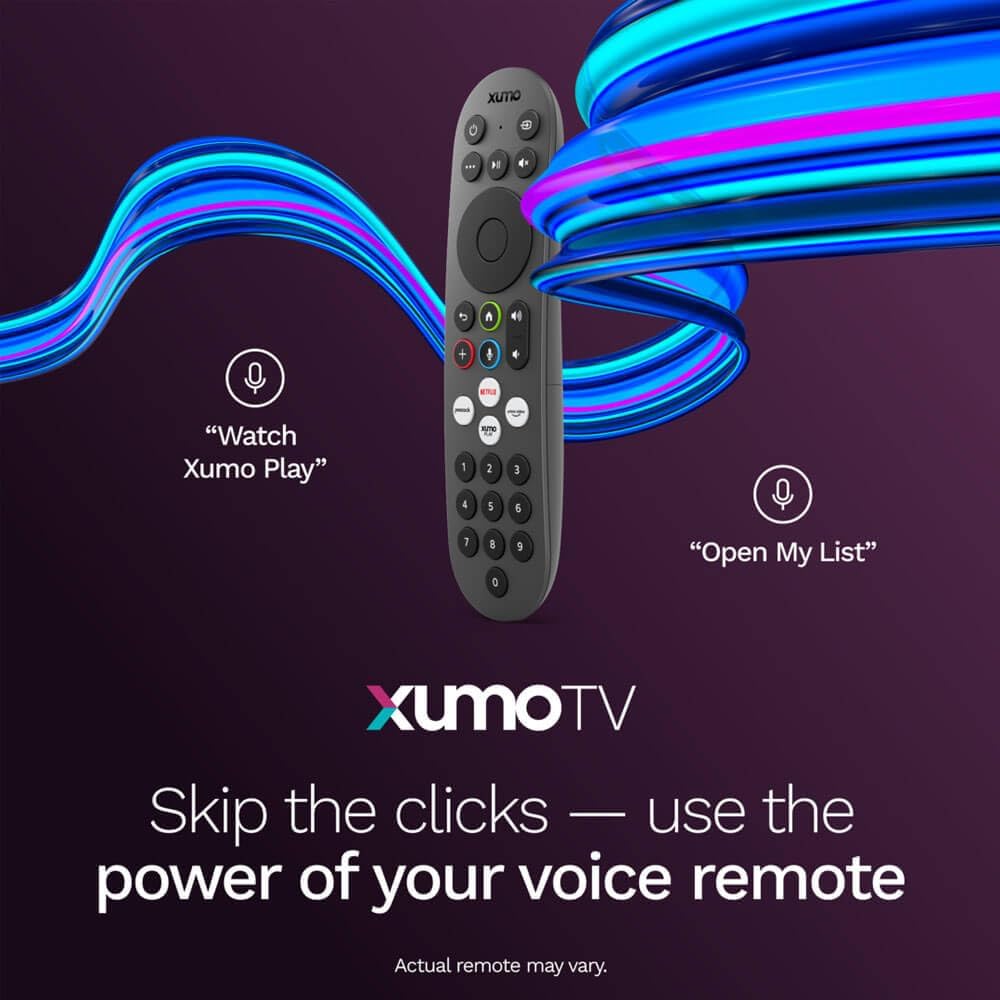
Image: A close-up of the Element Xumo Smart TV voice remote, highlighting its various buttons including a microphone for voice commands and quick access buttons for streaming services.
5.2 Smart Features & Streaming (Xumo OS)
The Xumo OS provides access to over 250 preloaded apps and more than 750 free live channels. You can:
- Search Content: Use the unified search function to find content across all your installed apps.
- My List: Curate your personal watchlist for easy access to your favorite shows and movies.
- Free On-Demand Libraries: Explore a wide selection of free on-demand content.
- Voice Control: Use the voice remote to navigate, search, and control your TV hands-free.

Image: The Xumo TV interface showing a selection of popular streaming applications and content recommendations.
5.3 Picture & Sound Settings
Your TV delivers a crisp 720p HD display with a 120Hz effective refresh rate, minimizing motion blur for clear visuals. Dolby Audio processing enhances the sound experience. You can adjust picture and sound settings via the TV's menu to suit your preferences.
- Picture Modes: Select from various preset picture modes (e.g., Standard, Vivid, Movie, Sports) or customize settings like brightness, contrast, and color.
- Sound Modes: Choose from different sound modes (e.g., Standard, Music, Movie, Speech) or adjust bass and treble levels.
5.4 Apple AirPlay & Home Support
Seamlessly stream content or mirror your screen from your iPhone, iPad, or Mac directly to your Element TV using Apple AirPlay. With Apple Home support, you can integrate your TV into your Apple smart home ecosystem for convenient control.
6. Maintenance
To ensure the longevity and optimal performance of your Element Xumo Smart TV, follow these maintenance guidelines:
- Cleaning the Screen: Gently wipe the screen with a soft, dry, lint-free cloth. For stubborn marks, lightly dampen the cloth with water or a screen-specific cleaning solution (never spray directly onto the screen).
- Cleaning the Cabinet: Use a soft, dry cloth to clean the TV cabinet. Avoid using abrasive cleaners or solvents.
- Ventilation: Ensure the ventilation openings on the back of the TV are not blocked to prevent overheating.
- Power Off When Not in Use: Turn off the TV when not in use to conserve energy and extend its lifespan.
7. Troubleshooting
If you encounter any issues with your Element Xumo Smart TV, refer to the following common troubleshooting tips:
- No Power: Check if the power cord is securely plugged into both the TV and the electrical outlet. Ensure the outlet is functional.
- No Picture/Sound: Verify that the correct input source is selected. Check all cable connections (HDMI, antenna, etc.) for secure fit.
- Remote Not Working: Replace the AAA batteries in the remote control. Ensure there are no obstructions between the remote and the TV's IR sensor.
- Network Connection Issues: Restart your Wi-Fi router. Check the TV's network settings to ensure it's connected to the correct network and the password is entered correctly.
- Smart App Problems: Try restarting the app. If the issue persists, clear the app's cache or reinstall it. Ensure your TV's software is up to date.
For persistent issues, please contact Element customer support.
8. Specifications
| Feature | Specification |
|---|---|
| Model Number | E300AE32C |
| Screen Size | 32 Inches |
| Display Resolution | 720p (1366x768) |
| Refresh Rate | 60 Hz (120Hz Effective) |
| Aspect Ratio | 1.78:1 |
| Operating System | Xumo OS |
| Connectivity | 3x HDMI (1x eARC), 1x USB, LAN (Ethernet), Optical Audio Out, Headphone Jack, Composite Input, Wi-Fi, Bluetooth |
| Special Features | Bezel-Less Design, Built-In Speaker, Voice Remote, Apple AirPlay & Home Support |
| TV with Stand Dimensions (W x H x D) | 28.8" x 19.2" x 7.0" |
| TV without Stand Dimensions (W x H x D) | 28.8" x 17.0" x 2.7" |
| Item Weight | 8.8 Pounds |
9. Warranty and Support
The Element 32-inch 720p HD Xumo Smart TV comes standard with a 2-Year Manufacturer Warranty. This warranty covers defects in materials and workmanship under normal use. Please retain your proof of purchase for warranty claims.
For technical support, warranty inquiries, or further assistance, please refer to the contact information provided in your Quick Start Guide or visit the official Element Electronics website.


