1. Product Overview
The TAILAIERA 4K HDMI KVM Switch allows you to control two computers using a single set of keyboard and mouse, while sharing two monitors and four USB 3.0 devices. This device supports both extended and mirror display modes, providing flexibility for various computing environments.
Key features include:
- Seamless control of 2 computers with 2 monitors and 4 USB 3.0 devices.
- Supports 4K@60Hz resolution for high-quality visual experience.
- Ultra-fast USB 3.0 data transfer rates up to 5Gb/s.
- Multiple switching methods: physical button and wired remote.
- Broad compatibility with Windows, Mac OS, Linux, and Chrome OS.
- Equipped with a 12V power adapter for stable operation.

2. Package Contents
Please verify that all items are present in the package:
- 1x TAILAIERA 4K HDMI KVM Switch
- 2x USB 3.0 Cables (1M)
- 1x Wired Remote (1.5M)
- 1x 12V Power Adapter
- 1x User Manual
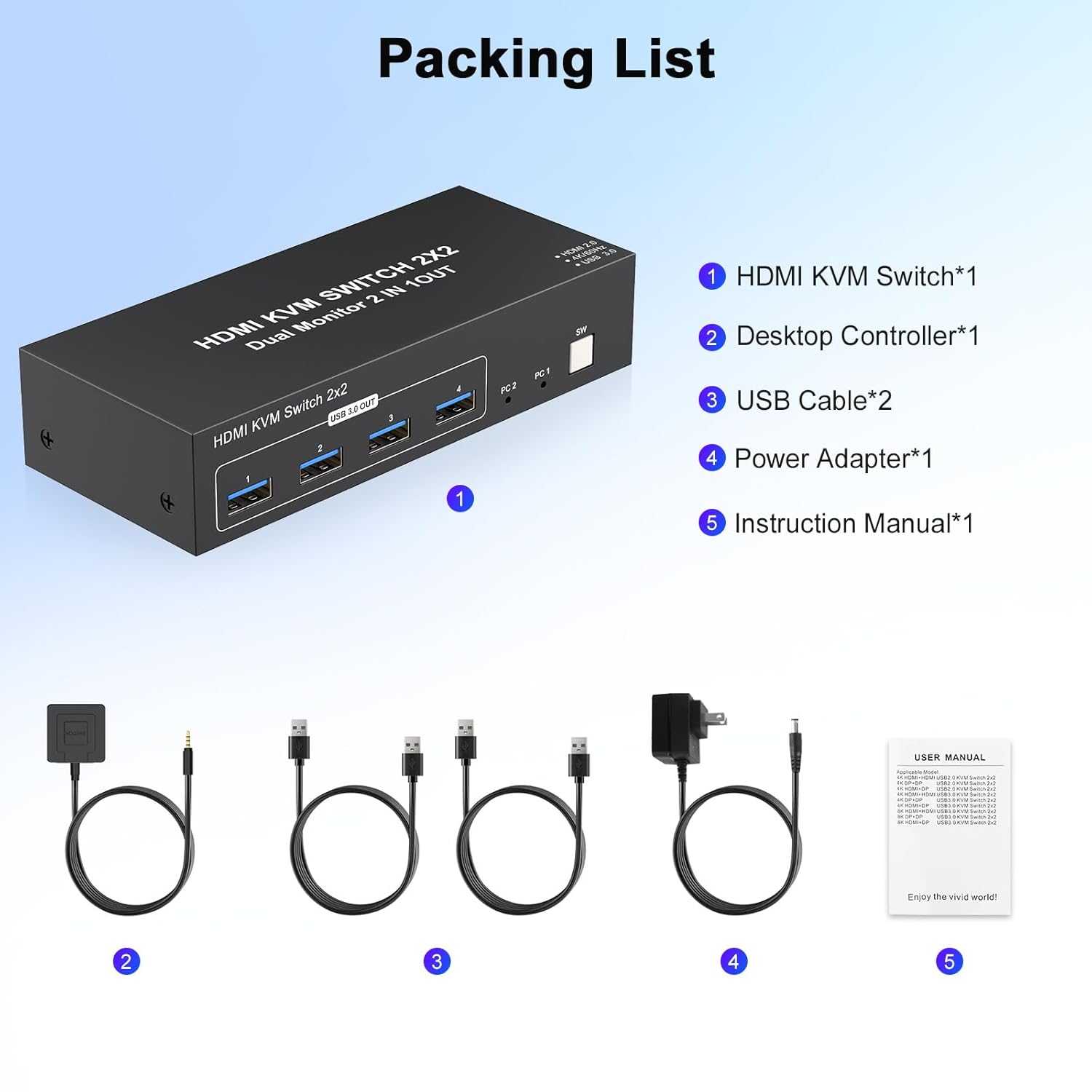
3. Setup and Connection
Follow these steps to connect your computers and monitors to the KVM switch:
- Power Off Devices: Ensure all computers and monitors are powered off before making any connections.
- Connect Monitors: Connect your two monitors to the KVM switch's "HDMI OUT A" and "HDMI OUT B" ports using HDMI cables.
- Connect Computers (PC 1):
- Connect PC 1's first HDMI output to "HDMI IN 1 A" on the KVM switch.
- Connect PC 1's second HDMI output to "HDMI IN 1 B" on the KVM switch.
- Connect a USB 3.0 cable from PC 1 to "USB IN 1" on the KVM switch.
- Connect Computers (PC 2):
- Connect PC 2's first HDMI output to "HDMI IN 2 A" on the KVM switch.
- Connect PC 2's second HDMI output to "HDMI IN 2 B" on the KVM switch.
- Connect a USB 3.0 cable from PC 2 to "USB IN 2" on the KVM switch.
- Connect Peripherals: Connect your keyboard, mouse, printer, USB drives, or other USB 3.0 devices to the "USB 3.0 OUT" ports (1-4) on the front of the KVM switch.
- Connect Wired Remote: Plug the wired remote into the "Control" port on the KVM switch.
- Power Connection: Connect the 12V power adapter to the "DC/12V" port on the KVM switch and then to a power outlet.
- Power On: Power on the KVM switch using the ON/OFF switch, then power on your monitors and computers.
Note: To achieve optimal performance, ensure all HDMI cables, USB cables, and the power adapter are securely connected. If you require 4K resolution, use HDMI 2.0 cables and confirm your computers and monitors support 4K.

4. Operating Instructions
The KVM switch offers two methods for switching between connected computers:
- Physical Button: Press the "SW" button on the front panel of the KVM switch to cycle between PC 1 and PC 2. An LED indicator will show which computer is currently active.
- Wired Remote: Use the included wired remote control to switch between computers. Press the button on the remote to switch.
Display Modes:
- Extended Mode: Displays different content across your two monitors, extending your desktop workspace.
- Mirror Mode: Duplicates the same content on both monitors.
Ensure your computer's display settings are configured for the desired mode (extended or mirror) after switching.

5. Maintenance
To ensure the longevity and optimal performance of your TAILAIERA KVM Switch, follow these maintenance guidelines:
- Cleaning: Use a soft, dry cloth to clean the exterior of the device. Avoid using liquid cleaners or aerosols, which can damage the internal components.
- Ventilation: Ensure the KVM switch is placed in a well-ventilated area to prevent overheating. Do not block any ventilation openings.
- Storage: When not in use for extended periods, store the device in a cool, dry place away from direct sunlight and extreme temperatures.
- Cable Management: Keep cables organized and free from kinks or excessive bending to prevent damage to the cables and ports.
- Power Off: When not in use, you can turn off the KVM switch using the ON/OFF switch without unplugging all cables.
6. Troubleshooting
If you encounter issues with your KVM switch, refer to the following common problems and solutions:
- No Display on Monitors:
- Ensure all HDMI cables are securely connected to both the KVM switch, computers, and monitors.
- Verify that the KVM switch is powered on and the correct input (PC 1 or PC 2) is selected.
- Check if your monitors are powered on and set to the correct HDMI input source.
- If using 4K resolution, confirm that all HDMI cables are version 2.0 or higher and that your computers and monitors support 4K.
- Ensure each computer has two display outputs connected to the KVM switch.
- Keyboard/Mouse Not Responding:
- Ensure the USB 3.0 cables from your computers are connected to the "USB IN" ports on the KVM switch.
- Verify that your keyboard and mouse are connected to the "USB 3.0 OUT" ports on the KVM switch.
- Try connecting the keyboard and mouse directly to the computer to confirm they are functional.
- Some specialized gaming keyboards/mice or those requiring specific drivers may have compatibility issues. Try a standard keyboard/mouse.
- USB 3.0 Devices Not Detected:
- Confirm the USB 3.0 cables from computers to the KVM switch are properly connected.
- Ensure the external USB device is connected to one of the "USB 3.0 OUT" ports.
- The KVM switch is powered by USB cables, and the 12V power adapter helps stabilize power for high-power USB devices. Ensure the power adapter is connected.
- Note: This KVM switch is not recommended for use with HD webcams or certain MacBook Pro models due to potential compatibility issues.
- Screen Flickering or Instability:
- Ensure all cables are high-quality and securely connected.
- Check for proper power supply to the KVM switch.
- Reduce the resolution or refresh rate to see if the issue persists.

7. Specifications
| Feature | Specification |
|---|---|
| Model Number | KVM-TA202-A |
| Product Dimensions | 5.5 x 2.36 x 1.2 inches |
| Item Weight | 8.96 ounces |
| Brand | TaiLaiEra |
| Operation Mode | ON-OFF |
| Current Rating | 1 Amps |
| Operating Voltage | 12 Volts (DC) |
| Connector Type | Plug In (HDMI + USB) |
| Circuit Type | 2-way |
| Actuator Type | Push Button |
| Video Resolution | Up to 4K@60Hz (backward compatible) |
| USB Data Transfer | USB 3.0, up to 5Gb/s |
8. Warranty and Support
TAILAIERA provides a 1-year warranty for this 4K HDMI KVM Switch.
For technical support or any issues, please contact TAILAIERA customer service. We are committed to providing high-performance, reliable smart solutions and offer 24-hour online customer support to resolve your issues in real-time.
Please refer to the contact information provided with your purchase or visit the official TAILAIERA website for support details.


