
1. Introduction
This user manual provides comprehensive instructions for the installation, operation, and maintenance of your Jansite MT58B Motorcycle Display. This device integrates an 8.1-inch high-brightness touchscreen with wireless CarPlay and Android Auto functionalities, a 4K dual dash camera system, GPS navigation support, and IPX7 waterproofing. Please read this manual thoroughly before use to ensure proper functionality and safety.
2. Key Features
- 8.1-inch High-Brightness Touchscreen: Features a 1600x600 resolution display for clear visibility in various lighting conditions.
- Wireless CarPlay & Android Auto: Seamlessly connect your smartphone for navigation, calls, music, and more.
- 4K + 1080P Dual Dash Camera: Synchronous recording with a 4K front camera and 1080P AHD rear camera, offering a 150-degree wide-angle view. Includes a 64GB TF card.
- Intelligent Recording Functions: Supports smartphone app control for video download, loop recording, and a built-in G-sensor for emergency recording.
- Hands-Free Operation: Voice control (Siri/Google Assistant) and a wired remote control allow for safe operation while riding.
- Dual Bluetooth Connectivity: Connects to both your smartphone and a Bluetooth headset/helmet simultaneously.
- IPX7 Waterproof Design: Ensures reliable performance in various weather conditions, including rain and snow.
3. Package Contents
Verify that all items listed below are included in your package. If any items are missing or damaged, please contact customer support.
- Jansite MT58B 8.1-inch Motorcycle Display
- Front Camera (4K)
- Rear Camera (1080P AHD)
- Wired Remote Control
- Power Cables (Waterproof)
- Connection Cables (Waterproof)
- U-shaped Mounting Bracket
- Stainless Steel Screws
- 64GB TF Card
- User Manual

Figure 3.1: Package Contents
4. Setup and Installation
Proper installation is crucial for the performance and safety of the device. It is recommended to have this installed by a qualified technician if you are unsure.
4.1 Mounting the Display
- Attach the U-shaped mounting bracket to a suitable location on your motorcycle's handlebars or dashboard, ensuring it does not obstruct your view or controls.
- Secure the display unit to the bracket using the provided stainless steel screws. Adjust the viewing angle for optimal visibility.
4.2 Camera Installation
- Mount the 4K front camera securely at the front of your motorcycle, ensuring a clear, unobstructed view of the road ahead.
- Mount the 1080P AHD rear camera at the rear of your motorcycle, ensuring a clear view of the road behind.
- Route the camera cables carefully, avoiding moving parts and heat sources. Use the waterproof connection cables.
4.3 Wiring Diagram
Follow the wiring diagram below for correct power and component connections. Ensure all connections are secure and waterproof.

Figure 4.1: Wiring Diagram
- Connect the main power cable to the motorcycle battery (red to positive, yellow to ACC power, black to negative).
- Connect the front and rear camera cables to their respective ports on the display unit.
- Connect the wired remote control cable to the display unit.
5. Operating Instructions
5.1 Powering On/Off
The device will power on automatically when the motorcycle ignition is turned on. To power off, turn off the ignition.
5.2 Wireless CarPlay / Android Auto
This device supports wireless connection to Apple CarPlay and Android Auto, allowing you to access smartphone features safely while riding.

Figure 5.1: Wireless CarPlay and Android Auto Interface
- Ensure your smartphone's Bluetooth and Wi-Fi are enabled.
- On the MT58B display, select either "CarPlay" or "Android Auto".
- On your smartphone, search for and connect to the MT58B's Bluetooth signal.
- Follow the on-screen prompts on both the display and your smartphone to establish the wireless connection.
- Once connected, you can use navigation, make calls, send messages, and play music directly from the display.
Note: Compatible with iOS 6 and later, Android 11 and later. Please verify your smartphone's compatibility before use.
5.3 Dual Dash Camera Operation
The integrated dual dash camera system records continuously while the device is powered on.

Figure 5.2: Dual Camera Display
- Loop Recording: The system automatically overwrites the oldest files when the 64GB TF card is full, ensuring continuous recording.
- G-Sensor: In the event of a sudden impact or collision, the built-in G-sensor automatically locks the current video file to prevent it from being overwritten.
- Viewing Footage: Recorded videos can be viewed directly on the display or accessed via the smartphone app (see Section 5.4).
5.4 Smartphone App Control
Connect the MT58B to your smartphone via Wi-Fi to manage recordings and device settings.
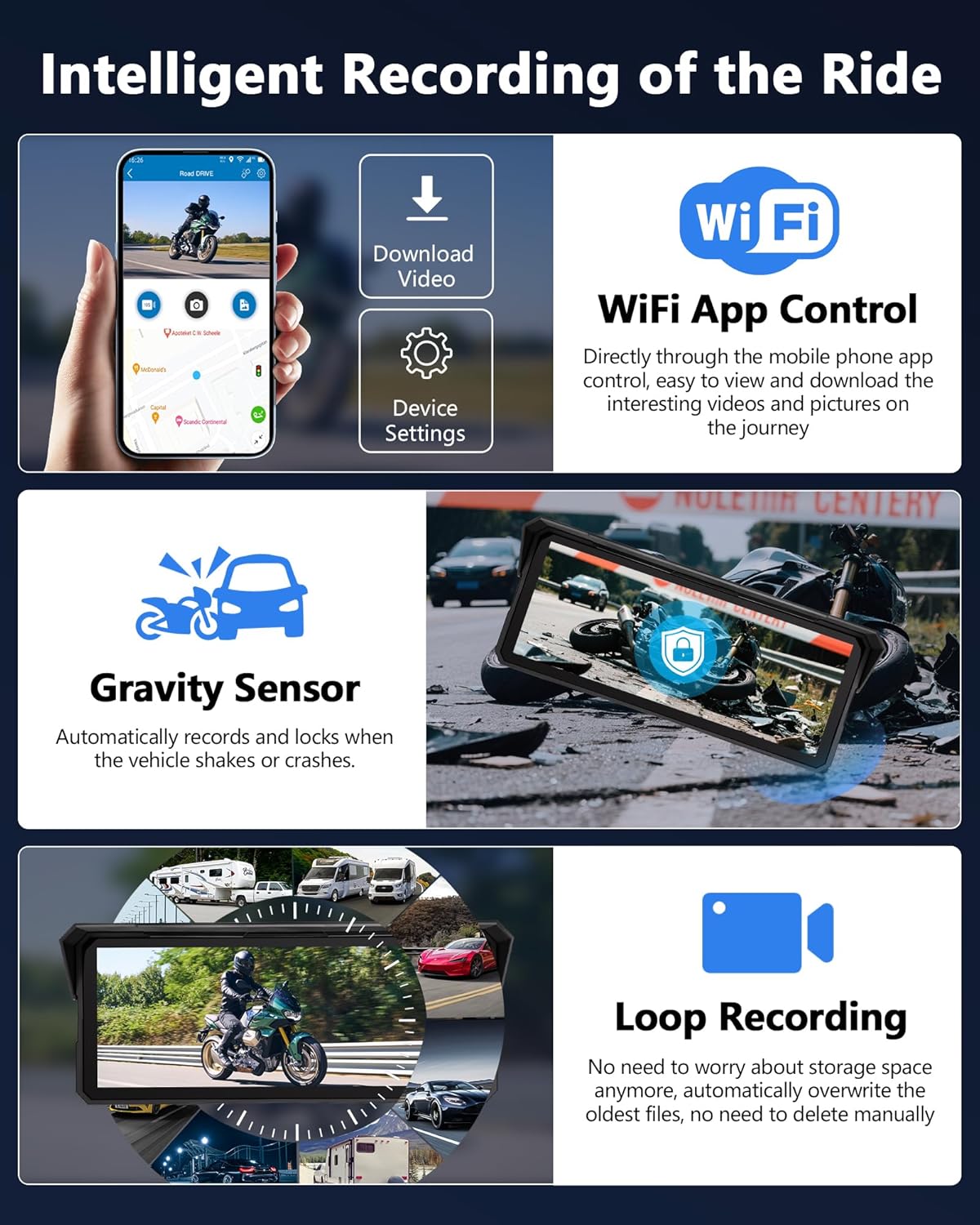
Figure 5.3: Smartphone App Interface
- Download the dedicated smartphone app (refer to the product packaging or included quick start guide for app name/QR code).
- Connect your smartphone to the MT58B's Wi-Fi network.
- Open the app to view live camera feeds, browse recorded videos, download files to your phone, and adjust device settings.
5.5 Voice Control and Wired Remote
Utilize voice commands and the wired remote control for hands-free operation.

Figure 5.4: Wired Remote Control and Voice Assistant
- Voice Assistant: Activate Siri or Google Assistant (via connected smartphone) by saying "Hey Siri" or "Hey Google" to make calls, navigate, or play music.
- Wired Remote Control: Use the remote to perform actions such as taking photos, switching screen views, answering/rejecting calls, and accessing GPS location functions without touching the main display.
5.6 Dual Bluetooth Connectivity
The device supports simultaneous Bluetooth connections for your smartphone and a Bluetooth headset or helmet.

Figure 5.5: Dual Bluetooth Connection
- Connect your smartphone to the MT58B via Bluetooth for CarPlay/Android Auto (as described in Section 5.2).
- Connect your Bluetooth headset or helmet to the MT58B via Bluetooth.
- Audio from navigation, music, and calls will be routed to your connected headset/helmet.
6. Maintenance
6.1 Cleaning the Display
- Use a soft, lint-free cloth to gently wipe the screen.
- For stubborn marks, slightly dampen the cloth with water or a screen-safe cleaning solution. Do not spray liquid directly onto the screen.
- Avoid using abrasive cleaners, solvents, or alcohol-based solutions, as these can damage the screen coating.
6.2 Waterproofing
The device features an IPX7 waterproof rating, designed to withstand rain and splashes. Ensure all cable connections are properly sealed to maintain waterproofing.

Figure 6.1: IPX7 Waterproof Performance
6.3 TF Card Management
- The included 64GB TF card is pre-installed.
- Periodically check the TF card for proper function. If recording issues occur, formatting the card via the device settings may resolve them.
- Replace the TF card if it becomes corrupted or shows signs of wear to ensure reliable recording.
7. Troubleshooting
| Problem | Possible Cause | Solution |
|---|---|---|
| Device does not power on. | Incorrect wiring; loose power connection; motorcycle battery issue. | Check all power cable connections. Ensure the motorcycle battery has sufficient charge. Verify ACC power connection. |
| CarPlay/Android Auto not connecting. | Smartphone Bluetooth/Wi-Fi off; incompatible smartphone OS; incorrect pairing process. | Ensure smartphone Bluetooth and Wi-Fi are on. Check smartphone OS version (iOS 6+, Android 11+). Re-attempt pairing process. |
| No camera recording or footage. | Loose camera connection; faulty TF card; TF card full (loop recording should prevent this). | Check camera cable connections. Ensure TF card is properly inserted. Format the TF card via settings if issues persist. |
| Display is dim or hard to see. | Brightness setting too low; direct sunlight glare. | Adjust screen brightness in the device settings. The high-brightness screen is designed for outdoor use, but extreme direct sunlight can still affect visibility. |
| Voice assistant not responding. | Smartphone not connected; microphone obstructed; voice assistant not enabled on phone. | Ensure smartphone is properly connected via CarPlay/Android Auto. Check microphone for obstructions. Verify Siri/Google Assistant is enabled on your phone. |
8. Specifications
| Brand | Jansite |
| Model Number | MT58B |
| Screen Size | 8.1 inches |
| Screen Resolution | 1600 x 600 |
| Front Camera Resolution | 4K Ultra HD |
| Rear Camera Resolution | 1080P AHD |
| Connectivity Technology | Bluetooth, Wi-Fi |
| Special Features | SD Card Input, 4K Upscaling, GPS Navigation, Touchscreen, Loop Recording, G-Sensor, Voice Control |
| Waterproof Rating | IPX7 |
| Included Storage | 64GB TF Card |
| Power Source | 12V Battery (included) |
| Control Method | Application, Touchscreen, Wired Remote, Voice |
| Dimensions (Package) | 22.48 x 15.5 x 11 cm |
| Weight (Package) | 1.2 kilograms |
9. Warranty and Support
Jansite offers a 12-month warranty and technical support for this product. If you encounter any issues or have questions, please contact our customer support team.
- Warranty Period: 12 months from the date of purchase.
- Technical Support: Solutions to problems are typically provided within 24 hours.
- Contact Information: Refer to your product packaging or the official Jansite website for the most current customer support contact details.
Important Note: This device is compatible with iOS 6 and later, and Android 11 and later. Please ensure your smartphone meets these requirements before purchasing or seeking support for connectivity issues.


