
1. Introduction
Thank you for choosing the FIREBAT Ryzen7-5060-16GB/512GB Gaming Laptop. This manual provides essential information for setting up, operating, maintaining, and troubleshooting your new device. Please read this manual thoroughly before using the laptop to ensure optimal performance and longevity.
2. Package Contents
Verify that all items are present in your package:
- FIREBAT Ryzen7-5060-16GB/512GB Gaming Laptop
- Power Adapter (210W)
- Power Cord
- Speakers (integrated)
- User Manual (this document)
3. Product Overview
The FIREBAT Gaming Laptop is designed for high-performance computing, featuring a 16-inch 2.5K QHD 240Hz display, AMD Ryzen 7 H255 CPU, and NVIDIA RTX 5060 GPU.
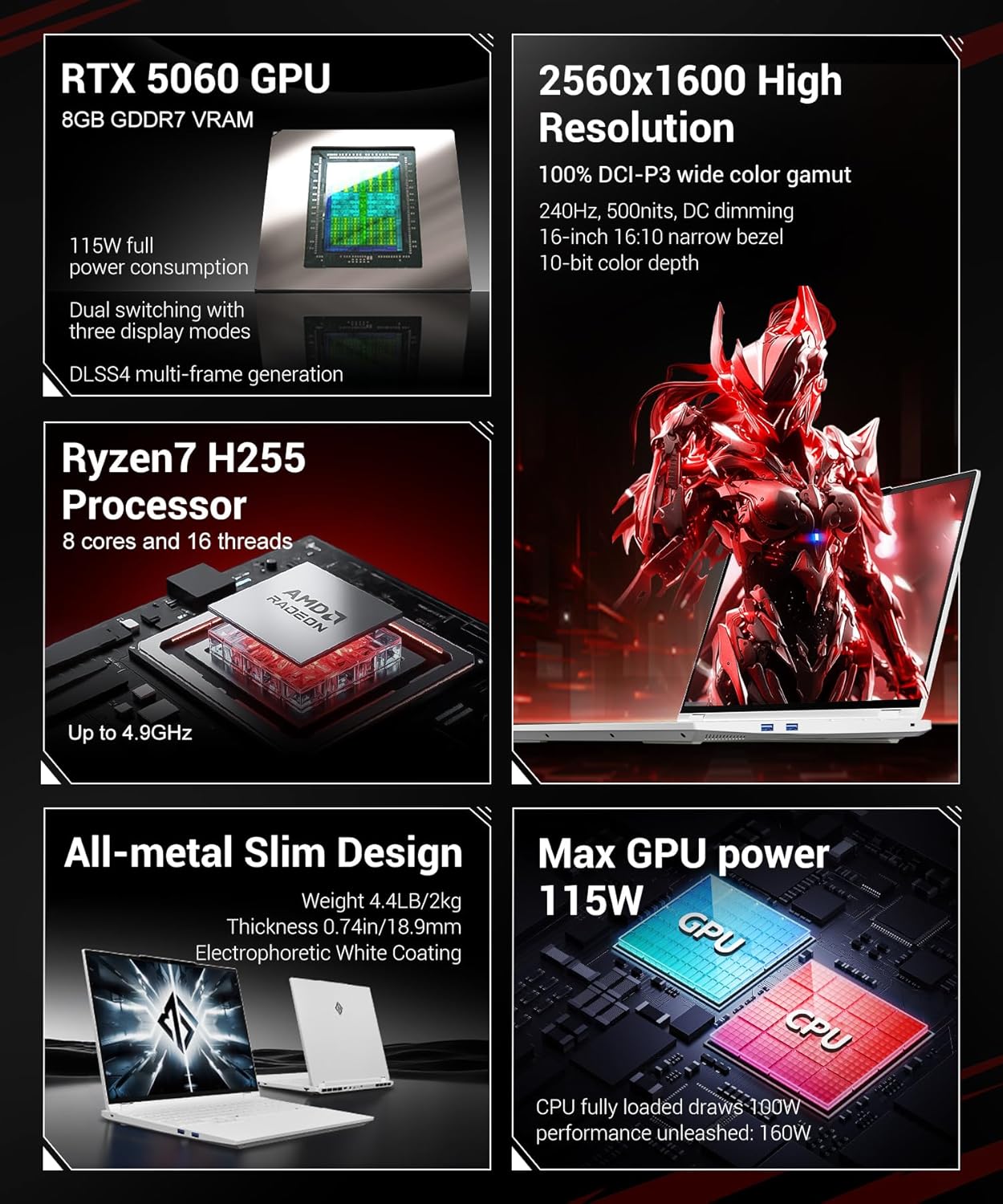
Figure 3.1: FIREBAT Gaming Laptop - Front View
3.1 Key Features
- Processor: AMD Ryzen 7 H255 (8 Cores, 16 Threads, up to 4.9GHz)
- Graphics: NVIDIA RTX 5060 GPU (8GB GDDR7 VRAM, 115W TGP)
- Display: 16-inch 2.5K QHD (2560x1600) IPS, 240Hz, 500nits, 100% DCI-P3, 10-bit color depth
- Memory: 16GB DDR5 5600MHz RAM (expandable up to 96GB)
- Storage: 512GB PCIe3.0 M.2 2280 SSD (dual PCIe4.0 hard drive interface)
- Cooling: Dual fans, three heat pipes, dual air outlets
- Connectivity: Wi-Fi AX (6E), Bluetooth 5.3, 2.5Gbps LAN
- Security: IR Facial Recognition Camera
- Design: All-metal chassis, RGB Backlit Keyboard

Figure 3.2: Laptop Design and Dimensions
3.2 Ports and Connectors
Familiarize yourself with the available ports on your laptop:

Figure 3.3: Laptop Ports and Connectors
- 3x USB-A 3.2 Gen1 (5Gbps)
- 1x USB-C 4.0 Gen2 (rear, 10Gbps/DP 1.4a for integrated graphics output/PD 140W)
- 1x USB-C 3.2 Gen2 (left, 10Gbps/DP 1.4 for integrated graphics output/PD 100W)
- 1x mini DP 2.1a 40Gbps (for discrete graphics output)
- 1x HDMI 2.1 48Gbps (for discrete graphics output)
- 1x RJ45 LAN (1000Mbps)
- 1x 20V 10.5A 210W Power Input
- 1x 3.5mm 2-in-1 Audio Jack
- 1x Kensington Lock Slot
4. Setup
4.1 Connecting the Power Adapter
Before initial use, connect the power adapter to the laptop and a power outlet. This ensures the battery is charged and provides stable power for setup.
- Plug the DC output connector of the 210W power adapter into the power input port (7) on the laptop.
- Connect the power cord to the power adapter.
- Plug the other end of the power cord into a wall outlet.
4.2 Initial Power On and Operating System Setup
Once the power adapter is connected, you can power on your laptop.
- Open the laptop lid.
- Press the power button located on the keyboard deck.
- Follow the on-screen instructions to complete the initial setup of the operating system. This typically involves selecting language, region, and setting up user accounts.
5. Operating Instructions
5.1 Power On/Off and Sleep Mode
- Power On: Press the power button.
- Power Off: Access the operating system's power options to shut down.
- Sleep Mode: Close the laptop lid or select 'Sleep' from the operating system's power options.
5.2 Display Modes (Dual Graphics Switching)
Your laptop supports three display modes, allowing you to optimize for battery life or performance. These modes can be switched via the FIREBAT Control Center software.

Figure 5.1: Dual Graphics Switching Modes
- Integrated Graphics Output: Ideal for travel and office use, maximizing battery life.
- Direct Independent Graphics Connection: Gaming-focused, maximizing performance by directly utilizing the discrete GPU.
- Hybrid Output: For everyday use, offering flexible switching between battery life and performance.
5.3 Performance Modes
The laptop features one-click switching between four performance modes to adapt to different usage scenarios.

Figure 5.2: One-Click Performance Mode Switching
- Performance Mode: Pursue powerful performance for demanding tasks.
- Gaming Mode: Balanced performance and experience optimized for gaming.
- Customized Mode: Unleash maximum performance potential with user-defined settings.
- Work Mode: Quiet experience with long battery life for productivity tasks.
5.4 Facial Recognition
The integrated IR facial recognition camera allows for quick and secure login.

Figure 5.3: HD Facial Recognition Camera
- Setup: Configure facial recognition through your operating system's security settings.
- Usage: Look at the camera to unlock the system.
- Privacy: The camera includes a physical shielding function for privacy protection.
5.5 RGB Backlit Keyboard and Touchpad
The laptop features an RGB backlit keyboard and a glass-feel touchpad.

Figure 5.4: RGB Backlit Keyboard and Touchpad
- Keyboard Backlight: Adjust RGB backlight settings through the system's control software.
- Touchpad: The glass-feel touchpad provides smooth and precise navigation.
5.6 Nahimic Audio Software
Enhance your audio experience with Nahimic Audio Software, providing customizable sound effects.
Figure 5.5: Nahimic Audio Software
- Installation: The audio software driver must be downloaded and installed from the official FIREBAT website.
- Features: Includes Visual Audio Radar and professional acoustic tuning by SteelSeries for different environments and games.
5.7 Official Product Video
Video 5.1: Official FIREBAT Gaming Laptop Overview. This video demonstrates the laptop's features, including facial recognition, gaming performance, and performance mode switching.
6. Maintenance
6.1 Cleaning
- Screen: Use a soft, lint-free cloth lightly dampened with water or a screen cleaner. Avoid harsh chemicals.
- Keyboard and Chassis: Use a soft cloth to wipe surfaces. For dust in crevices, use compressed air.
- Ports: Gently remove dust from ports using compressed air.
6.2 Battery Care
The laptop is equipped with a 5200mAh 80Wh battery.

Figure 6.1: Internal Battery Capacity
- Avoid fully discharging the battery frequently.
- Store the laptop in a cool, dry place if not used for extended periods, with the battery charged to around 50-70%.
- Use only the original FIREBAT power adapter.
6.3 Cooling System
The laptop features an efficient cooling system to maintain performance.

Figure 6.2: Cooling System Design
- Ensure ventilation openings are not blocked during use.
- Regularly clean dust from the fan vents using compressed air.
7. Troubleshooting
This section addresses common issues you might encounter.
7.1 Power Issues
- Laptop does not turn on: Ensure the power adapter is securely connected and the outlet is functional. Check if the battery is completely drained.
- Battery not charging: Verify the power adapter and cable are not damaged. Try a different power outlet.
7.2 Display Issues
- No display: Connect an external monitor to check if the laptop is outputting video. Ensure the display mode is correctly set.
- Flickering screen: Update graphics drivers. Check display cable connections if using an external monitor.
7.3 Performance Issues
- Slow performance: Check for background applications consuming resources. Ensure cooling vents are clear. Switch to a higher performance mode if necessary.
- Overheating: Ensure proper ventilation. Clean fan vents. Consider reducing workload or adjusting performance settings.
7.4 Connectivity Issues
- Wi-Fi not connecting: Check if Wi-Fi is enabled. Restart your router and laptop. Update wireless drivers.
- Bluetooth device not pairing: Ensure Bluetooth is enabled on both devices. Check device compatibility and drivers.
8. Specifications
Detailed technical specifications for your FIREBAT Gaming Laptop.
| Feature | Specification |
|---|---|
| Model Name | Ryzen7-5060-16GB/512GB |
| Processor | AMD Ryzen 7 H255 (8 Cores, 16 Threads, up to 4.9 GHz) |
| Graphics Coprocessor | NVIDIA RTX 5060 GPU |
| Graphics Card RAM Size | 8 GB GDDR7 |
| Screen Size | 16 inches |
| Max Screen Resolution | 2560 x 1600 pixels (2.5K QHD) |
| Refresh Rate | 240Hz |
| RAM | 16GB DDR5 5600MHz (8GBx2) |
| Hard Drive | 512GB NVMe SSD (PCIe3.0 M.2 2280) |
| Wireless Type | 802.11ax (Wi-Fi 6E), Bluetooth 5.3 |
| LAN | 2.5Gbps Ethernet |
| USB Ports | 3x USB-A 3.2 Gen1, 1x USB-C 4.0 Gen2, 1x USB-C 3.2 Gen2 |
| Video Output | 1x mini DP 2.1a, 1x HDMI 2.1, 2x USB-C with DP 1.4/1.4a |
| Battery | 5200mAh 80Wh |
| Operating System | Default (as shipped) |
| Item Weight | 4.6 pounds (2.09 kg) |
| Product Dimensions | 14 x 9.7 x 0.9 inches (35.56 x 24.64 x 2.29 cm) |
| Color | White |
9. Warranty and Support
For warranty information and technical support, please refer to the documentation included with your purchase or visit the official FIREBAT website. Keep your proof of purchase for warranty claims.
- Online Support: Visit the FIREBAT official website for FAQs, driver downloads, and support contact information.
- Customer Service: Contact FIREBAT customer service for assistance with product issues or warranty claims.