
1. Introduction
The OTTOCAST Play2Video Ultra Magic AI Box is a car streaming device designed to enhance your in-car entertainment and connectivity. It converts wired CarPlay and Android Auto into wireless versions and provides access to various streaming applications directly on your vehicle's display. This manual provides detailed instructions for setup, operation, and troubleshooting.

Figure 1.1: OTTOCAST Play2Video Ultra offering seamless connectivity and video streaming.

Figure 1.2: Benefits of the Play2Video Ultra, including smoother rides, entertained passengers, compact fit, and mobile entertainment.
2. What's in the Box
The OTTOCAST Play2Video Ultra package includes the following items:
- 1 x Ottocast Play2Video Ultra device
- 1 x USB Plug Adapter (USB-A to Type-C)
- 1 x Y Cable
- 1 x User Manual

Figure 2.1: Contents of the OTTOCAST Play2Video Ultra package, including the device, adapters, and manual.
Video 2.1: An unboxing video demonstrating the contents of the OTTOCAST Play2Video Ultra package and initial setup steps.
3. Setup and Installation
3.1 Initial Connection
Connect the Play2Video Ultra device to your vehicle's USB communication port. It is crucial to use a data-enabled USB port, not solely a charging port. The device includes a USB-A to USB-C adapter for compatibility with various car models.

Figure 3.1: The OTTOCAST Play2Video Ultra device shown with its integrated USB-A cable and a detachable USB-C adapter, ready for connection.
3.2 Using the Y-Cable for Power Stability
If the product automatically restarts, cannot power on, or displays a blank screen, it may be due to insufficient power. In such cases, use the provided Y-cable to ensure stable power delivery.
Video 3.1: A demonstration on how to correctly connect the Y-cable to the Play2Video Ultra for enhanced power stability, especially in vehicles with lower power USB ports.
4. Wireless CarPlay and Android Auto Connection
The Play2Video Ultra converts your vehicle's wired CarPlay or Android Auto system into a wireless experience.
4.1 Connecting to Wireless CarPlay
- Get Started: Plug the device into your car's USB port. Once the main screen appears on your car's display, tap the CarPlay icon.
- Activate: On your iPhone, ensure Bluetooth and Wi-Fi are turned on.
- Pair Your Phone: Go to your iPhone's Bluetooth settings, find "Play2Video-Ultra-XXXX" in the list, and tap to pair. Confirm the pairing request on both your phone and car screen, then select "Use CarPlay."
- All Set: Wait 5-15 seconds. The screen will automatically switch to the Apple CarPlay interface.

Figure 4.1: Visual guide for connecting your iPhone to Wireless CarPlay using the Play2Video Ultra.
4.2 Connecting to Wireless Android Auto
- Get Started: Plug the device into your car's USB port. Once the main screen appears on your car's display, tap the Android Auto icon.
- Activate: On your Android phone, ensure Bluetooth and Wi-Fi are turned on.
- Pair Your Phone: Go to your Android phone's Bluetooth settings, find "Play2Video-Ultra-XXXX" in the list, and tap to pair. Confirm the pairing request on both your phone and car screen.
- All Set: Wait 5-15 seconds. The screen will automatically switch to the Android Auto interface.

Figure 4.2: Visual guide for connecting your Android phone to Wireless Android Auto using the Play2Video Ultra.
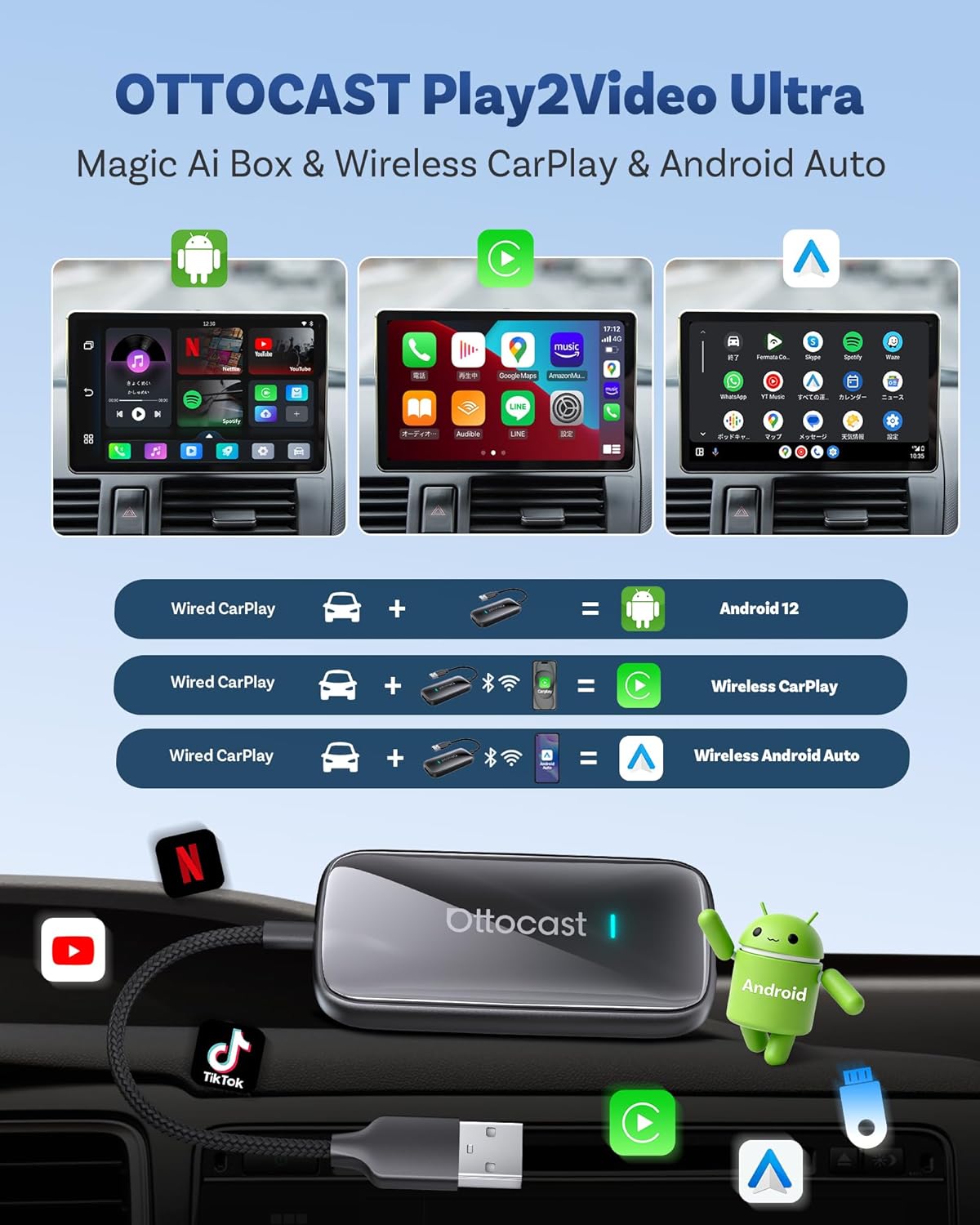
Figure 4.3: The main interface on the car's display, allowing selection between Android System, Wireless CarPlay, and Wireless Android Auto.

Figure 4.4: The Play2Video Ultra is compatible with iPhones running iOS 10.0+ and Android smartphones running Android 11.0+.
Video 4.1: A demonstration of connecting the Play2Video Ultra in a car, showcasing the transition to Android interface, streaming apps, and wireless CarPlay functionality.
5. Media Streaming and Playback
The Play2Video Ultra transforms your car's display into an entertainment hub, supporting both online streaming and offline media playback.
5.1 Online Streaming
The device comes with pre-installed applications such as Netflix, YouTube, IPTV, and Amazon Video. To access these services, connect the Play2Video Ultra to a Wi-Fi hotspot (e.g., from your smartphone or a dedicated car hotspot).

Figure 5.1: Steps for watching online videos: connect to Wi-Fi/hotspot, then open built-in applications.
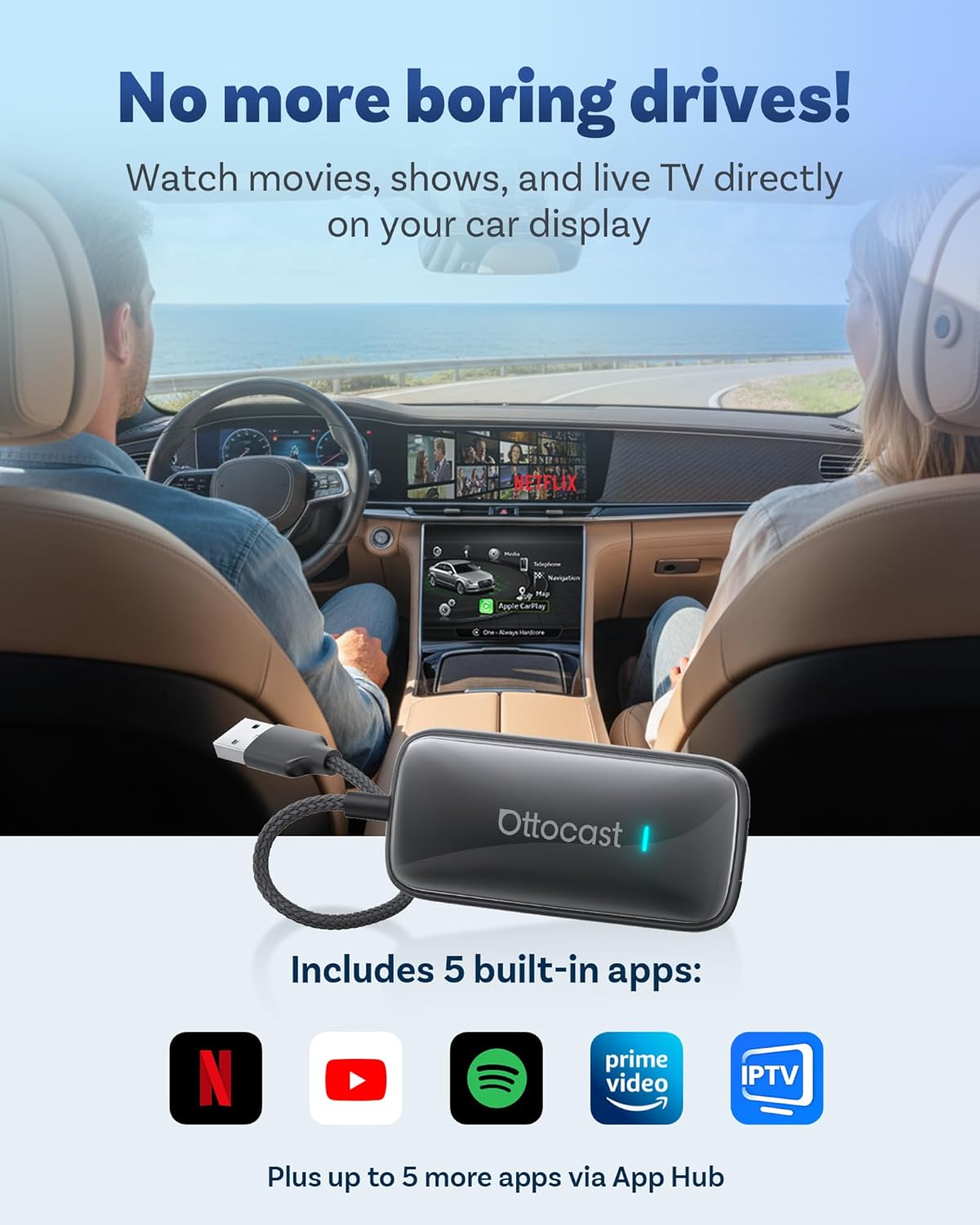
Figure 5.2: The device's interface showing pre-installed streaming applications for in-car entertainment.

Figure 5.3: Utilizing idle time for entertainment by watching videos on the car screen, ideal for waiting in parking lots.
5.2 Offline Playback
The Play2Video Ultra supports media playback from a USB drive with a maximum capacity of 128GB. This allows you to enjoy your favorite videos even without an internet connection.

Figure 5.4: The device supports USB offline playback, allowing you to watch pre-downloaded content from a USB drive.

Figure 5.5: Enjoy pre-downloaded movies and videos from a USB drive on long trips without needing an internet connection.
6. Operating Features
The Play2Video Ultra is designed with a driving-friendly system and supports various control methods.
6.1 Driving-Friendly System
The device features a custom minimalist Android UI optimized for safe driving. It allows for one-click switching between video streaming and CarPlay/Android Auto interfaces, minimizing distractions.

Figure 6.1: The Play2Video Ultra provides entertainment for every journey, from offline videos during camping to live TV on long drives.
6.2 Control Options
Maintain control over your vehicle's functions and the Play2Video Ultra using familiar methods:
- Voice Assistant (e.g., Siri, Google Assistant)
- Touch Screen Control
- Steering Wheel Control
- OEM Knob Control

Figure 6.2: The device integrates seamlessly with your car's original control mechanisms for safe and convenient operation.
6.3 Over-The-Air (OTA) Updates
The Play2Video Ultra supports OTA updates, ensuring that the latest functions and improvements are regularly and automatically applied to your device.

Figure 6.3: The OTA function ensures your device receives the latest software updates and improvements automatically.
7. Troubleshooting
7.1 Common Issues and Solutions
- Device not powering on or screen is blank: Ensure the device is connected to a data-enabled USB port, not just a charging port. If issues persist, use the provided Y-cable to ensure adequate power supply.
- Product reboots automatically: This may occur during the first startup as the device adapts to your vehicle's display resolution. If it continues, ensure the USB port is fully functional and consider using the Y-cable for stable power.
- Wireless CarPlay/Android Auto not connecting: Verify Bluetooth and Wi-Fi are enabled on your phone and correctly paired with the Play2Video Ultra device. Ensure your car's wired CarPlay/Android Auto feature is enabled.
- App crashing or freezing: Ensure the device's firmware is up to date via OTA updates. Check for individual app updates within the App Hub.
For further assistance, refer to the official OTTOCAST support resources or contact customer service.
8. Specifications
The following table outlines the key specifications of the OTTOCAST Play2Video Ultra:
| Feature | Specification |
|---|---|
| Brand Name | OTTOCAST |
| Model Name | Play2Video Ultra |
| Item Model Number | CA515 |
| Product Dimensions | 1.54 x 0.59 x 3.11 inches |
| Item Weight | 1.34 ounces |
| Color | Black |
| Connectivity Technology | Bluetooth 5.4, Wi-Fi 6Ghz |
| Connector Type | USB Type A |
| Resolution | 1080p |
| Supported Internet Services | IPTV, Netflix, Prime Video, YouTube |
| Special Features | 10-sec Setup, 4GB RAM+32GB ROM, Low Latency, Plug & Play, Support 128GB USB drive offline playback |
| Controller Type | Automatic Reconnect, Touch Control/Knob Control/Steering Wheel Control |
| Operating Temperature | -20°C to 70°C |

Figure 8.1: Key upgrades and features of the Play2Video Ultra compared to its predecessor, the Play2Video Pro.

Figure 8.2: The device's 4GB RAM and 32GB ROM ensure responsive, smooth, and powerful performance for all applications.

Figure 8.3: The Play2Video Ultra is designed to operate reliably across a wide temperature range, from -20°C to 70°C.

Figure 8.4: The device boasts wide compatibility with various iPhone and Android models, and works with approximately 98% of vehicles equipped with wired CarPlay (excluding Tesla and BMW).
9. Warranty and Support
The OTTOCAST Play2Video Ultra comes with a standard manufacturer's warranty. For detailed warranty information, product support, or technical assistance, please visit the official OTTOCAST website or contact their customer service.
Official Support Link: OTTOCAST Support


