
1. Introduction
The UGREEN NASync DH2300 is a 2-bay Network Attached Storage (NAS) device designed for home and office use. It provides a centralized solution for storing, managing, and accessing your digital files securely across various devices. Key features include 1 GbE LAN, 4GB RAM, NFC One-Touch connection, and an AI-powered photo album for intelligent organization.

Figure 1.1: Front view of the UGREEN NASync DH2300 NAS device.
2. Package Contents
Verify that all items are present in the package before proceeding with installation:
- UGREEN NASync DH2300 x1
- Screws and Screwdriver x1
- User Manual x1
- Power Adapter (DC12V/6A) x1
- Ethernet Cable (CAT 7) x1

Figure 2.1: Included accessories and components.
3. Physical Overview
Familiarize yourself with the ports and indicators on your NAS device.

Figure 3.1: Front and Rear Panel Connections.
Front Panel
- Power Button: Press to power on/off the device.
- Status Indicators: LEDs for LAN, Disk 1, Disk 2, and USB-C activity.
- NFC Area: For one-touch connection with compatible devices.
Rear Panel
- USB-C (5Gbps) x1: For connecting external devices.
- USB-A (5Gbps) x2: For connecting external devices.
- Reset Button: Used for system reset (refer to troubleshooting for details).
- 1 GbE LAN Port: For network connection.
- HDMI (4K 60Hz) Port: For direct display output.
- DC 12V Power Input: Connect the power adapter here.
4. Setup
4.1 Hardware Installation
- Install Hard Drives: Open the drive bays and securely install your 3.5-inch or 2.5-inch SATA hard drives (not included). Ensure they are properly seated.
- Connect Power: Connect the provided power adapter to the DC 12V input port on the rear of the NAS and then to a power outlet.
- Connect to Network: Use the included Ethernet cable to connect the 1 GbE LAN port on the NAS to your router or network switch.
- (Optional) Connect to Display: If you wish to use the 4K HDMI output, connect an HDMI cable from the NAS to your TV or monitor.
4.2 Initial Software Setup
- Power On: Press the power button on the front panel. The status indicators will light up.
- Download UGREEN NAS App: Download the 'UGREEN NAS' application from your device's app store (iOS/Android) or access the web interface via a browser on your computer (Windows/macOS).
- NFC One-Touch Connection: For quick setup, open the UGREEN NAS app on your smartphone and tap your phone against the NFC area on the front of the NAS. Follow the on-screen prompts to establish a connection and begin initial configuration, including creating an account and setting up storage pools.
- Manual Connection: Alternatively, you can manually connect by entering the NAS's IP address in the app or web interface.
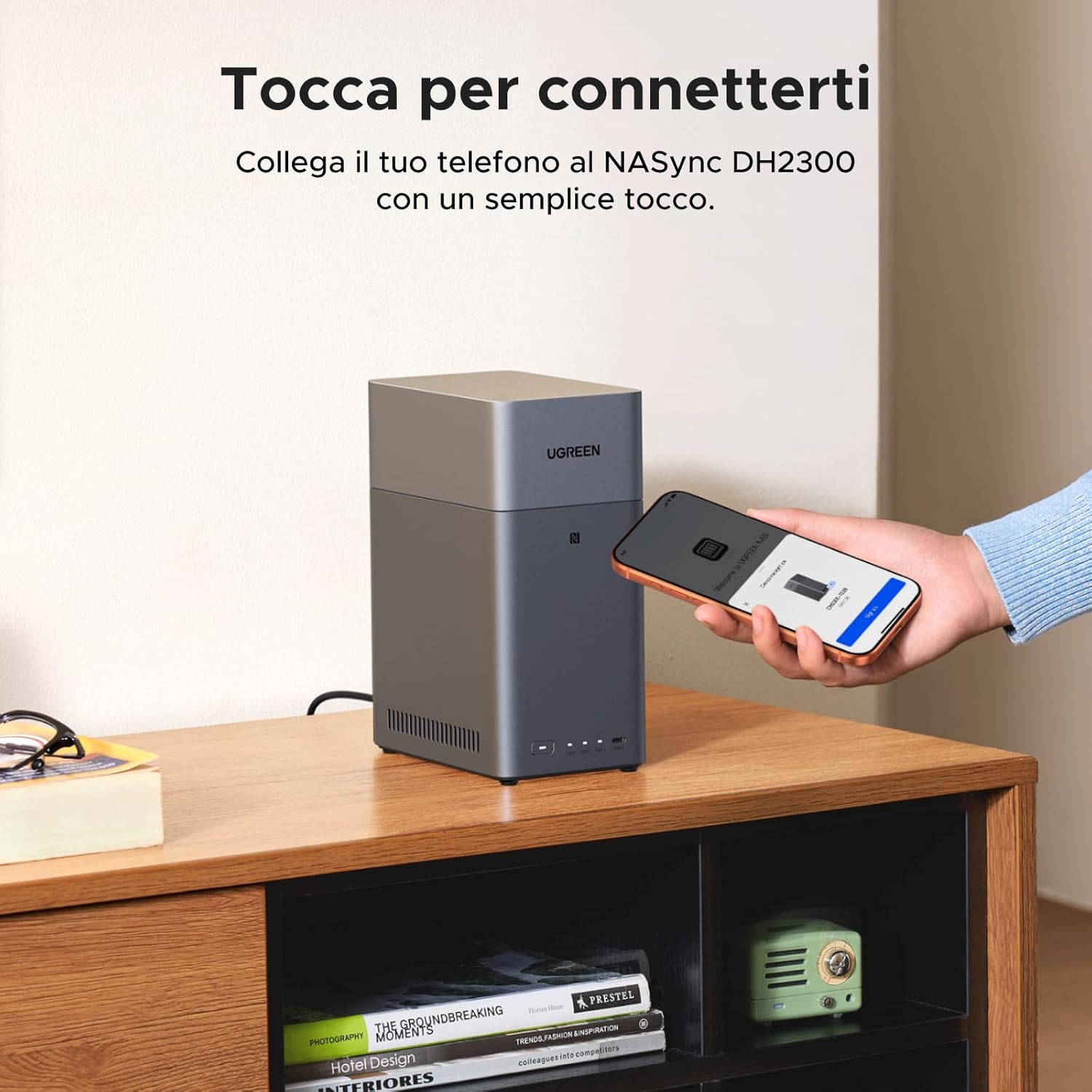
Figure 4.1: NFC One-Touch Connection.
5. Operation
5.1 Data Management and Access
The UGREEN NASync DH2300 allows you to store and access your files from various platforms:
- Cross-Platform Access: Access your data from Windows, macOS, Android, iOS devices, web browsers, and Smart TVs.
- Automatic Backup: Configure automatic backups for your photos, videos, and documents from connected devices to ensure your data is always safe.
- AI Photo Album: The integrated AI automatically organizes your photos by faces, scenes, and locations. It can also identify and remove duplicate images and create personalized albums. Share photos easily via QR codes or links.

Figure 5.1: AI Photo Album Features.
5.2 Multimedia Playback
Utilize the NAS as a central media hub:
- 4K Ultra HD Output: Connect the NAS directly to your TV via HDMI to enjoy your movie collection in 4K resolution.
- DLNA Support: Stream media content to DLNA-compatible devices on your network.

Figure 5.2: 4K Home Cinema Experience.
5.3 Security and Data Protection
Your data is protected with multiple layers of security:
- Advanced Encryption: All file transfers are encrypted to ensure data privacy.
- Firewall: Built-in firewall protects against unauthorized network access.
- Two-Factor Authentication (2FA): Adds an extra layer of security for user logins.
- RAID Modes: The 2-bay NAS supports RAID 0, RAID 1, and JBOD configurations. RAID 1 provides data redundancy by mirroring data across two drives, protecting against single drive failure.

Figure 5.3: Data Security Features.
5.4 User Management and Sharing
Manage user access and share files securely:
- Full Data Control: Create separate folders and private spaces for each family member or user.
- Granular Permissions: Assign read/write or read-only permissions to users for specific folders.
- Secure Sharing: Share files and albums with others using secure links or QR codes.

Figure 5.4: User Access Control.
6. Maintenance
- Regular Software Updates: Ensure your NAS firmware and UGREEN NAS app are always updated to the latest versions for optimal performance and security.
- Data Backup: While RAID 1 provides redundancy, it is recommended to perform regular backups of critical data to an external drive or another storage solution.
- Physical Cleaning: Keep the NAS unit clean and free from dust to ensure proper ventilation and prevent overheating.
7. Troubleshooting
If you encounter issues with your UGREEN NASync DH2300, refer to the following common solutions:
- NAS Not Powering On: Check the power adapter connection and ensure the power outlet is functional.
- No Network Connection: Verify the Ethernet cable is securely connected to both the NAS and your router. Check your router's status and network settings.
- Cannot Access Files: Ensure the NAS is powered on and connected to the network. Check user permissions and ensure the hard drives are properly installed and healthy.
- Slow Performance: Network congestion, old Ethernet cables, or high CPU/disk usage can affect performance. Check your network speed and NAS resource monitor.
- System Reset: If the NAS is unresponsive, use a paperclip to press and hold the reset button on the rear panel for 4 seconds to reset network settings without losing data. For a full factory reset (data loss possible), consult the advanced user guide on the UGREEN support website.
8. Specifications
| Feature | Specification |
|---|---|
| Model | DH2300 |
| Drive Bays | 2 |
| Processor | 8-Core CPU, 6 TOPS NPU |
| RAM | 4GB LPDDR4X |
| LAN Port | 1 GbE |
| HDMI Output | 4K 60Hz |
| USB Ports | 1x USB-C (5Gbps), 2x USB-A (5Gbps) |
| NFC | Yes, One-Touch Connection |
| Max Storage Capacity | Up to 60TB (Hard drives not included) |
| Power Consumption (TDP) | 10W |
| Dimensions | 23.8 x 21.7 x 19.7 cm |
| Weight | 1.69 kg |
9. Warranty and Support
UGREEN products come with a limited warranty. For detailed warranty information, technical support, and additional resources, please visit the official UGREEN website or contact UGREEN customer service. Keep your purchase receipt for warranty claims.


