
1. Product Overview
The Verbatim Pocket SSD is a compact and portable external solid-state drive designed for high-speed data transfer and storage. Its lightweight design and robust features make it suitable for various applications, including high-resolution video editing, large data management, and enhancing gaming performance.
Key Features:
- Compact and Portable: Ultra-lightweight at 58g and small dimensions (96.1 x 45.1 x 10mm) for easy transport.
- High-Speed Performance: USB 3.2 Gen 2 interface provides data transfer speeds up to 10Gbps.
- Durable Design: Includes two colorful rubber protective sleeves for enhanced shock resistance.
- Wide Compatibility: Connects to Windows PCs, Mac, TV, smartphones, and iPads via USB-C.
- Included Accessories: USB-C to USB-C cable with a convenient cable holder, two rubber cases (white and light blue), and a fabric bag.
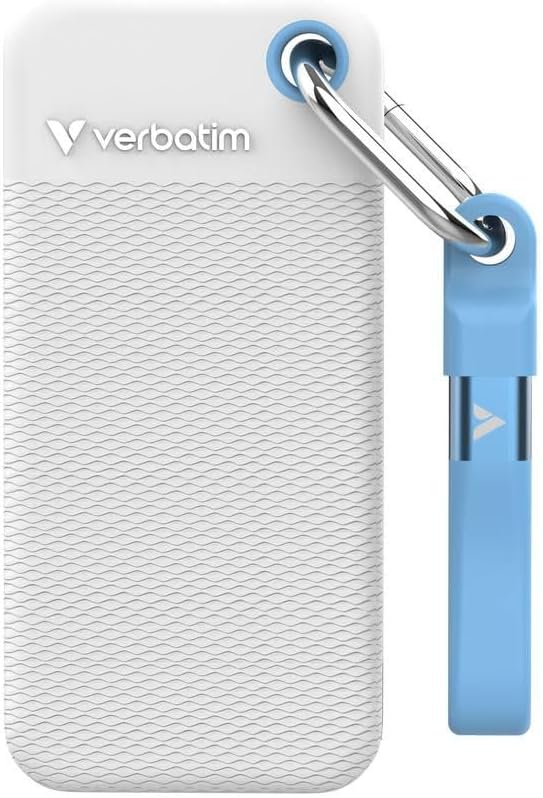
Image 1.1: Verbatim Pocket SSD with its white protective rubber sleeve. This image showcases the compact size and the included protective accessory.
2. What's in the Box
Upon opening the package, ensure all the following items are present:
- 1 x Verbatim Pocket SSD (1TB Capacity)
- 1 x USB-C to USB-C Cable
- 2 x Rubber Protective Cases (1 x White, 1 x Light Blue)
- 1 x Fabric Bag
3. Setup Instructions
3.1 Connecting the SSD
- Attach Rubber Sleeve (Optional): For added protection, slide one of the provided rubber cases onto the SSD.
- Connect Cable: Insert one end of the included USB-C to USB-C cable into the USB-C port on the Verbatim Pocket SSD.
- Connect to Device: Insert the other end of the USB-C cable into an available USB-C port on your computer, laptop, smartphone, tablet, or gaming console.
- Power On: The SSD is bus-powered and does not require an external power supply. It will power on automatically upon connection.

Image 3.1: Verbatim Pocket SSD shown with the light blue protective rubber sleeve. The USB-C port is visible for connection.
3.2 Initial Use and Formatting
The Verbatim Pocket SSD is typically pre-formatted for broad compatibility. However, depending on your operating system (Windows, macOS, Linux) and intended use, you may need to reformat the drive for optimal performance or specific file system requirements.
- Windows: Use Disk Management to initialize and format the drive if it doesn't appear automatically. Common file systems include NTFS or exFAT.
- macOS: Use Disk Utility to erase and format the drive. Common file systems include APFS or HFS+ (Mac OS Extended). For cross-platform compatibility, exFAT is recommended.
- Other Devices: For use with gaming consoles, smart TVs, or other devices, refer to their respective manuals for specific formatting requirements.
Warning: Formatting a drive will erase all data on it. Ensure any important data is backed up before proceeding with formatting.
4. Operating the SSD
4.1 Data Transfer
Once connected and recognized by your device, the Verbatim Pocket SSD will appear as an external storage device. You can transfer files to and from the SSD using standard operating system functions:
- Drag and Drop: Click and drag files or folders from your computer to the SSD icon, or vice versa.
- Copy and Paste: Right-click on files/folders, select "Copy," then navigate to the desired destination on the SSD, right-click, and select "Paste."
The USB 3.2 Gen 2 interface allows for rapid data transfer, making it efficient for large files and high-volume data operations.
4.2 Safe Removal
To prevent data corruption or loss, always safely eject the SSD before disconnecting it from your device.
- Windows: Click the "Safely Remove Hardware and Eject Media" icon in the system tray, then select the Verbatim Pocket SSD.
- macOS: Drag the SSD icon from your desktop to the Trash, or right-click the SSD icon and select "Eject."
5. Maintenance and Care
- Physical Protection: Always use the provided rubber protective sleeves to guard against accidental drops and impacts. When not in use, store the SSD in the fabric bag to prevent scratches and dust accumulation.
- Cleaning: Use a soft, dry, lint-free cloth to clean the exterior of the SSD. Avoid using liquid cleaners or solvents.
- Temperature: Operate and store the SSD within recommended temperature ranges (typically 0°C to 70°C operating, -40°C to 85°C storage). Avoid extreme heat or cold.
- Data Backup: Regularly back up important data stored on the SSD to another storage device. While SSDs are reliable, no storage device is immune to failure.
- Firmware Updates: Periodically check the Verbatim website for any available firmware updates for your SSD model. Firmware updates can improve performance and stability.
6. Troubleshooting
6.1 SSD Not Recognized
- Check Connections: Ensure the USB-C cable is securely connected to both the SSD and your device. Try a different USB-C port on your device.
- Try Another Cable: If available, test with a different USB-C to USB-C cable to rule out a faulty cable.
- Restart Device: Sometimes a simple restart of your computer or device can resolve recognition issues.
- Check Disk Management (Windows) / Disk Utility (macOS): Verify if the drive appears in your operating system's disk management tools. It might need to be initialized or formatted (see Section 3.2).
- Driver Issues: Ensure your operating system has the latest USB drivers installed.
6.2 Slow Transfer Speeds
- USB Port Type: Ensure you are connecting the SSD to a USB 3.2 Gen 2 (or compatible USB 3.1 Gen 2) port on your device. Older USB 2.0 or 3.0 ports will result in significantly slower speeds.
- Cable Quality: Use the included high-quality USB-C cable. Lower quality or longer cables can impact performance.
- File Type: Transferring many small files is generally slower than transferring a single large file of the same total size.
- Device Performance: The speed of your computer's internal drive and CPU can also affect transfer rates.
6.3 Data Corruption
- Safe Ejection: Always safely eject the SSD before disconnecting it (see Section 4.2). Abrupt removal can lead to data corruption.
- Power Fluctuations: Avoid disconnecting the SSD during power outages or system crashes.
- Regular Backups: Maintain regular backups of critical data to mitigate the impact of any data corruption.
7. Product Specifications
| Model Number | 32320 |
| Digital Storage Capacity | 1 TB |
| Hard Disk Interface | USB 3.2 Gen 2 |
| Connectivity Technology | USB |
| Special Features | Portable, Shock Resistant |
| Hard Disk Form Factor | 2.5 Inches |
| Hard Disk Description | Solid State Drive |
| Compatible Devices | Computer, Gaming Console, Laptop, Smartphone, Tablet |
| Installation Type | External Hard Drive |
| Color | White (main variant) |
| Read Speed | Up to 1000 MB/s |
| Data Transfer Rate | Up to 1000 MB/s (10 Gbps) |
| Item Weight | 58 Grams |
| Dimensions (L x W x Thickness) | 3.78"L x 0.39"W x 1.78"Th (approx. 96.1 x 10 x 45.1 mm) |
| Enclosure Material | Plastic, Rubber |
| Manufacturer | Verbatim |
8. Warranty and Support
8.1 Product Warranty
Verbatim products are covered by a limited warranty. For specific warranty terms and conditions applicable to your region and product, please refer to the official Verbatim website or the warranty card included with your purchase. Keep your proof of purchase for warranty claims.
8.2 Data Recovery Plans
Optional data recovery plans may be available for purchase separately to protect against data loss. These plans typically offer services to recover data from damaged or failed drives. For more information, please check with your retailer or the Verbatim website.
- 2-Year Data Recovery Plan: Available for extended data protection.
- 3-Year Data Recovery Plan: Available for extended data protection.
8.3 Technical Support
For technical assistance, troubleshooting, or further inquiries, please visit the official Verbatim support website or contact their customer service. You can usually find contact information and FAQs on the Verbatim website.
Verbatim Official Website: www.verbatim.com


