
1. Product Overview
The LEFANT M2 Pro is an advanced robot vacuum cleaner and mop designed to provide efficient and comprehensive floor cleaning. It features dToF laser navigation for precise mapping, PSD obstacle avoidance, powerful 6000Pa suction, and an automatic dust emptying station. The device supports customized cleaning schedules and can be controlled via a mobile application or voice commands through Alexa and Google Assistant.

Image: The LEFANT M2 Pro robot vacuum cleaner, its automatic dust emptying station, and the mopping module.
2. What's in the Box
Carefully unpack all components and ensure all items are present before initial setup.

Image: A visual representation of all items included in the LEFANT M2 Pro package.
- Robot Vacuum Cleaner x 1
- Automatic Dust Emptying Station x 1
- Mop Holder x 1
- Power Cable x 1
- User Manual x 1
- Dust Bags x 2
- Washable Mop Pad x 1
- HEPA Filter x 4
- Dry Mop Pad x 1
- Cleaning Tool x 1
- Side Brush x 2
- Sponge Filter for Dustbin x 2
3. Setup Guide
3.1 Initial Charging and Station Placement
Place the automatic dust emptying station against a wall in an open area, ensuring there are no obstacles within 1 meter to the sides and 1.5 meters in front. Connect the power cable to the station. Place the robot on the charging station to ensure it is fully charged before its first use.
3.2 Connecting to the LEFANT App
The LEFANT App allows for full control and customization of your M2 Pro.
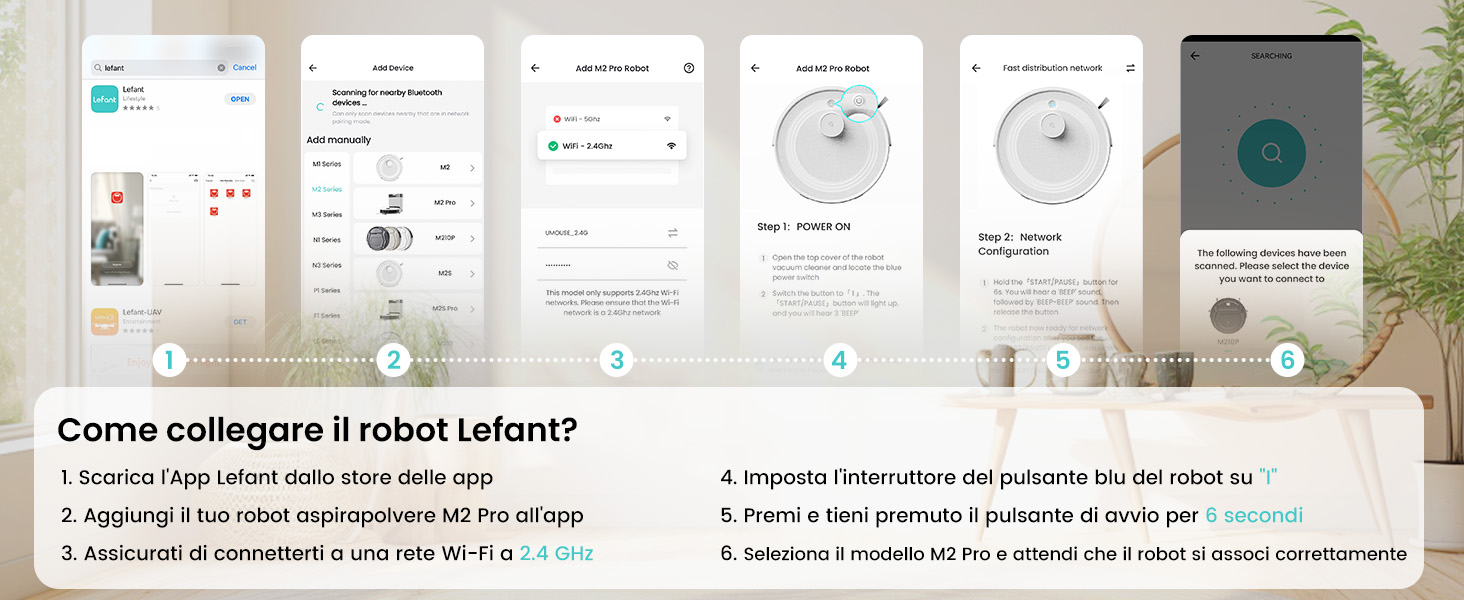
Image: A step-by-step guide on connecting the LEFANT M2 Pro to the mobile application.
- Download the LEFANT App from your device's app store.
- Add your M2 Pro robot vacuum cleaner to the app.
- Ensure your device is connected to a 2.4 GHz Wi-Fi network.
- Set the blue button switch on the robot to "I" (Power ON).
- Press and hold the start button for 6 seconds until you hear a voice prompt.
- Select the M2 Pro model in the app and wait for the robot to pair correctly.
3.3 Connecting to Amazon Alexa
Integrate your M2 Pro with Amazon Alexa for convenient voice control.
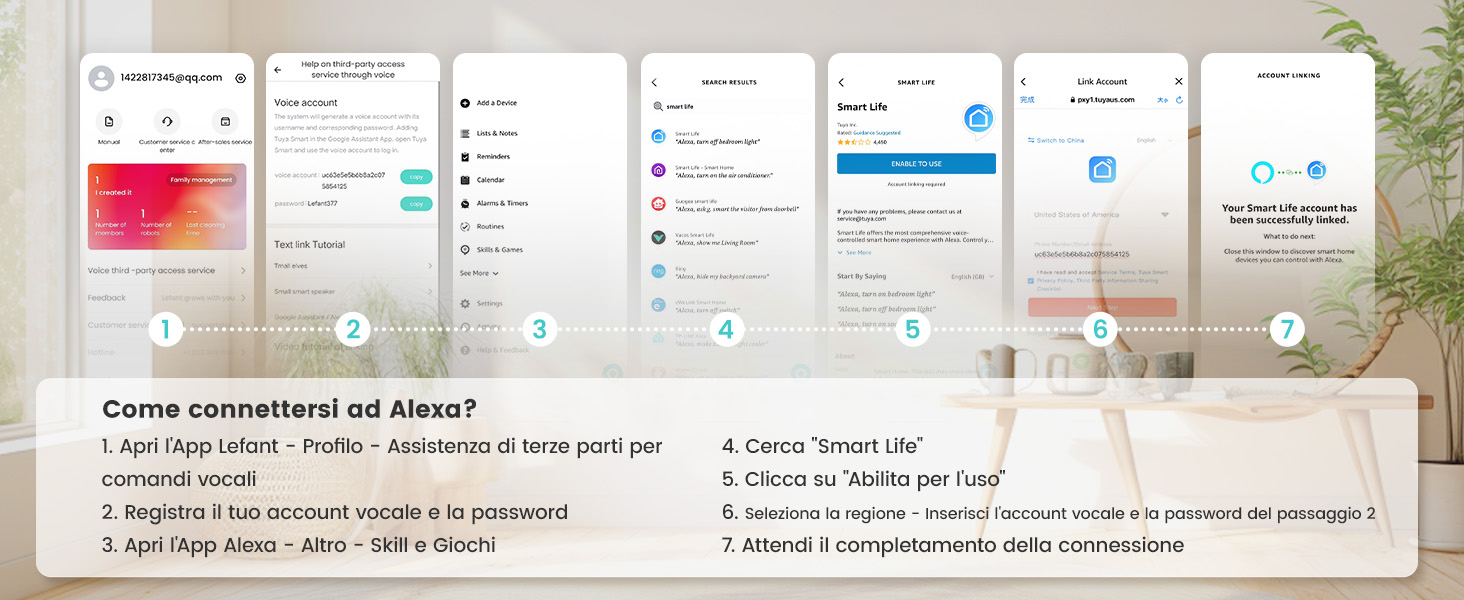
Image: A visual guide detailing the process of linking the LEFANT M2 Pro with Amazon Alexa.
- Open the LEFANT App, go to Profile > Third-party assistance for voice commands.
- Register your voice account and password.
- Open the Alexa App, go to More > Skills & Games.
- Search for "Smart Life".
- Click "Enable to Use".
- Select your region and enter the voice account and password from step 2.
- Wait for the connection to complete.
3.4 Controlling with Apple Watch
Manage your M2 Pro directly from your Apple Watch.
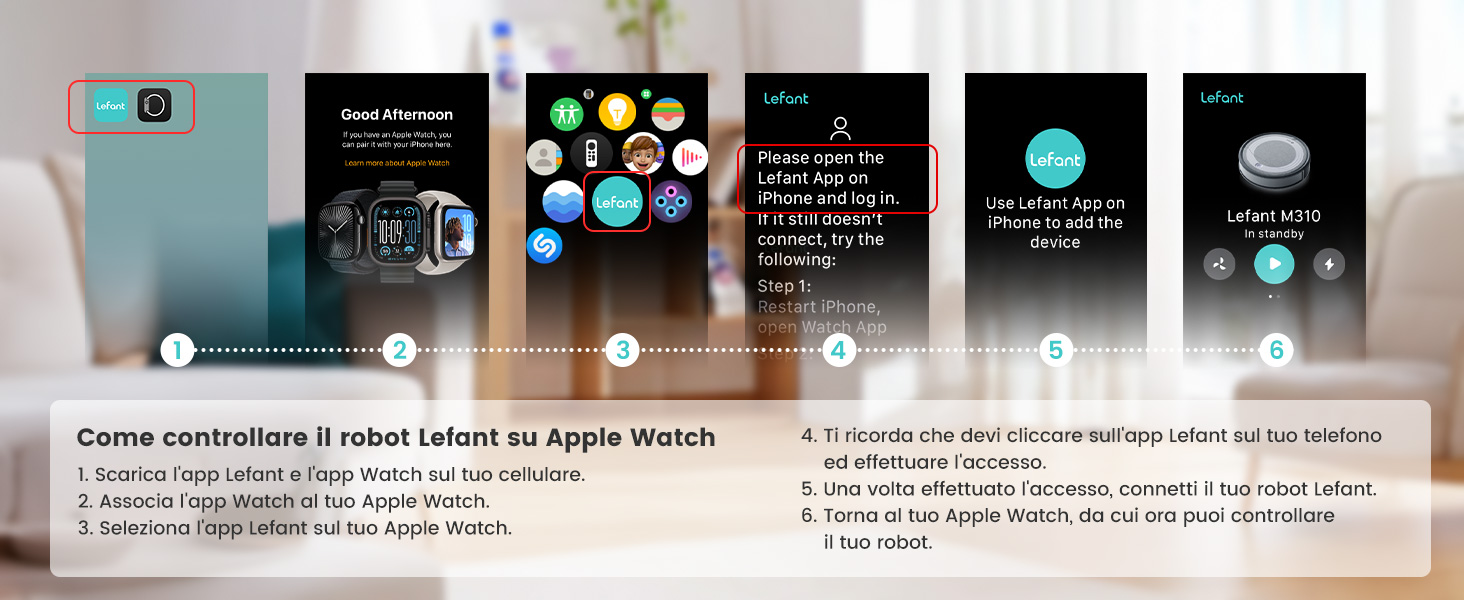
Image: Instructions for controlling the LEFANT M2 Pro using an Apple Watch.
- Download the LEFANT App and the LEFANT Watch App on your mobile phone.
- Pair your Apple Watch with your iPhone.
- Select the LEFANT App on your Apple Watch.
- Ensure you click on the LEFANT App on your phone and log in. If it doesn't connect, try restarting your iPhone and opening the Watch App.
- Once logged in, connect your robot.
- Return to your Apple Watch, from which you can now control your robot.
4. Operating Instructions
4.1 Navigation and Mapping
The M2 Pro utilizes advanced dToF Laser Navigation with a 15-meter scanning range, allowing it to accurately map your home, even in low-light conditions. It supports multi-level mapping for up to 3 floors and intelligently plans cleaning paths to avoid missed spots or repeated cleaning.

Image: The LEFANT M2 Pro demonstrating its 15-meter LiDAR scanning range and ability to cover large areas.

Image: Illustration of the M2 Pro's ability to navigate and map multiple floor levels (1F, 2F, 3F).
4.2 Obstacle Avoidance
Equipped with PSD obstacle avoidance technology, the M2 Pro detects obstacles from multiple angles and responds in real-time, offering intelligent navigation and collision avoidance. This technology helps prevent collisions with furniture and other objects.

Image: The M2 Pro's 190-degree PSD obstacle avoidance system detecting and avoiding objects on the floor.
4.3 Cleaning Modes and Suction Power
The M2 Pro offers powerful suction up to 6000Pa, suitable for removing dust, crumbs, and pet hair. It automatically detects carpets and increases suction power when needed for deeper cleaning. The 2-in-1 design allows for simultaneous vacuuming and mopping.

Image: The LEFANT M2 Pro vacuuming and mopping, illustrating its 6000Pa suction power and water flow control.

Image: The robot intelligently avoiding carpets when the mop is attached and boosting suction for deep cleaning on carpets when the mop is removed.
4.4 Customized Cleaning
Through the LEFANT App, you can program specific cleaning modes for each room, select precise areas to clean, or combine/divide rooms. This allows for tailored cleaning based on daily needs or multi-level floor plans. You can also set no-go zones to restrict the robot from certain areas.

Image: A smartphone screen displaying the LEFANT App interface for customized cleaning, showing scheduled cleaning for different rooms.

Image: The LEFANT App interface showing how to define intelligent No-Go Zones on the map to prevent the robot from entering specific areas.
4.5 Automatic Dust Emptying and Recharge
The M2 Pro features an automatic dust emptying station with a 2.5L container, allowing for up to 60 days of hands-free debris collection. The robot will automatically return to its charging station when the battery is low and resume cleaning once recharged.

Image: The automatic dust emptying station, illustrating the 2.5-liter capacity and the process of dust transfer from the robot.
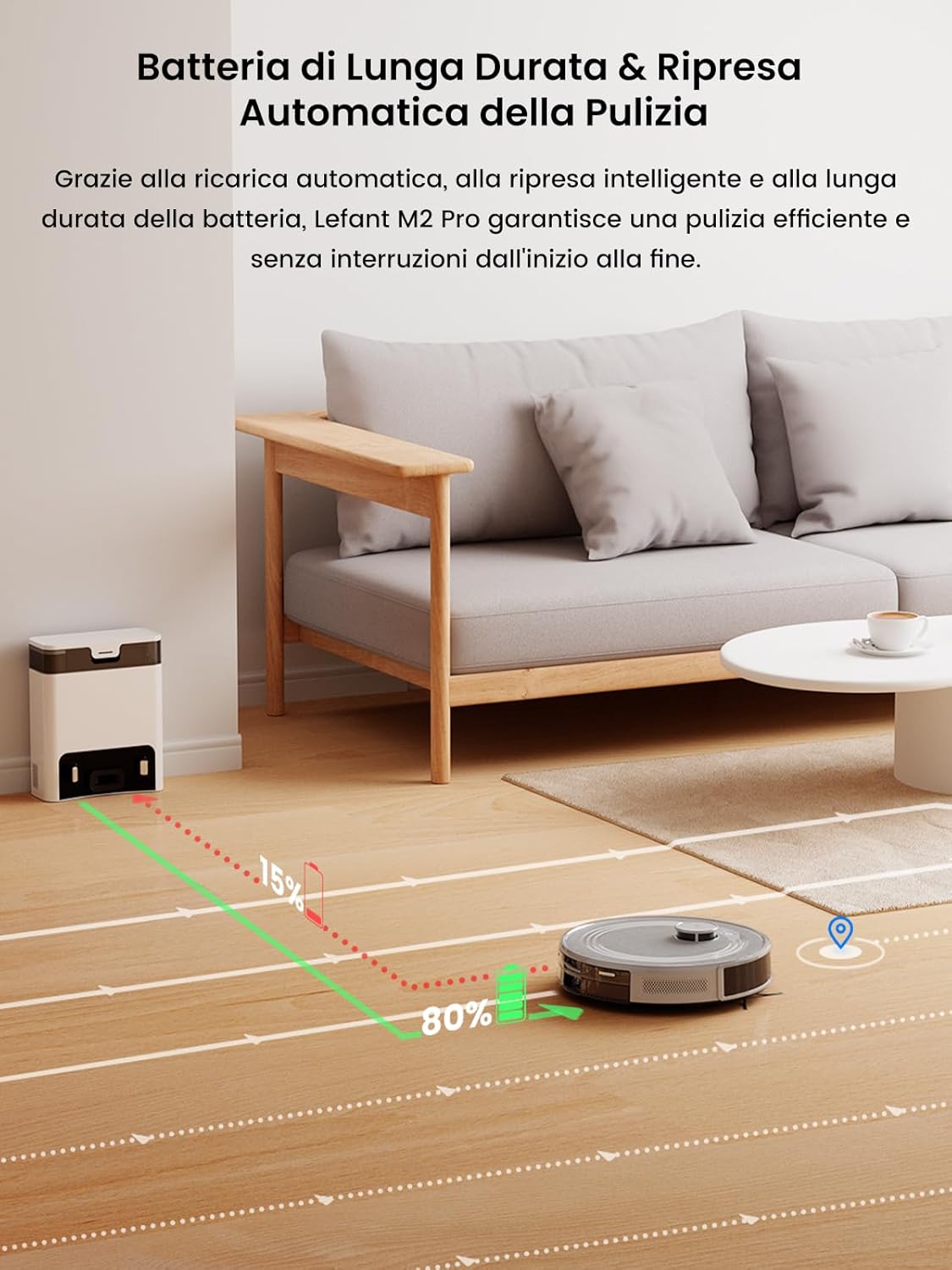
Image: The robot returning to its charging station when the battery is low and then resuming its cleaning path.
5. Maintenance
Regular maintenance ensures optimal performance of your LEFANT M2 Pro.
5.1 Dust Bag Replacement
The automatic dust emptying station's container can hold debris for up to 60 days. Replace the dust bag when the indicator light on the station signals it is full, or as needed based on usage.
5.2 Cleaning the Robot
- Main Brush and Side Brushes: Regularly check for tangled hair or debris. Use the provided cleaning tool to remove any obstructions.
- Dustbin and Filters: Empty the robot's internal dustbin and clean the HEPA filters periodically. Rinse washable components with water and allow them to air dry completely before reinstallation.
- Sensors: Wipe the charging contacts, cliff sensors, and obstacle avoidance sensors with a clean, dry cloth to ensure proper function.
- Mop Pad and Water Tank: After mopping, remove and clean the mop pad. Empty and rinse the water tank to prevent mold or odors.
6. Troubleshooting
If you encounter issues with your LEFANT M2 Pro, refer to the following common solutions:
- Robot not connecting to Wi-Fi: Ensure your router is broadcasting a 2.4 GHz network. Restart your router, the robot, and your phone, then attempt the connection process again.
- Robot gets stuck frequently: Clear the cleaning area of small objects, cables, and thick rugs that might impede movement. Ensure the PSD sensors are clean.
- Poor cleaning performance: Check if the dustbin is full, filters are clogged, or brushes are tangled. Clean or replace components as necessary. Ensure the water tank is filled for mopping.
- Robot does not return to charging station: Ensure the charging station is properly placed in an open area and its charging contacts are clean. Verify the power cable is securely connected.
- Voice control not working: Confirm the robot is successfully linked to your Alexa or Google Assistant account and that your voice commands are clear and precise.
For persistent issues, consult the full user manual or contact LEFANT customer support.
7. Specifications
| Feature | Specification |
|---|---|
| Brand | LEFANT |
| Model Name | M2 Pro |
| Color | M2pro-grey |
| Product Dimensions | 32 x 32 x 9.5 cm |
| Weight | 6.67 Kilograms |
| Dustbin Capacity | 2.5 Liters (Auto-empty station) |
| Voltage | 19 Volts |
| Material | Plastic |
| Number of Speeds | 3 |
| Noise Level | 60 Decibels |
| Compatible Devices | Smartphone |
| Special Features | Bagless automatic dump station (bag compatible), Customized cleaning, dToF Navigation (15m range), PSD Obstacle Avoidance, WiFi/App/Alexa compatible |
8. Warranty and Support
For warranty information and customer support, please refer to the official LEFANT website or contact the retailer where the product was purchased. Keep your proof of purchase for any warranty claims.


