
1. Introduction
Thank you for choosing the Redragon K709 HE Rapid Trigger Gaming Keyboard. This manual provides essential information for setting up, operating, and maintaining your new keyboard. Please read it thoroughly to ensure optimal performance and longevity of your device.
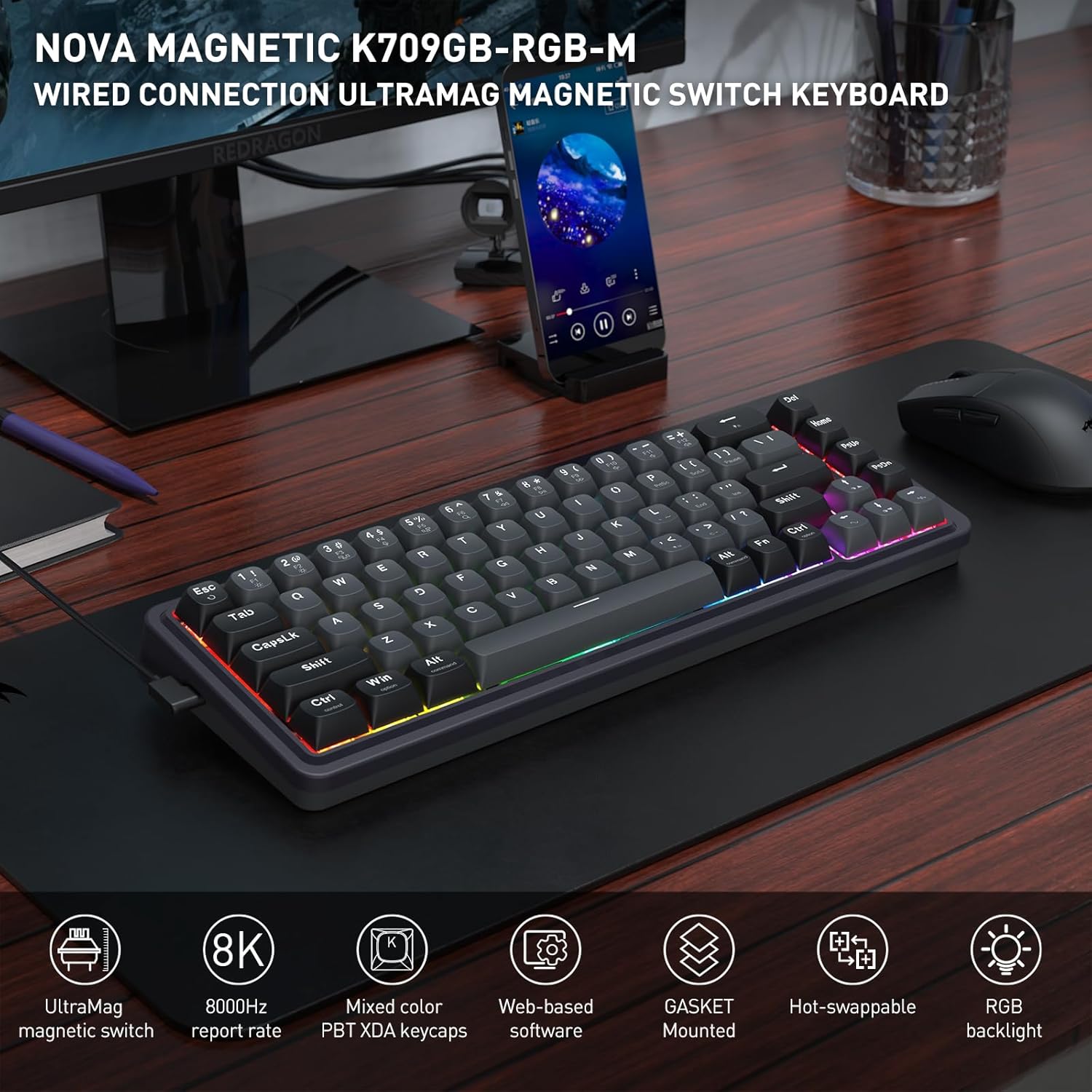
Image: The Redragon K709 HE keyboard, showcasing its compact design and RGB backlighting, positioned on a desk alongside a monitor and mouse.
2. Setup Guide
2.1 Package Contents
- Redragon K709 HE Rapid Trigger Gaming Keyboard
- Detachable USB-A to USB-C Cable
- Keycap Puller
- Switch Puller
- Spare UltraMag Magnetic Switches (if included)
- User Manual

Image: The Redragon K709 HE keyboard displayed with its included accessories: a detachable USB-C cable, keycap puller, switch puller, and spare switches.
2.2 Connecting the Keyboard
- Connect the USB-C end of the provided cable to the USB-C port on the keyboard.
- Connect the USB-A end of the cable to an available USB port on your computer.
- The keyboard will automatically be recognized by your operating system.
2.3 Software Installation (Optional but Recommended)
For advanced customization, including Rapid Trigger settings and key remapping, it is recommended to use the Redragon software. The K709 HE supports both a standard desktop client (Windows-exclusive) and web-based driver support.
- Windows Users: Download the desktop client from the official Redragon website.
- Other Operating Systems: Access the web-based driver directly via your browser by visiting the Redragon website. This allows access to all software features without a dedicated installation.

Image: A computer screen displaying the Redragon web-based software interface, used for configuring keyboard settings and features.
3. Operating Instructions
3.1 UltraMag Magnetic Switches
The K709 HE features next-generation UltraMag magnetic switches with a dual-module floating structure. These switches offer precise and smooth keystrokes due to their full-POM construction and enclosed base design.
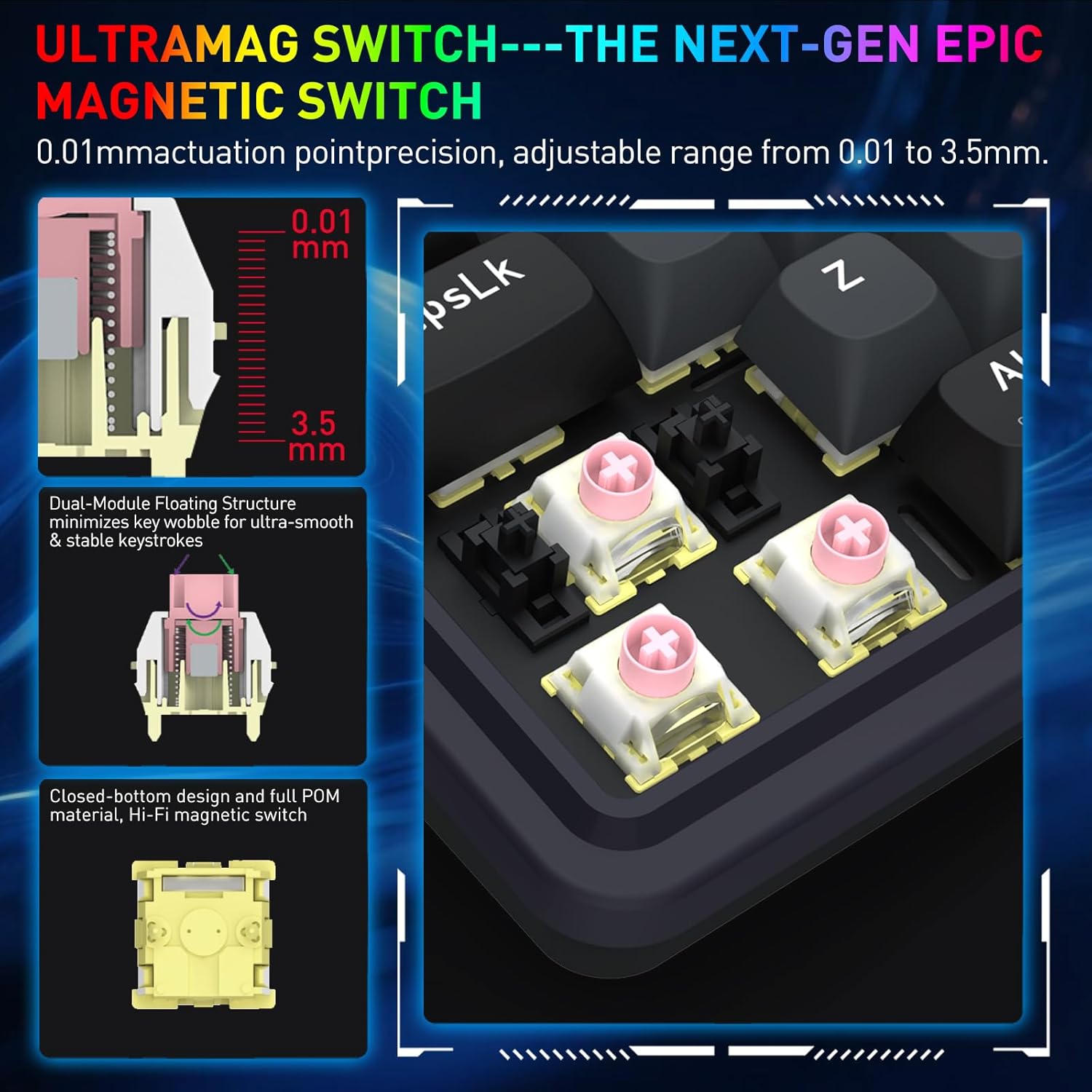
Image: A detailed diagram showing the internal components of the UltraMag magnetic switch, highlighting its dual-module floating structure and adjustable actuation points from 0.01mm to 3.5mm.
3.2 Rapid Trigger Technology
Rapid Trigger technology allows for dynamic activation and deactivation of keys based on movement, not just a fixed actuation point. This feature is highly beneficial for competitive gaming.
- Actuation Point Adjustment: Using the software, the actuation point can be precisely adjusted between 0.1mm and 3.4mm. This allows for fine-tuning key sensitivity to your preference.
- Dynamic Activation/Deactivation: Keys activate upon initial press and deactivate immediately upon release, enabling faster repeated inputs and precise control in games.

Image: Visual examples showing how Rapid Trigger technology enhances gameplay in titles such as Valorant for accurate movement, CS:GO for precise peeking, Apex Legends for advanced movement, and osu! for improved note accuracy.
3.3 8K Hyper-Polling
The K709 HE features an 8,000Hz hyper-polling rate, meaning it reports inputs to your computer up to 8,000 times per second. This results in an ultra-low latency of approximately 0.125ms, ensuring your actions are registered almost instantaneously.
3.4 Noise Dampening
The keyboard incorporates a 5-layer noise dampening system to reduce hollow sounds and provide a more satisfying typing and gaming experience. This includes:
- 3.5mm PO foam
- IXPE switch foam
- PET sound pad
- Bottom socket foam
- Silicone bottom pad
- Silicone gasket

Image: An exploded diagram of the K709 HE keyboard, illustrating the various layers including keycaps, UltraMag switches, top cover, TPR gasket, positioning plate, latex foam pad, IXPE switch pad, sound acting pad, PCBA, EVA noise absorbing foam, silicone bottom pad, and bottom case.
3.5 Team Wipe Engine (PRCS Technology)
This feature utilizes revolutionary PRCS technology with 4 modes, designed to optimize gaming performance by eliminating redundant inputs and ensuring clean, precise actions.
4. Maintenance
4.1 Cleaning the Keyboard
- Use a soft, lint-free cloth to wipe the surface of the keyboard.
- For dust and debris between keycaps, use compressed air.
- To clean under the keycaps, use the provided keycap puller to carefully remove them. Clean the switches and plate with a soft brush or compressed air. Reattach keycaps by pressing them firmly onto the switches.
4.2 Hot-Swappable Switches
The K709 HE features a hot-swappable PCB, allowing you to easily replace individual switches without soldering. This is useful for customization or replacing a faulty switch.
- Use the provided keycap puller to remove the keycap from the desired switch.
- Use the provided switch puller to gently grip the top and bottom clips of the switch. Pull the switch straight up to remove it from the PCB.
- Align the pins of the new switch with the holes on the PCB. Press the new switch firmly until it clicks into place. Ensure the pins are not bent.
- Reattach the keycap.
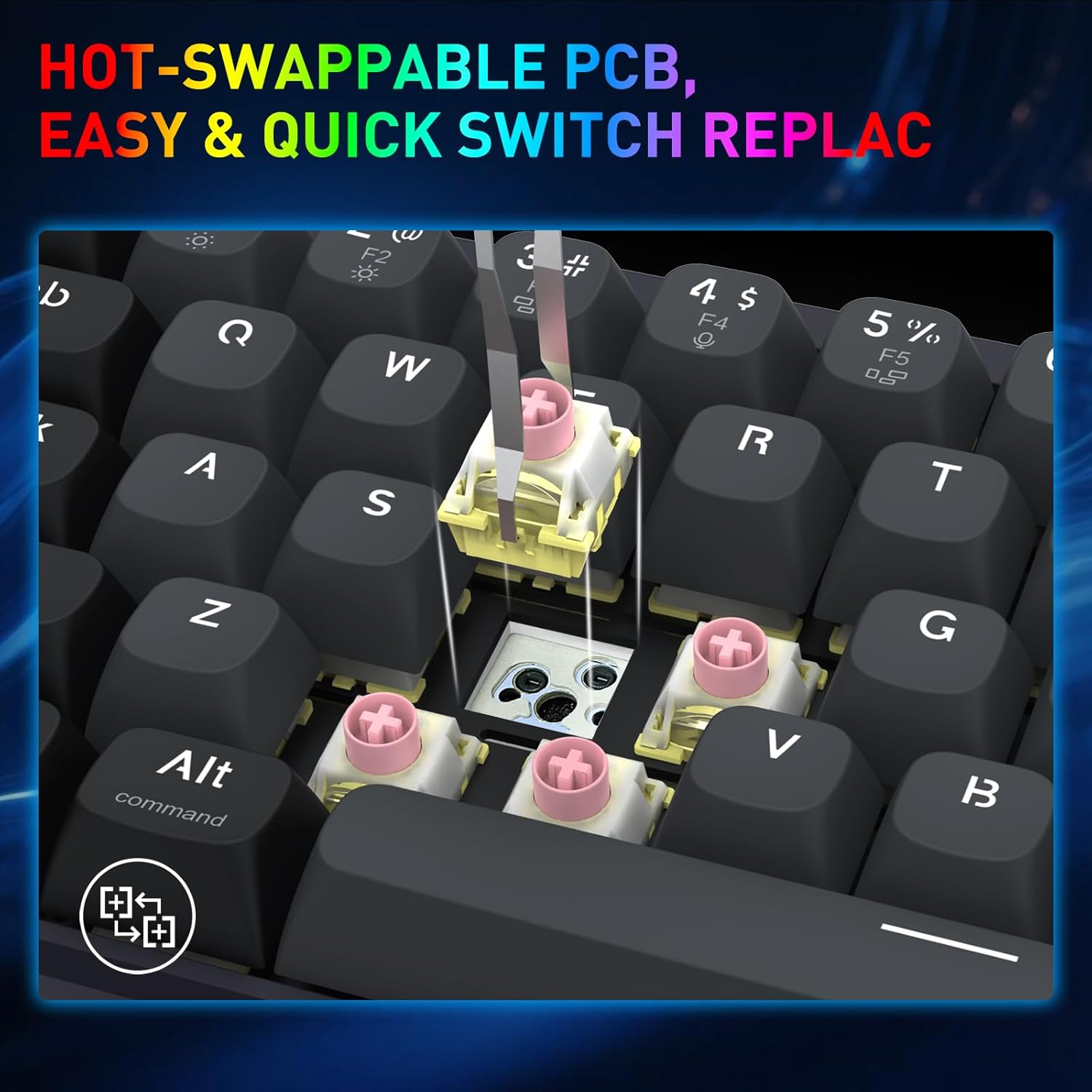
Image: A close-up shot demonstrating the process of removing a hot-swappable switch from the keyboard's PCB using a switch puller.
5. Troubleshooting
- Keyboard not responding:
- Ensure the USB cable is securely connected to both the keyboard and the computer.
- Try connecting the keyboard to a different USB port on your computer.
- Test the keyboard on another computer to rule out system-specific issues.
- Specific keys not working:
- Carefully remove the keycap and switch for the non-functional key using the provided tools.
- Inspect the switch for any visible damage or debris.
- If you have spare switches, try replacing the faulty switch.
- RGB lighting issues:
- Check the keyboard's lighting settings via the Redragon software.
- Ensure no conflicting software or drivers are interfering with the lighting control.
- Rapid Trigger not functioning as expected:
- Verify that Rapid Trigger is enabled and configured correctly within the Redragon software.
- Adjust the actuation point settings to find your preferred sensitivity.
6. Specifications
| Brand | Redragon |
| Model Name | Nova (K709 HE) |
| Connectivity Technology | USB-C (Wired) |
| Keyboard Description | 68 Keys HE UltraMag Magnetic Switch Rapid Trigger Gaming Keyboard |
| Number of Keys | 68 |
| Mechanical Keyboard Switch Model | Redragon UltraMag Magnetic Switch |
| Switch Type | Linear |
| Actuation Point | Adjustable 0.1mm - 3.4mm |
| Polling Rate | 8,000Hz (8K Hyper-Polling) |
| Special Features | 5-Layer Noise Dampening, 68 keys Compact, Mixed PBT Keycaps, Rapid Trigger, UltraMag Magnetic Switch |
| Keyboard Backlighting | RGB |
| Compatible Devices | PC |
| Material | Plastic |
| Color | Serene Gray |
7. Warranty Information
The Redragon K709 HE Rapid Trigger Gaming Keyboard comes with a 1-year limited warranty from the date of purchase. This warranty covers manufacturing defects and workmanship under normal use. It does not cover damage caused by misuse, accidents, unauthorized modifications, or natural disasters.
Please retain your proof of purchase for warranty claims.
8. Support
For further assistance, technical support, or to download the latest software and drivers, please visit the official Redragon website:
You may also contact Redragon customer service through the contact information provided on their website.