
1. Introduction
Welcome to the VIWOODS AiPaper AI E Ink Tablet user manual. This guide provides essential information for setting up, operating, and maintaining your device. The AiPaper is designed to enhance your productivity and reading experience with its advanced E Ink technology and AI-integrated features.
Package Contents
The standard package includes the following items:
- 10.65'' AiPaper E Ink Tablet
- Upgraded W2 Stylus Pro
- Folio Cover
- 5 Spare Stylus Nibs
- A-to-C Adapter
- Quick Guide
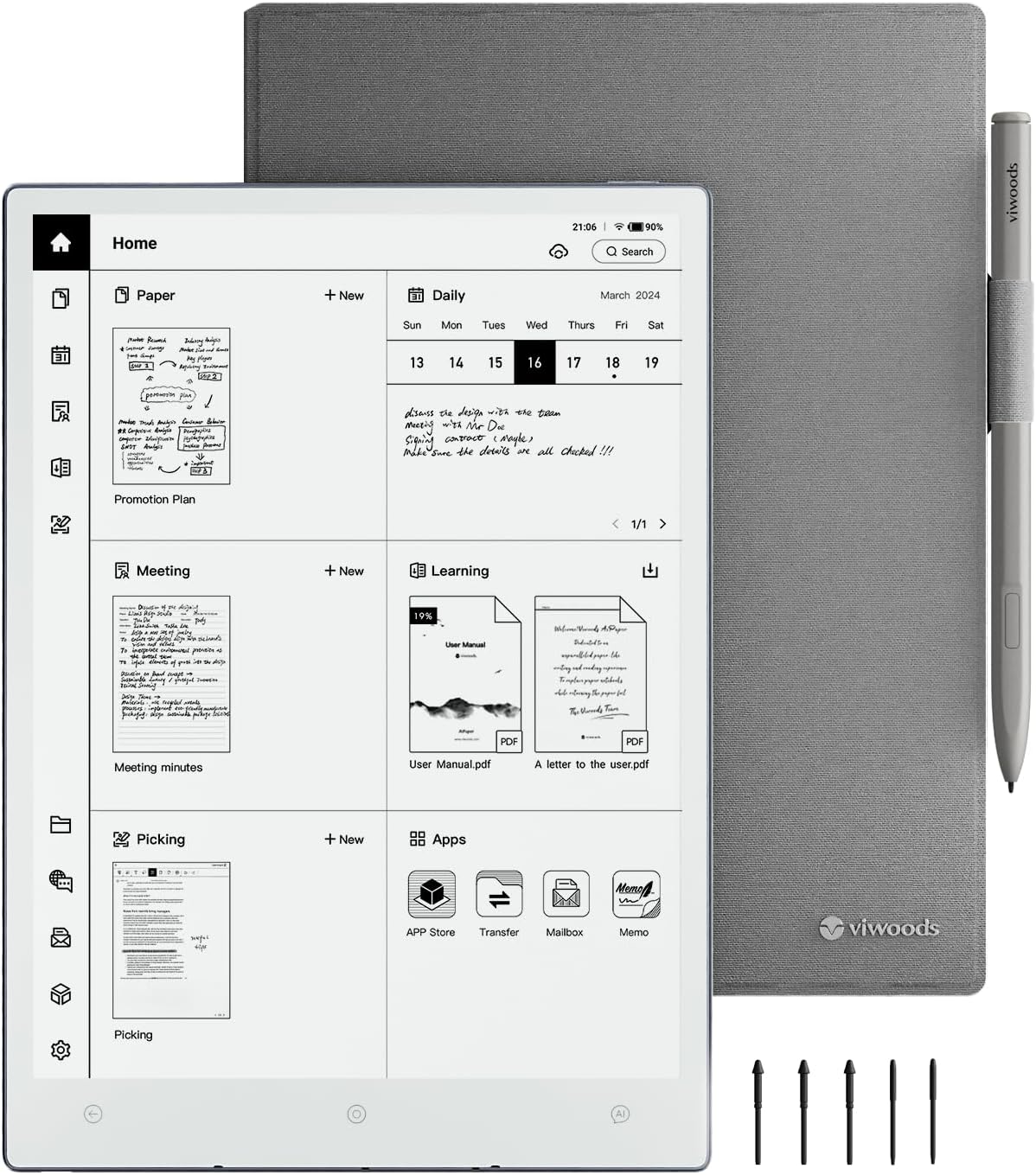
Figure 1.1: The complete VIWOODS AiPaper bundle, including the tablet, stylus, cover, and spare nibs.

Figure 1.2: Visual representation of the items included in the AiPaper package.
2. Initial Setup
2.1 Charging the Device
Before first use, fully charge your AiPaper tablet using the provided A-to-C adapter and a compatible power source. A full charge ensures optimal performance and battery life.
2.2 Powering On/Off
To power on the device, press and hold the power button located on the side of the tablet for a few seconds until the screen activates. To power off, press and hold the power button again and select 'Power Off' from the options.
3. Basic Operation
3.1 Navigating the Interface
The AiPaper runs on Android 13, providing a familiar and intuitive user interface. Swipe gestures and taps are used for navigation. The home screen provides quick access to your notes, schedule, and applications.
3.2 Using the W2 Stylus Pro
The upgraded W2 Stylus Pro offers a precise and responsive writing experience. It features 16K pressure levels for nuanced strokes. The stylus can be magnetically attached to the folio cover for convenient storage.

Figure 3.1: The W2 Stylus Pro securely attaches to the folio cover.
4. Note-Taking Features
The AiPaper provides an unparalleled paper-like writing experience with a 750 µm pen-to-ink distance, minimizing the barrier between the stylus and the screen. This creates a realistic textured feel, similar to writing on traditional paper.
4.1 Creating and Editing Notes
Access the 'Notes' application from the home screen to create new notebooks or individual notes. You can select various pen types, thicknesses, and colors for your writing. The stylus's pressure sensitivity allows for detailed and expressive input.

Figure 4.1: The AiPaper offers a realistic paper-like writing experience.
4.2 Note Templates
Utilize a variety of pre-installed note templates to structure your thoughts, including lined paper, grids, and specialized layouts for meetings or planning. You can also create custom templates to suit your specific needs.

Figure 4.2: A selection of note templates for different organizational needs.
4.3 Handwriting to Text Conversion
The AiPaper can instantly transform your handwritten notes into printed text. This feature supports 9 languages, including English, German, Spanish, French, Italian, Portuguese, Japanese, Russian, and Chinese. Custom AI commands can be added to recognize even more languages.

Figure 4.3: The handwriting recognition feature converts notes into editable text.
5. Reading Experience
Enjoy an eye-friendly reading experience with the 300PPI Carta 1300 Mobius screen, offering 2560x1920 resolution. The anti-glare screen and lack of backlight reduce eye strain, making it comfortable to read for extended periods.

Figure 5.1: The 300PPI screen provides sharp and clear text for comfortable reading.
5.1 Importing and Annotating Books
Import ebooks and documents to your AiPaper. While reading, you can effortlessly take notes, highlight text, and add annotations directly on the pages using the stylus. This transforms your reading into an interactive and productive experience.

Figure 5.2: Read, highlight, and annotate documents directly on the tablet.
6. AI-Integrated Features
The AiPaper leverages artificial intelligence to boost your productivity and creativity. AI features are designed to summarize, organize, and analyze your notes and documents efficiently.
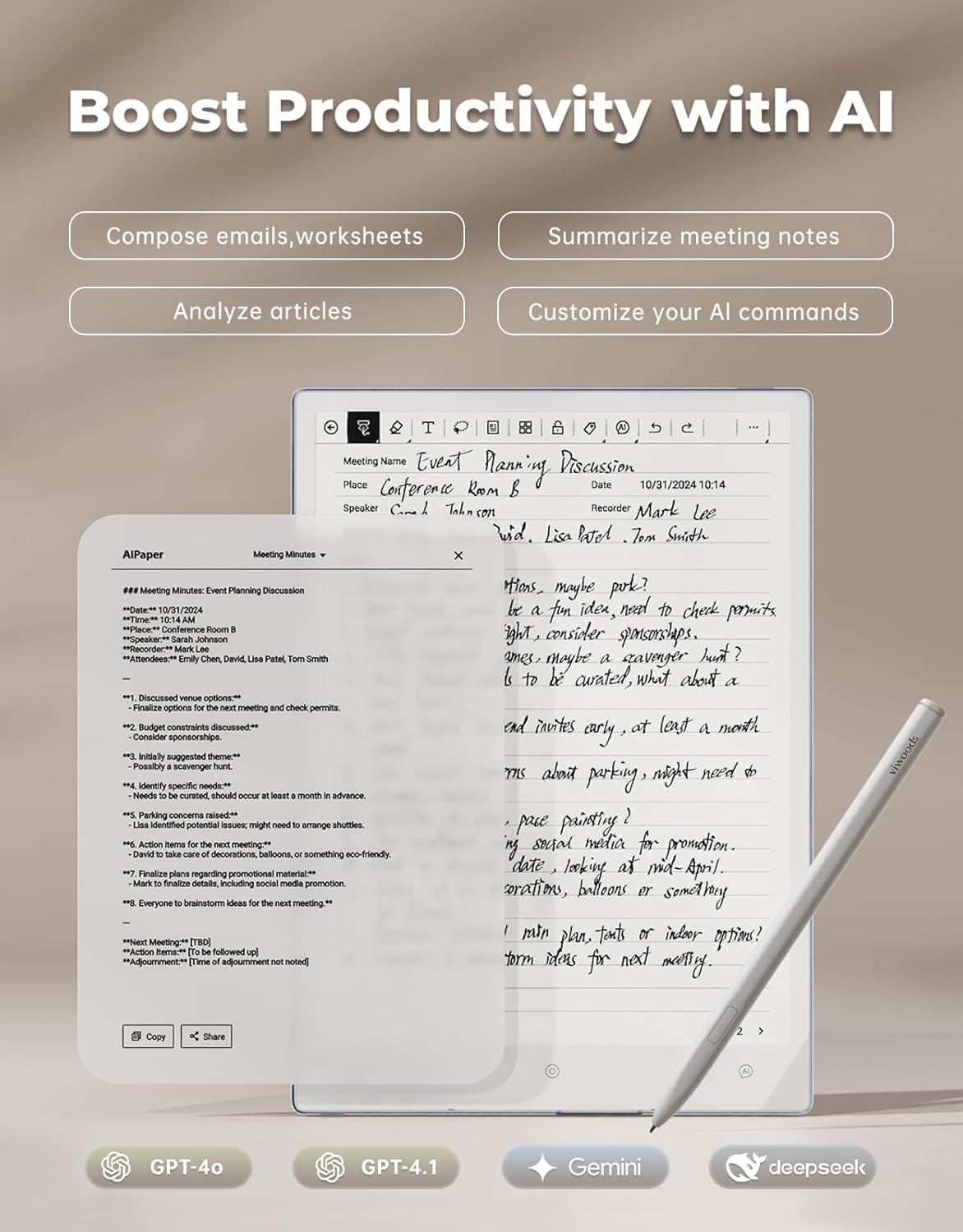
Figure 6.1: AI features assist in composing emails, summarizing notes, and analyzing articles.
6.1 AI Assistant
Long-press the dedicated AI Assistant button to quickly ask questions or input queries. This feature provides instant access to information and helps streamline your workflow.

Figure 6.2: Access the AI Assistant with a long press for quick queries.
6.2 AI for Notes and Documents
The AI can summarize meeting notes, compose and enhance emails, and analyze articles. You can customize AI commands to tailor the assistance to your specific needs, making your work more efficient.
Video 6.1: An overview of how influencers utilize the AiPaper's AI features for productivity.
7. File Management and Sharing
The AiPaper electronic notebook integrates seamlessly with popular cloud platforms, ensuring your files are always accessible and synchronized across your devices.

Figure 7.1: Convenient file transfer options including cloud services and direct connections.
7.1 Cloud Integration
Effortlessly sync your files with OneDrive, Google Drive, and Dropbox. This allows for secure storage and easy access to your documents from anywhere.

Figure 7.2: Your files are always within reach with fast and reliable synchronization.
7.2 Secure Sharing
Transfer files securely via WLAN Transfer, Bluetooth, USB, or ViTransfer. The device also prioritizes privacy with file-level protection, including fingerprint and password security.

Figure 7.3: Advanced security features ensure your confidential data remains safe.
8. Daily Planner
The AiPaper's 'Daily' feature is designed to keep you organized and productive. It combines task management, document tracking, and calendar integration for a streamlined schedule.
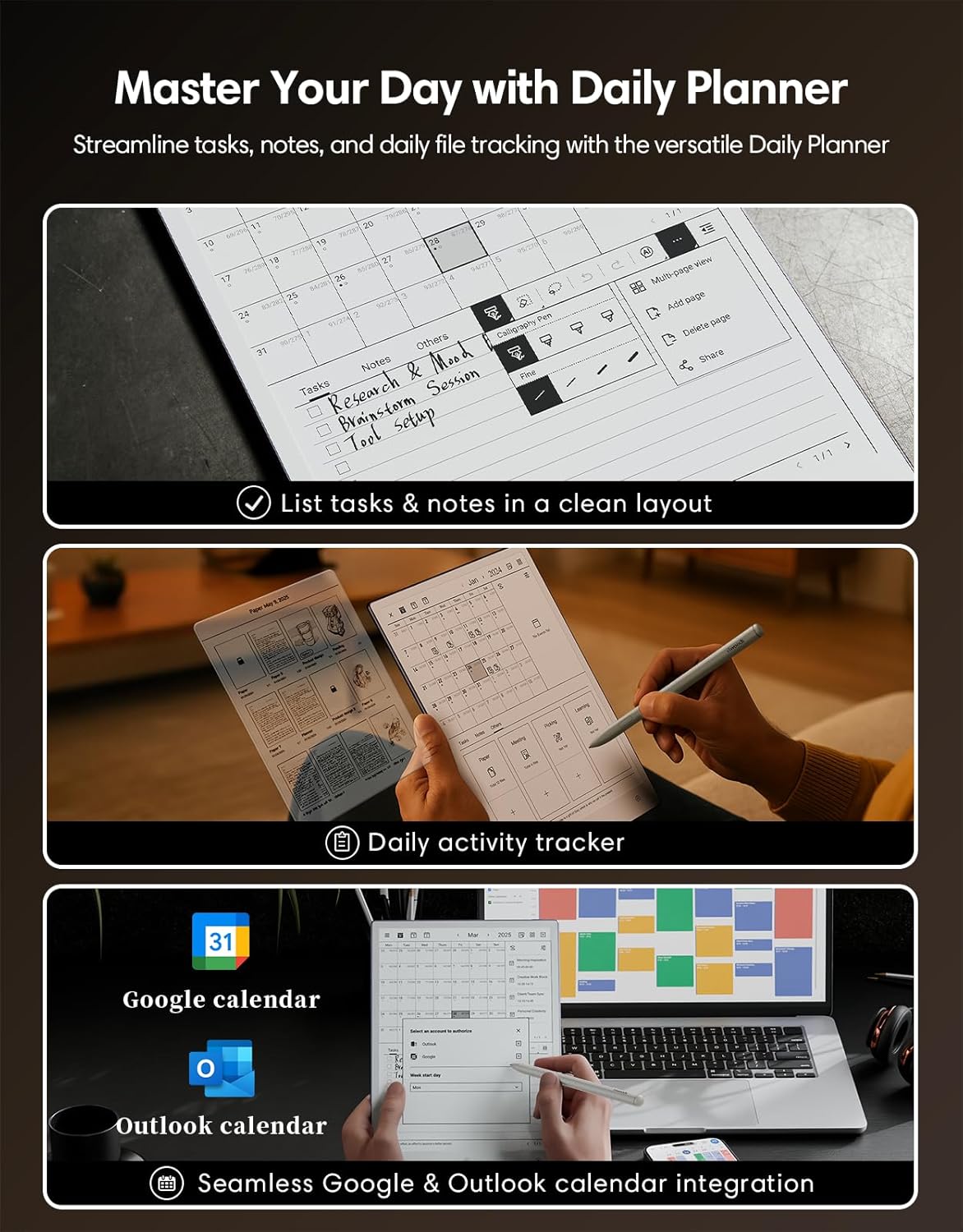
Figure 8.1: The Daily Planner helps streamline tasks, notes, and daily file tracking.
8.1 Task and Document Tracking
Plan your day with ease, automatically sort notes and activities by date. This feature is ideal for managing work, study, or personal projects.
8.2 Calendar Integration
Sync your daily planner with Google or Outlook calendars for a comprehensive and up-to-date schedule. This ensures all your appointments and deadlines are integrated into your workflow.
Video 8.1: An introduction to the Daily feature on AiPaper, demonstrating its organizational capabilities.
9. App Compatibility
The AiPaper, powered by Android 13, offers seamless compatibility with a wide range of third-party applications, enhancing its functionality beyond basic note-taking and reading.
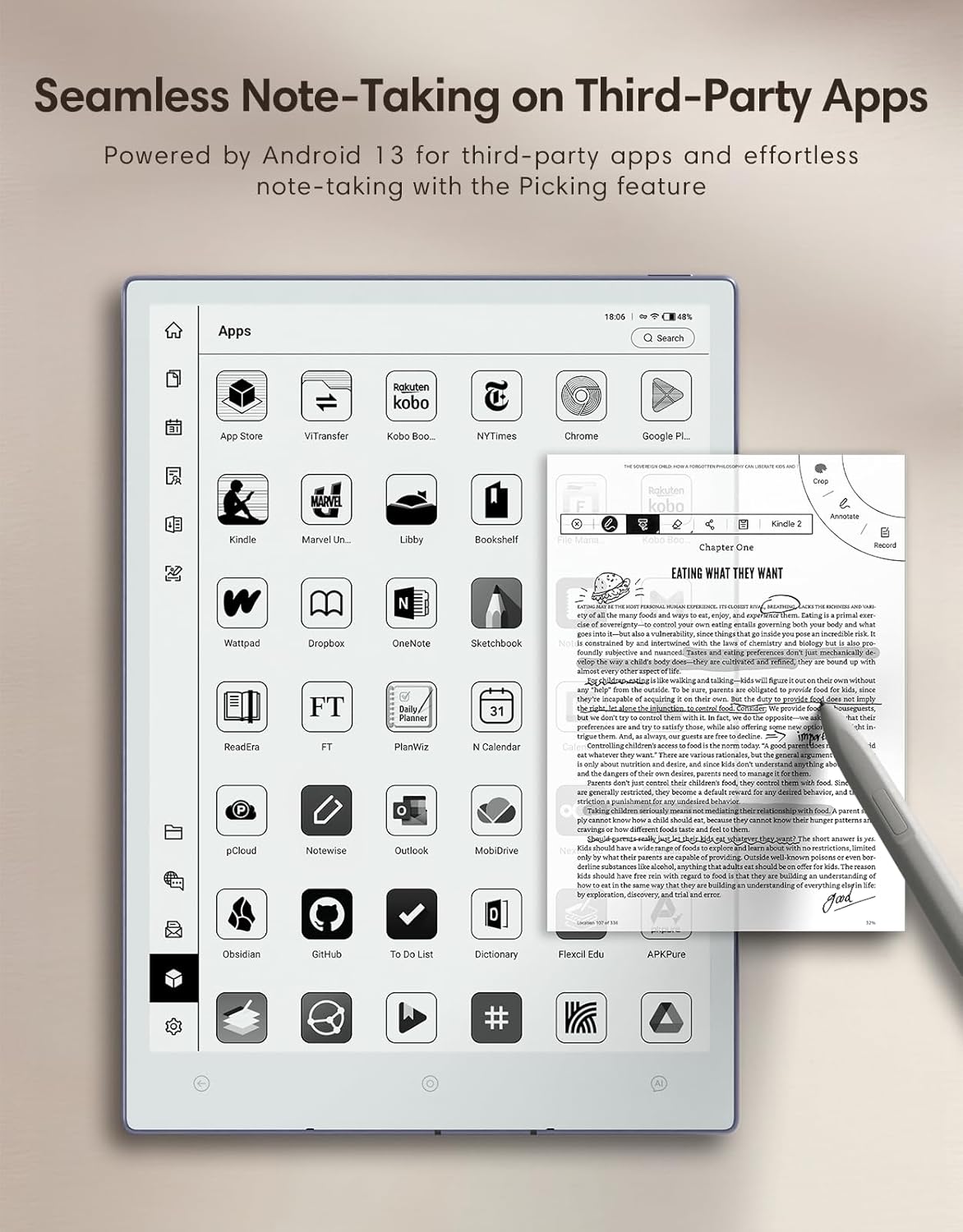
Figure 9.1: Seamless note-taking and app usage with third-party applications.
9.1 Supported Applications
Enjoy seamless compatibility with apps such as OneNote, Google Keep, Gboard, Xodo, and WeChat Reader. The device's open Android ecosystem allows for continuous optimization and support for more apps.

Figure 9.2: Enhanced app compatibility for a versatile E Ink tablet experience.
9.2 Built-in Email
Access your email directly from the AiPaper, blending productivity with simplicity. This feature allows you to manage communications without switching devices.

Figure 9.3: Seamless email access directly on your E Ink tablet.
10. Specifications
The AiPaper AI E Ink Tablet is engineered with advanced components to deliver high performance and a superior user experience.
- Screen Size: 10.65 Inches
- Screen Resolution: 2560x1920 Pixels
- Pixel Density: 300 PPI
- Screen Technology: Carta 1300 Mobius Screen
- Processor: Octa-core 2.0 GHz MediaTek MT8788
- RAM: 4GB LPDDR4X
- Internal Storage: 128 GB (holds up to 20,000 books or 2,400,000 pages of notes)
- Operating System: Android 13
- Battery: 4100mAh
- Dimensions: 9.7 x 0.17 x 7 inches (4.5mm thin)
- Weight: 370g (0.81 lbs)
- Connectivity: Bluetooth, USB, Wi-Fi
- Special Features: Anti-Glare Screen, Eye Protection, Intelligent Reading, Left-handed friendly

Figure 10.1: Key technical specifications and features of the AiPaper tablet.

Figure 10.2: A comparison of specifications between AiPaper and AiPaper Mini models.
11. Maintenance
11.1 Battery Care
To prolong battery life, avoid fully discharging the device frequently. Charge the tablet when the battery level is low. Store the device in a cool, dry place when not in use for extended periods.
11.2 Screen Cleaning
Use a soft, lint-free cloth to gently wipe the screen. Avoid using harsh chemicals or abrasive materials that could damage the E Ink display.
12. Troubleshooting
12.1 Common Issues
- Screen Flickering/Lock-up: If the screen flickers or locks up, try restarting the device. Ensure the device is fully charged. If the issue persists, contact customer support.
- Slow Response: While the AiPaper features a powerful processor, occasional slowdowns can occur with very demanding applications or large documents. Try closing background apps or restarting the device.
- Handwriting Recognition Inaccuracy: Ensure your handwriting is clear and legible. The feature supports multiple languages; verify the correct language is selected in settings.
- File Sync Issues: Check your internet connection and cloud service credentials. Ensure sufficient storage space on both your device and cloud account.
Video 12.1: Learn about the Version 3.8 update, which may address some common software issues and introduce new features.
13. Warranty and Support
For warranty information and technical support, please refer to the documentation included with your product or visit the official VIWOODS website. Keep your proof of purchase for any warranty claims.


