
xTool F2 Ultra
xTool F2 Ultra Dual Laser Engraver User Manual
Model: F2 Ultra
1. Introduction
This manual provides essential information for the safe and efficient operation of your xTool F2 Ultra Laser Engraver. Please read this manual thoroughly before using the device to ensure proper setup, operation, and maintenance. The xTool F2 Ultra is a versatile dual-laser system, combining a 60W MOPA fiber laser and a 40W diode laser for engraving and cutting a wide range of materials.
2. Safety Information
The xTool F2 Ultra is a Class 4 laser engraver. Adherence to safety guidelines is crucial to prevent injury and damage. Always operate the machine in a well-ventilated area and wear appropriate personal protective equipment (PPE), including laser safety glasses. Never look directly into the laser beam. Ensure the machine's enclosure is closed during operation to prevent laser leakage.
- Eye Protection: Always wear certified laser safety glasses when the machine is operating.
- Ventilation: Operate in a well-ventilated space to dissipate fumes and particles.
- Enclosure: Keep the machine's fully enclosed design closed during operation.
- Material Compatibility: Only engrave or cut materials approved for laser processing. Avoid highly reflective or flammable materials without proper precautions.
- Emergency Stop: Familiarize yourself with the emergency stop button location.
3. Setup and Assembly
This section outlines the steps for setting up your xTool F2 Ultra laser engraver. Ensure all components are present before beginning assembly.
3.1 Unpacking
Carefully remove all components from the packaging. Verify that all items listed in the packing list are included. Retain packaging for future transport or storage.
3.2 Component Identification
Identify the main unit, power adapter, USB cable, and any included accessories such as the conveyor module (if applicable).
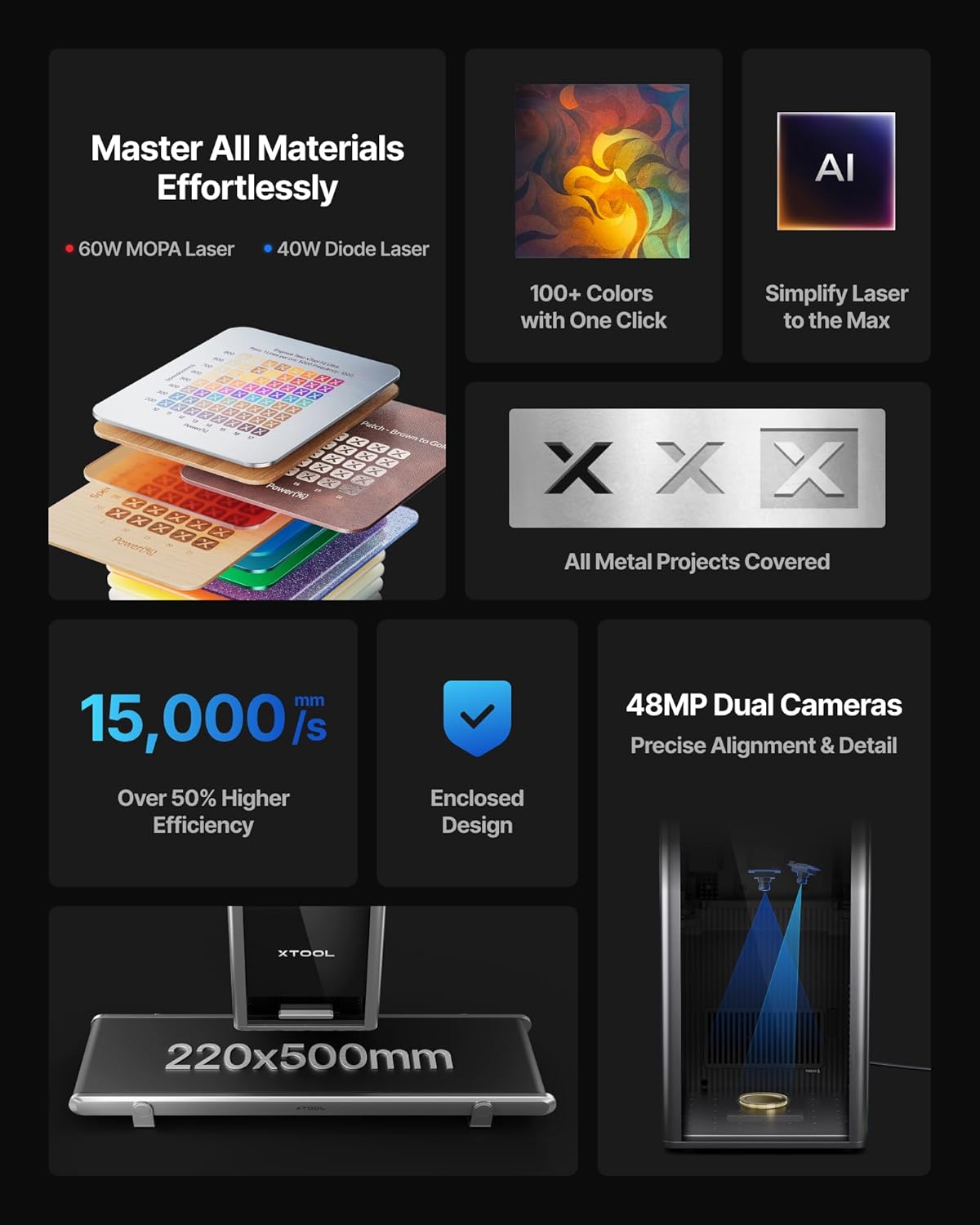
Image: xTool F2 Ultra main unit with various accessories. This image shows the compact design of the engraver and its accompanying parts.
3.3 Connecting Power and Data
- Connect the power adapter to the engraver and then to a suitable power outlet.
- Connect the engraver to your computer using the provided USB cable.
3.4 Software Installation
Download and install the latest version of the xTool software from the official xTool website. Follow the on-screen instructions for installation.
For software download and detailed instructions, visit: https://s.xtool.com/mt/985
4. Operating Instructions
This section details the steps for operating your xTool F2 Ultra for engraving and cutting tasks.
4.1 Material Preparation
Place the material to be processed onto the working platform. Ensure it is flat and securely positioned. The dual 48MP AI cameras assist with precise positioning.

Image: Illustration of the xTool F2 Ultra's dual 48MP cameras providing precise alignment and detail for engraving.
4.2 Software Workflow
- Open the xTool software and import your design.
- The AI system can auto-detect materials and suggest optimal settings. Verify or adjust these settings as needed.
- Use the one-click focus and preview function to ensure accurate placement and desired outcome.
- Select the appropriate laser (60W MOPA for metals, 40W Diode for other materials) based on your project requirements.
- Initiate the engraving or cutting process. Monitor the operation closely.

Image: Screenshot of the xTool software interface demonstrating AI-powered material detection and suggested settings.
4.3 Using the Conveyor Module (Optional)
For automated batch processing and larger materials, attach the conveyor module. This expands the working area from 8.7"x 8.7" to 8.7" x 19.7".

Image: Comparison of the xTool F2 Ultra's working area, illustrating the standard 220x220mm area and the expanded 220x500mm area with the conveyor module.
4.4 Laser Capabilities
- 60W MOPA Fiber Laser: Ideal for all metals, including 3D embossing, deep engraving, color engraving (100+ colors), and cutting up to 2mm metal. Also supports black marking on aluminum, laser cleaning, and thin metal welding.
- 40W Diode Laser: Suitable for non-metal materials such as wood, acrylic (up to 20mm cut), leather, glass, rubber, and fabric (up to 23mm wood cut).
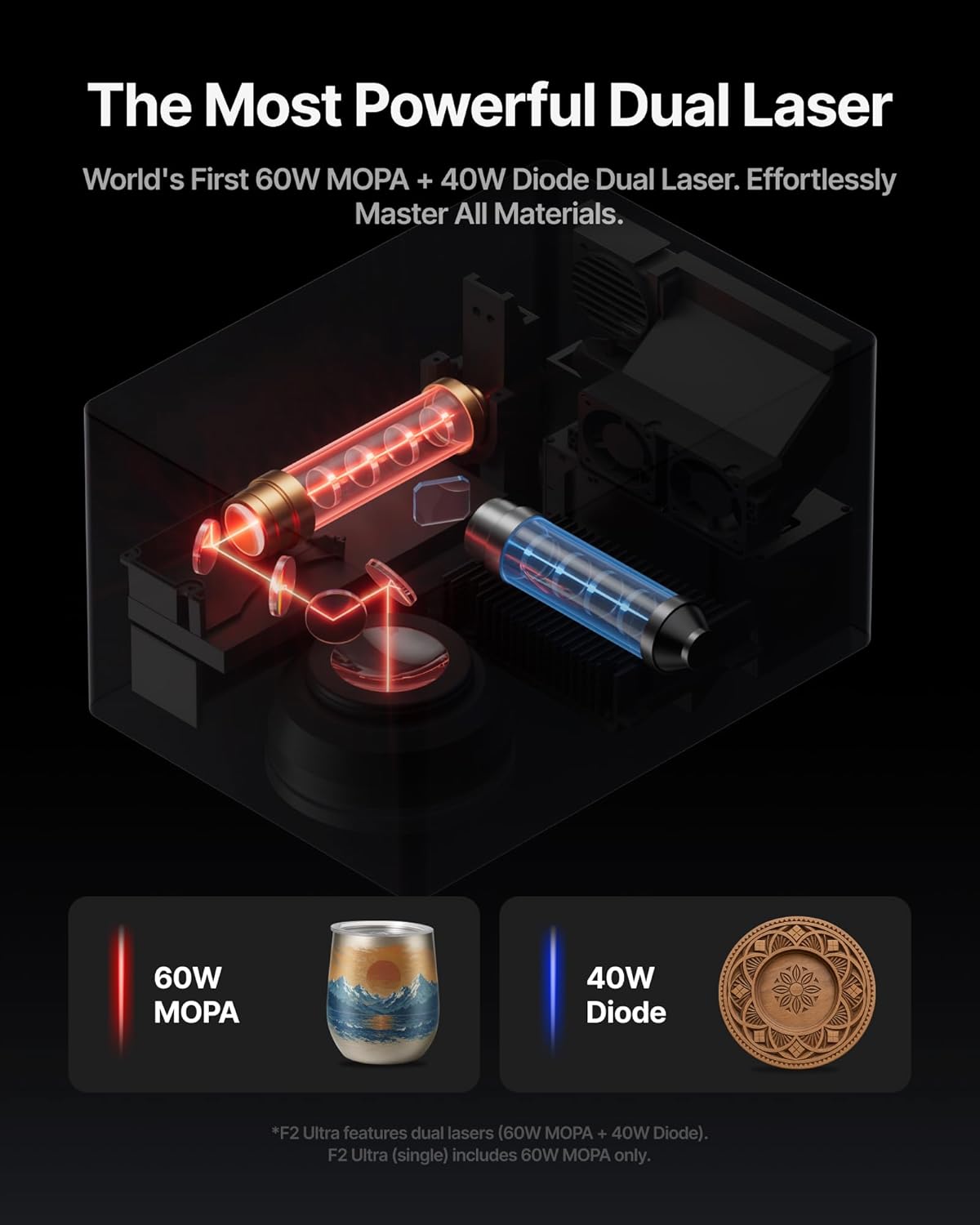
Image: An internal diagram illustrating the dual laser system of the xTool F2 Ultra, highlighting the 60W MOPA and 40W Diode lasers.
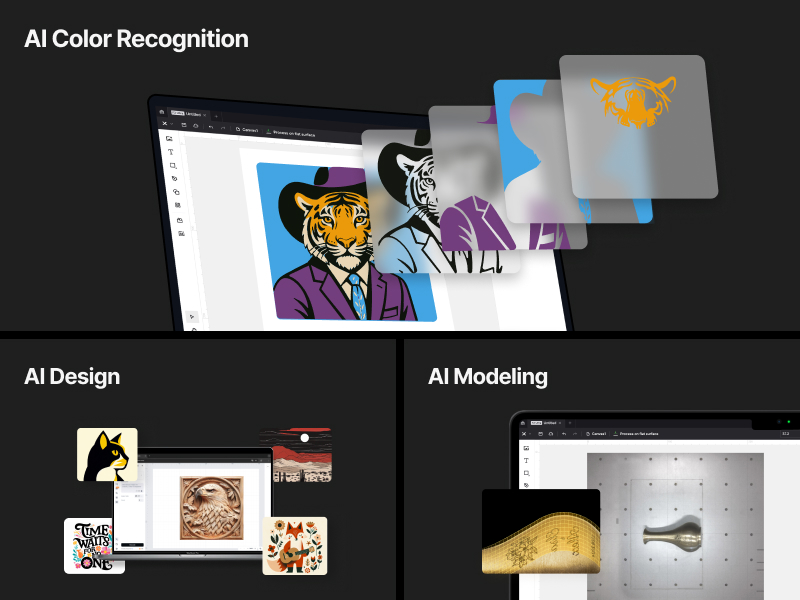
Image: Examples of various metal engraving techniques possible with the MOPA laser, including color engraving, deep engraving, and embossing.
Video: A demonstration of the xTool F2 Ultra laser engraver in action, showing the engraving process on wood and cutting on leather, followed by a heat press application.
5. Maintenance
Regular maintenance ensures the longevity and optimal performance of your xTool F2 Ultra.
- Cleaning the Lens: Periodically clean the laser lens with a soft, lint-free cloth and lens cleaning solution to maintain laser precision.
- Dust Removal: Use a soft brush or compressed air to remove dust and debris from the interior and exterior of the machine.
- Ventilation System: Ensure the ventilation system is clear of obstructions to maintain proper airflow.
- Firmware Updates: Regularly check for and install firmware updates for improved functionality and performance.
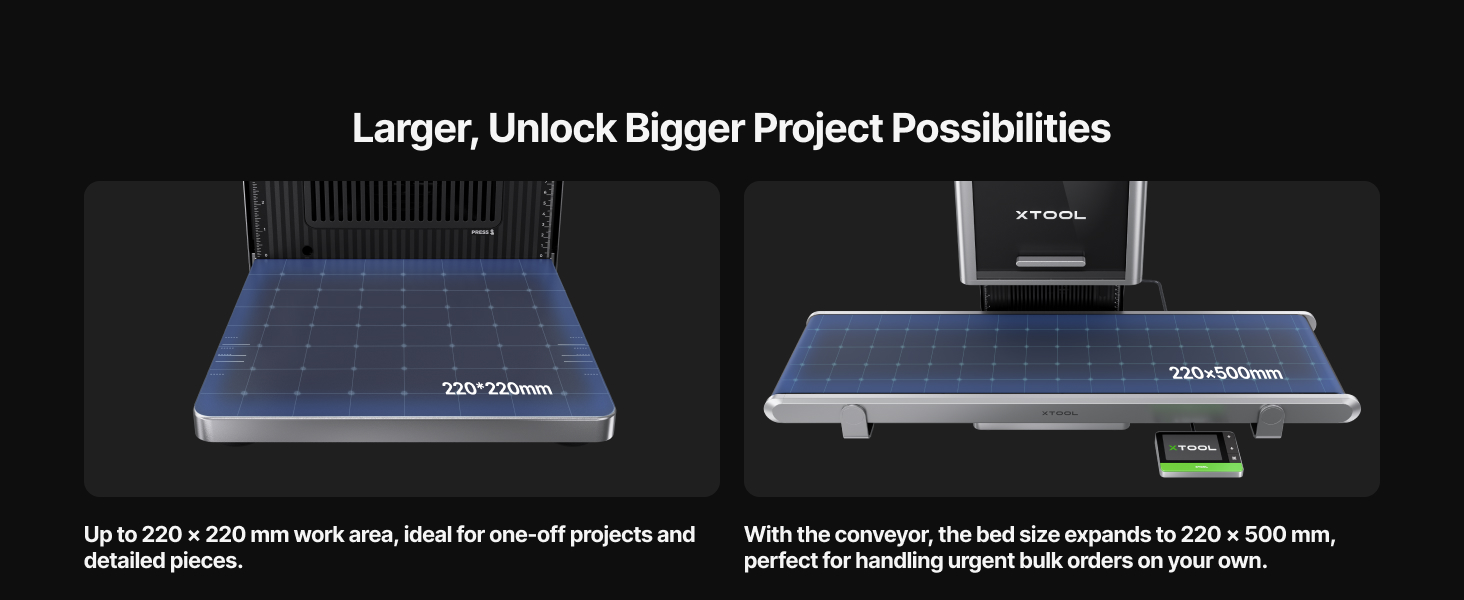
Image: Diagram highlighting the safety features and design elements of the xTool F2 Ultra, including its fully enclosed design and safety sensor.
6. Troubleshooting
This section provides solutions to common issues you might encounter.
| Problem | Possible Cause | Solution |
|---|---|---|
| Laser not firing | Power cable loose, emergency stop engaged, software error. | Check power connections, disengage emergency stop, restart software and machine. |
| Poor engraving quality | Incorrect focus, dirty lens, unsuitable material settings. | Perform one-click focus, clean the laser lens, adjust material settings in software. |
| Machine not connecting to computer | USB cable issue, driver not installed, software conflict. | Try a different USB port/cable, reinstall drivers, ensure no other software is interfering. |
7. Specifications
| Feature | Detail |
|---|---|
| Laser Type | 60W MOPA Fiber Laser & 40W Diode Laser |
| Engraving Speed | Up to 15,000 mm/s |
| Camera | Dual 48MP AI Cameras |
| Positioning Accuracy | 0.2mm |
| Working Area (Standard) | 8.7" x 8.7" (220mm x 220mm) |
| Working Area (with Conveyor) | 8.7" x 19.7" (220mm x 500mm) |
| Metal Cutting Capability | Up to 2mm metal (with 60W MOPA) |
| Acrylic Cutting Capability | Up to 20mm acrylic (with 40W Diode) |
| Wood Cutting Capability | Up to 23mm wood (with 40W Diode) |
| Safety Class | Class 4 Laser Product |
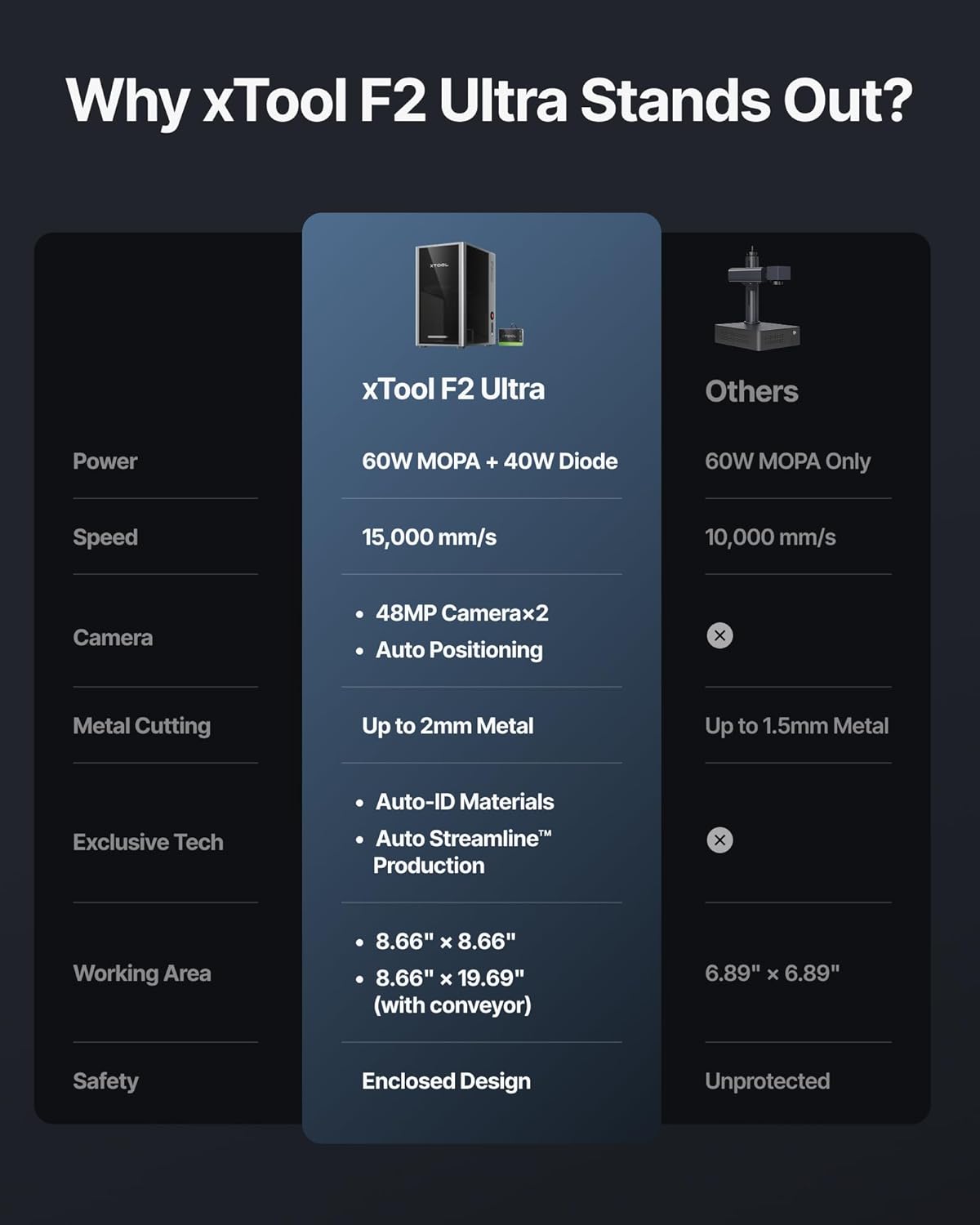
Image: A comparison table highlighting the key features and specifications of the xTool F2 Ultra against other laser engravers, detailing power, speed, camera, metal cutting, exclusive tech, working area, and safety.
8. Warranty Information
For detailed warranty information, please refer to the official xTool website or the warranty card included with your product. Typically, xTool products come with a limited warranty covering manufacturing defects for a specified period from the date of purchase. Keep your proof of purchase for warranty claims.
9. Customer Support
If you require technical assistance, have questions about your xTool F2 Ultra, or need to report an issue, please contact xTool customer support through their official website. Provide your product model and serial number for faster service.
- Online Support: Visit the xTool official website for FAQs, tutorials, and contact forms.
- Community Forums: Engage with other xTool users for tips and solutions.
Related documentsF2 Ultra


Ask a question about this manual
Ask about setup, troubleshooting, compatibility, parts, safety, or missing instructions. Manuals+ will review the question and use this page’s manual context to help answer it.