
Deco Gear VM284K
Deco Gear VM284K 28-inch 4K IPS Monitor Instruction Manual
Model: VM284K
1. Introduction
This manual provides essential information for the proper setup, operation, and maintenance of your Deco Gear VM284K 28-inch 4K IPS Monitor. Designed for both professionals and enthusiasts, this monitor delivers breathtaking imagery with its crisp 3840 x 2160 4K resolution, excellent color accuracy, and responsive performance. Please read this manual thoroughly before using your monitor to ensure optimal performance and safety.
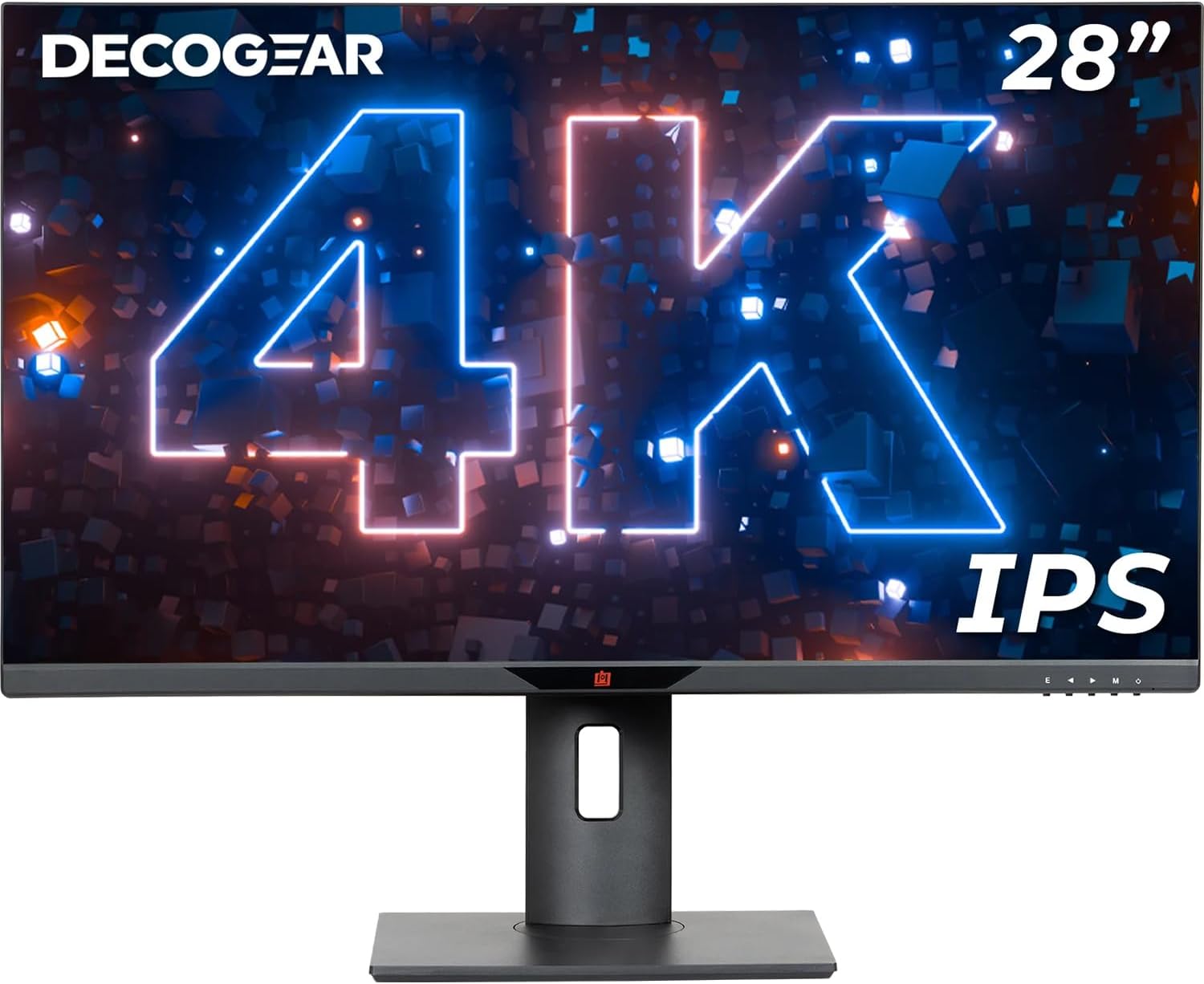
Front view of the Deco Gear 28-inch 4K IPS Monitor, showcasing its crisp display with a prominent '4K' logo and 'IPS' branding.
2. Safety Information
To ensure safe operation and prolong the lifespan of your monitor, please observe the following safety guidelines:
- Power Source: Use only the provided power adapter and cable. Ensure the power outlet meets the specified voltage requirements.
- Placement: Place the monitor on a stable, level surface. Avoid placing it in direct sunlight, near heat sources, or in areas with excessive dust or humidity. Ensure adequate ventilation around the monitor.
- Cleaning: Disconnect the power cable before cleaning. Use a soft, dry cloth to clean the screen and exterior. Avoid using liquid cleaners or aerosol sprays directly on the monitor.
- Ventilation: Do not block ventilation openings. Overheating can cause damage to the monitor.
- Liquid and Moisture: Keep the monitor away from liquids. Do not expose it to rain or moisture.
- Servicing: Do not attempt to service the monitor yourself. Refer all servicing to qualified service personnel.
3. Package Contents
Please check the contents of your package. If any items are missing or damaged, contact your retailer.
- Deco Gear VM284K 28-inch 4K IPS Monitor
- Monitor Stand (Base and Neck)
- Power Adapter
- Power Cable
- HDMI 2.0 Cable
- User Manual
4. Monitor Features
The Deco Gear VM284K monitor is equipped with advanced features to enhance your visual experience:
- Stunning 4K Resolution: Experience incredible detail with a 3840 x 2160 pixel resolution, offering four times the clarity of a traditional 1080p monitor.
- IPS Panel Technology: Enjoy superior color accuracy and wide 178° viewing angles, ensuring consistent image quality from nearly any perspective.
- Vibrant Color Reproduction: Supports over one billion colors with 100% sRGB and 90% DCI-P3 color accuracy, ideal for creative professionals.
- Smooth Performance: A 60Hz refresh rate and 4ms response time (with OD) provide fluid motion for both work and entertainment.
- Eye Comfort Features: Includes flicker-free technology and blue light reduction support to minimize eye strain during extended use.
- Versatile Connectivity: Features two HDMI 2.0 ports and one DisplayPort (DP) for connecting multiple devices, along with a USB port and Audio Out.
- Ambient Backlighting: Built-in RGB lighting on the rear of the monitor provides customizable ambiance.
- VESA Mount Compatible: Allows for flexible mounting options.
- Integrated Speakers: Convenient built-in internal speakers for audio output.

The monitor screen showing a high-resolution image of a diver in clear blue water, illustrating the monitor's 4K visual capabilities.

The monitor screen displaying a vivid image of a parrot with rich, accurate colors, demonstrating the monitor's 1 billion color support and IPS panel benefits.
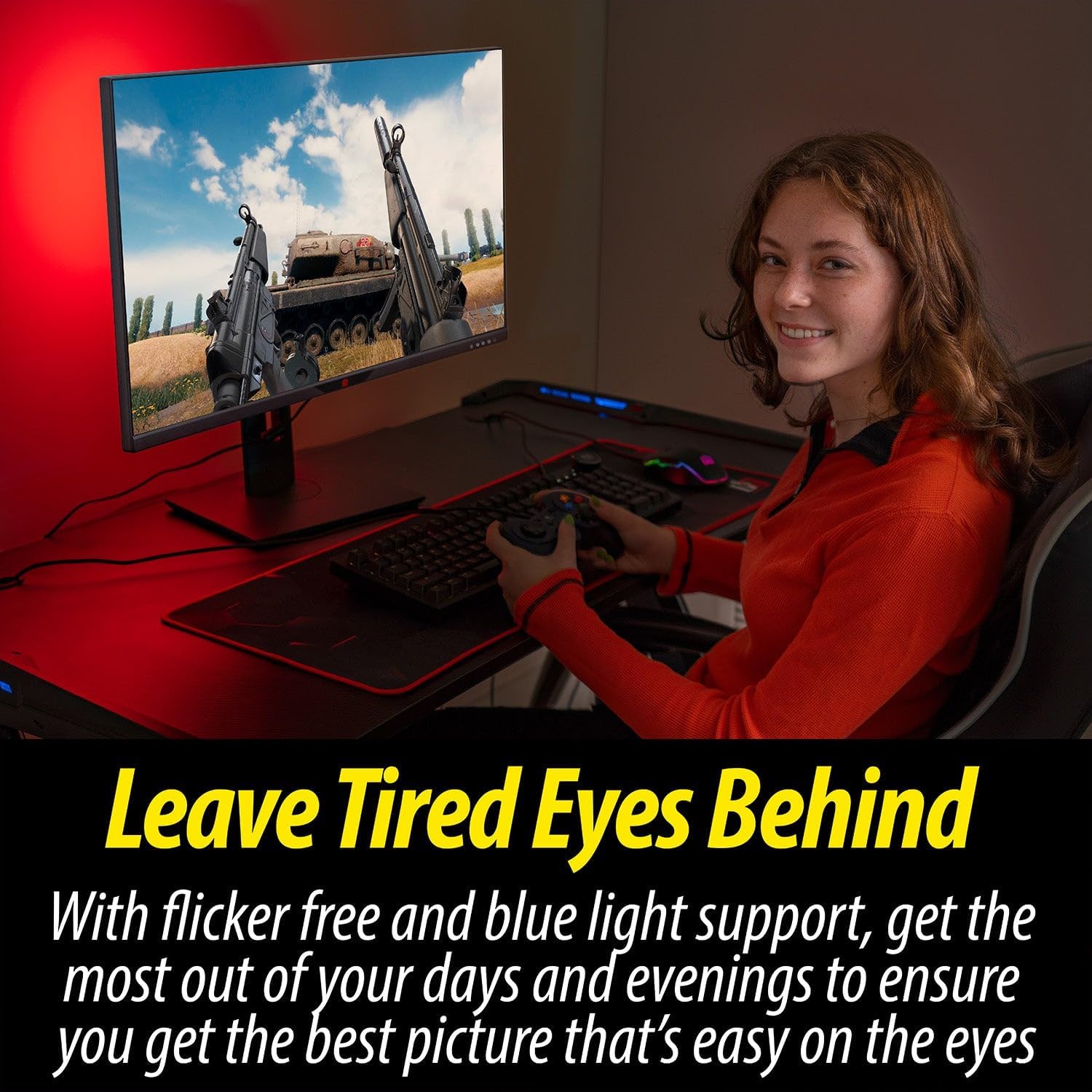
A user engaged in gaming on the Deco Gear monitor, with red ambient backlighting visible, emphasizing the monitor's flicker-free and blue light reduction features for eye comfort.

A side view of the Deco Gear monitor showing a colorful image, with overlaid text highlighting its key specifications: 16:9 Aspect Ratio, 3840x2160 Resolution, 60 Hertz Refresh Rate, 1.06 Billion Colors (10bit), and 4 Millisecond Response Time.

The back of the Deco Gear monitor, featuring an illuminated RGB light strip around the stand attachment area and indicating the presence of two internal speakers, highlighting its design and audio features.
5. Setup
5.1. Assembling the Stand
- Carefully remove the monitor and stand components from the packaging. Keep the monitor screen protected during assembly.
- Attach the stand neck to the monitor panel. Align the tabs on the stand neck with the slots on the back of the monitor and push firmly until it clicks into place.
- Attach the stand base to the stand neck. Secure it with the provided screw, typically located on the underside of the base.
- Place the assembled monitor on a stable, flat surface.

An illustration detailing the monitor's physical dimensions, the adjustability of its stand (height and angle), and a close-up of the rear input panel featuring DC 12V, USB, HDMI1, HDMI2, DP, and Audio Out ports.
5.2. Connecting to a Device
- Power Connection: Connect the power adapter to the monitor's DC 12V input port, then plug the power cable into a wall outlet.
- Video Connection: Connect one end of the provided HDMI 2.0 cable to an HDMI port on your computer or video source, and the other end to an HDMI port (HDMI1 or HDMI2) on the monitor. Alternatively, use a DisplayPort (DP) cable to connect to the monitor's DP port for higher bandwidth connections.
- Audio Connection (Optional): If using external speakers or headphones, connect them to the monitor's Audio Out port.
- USB Connection (Optional): Connect a USB device to the monitor's USB port if available.
6. Operating the Monitor
6.1. Power On/Off
- To power on the monitor, press the power button, usually located on the bottom right side or rear of the monitor.
- To power off, press the power button again.
6.2. Input Selection
The monitor can automatically detect the active input source. If you have multiple devices connected, you may need to manually switch inputs:
- Access the On-Screen Display (OSD) menu by pressing the menu button.
- Navigate to the 'Input Source' or 'Source' option.
- Select the desired input (HDMI1, HDMI2, or DP) using the navigation buttons.
6.3. On-Screen Display (OSD) Menu
The OSD menu allows you to adjust various display settings. The buttons for OSD navigation are typically located on the bottom right or rear of the monitor.
- Menu Button: Press to open the OSD menu.
- Navigation Buttons: Use these buttons (often directional arrows or a joystick) to move through menu options.
- Select/Enter Button: Confirm your selection.
- Exit Button: Close the OSD menu.
Common OSD settings include:
- Picture Settings: Brightness, Contrast, Sharpness, Color Temperature, Aspect Ratio.
- Color Settings: Adjust RGB levels, Gamma, Hue, Saturation.
- Input Source: Manually select the video input.
- Audio Settings: Volume control for built-in speakers or Audio Out.
- OSD Settings: Language, OSD Timeout, OSD Transparency.
- Advanced Settings: FreeSync/Adaptive Sync, HDR mode, Blue Light Filter.
7. Maintenance
7.1. Cleaning the Monitor
- Always power off the monitor and unplug the power cable before cleaning.
- Use a soft, lint-free cloth to gently wipe the screen. For stubborn marks, lightly dampen the cloth with water or a specialized screen cleaner (ensure it's safe for LCD/IPS panels) and wipe carefully. Do not spray liquid directly onto the screen.
- Clean the monitor casing with a soft, dry cloth. Avoid abrasive cleaners or solvents.
7.2. Storage
If storing the monitor for an extended period, disconnect all cables, pack it in its original packaging (if available), and store it in a cool, dry place away from direct sunlight and extreme temperatures.
8. Troubleshooting
If you encounter issues with your monitor, refer to the following common problems and solutions:
- No Power:
- Ensure the power cable is securely connected to the monitor and the power outlet.
- Verify the power adapter is functioning correctly.
- Check if the power outlet is working by plugging in another device.
- No Signal / Black Screen:
- Confirm that the video cable (HDMI or DP) is securely connected to both the monitor and your computer/device.
- Ensure your computer/device is powered on and not in sleep mode.
- Manually select the correct input source via the OSD menu (refer to Section 6.2).
- Try a different video cable or port on both the monitor and your device.
- Flickering or Distorted Image:
- Check the video cable for damage or loose connections.
- Ensure your graphics card drivers are up to date.
- Adjust the refresh rate and resolution settings on your computer to match the monitor's capabilities (3840x2160 at 60Hz).
- If the issue persists, try connecting the monitor to a different device or using a different video cable.
- No Sound from Built-in Speakers:
- Increase the volume using the OSD menu or your computer's sound settings.
- Ensure the monitor is selected as the default audio output device on your computer.
- Verify that the video cable (HDMI or DP) is capable of transmitting audio.
- Image is Too Dark/Bright/Incorrect Colors:
- Adjust Brightness, Contrast, and Color Temperature settings in the OSD menu.
- Reset the monitor to factory default settings via the OSD menu.
9. Specifications
| Feature | Specification |
|---|---|
| Brand | Deco Gear |
| Model Number | VM284K |
| Screen Size | 28 Inches |
| Resolution | 3840 x 2160 Pixels (4K) |
| Aspect Ratio | 16:9 |
| Refresh Rate | 60Hz |
| Response Time | 4ms (with OD) |
| Panel Type | IPS |
| Color Support | Over 1 Billion Colors (100% sRGB, 90% DCI-P3) |
| Image Brightness | 350 Candela per Square Meter |
| Connectivity | 2x HDMI 2.0, 1x DisplayPort, 1x USB, Audio Out, DC 12V |
| Product Dimensions | 7.3 x 25.1 x 18.2 inches |
| Item Weight | 13.9 pounds |
| VESA Mount | Capable |
10. Warranty and Support
Your Deco Gear VM284K monitor is covered by a Full 1 Year Manufacturer’s Limited Protection Plan. This warranty covers defects in materials and workmanship under normal use.
For warranty claims, technical support, or any questions not addressed in this manual, please contact Deco Gear customer service. Refer to the official Deco Gear website or your purchase documentation for contact information.
Ask a question about this manual
Ask about setup, troubleshooting, compatibility, parts, safety, or missing instructions. Manuals+ will review the question and use this page’s manual context to help answer it.