
Samsung S90F
Samsung Vision AI TV 65" OLED 4K S90F 2025 User Manual
Model: S90F (QN65S90FAGXZD)
Introduction
This manual provides essential information for the safe and efficient use of your Samsung Vision AI TV 65" OLED 4K S90F 2025. Please read these instructions thoroughly before operating your TV and retain them for future reference. This guide covers setup, operation, maintenance, troubleshooting, and detailed specifications.
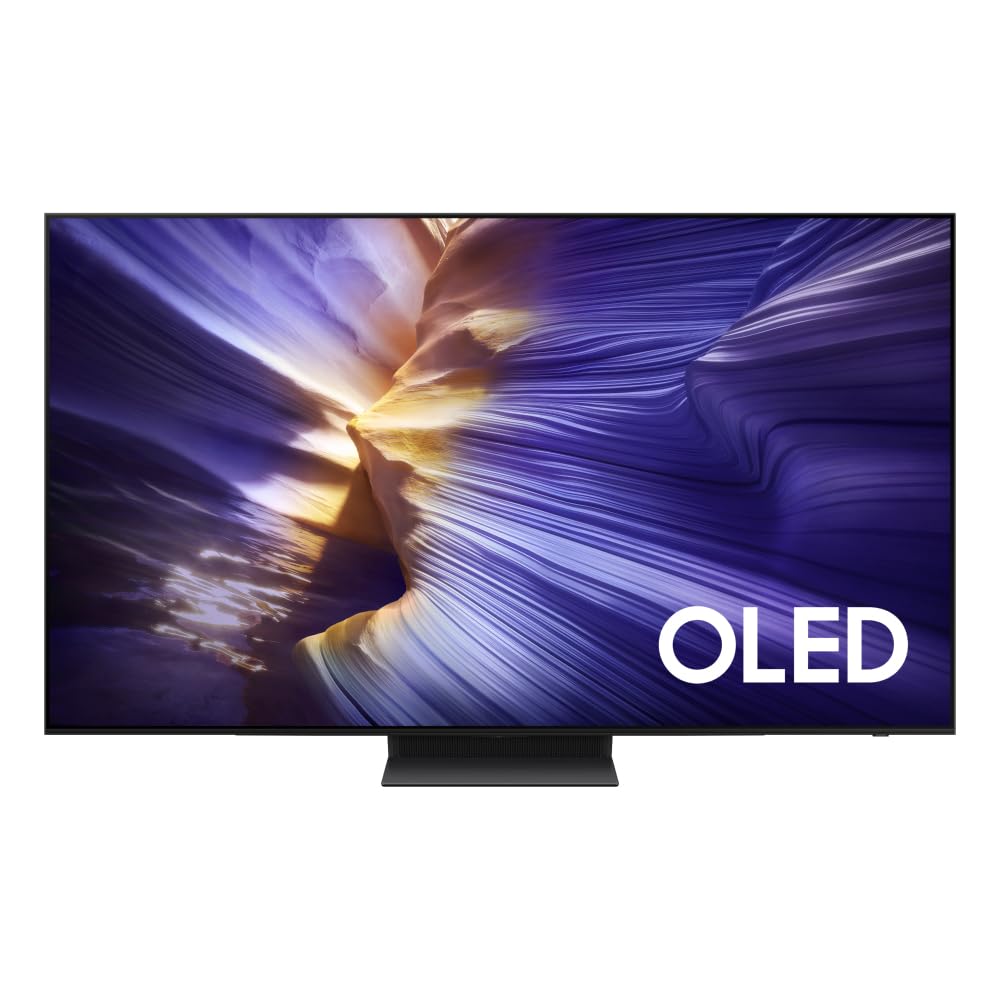
Image: The Samsung Vision AI TV 65" OLED 4K S90F 2025, showcasing its sleek design and vibrant display.
Setup
1. Unpacking and Included Components
Carefully remove all components from the packaging. Ensure all items listed below are present. If any items are missing or damaged, contact your retailer.
- Samsung Vision AI TV 65" OLED 4K S90F
- SolarCell Remote Control
- Power Cable
- User Manual (this document)
- Wall Mount (included as per specifications, verify packaging for specific type)
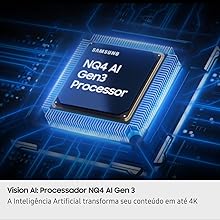
Image: A diagram illustrating the components included in the box, the TV's dimensions, and the SolarCell remote control.
2. Stand Installation (Optional)
If you are not wall-mounting the TV, attach the stand according to the instructions provided in the separate stand assembly guide. Ensure the stand is securely fastened before placing the TV on a stable, level surface.
3. Wall Mount Installation (Optional)
If you choose to wall-mount your TV, refer to the wall mount installation guide provided with your specific wall mount kit. It is recommended to have this installation performed by a qualified professional to ensure safety and proper mounting.
4. Connecting External Devices
Connect your external devices (e.g., Blu-ray player, game console, soundbar) to the TV's ports. The TV features multiple HDMI and USB ports, along with Ethernet for wired network connections.

Image: A close-up view of the rear panel of the Samsung TV, highlighting the various connectivity ports including HDMI, USB, and LAN.
- HDMI: For high-definition audio and video. This model includes 4 HDMI ports, with HDMI 3 supporting eARC for enhanced audio return channel functionality.
- USB: For connecting USB storage devices or other compatible peripherals. One USB 3.0 port is available.
- LAN: For a wired internet connection.
- Wireless Connectivity: The TV also supports Wi-Fi and Bluetooth for wireless connections.
5. Initial Power On and Setup
After connecting all necessary cables, plug the power cable into an electrical outlet. The TV will guide you through the initial setup process, including network connection, channel scanning, and basic settings configuration.
Operating Instructions
1. SolarCell Remote Control
Your TV comes with a SolarCell Remote Control, designed for convenience and environmental sustainability. It charges via indoor lighting or USB-C, eliminating the need for disposable batteries. Use the remote to navigate menus, adjust volume, change channels, and access smart features.
2. AI Processor and Image Enhancement
The Samsung Vision AI TV is equipped with an advanced NQ4 AI Gen 3 Processor. This processor utilizes artificial intelligence to optimize picture and sound quality in real-time, enhancing your viewing experience.

Image: A visual representation of the Samsung NQ4 AI Gen 3 Processor, highlighting its role in Vision AI technology.
- AI 4K Upscaling PRO: This feature intelligently upscales lower-resolution content to near 4K quality, providing sharper details and improved clarity.
- OLED HDR+: Experience vibrant colors, deep blacks, and exceptional contrast with OLED HDR+ technology, revealing fine details in both bright and dark scenes.
- 144Hz Refresh Rate: For smooth motion and responsiveness, especially beneficial for gaming, the display supports a refresh rate of up to 144Hz.

Image: A demonstration of AI 4K Upscaling PRO, showing enhanced image quality.

Image: A scene demonstrating the enhanced detail and contrast provided by OLED HDR+.

Image: A dynamic image illustrating the ultra-performance and fluidity of the 144Hz refresh rate, ideal for gaming.
3. Gesture Control and AI Mode
The TV supports Gesture Control, allowing you to interact with certain functions using hand movements. Additionally, the AI Mode offers personalization features, adapting settings to your preferences and environment.
- Gesture Control: Use specific hand gestures to control basic TV functions like volume or channel changes. Refer to the on-screen guide for detailed gesture commands.
- AI Mode Personalization: The AI Mode learns your viewing habits and optimizes picture and sound settings accordingly. It can also adjust brightness based on ambient light.
4. Audio Features
Experience immersive sound with integrated Dolby Atmos support, providing multi-dimensional audio that moves around you.
Maintenance
1. Cleaning the Screen
To clean the screen, gently wipe it with a soft, dry microfiber cloth. For stubborn smudges, lightly dampen the cloth with distilled water or a specialized screen cleaner. Do not use alcohol, solvents, or abrasive cleaners, as these can damage the screen surface.
2. Cleaning the TV Body and Remote
Wipe the TV body and remote control with a soft, dry cloth. Avoid using liquid cleaners directly on the remote. For the SolarCell remote, ensure the solar panel is clean to maintain charging efficiency.
3. Software Updates
Regularly check for and install software updates to ensure optimal performance and access to the latest features. You can usually find this option in the TV's settings menu under "Support" or "Software Update."
Troubleshooting
If you encounter issues with your TV, refer to the following common troubleshooting steps. If the problem persists, contact Samsung customer support.
Common Issues and Solutions:
- No Power:
- Ensure the power cable is securely connected to both the TV and the electrical outlet.
- Check if the outlet is working by plugging in another device.
- No Picture/Sound:
- Verify that the correct input source is selected (e.g., HDMI 1, TV).
- Check all cable connections between the TV and external devices.
- Adjust the volume settings.
- Remote Control Not Responding:
- Ensure there are no obstructions between the remote and the TV.
- For the SolarCell remote, ensure it is sufficiently charged (expose to light or charge via USB-C).
- Try pairing the remote again if it has become unpaired (refer to the on-screen guide for pairing instructions).
- Poor Picture Quality:
- Check the resolution of the input source.
- Adjust picture settings (brightness, contrast, sharpness) in the TV menu.
- Ensure the AI Upscaling feature is enabled.
- Network Connectivity Issues:
- Restart your router and modem.
- Check Wi-Fi password and network settings on the TV.
- If using a wired connection, ensure the Ethernet cable is properly connected.
Factory Reset
If issues persist, performing a factory reset may resolve them. This will revert all TV settings to their default values. Navigate to "Settings" > "General" > "Reset" and follow the on-screen prompts. Warning: A factory reset will erase all personalized settings and data.
Specifications
| Feature | Detail |
|---|---|
| Brand | Samsung |
| Model Name | S90F |
| Model Number | QN65S90FAGXZD |
| Model Year | 2025 |
| Screen Size | 65.02 Inches |
| Display Technology | OLED 4K |
| Resolution | 4K |
| Refresh Rate | 120 Hz (up to 144 Hz) |
| Special Features | AI Processor, Gesture Control, AI Mode |
| Included Components | Power Cable, User Manual, Wall Mount |
| Connectivity Technology | Bluetooth, Ethernet, HDMI, USB, Wi-Fi |
| Total HDMI Ports | 4 (HDMI 3 with eARC) |
| Total USB 3.0 Ports | 1 |
| Integrated Surround Sound | Dolby Atmos |
| Voltage | 110-220 Volts (check local power requirements) |
| Control Method | Application, Gesture, Voice |
| Item Weight | 21.2 Kilograms |
| Country of Origin | Brazil |
Dimensions (Approximate)
- TV size without stand (WxHxD): 1444.3 x 831.7 x 39.9 mm
- TV size with stand (WxHxD): 1444.3 x 896.7 x 265.2 mm
- Base/Feet size (WxD): 366.0 x 265.2 mm
Warranty and Support
Warranty Information
Your Samsung Vision AI TV 65" OLED 4K S90F comes with a limited warranty of 12 months from the date of purchase. This warranty covers manufacturing defects under normal use. Please retain your proof of purchase for warranty claims.
For detailed warranty terms and conditions, please refer to the warranty card included with your product or visit the official Samsung support website.
Customer Support
For technical assistance, troubleshooting beyond this manual, or warranty service, please contact Samsung customer support. Contact information can typically be found on the Samsung official website for your region.
Online Resources: Visit the official Samsung support website for FAQs, software downloads, and additional user guides.
Ask a question about this manual
Ask about setup, troubleshooting, compatibility, parts, safety, or missing instructions. Manuals+ will review the question and use this page’s manual context to help answer it.