
1. Introduction
This manual provides essential information for the safe and efficient operation of your Samsung 65-inch Interactive Display Touch Screen Whiteboard WAF Series. This display is designed to enhance collaborative environments with its Android OS 14, touch capabilities, and versatile connectivity options. Please read this manual thoroughly before using the product and retain it for future reference.

Figure 1: Front view of the Samsung 65-inch Interactive Display.
2. Safety Information
To ensure safe operation and prevent damage, observe the following:
- Always connect the display to a grounded power outlet.
- Do not expose the display to rain or moisture.
- Avoid blocking ventilation openings to prevent overheating.
- Use only accessories specified by the manufacturer.
- Disconnect power during lightning storms or when unused for long periods.
- The WAF series includes protection against electrical surges and is designed to shield equipment in humid climates.
3. What's in the Box
Verify that all components are present upon unboxing:
- Power Cable
- Remote Control
- HDMI Cable
- Touch Pen (2 each, Black)
- USB Cable
4. Setup
4.1 Physical Dimensions and Weight
- Product Dimensions: 3.5 x 35.1 x 58.4 inches
- Item Weight: 79.8 pounds

Figure 2: Physical dimensions of the display.
4.2 Connectivity Ports
The display features various ports for external device connection:
- HDMI In/Out
- USB (Type-A, Type-C)
- OPS Slot
- Audio In/Out
- LAN

Figure 3: Front-facing physical controls and ports for easy access.

Figure 4: Side view of the display highlighting additional connectivity options.

Figure 5: Bottom view of the display with service ports.
4.3 Initial Power-On
Connect the power cable to the display and a grounded electrical outlet. Press the power button located on the front panel to turn on the display. Follow the on-screen instructions for initial setup, including network configuration and Google account login.
5. Operating Instructions
5.1 Android OS 14 and Customizable Home Screen
The display runs on Android OS 14, offering a familiar and customizable user experience. You can personalize the home screen with widgets and frequently used applications for quick access.
5.2 Annotation Features
The display includes an always-visible Annotation feature, allowing users to take notes directly on any content. The Split Note Mode supports up to four independent note zones on a single page, facilitating multi-user collaboration. The dual pen function allows the use of two different writing tools simultaneously without needing to change settings.

Figure 6: The dual-sided touch pen for versatile writing.
5.3 Multi-Touch Capabilities
The display supports up to 40 simultaneous touchpoints, enabling multiple users to interact with the screen concurrently.
5.4 Smart Wireless Sharing
Utilize the smart wireless sharing feature to mirror screens from up to nine devices, including iOS, Mac, Windows, Android™, or Chrome OS. This promotes interactive engagement and content sharing.
5.5 Front-Facing Physical Controls
Intuitive front-facing physical controls provide quick access to frequently used functions such as power, home, return, freeze frame, and volume adjustments.
5.6 Connectivity Features
- HDMI Out: Share whiteboard content to a different, larger screen.
- 3-in-1 USB-C Port: Enables screen mirroring, touch control, and external device charging (max. 65W).
- OPS Slot: Transform the interactive display into a Windows device by inserting an optional OPS module (purchased separately).
5.7 Device Management Solution (DMS)
The WAF series offers a device management solution for remote management of whiteboard settings and applications, ensuring operational efficiency and stability. A cloud-based DMS solution is provided free of charge for one year; pricing policy is subject to change. An on-prem DMS solution is also available for local network requirements.
5.8 Advanced Messaging
Send urgent communications across campuses, classrooms, and public spaces. Messages are displayed on interactive whiteboards to alert students and personnel in real-time.
5.9 Usage Examples

Figure 7: Interactive displays used for collaborative learning in a classroom.

Figure 8: Interactive displays facilitating presentations in a lecture hall.
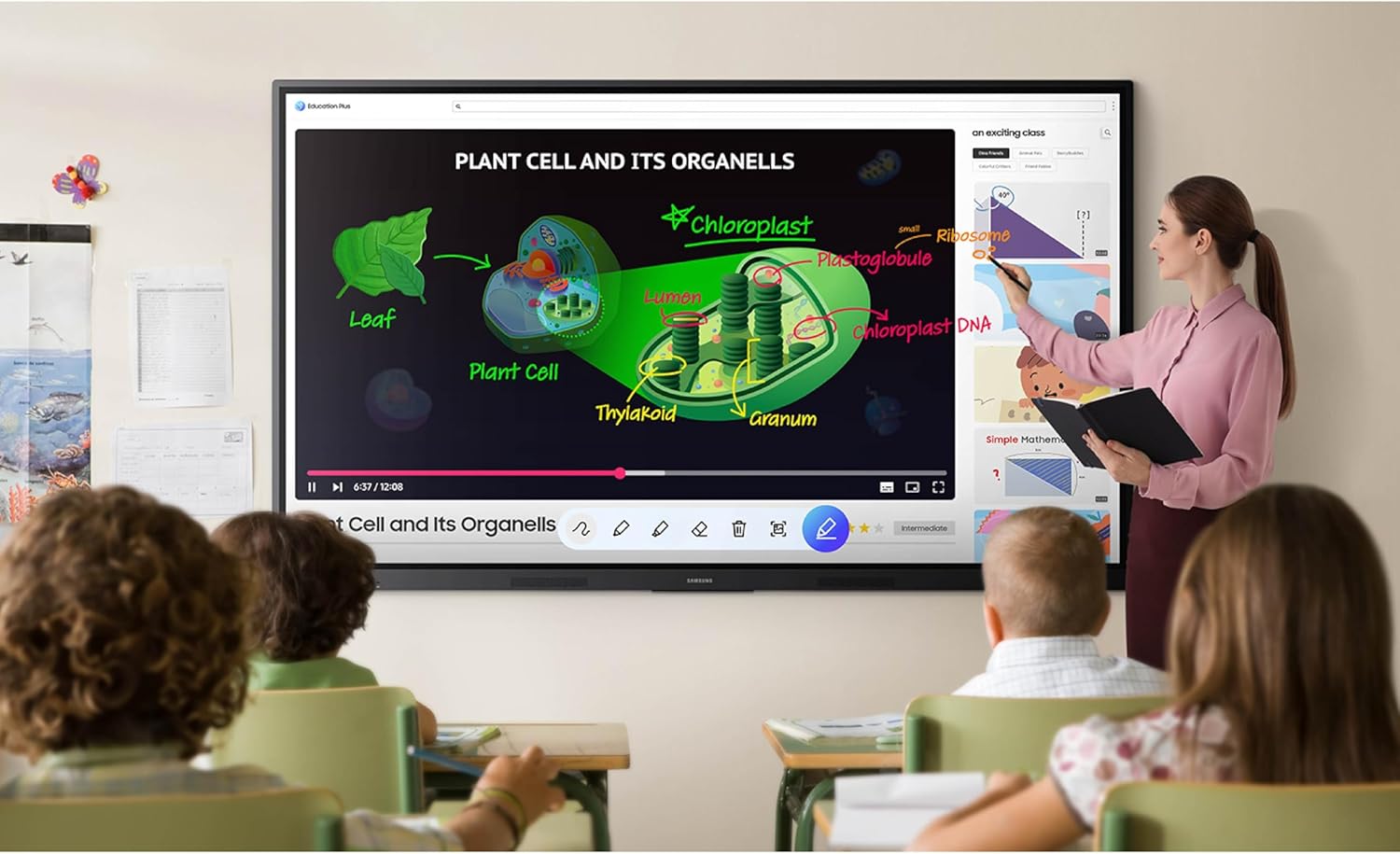
Figure 9: A teacher utilizing the interactive display for an engaging lesson.
5.10 Official Product Videos
6. Maintenance
6.1 Cleaning the Display
Use a soft, lint-free cloth slightly dampened with water or a non-abrasive screen cleaner. Avoid harsh chemicals or abrasive materials that could damage the screen surface.
6.2 General Care
Keep the display in a well-ventilated area. Avoid placing heavy objects on the display or exposing it to direct sunlight for extended periods. Ensure all cables are securely connected.
7. Troubleshooting
7.1 No Power
- Check if the power cable is securely connected to the display and the power outlet.
- Verify that the power outlet is functional.
7.2 No Image/Signal
- Ensure all input cables (HDMI, USB-C) are correctly connected to both the display and the source device.
- Select the correct input source on the display using the input selection menu.
7.3 Touchscreen Unresponsive
- Restart the display.
- Ensure there are no obstructions on the screen surface.
- Check for any software updates for the display.
8. Specifications
| Feature | Detail |
|---|---|
| Brand | Samsung |
| Model Number | LH65WAFWLGCXZA |
| Screen Size | 65 Inches |
| Resolution | 3840 x 2160 Pixels (4K UHD) |
| Image Brightness | 400 Candela per Square Meter |
| Product Dimensions | 3.5 x 35.1 x 58.4 inches |
| Item Weight | 79.8 pounds |
| Operating System | Android OS 14 |
| Touchpoints | Up to 40 simultaneous |
| Connectivity | HDMI, USB-C (3-in-1), OPS Slot, Wi-Fi, Bluetooth |
| Special Features | EDLA Certified, Smart Wireless Sharing, Dual Pen Function, Device Management Solution, Advanced Messaging, Surge Protection, Humidity Protection |
9. Warranty and Support
For warranty information and technical support, please refer to the documentation included with your product or visit the official Samsung support website. Contact details for customer service are typically available on the manufacturer's website.


