
1. Introduction
The CP PLUS CP-E25Q is a 2MP Full HD Wi-Fi CCTV Camera designed for indoor surveillance. It offers advanced features such as 1080P Full HD video resolution, 360-degree pan and tilt functionality, smart detection capabilities, and two-way audio communication. This manual provides essential information for setting up, operating, maintaining, and troubleshooting your camera to ensure optimal performance and security.
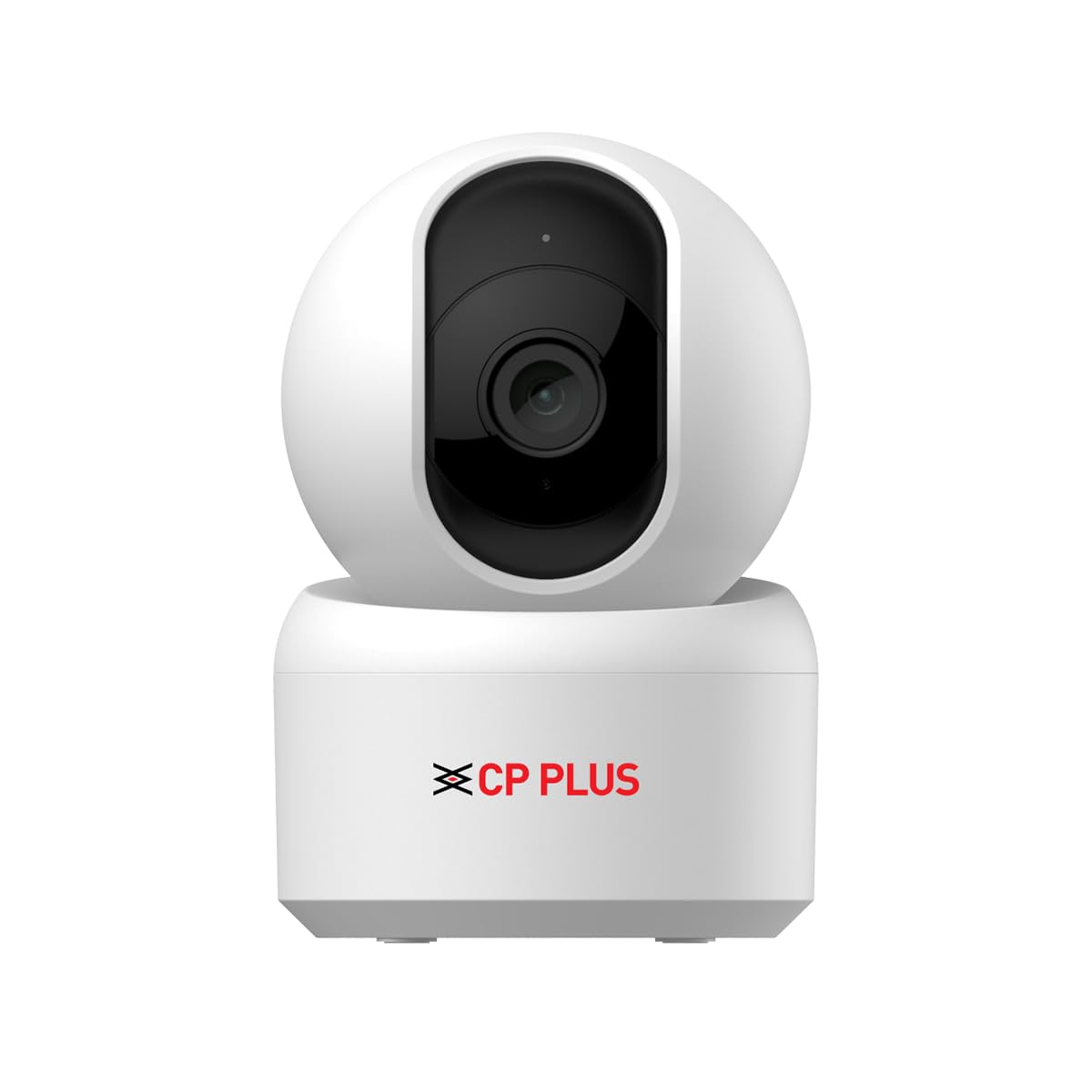
Figure 1.1: CP PLUS CP-E25Q Wi-Fi CCTV Camera
2. What's Included
Verify that all components are present in the package:
- CP PLUS CP-E25Q Camera
- Power Adapter
- Charging Cable
- Instruction Manual (this document)
- Mounting Screw Kit
3. Product Overview
The CP-E25Q camera is designed to provide comprehensive indoor surveillance with its advanced features:
- 1080P Full HD Video: Captures clear and detailed video footage.
- 360° Pan & Tilt: Offers wide-area coverage with remote control via the Ezykam+ app.
- Smart Detection Suite: Includes human detection, sound detection, motion detection, and intelligent motion tracking to minimize false alerts.
- IR Night Vision: Provides clear visibility up to 15 meters in complete darkness.
- Two-Way Communication: Allows real-time interaction through a built-in microphone and speaker.
- Storage Options: Supports encrypted cloud recording and local storage via microSD card (up to 256GB, not included).
- Privacy Mode: One-tap feature to pause live monitoring and recording for personal control.
- Smart Home Integration: Compatible with Alexa and Google Home for voice control.
- CTC Cyber Secure Technology: Ensures robust data protection and privacy.
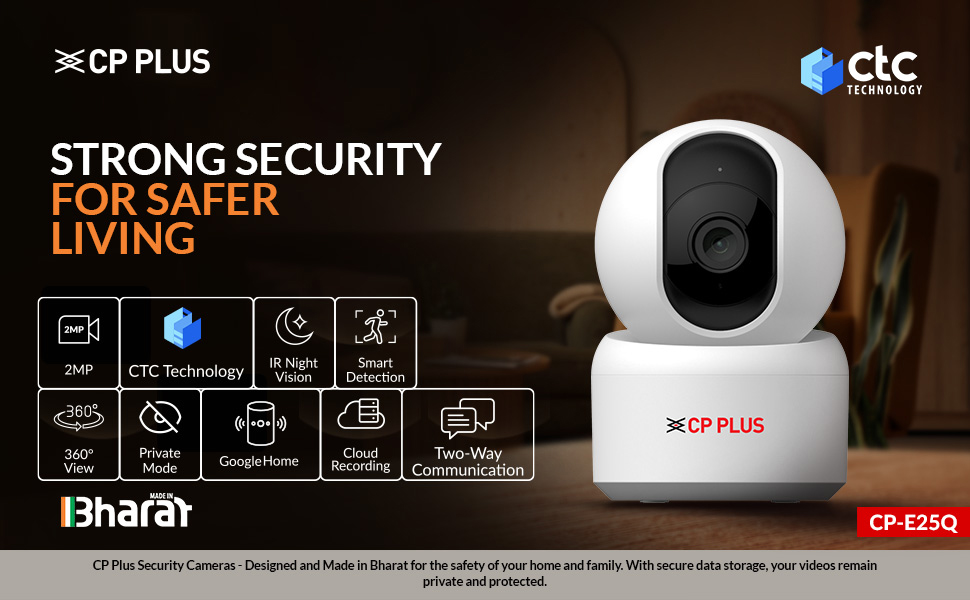
Figure 3.1: Key Features of CP PLUS CP-E25Q
4. Setup
4.1 Initial Power-Up
- Connect the charging cable to the camera's power input port.
- Plug the power adapter into a standard electrical outlet.
- Wait for the camera to power on and initiate its self-check. The indicator light will typically flash to indicate readiness for pairing.
4.2 Ezykam+ App Integration
Follow these steps to connect your camera using the Ezykam+ app:
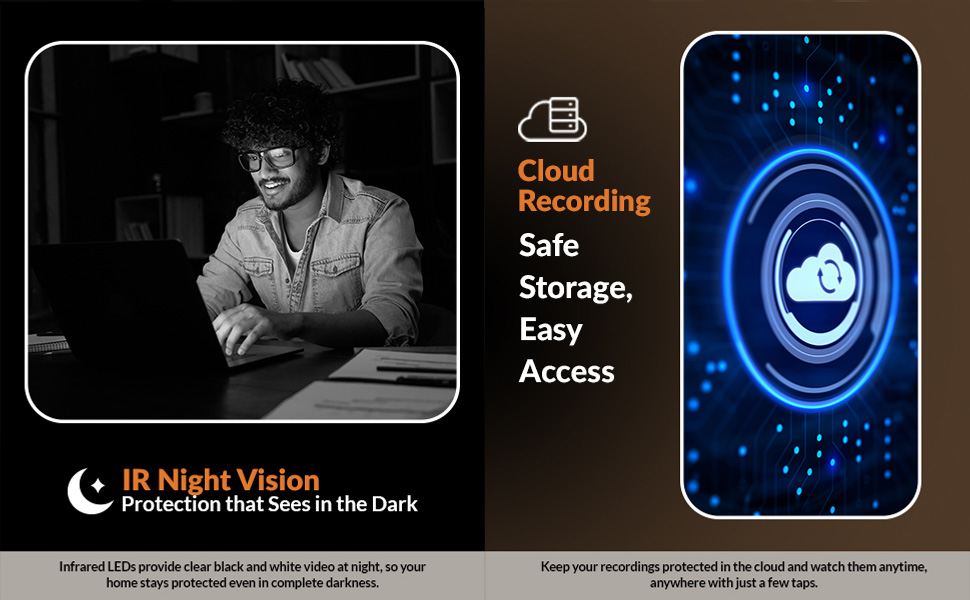
Figure 4.1: EZYKAM+ App Integration Guide
- Download App: Download the Ezykam+ app from the App Store (iOS) or Google Play Store (Android) and register your account.
- Add Device: Click on the '+' icon on the Home Page and select the model number of your device (CP-E25Q).
- Connect to Wi-Fi: Add your Wi-Fi network name and password, then click to confirm.
- Scan QR Code: Scan the generated QR code with your camera. You will hear a voice prompt. Wait for a steady blue indicator light, which signifies successful configuration.
5. Operation
5.1 Live View and Pan/Tilt Control
Once connected, open the Ezykam+ app to access the live view. Use the on-screen controls to pan (horizontal movement) and tilt (vertical movement) the camera for a 360-degree view of your space.
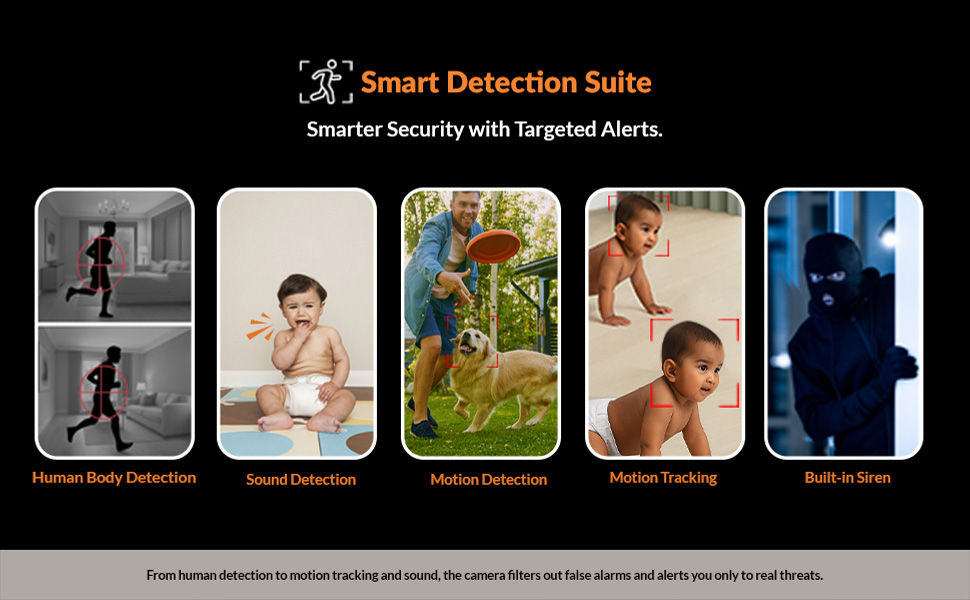
Figure 5.1: 360° Pan & Tilt Coverage
5.2 Smart Detection Features
The camera's Smart Detection Suite provides targeted alerts:
- Human Body Detection: Identifies human shapes to reduce false alarms.
- Sound Detection: Alerts you to unusual sounds.
- Motion Detection: Triggers recording and alerts upon any movement.
- Motion Tracking: Automatically follows detected movement within the camera's field of view.
Configure these settings within the Ezykam+ app to receive push notifications for detected activities.
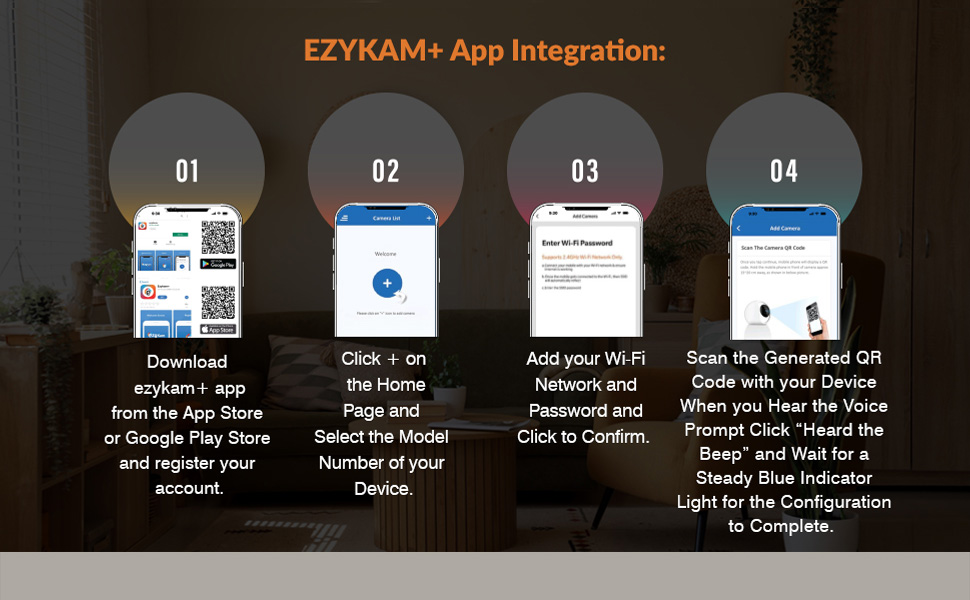
Figure 5.2: Smart Detection Suite
5.3 Two-Way Communication
Use the 'View & Talk' feature in the Ezykam+ app to communicate with individuals near the camera. Press the microphone icon to speak and release to listen.
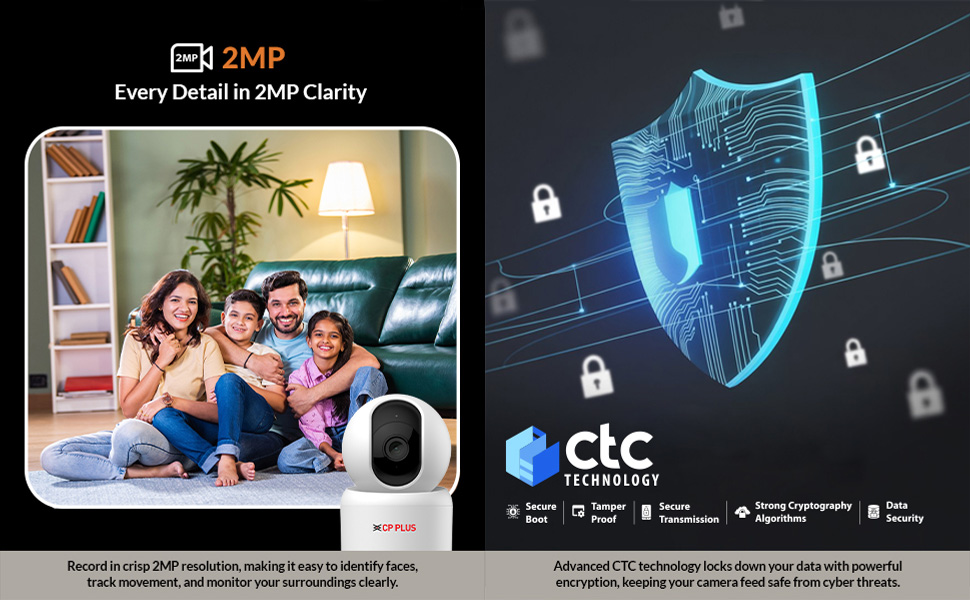
Figure 5.3: Two-Way Communication Feature
5.4 Night Vision
The camera automatically switches to IR night vision in low-light conditions, providing clear black and white video. The 15m range ensures effective monitoring even in complete darkness.
Figure 5.4: IR Night Vision Capability
5.5 Recording and Storage
The CP-E25Q supports two primary recording methods:
- Cloud Recording: Subscribe to cloud storage via the Ezykam+ app for secure, remote access to your recordings.
- MicroSD Card: Insert a microSD card (up to 256GB) into the camera's slot for local storage. Recordings will loop once the card is full.
Figure 5.5: Cloud Recording Options
5.6 Privacy Mode
Activate Privacy Mode through the Ezykam+ app to temporarily disable live monitoring and recording, ensuring your personal privacy when needed.
Figure 5.6: Privacy Mode Activation
6. Maintenance
6.1 Cleaning the Camera
- Ensure the camera is powered off before cleaning.
- Use a soft, dry cloth to wipe the camera body.
- For the lens, use a lens cleaning cloth and specialized lens cleaning solution to avoid scratches.
- Do not use harsh chemicals or abrasive cleaners.
6.2 Software Updates
Regularly check the Ezykam+ app for firmware updates. Keeping your camera's software up-to-date ensures optimal performance, security, and access to new features.
7. Troubleshooting
| Issue | Possible Cause | Solution |
|---|---|---|
| Camera not powering on | Power cable loose or adapter faulty | Check power connections. Try a different outlet or adapter. |
| Unable to connect to Wi-Fi | Incorrect Wi-Fi password, weak signal, or camera too far from router | Verify Wi-Fi password. Move camera closer to router. Ensure 2.4GHz Wi-Fi network is used. |
| Frequent Wi-Fi disconnection | Weak Wi-Fi signal, network congestion | Improve Wi-Fi signal strength (e.g., Wi-Fi extender). Reduce network traffic. |
| No motion detection alerts | Detection sensitivity too low, alerts disabled in app | Adjust motion detection sensitivity in Ezykam+ app. Enable push notifications. |
| Poor night vision quality | Obstruction in front of lens, external light interference | Clear any obstructions. Ensure no strong light sources are directly facing the camera. |
| Two-way audio not working | Microphone/speaker permissions not granted, volume too low | Check app permissions for microphone. Adjust volume settings in the app and on your phone. |
8. Specifications
| Feature | Detail |
|---|---|
| Model Number | CP-E25Q |
| Video Resolution | 1080p Full HD (2MP) |
| Frame Rate | 20 frames per second |
| Viewing Angle | 107 Degrees |
| Pan/Tilt Range | 355° Pan, 59° Tilt |
| Night Vision Range | 15 Metres (IR LED) |
| Storage | Micro SD (up to 256GB), Cloud Storage |
| Connectivity | Wi-Fi (2.4GHz) |
| Power Source | Corded Electric (5 Volts DC, 5 Watts) |
| Dimensions (L x W x H) | 7.2 x 7.2 x 10.9 cm |
| Item Weight | 161 Grams |
| Material | Plastic |
| Indoor/Outdoor Usage | Indoor |
| Alert Type | Audio and Motion |
9. Warranty and Support
9.1 Warranty Information
This product typically comes with a manufacturer's warranty. For specific details regarding the warranty period and terms, please refer to the warranty card included in your product packaging or visit the official CP PLUS website. Extended warranty options may also be available from third-party providers.
9.2 Customer Support
For technical assistance, troubleshooting, or any product-related inquiries, please contact CP PLUS customer support. Contact information can usually be found on the product packaging, the official CP PLUS website, or within the Ezykam+ app's help section.


