
FOREVER iGo Watch 4 JW-600
Forever iGo Watch 4 JW-600 Smartwatch User Manual
1. Introduction
Welcome to the user manual for your new Forever iGo Watch 4 JW-600 Smartwatch. This guide provides essential information on how to set up, operate, and maintain your device, ensuring you get the most out of its features. The iGo Watch 4 combines modern design with advanced functionalities, including an AMOLED touch screen, comprehensive health monitoring, and over 100 sport modes.
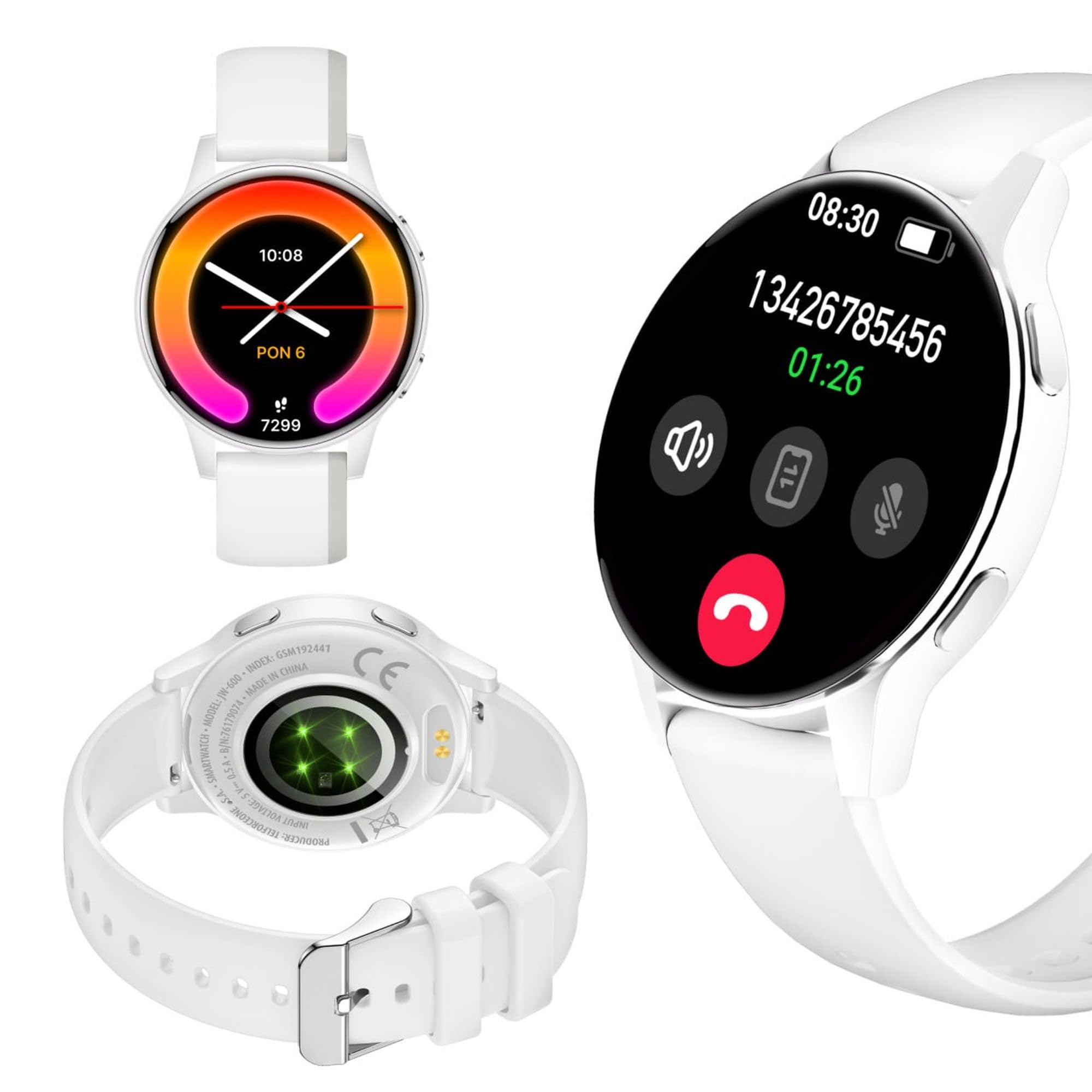
Image: Silhouette of a person wearing the Forever iGo Watch 4 smartwatch, highlighting its sleek design.

Image: Three Forever iGo Watch 4 smartwatches in black, white, and pink, illustrating the available color versions.
2. Package Contents
Upon opening your Forever iGo Watch 4 package, please ensure all items are present and in good condition. Your package should contain:
- Forever iGo Watch 4 Smartwatch
- Magnetic Charging Cable
- Two interchangeable straps (e.g., one pre-installed, one additional)
- User Manual (this document)

Image: Packaging for the white Forever iGo Watch 4, indicating included items and features.

Image: Two Forever iGo Watch 4 smartwatches, one white and one black with an orange accent, highlighting the two included straps.
3. Setup
3.1. Charging the Smartwatch
Before first use, fully charge your smartwatch. Connect the magnetic charging cable to the charging points on the back of the watch and plug the USB end into a power adapter (not included) or a computer's USB port. A full charge takes approximately 2 hours and provides up to 7 days of typical use.

Image: Illustration of the smartwatch's durable battery, capable of up to 7 days of typical usage.
3.2. Powering On/Off
- To Power On: Press and hold the side button until the screen lights up.
- To Power Off: Navigate to the settings menu on the watch, select 'Power Off', and confirm. Alternatively, press and hold the side button and select 'Power Off' when prompted.
3.3. App Installation and Pairing
To unlock the full potential of your iGo Watch 4, download the dedicated companion app on your smartphone (compatible with Android and iOS). Search for the app name (usually 'Forever Smart' or similar, check packaging for exact name) in your phone's app store.
- Download and install the app on your smartphone.
- Enable Bluetooth on your smartphone.
- Open the app and follow the on-screen instructions to create an account or log in.
- In the app, select 'Add Device' or 'Pair Device' and choose 'iGo Watch 4' from the list of available devices.
- Confirm the pairing request on both your smartphone and the smartwatch.
4. Operating the Smartwatch
4.1. Navigation and Display
The iGo Watch 4 features a responsive 1.28-inch AMOLED touch screen with a resolution of 416x416 pixels, providing clear visuals even in bright sunlight. Navigate through menus and functions by swiping across the screen and tapping icons.
- Swipe Up/Down: Scroll through menus or notifications.
- Swipe Left/Right: Access quick functions or different widgets.
- Tap: Select an item or open an application.
- Side Button: Press to return to the home screen or wake the device.

Image: A close-up view of the smartwatch display, showing its vibrant AMOLED screen and clear resolution.

Image: Visual representation of the AMOLED screen's size (1.28 inches) and resolution (416x416 pixels).
4.2. Customizable Watch Faces
Personalize your smartwatch by choosing from a variety of free watch faces available through the companion app. You can switch between classic and futuristic designs to match your mood or style.

Image: A selection of customizable watch faces available for the iGo Watch 4.

Image: Different watch face options, illustrating the ability to change your watch's appearance daily.
4.3. Notifications and Bluetooth Calls
Once paired with your smartphone, the iGo Watch 4 allows you to receive notifications for calls, SMS messages, and various applications directly on your wrist. You can also make and receive Bluetooth calls without needing to take out your phone.
- Incoming Calls: The watch will vibrate and display the caller ID. You can answer or reject calls directly from the watch.
- Messages: Read SMS and app notifications (e.g., WhatsApp, Messenger) on the watch screen.

Image: A person interacting with the smartwatch, with icons representing phone calls and messages, demonstrating Bluetooth connectivity.

Image: Visual representation of the smartwatch's Bluetooth call and notification capabilities.
4.4. Health Monitoring
The iGo Watch 4 is equipped with various sensors to help you monitor your health and well-being. Access these features through the watch's menu or the companion app.
- Heart Rate Measurement: Monitor your heart rate throughout the day.
- Sleep Monitoring: Track your sleep patterns, including different sleep phases, to help improve your sleep quality.
- Stress Measurement: Check your stress levels and receive suggestions for breathing exercises to help manage tension.
- Blood Oxygen Saturation (SpO2): Measure your blood oxygen levels.
- Blood Pressure Measurement: Monitor your blood pressure (note: this feature is for reference only and not a medical device).
- Women's Health: Track menstrual cycles and related data.
- Water Intake Reminder: Set reminders to drink water throughout the day.
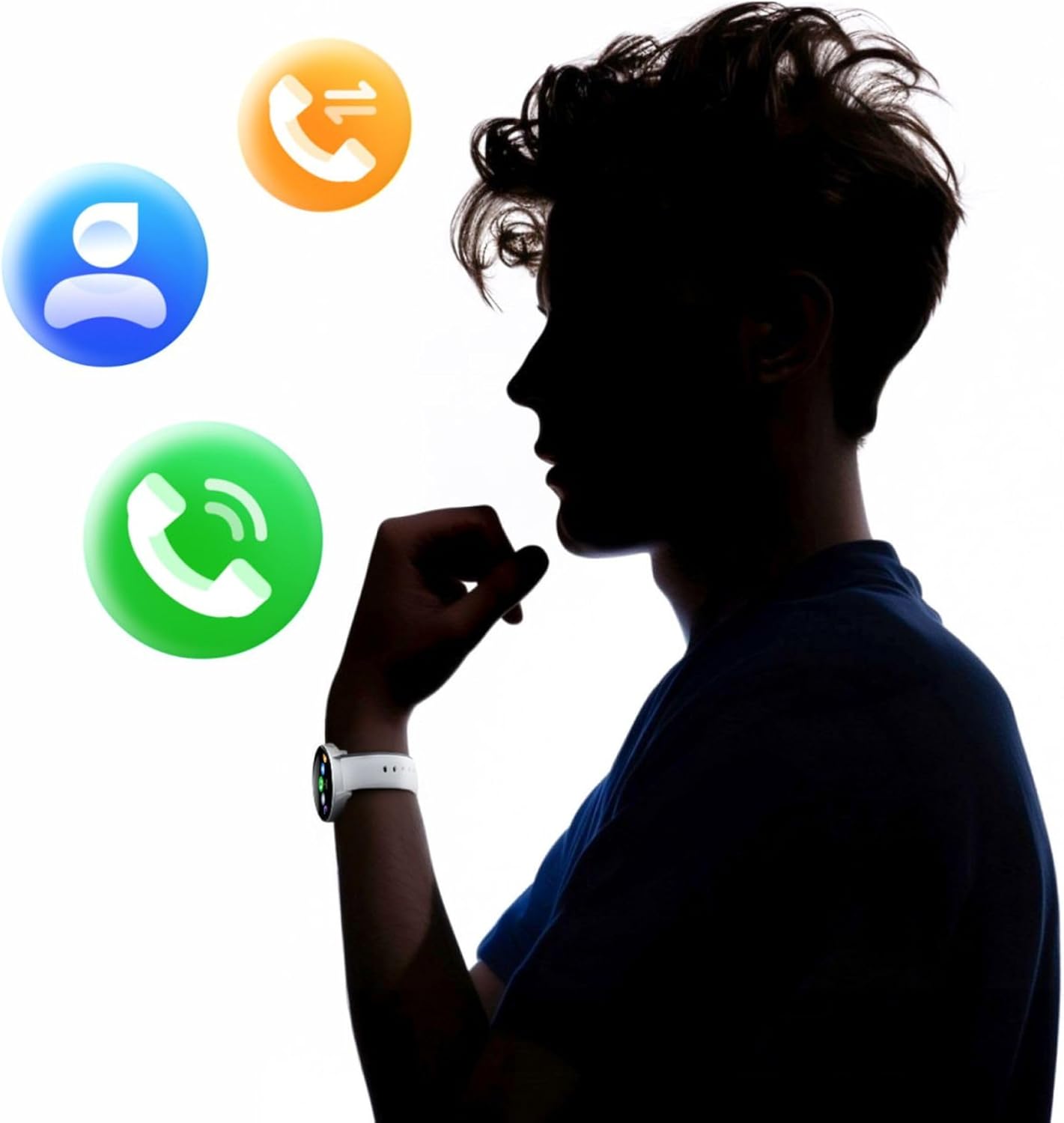
Image: A smartphone displaying the health monitoring app, surrounded by icons for various health metrics like heart rate, blood pressure, and sleep.

Image: Illustration of the sleep monitoring feature, showing sleep duration and phases.

Image: The stress measurement feature, showing how the watch helps monitor stress levels and suggests breathing exercises.
4.5. Sport Modes
With over 100 sport modes, the iGo Watch 4 is designed to track a wide range of physical activities, from running to tennis. The watch accurately counts your steps, distance, and burned calories, providing detailed insights into your workouts through the companion app.

Image: The smartwatch displaying activity data, including calories, steps, and distance, during a workout.

Image: Illustration of the smartwatch's capability to track over 100 sport modes, counting steps and calories.
4.6. Other Smart Functions
The iGo Watch 4 offers several additional smart features to enhance your daily life:
- Music Control: Control music playback on your smartphone directly from your watch.
- Voice Assistant: Access your smartphone's voice assistant.
- Weather Forecast: Get real-time weather updates.
- Find Device: Locate your paired smartphone if it's within Bluetooth range.
- Alarm Clock: Set alarms and reminders.
- Remote Camera Control: Use your watch as a remote shutter for your smartphone's camera.

Image: The smartwatch displaying icons for various smart functions, including music control, weather, and remote camera.

Image: The smartwatch's interactive 3D menu, highlighting useful smart functions like music control and voice assistant.
5. Maintenance
5.1. Cleaning Your Smartwatch
To keep your iGo Watch 4 in optimal condition, regularly clean the device. Use a soft, dry, lint-free cloth to wipe the screen and body. For stubborn smudges, slightly dampen the cloth with water. Avoid using harsh chemicals or abrasive materials, as these can damage the watch.
5.2. Water Resistance (IP67)
The iGo Watch 4 is rated IP67, meaning it is protected against dust ingress and can withstand immersion in water up to 1 meter for up to 30 minutes. This makes it suitable for daily use, such as washing hands or being exposed to rain and splashes. However, it is not recommended for swimming, showering with hot water, or diving, as steam and high water pressure can compromise the seals.
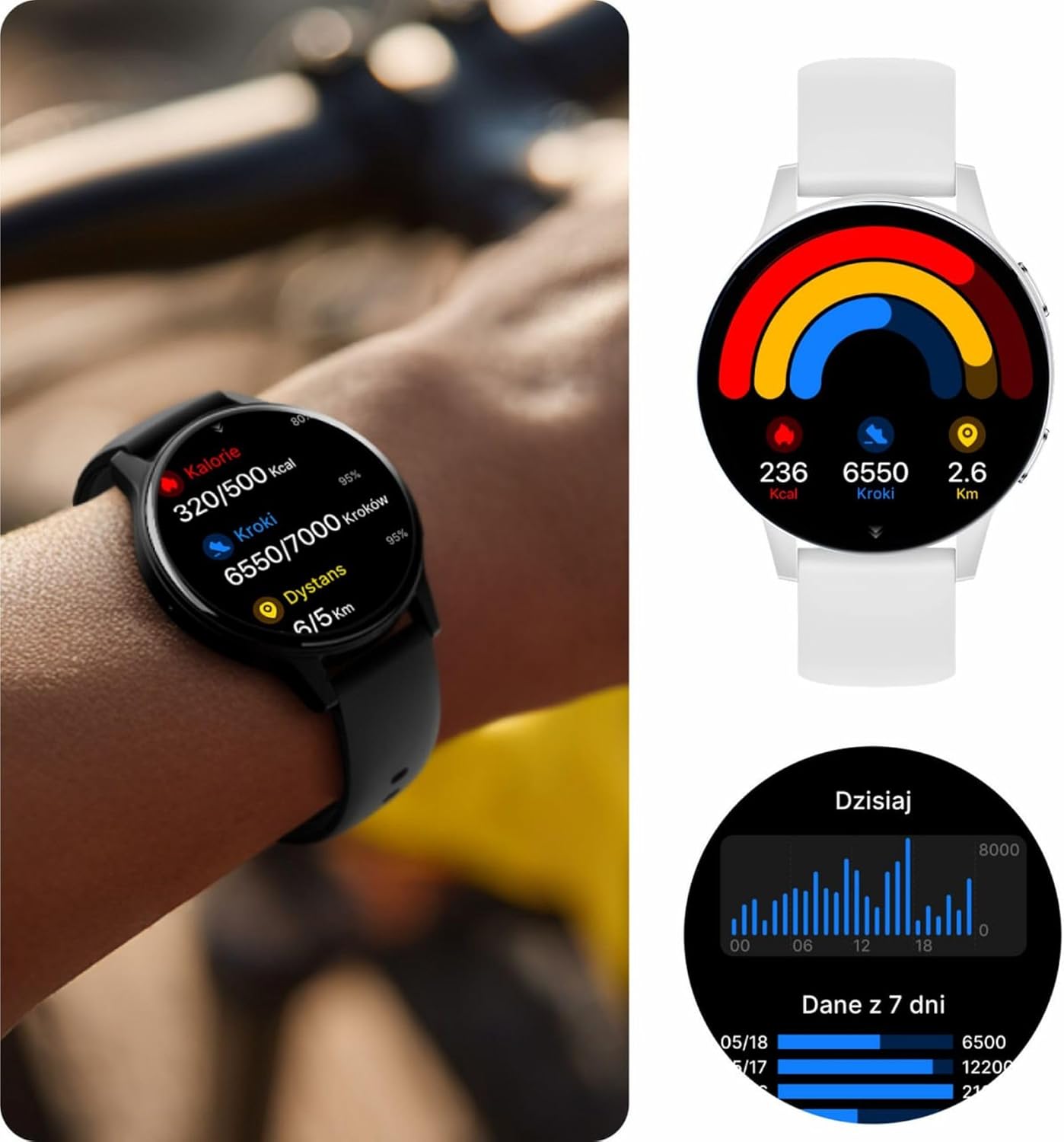
Image: Visual representation of the IP67 waterproof rating, indicating protection against water splashes and brief immersion.

Image: Stylized graphic emphasizing the IP67 waterproof feature of the smartwatch.
6. Troubleshooting
If you encounter any issues with your Forever iGo Watch 4, please refer to the following common solutions:
- Watch not turning on: Ensure the watch is fully charged. Connect it to the charger for at least 30 minutes.
- Cannot pair with smartphone:
- Ensure Bluetooth is enabled on your smartphone.
- Make sure the watch is within range of your smartphone.
- Restart both your smartphone and the smartwatch.
- Check if the companion app is updated to the latest version.
- Notifications not appearing:
- Verify that notification permissions are granted to the companion app on your smartphone.
- Ensure the watch is properly connected via Bluetooth.
- Check the app's settings to ensure notifications for specific applications are enabled.
- Inaccurate health data:
- Ensure the watch is worn snugly on your wrist, not too loose or too tight.
- Clean the sensors on the back of the watch.
- Avoid excessive movement during measurements.
- Short battery life:
- Reduce screen brightness.
- Disable unnecessary features or continuous monitoring if not required.
- Limit the number of notifications received.
If the problem persists, please consult the official Forever support resources or contact customer service.
7. Specifications
Below are the technical specifications for the Forever iGo Watch 4 JW-600 Smartwatch:
| Feature | Specification |
|---|---|
| Brand | FOREVER |
| Model | iGo Watch 4 JW-600 (GSM192441) |
| Display Type | AMOLED |
| Display Size | 1.28 Inches |
| Display Resolution | 416 x 416 pixels |
| Battery Capacity | 280 mAh |
| Average Battery Life | Up to 7 Days |
| Charging Time | 2 Hours |
| Water Resistance | IP67 |
| Weight | 33.9 g |
| Thickness | 10.6 mm |
| Compatible Devices | Smartphone (Android, iOS) |
| Human Interface Input | Touch Panel |
| Special Features | 100+ Sport Modes, Sleep Monitor, Heart Rate, Stress, Blood Oxygen, Blood Pressure, Bluetooth Calls, Notifications |
| Storage Capacity | 128 GB (for data storage, not app installation) |
| GPS | None |
| Wireless Type | 802.11n |

Image: Illustration of the smartwatch's ultra-slim and light form, detailing its weight and thickness.
8. Warranty and Support
Your Forever iGo Watch 4 JW-600 Smartwatch comes with a manufacturer's warranty. Please refer to the warranty card included in your package or the official Forever website for detailed information regarding warranty terms and conditions.
For technical support, troubleshooting assistance, or any other inquiries, please visit the official Forever support page or contact their customer service through the contact information provided on their website or in your product documentation.
Related documentsiGo Watch 4 JW-600


Ask a question about this manual
Ask about setup, troubleshooting, compatibility, parts, safety, or missing instructions. Manuals+ will review the question and use this page’s manual context to help answer it.