
Product Overview
The FLYDIGI Wireless Charger Dock 2 Pro is designed to provide efficient charging and enhanced connectivity for your FLYDIGI Apex 5 and Vader 5 Pro controllers. This dock features a 150 FPS full-color display, RGB pixel charging base, and multiple USB ports for versatile use.
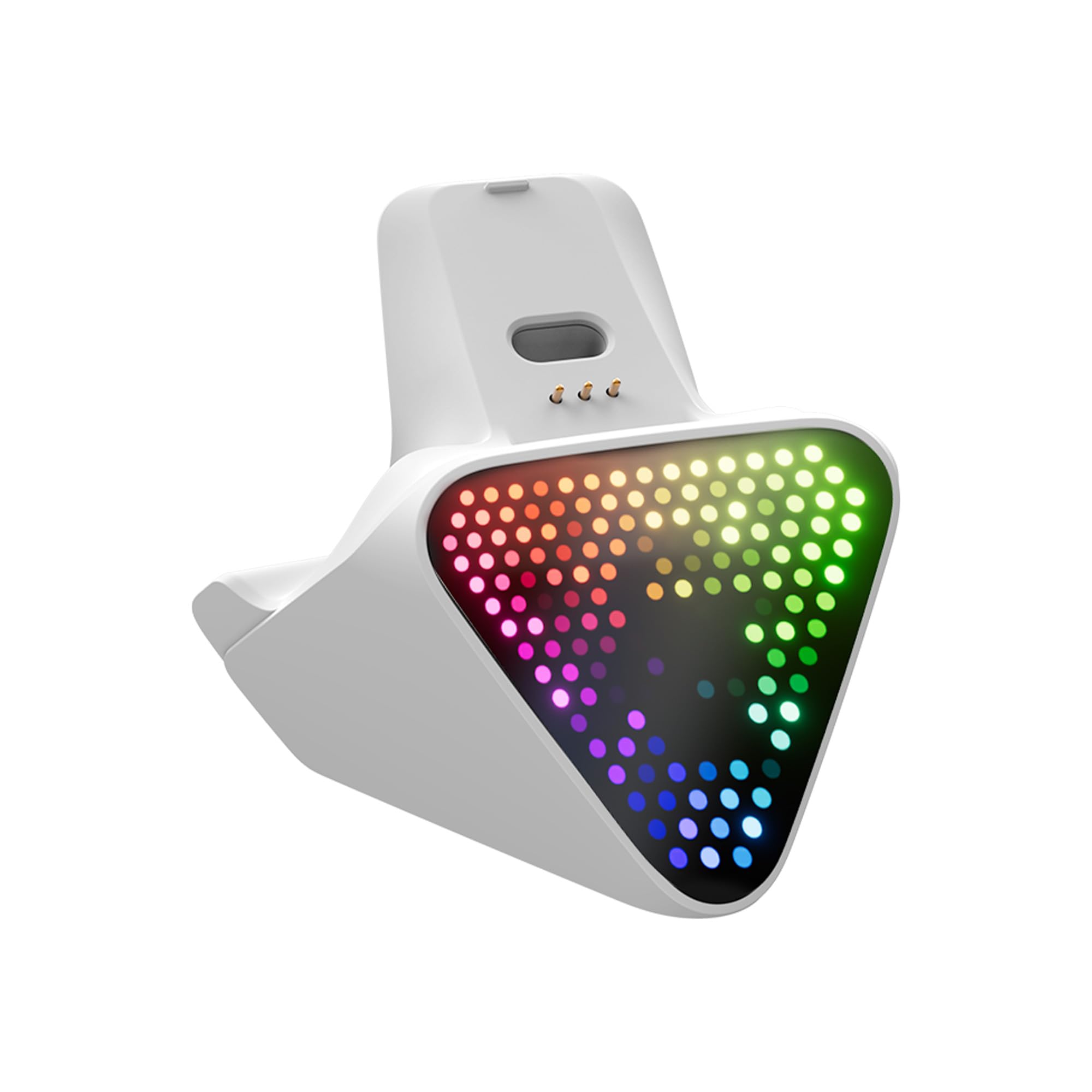
Image: The FLYDIGI Wireless Charger Dock 2 Pro, showcasing its design and a controller in the charging position.
Package Contents
- FLYDIGI Wireless Charger Dock 2 Pro (1 unit)
- Note: A USB cable is not included in the package.
Setup Instructions
- Connect Power: Connect the Wireless Charger Dock 2 Pro to a power source using a compatible USB cable (not included). You can use a PC USB port or a USB wall adapter.
- Place Controller: Gently place your FLYDIGI Apex 5 or Vader 5 Pro controller onto the charging dock. Ensure the controller is properly aligned with the charging contacts on the dock.
- Verify Charging: The 150 FPS full-color display on the dock will show visual feedback indicating the charging status. The RGB pixel charging base will also illuminate.
- Connect Receiver (Optional): If using the controller wirelessly, insert the controller's 2.4 GHz receiver into the dedicated slot on the dock. This allows the dock to act as a passthrough for the wireless connection.
- Utilize USB Ports: The dock includes 3 USB ports and 1 Type-C port. These can be used to connect other peripherals or for additional charging.
Operating Instructions
Charging Your Controller
- Place the compatible FLYDIGI controller (Apex 5 or Vader 5 Pro) onto the dock.
- The dock will automatically begin wireless charging.
- Monitor the charging status via the integrated 150 FPS full-color display.
Customizing Display and RGB
- The dock supports customization of its display visuals and RGB lighting.
- To access customization options, connect the dock to a PC and use the FLYDIGI Space Station 4.0 software.
- Through the software, you can select various pre-recorded visuals and adjust lighting settings for the RGB pixel charging base.
Using USB Hub Functionality
- The dock functions as a small USB hub, providing 3 standard USB ports and 1 Type-C port.
- Connect other USB devices such as mouse/keyboard dongles, fingerprint readers, or other peripherals to these ports for convenient access.
Maintenance
- Cleaning: Use a soft, dry cloth to clean the surface of the dock. Avoid using abrasive cleaners or solvents.
- Storage: Store the dock in a cool, dry place away from direct sunlight and extreme temperatures when not in use.
- Handling: Handle the dock with care to prevent damage to the charging contacts or USB ports.
Troubleshooting
| Problem | Possible Cause | Solution |
|---|---|---|
| Controller not charging. |
|
|
| Display or RGB not working. |
|
|
| USB ports not functioning. |
|
|
Specifications
- Model Name: 2 Pro
- Brand: FLYDIGI
- Compatible Devices: FLYDIGI Apex 5, FLYDIGI Vader 5 Pro controllers
- Connectivity Technology: Wired (for power and data passthrough)
- Power Source: Wireless (for controller charging)
- Additional Features: 150 FPS Full-Color Display, RGB Pixel Charging Base, 3x USB ports, 1x Type-C port, Space Station 4.0 Support
- Item Weight: 0.32 Kilograms
- Color: White
Warranty and Support
For warranty information and technical support, please refer to the official FLYDIGI website or contact FLYDIGI customer service directly. Keep your purchase receipt for warranty claims.
Manufacturer: Flydigi
Seller: FLYDIGI US (via Amazon)
Return Policy: 30-day refund/replacement policy (as per Amazon's buybox winner information).


