
Introduction
The AlgoLaser Mini Rotary Roller is a Y-axis attachment designed to enhance your laser engraver's capabilities by allowing precise 360° engraving on cylindrical objects. This accessory is ideal for items such as tumblers, mugs, bottles, and cans, supporting diameters from 5mm to 100mm. It is a non-laser device, functioning solely as an engraving add-on to your existing laser engraver.
Key features include its compact and durable design, ease of use, and compatibility with various laser engravers and software like LightBurn, LaserGRBL, and the AlgoLaser App. The rotary roller features adjustable height and non-slip rubber rollers for stable and reliable operation.
Package Contents
Verify that all components are present in your package before proceeding with setup.

Image: The AlgoLaser Rotary Roller 2.0, an Allen Key (for independent packaging only), and three types of connection cables (A, B, and Customize) are shown.
- AlgoLaser Rotary Roller Unit
- Allen Key (if packaged independently)
- Connection Cable A
- Connection Cable B
- Customize Connection Cable
Setup Instructions
The AlgoLaser Mini Rotary Roller comes pre-assembled for immediate use. Follow these steps to connect it to your laser engraver.
1. Connecting the Rotary Roller
- Identify the Y-axis port on your laser engraver.
- Select the appropriate connection cable (A, B, or Customize) that matches your engraver's port.
- Connect one end of the cable to the rotary roller and the other end to the Y-axis port of your laser engraver.

Image: A close-up view showing the connection cable being plugged into the "Rotary" port on a laser engraver, with the rotary roller positioned below the engraver.
2. Adjusting Roller Spacing and Height
The rotary roller features adjustable spacing and height to accommodate various cylindrical object sizes.
- Roller Spacing: The roller spacing can be adjusted to fit objects with diameters ranging from 5mm to 100mm. This ensures the object is securely held and rotates smoothly.
- Height Adjustment: The unit offers two-level height adjustment (20-50mm) to align the object correctly with the laser's focal point. Adjust the height as needed for your specific object and engraver setup.
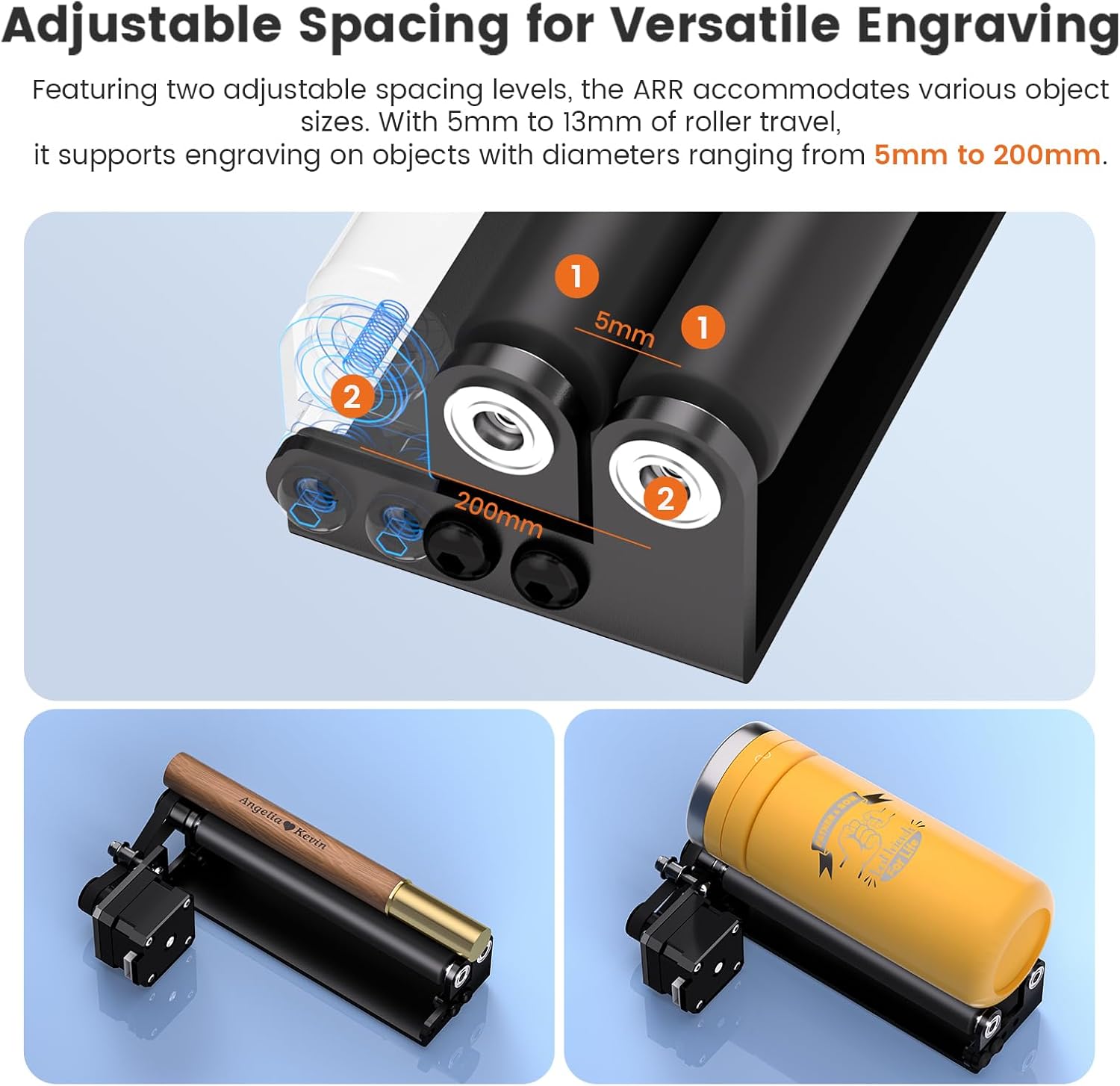
Image: A detailed view of the rotary roller showing adjustable spacing mechanisms, with examples of a pen and a tumbler placed on the rollers.
Operating Instructions
Once connected and adjusted, the AlgoLaser Mini Rotary Roller is ready for engraving cylindrical objects.
1. Placing the Object
Carefully place the cylindrical object (e.g., tumbler, bottle, mug) onto the non-slip rubber rollers. Ensure the object is centered and stable, allowing for smooth 360° rotation without obstruction.
2. Software Configuration
Configure your laser engraving software (e.g., LightBurn, LaserGRBL, AlgoLaser App) to enable rotary engraving mode. Refer to your software's specific documentation for detailed settings related to rotary axis operation, object diameter, and engraving speed.
3. Engraving Process
Initiate the engraving process through your software. The rotary roller will precisely rotate the object, allowing the laser to engrave the entire circumference with accuracy. The high-friction silicone rollers and aluminum body contribute to stable operation and efficient heat dissipation, minimizing vibration and ensuring consistent results.

Image: A collage showing the rotary roller with a bottle, highlighting high-friction silicone rollers, an aluminum body for heat dissipation, and a red can demonstrating 360° rotation.
Maintenance
To ensure the longevity and optimal performance of your AlgoLaser Mini Rotary Roller, follow these simple maintenance guidelines:
- Cleaning: Regularly wipe down the rollers and the main body with a soft, dry cloth to remove dust and debris. Avoid using abrasive cleaners or solvents that could damage the materials.
- Roller Inspection: Periodically check the non-slip rubber rollers for any signs of wear, damage, or accumulation of engraving residue. Clean them gently if necessary to maintain optimal grip.
- Storage: When not in use, store the rotary roller in a clean, dry environment away from direct sunlight and extreme temperatures. Its lightweight and portable design makes storage convenient.
- Cable Care: Inspect connection cables for any fraying or damage. Handle cables carefully to prevent bending or crimping.
Troubleshooting
If you encounter issues while using your AlgoLaser Mini Rotary Roller, refer to the following common problems and solutions:
| Problem | Possible Cause | Solution |
|---|---|---|
| Object slipping or not rotating smoothly |
|
|
| Rotary roller not detected by engraver/software |
|
|
| Engraving is distorted or misaligned |
|
|
Specifications
| Feature | Detail |
|---|---|
| Product Dimensions | 7.87 x 5.91 x 1.57 inches |
| Item Weight | 1.13 pounds |
| Manufacturer | AlgoLaser |
| Supported Object Diameter | 5mm – 100mm |
| Height Adjustment | Two levels (20mm – 50mm) |
| Compatibility | Most laser engravers (Y-axis port), LightBurn, LaserGRBL, AlgoLaser App |
| Material | Aluminum body, high-friction silicone rollers |
Warranty and Support
For detailed warranty information, technical support, or service inquiries regarding your AlgoLaser Mini Rotary Roller, please refer to the official AlgoLaser website or contact their customer support directly. Specific warranty terms and support channels may vary by region and purchase location.
You can often find support resources, FAQs, and contact information on the manufacturer's official website: www.algolaser.com (Note: This is a placeholder URL, please refer to the actual manufacturer's website.)