
1. Product Overview
The LexonElec HXSJ T700 is an ultra-lightweight wireless gaming mouse designed for right-handed users, offering versatile connectivity and high-performance features. It supports three connection modes: 2.4GHz wireless, Bluetooth, and USB wired, making it suitable for various devices and usage scenarios.

Image: The HXSJ T700 Wireless Gaming Mouse, showcasing its sleek design.
Key Features:
- Ergonomic Design: Specifically shaped for right-handed comfort during extended use.
- Ultra-Lightweight: Weighs only 56g, reducing wrist strain.
- Triple Mode Connectivity: Seamlessly switch between 2.4GHz, Bluetooth, and USB wired connections.
- High-Precision Optical Sensor: Up to 10,000 DPI with a 1000Hz polling rate for accurate tracking.
- Long Battery Life: Integrated 500mAh battery provides up to 200 hours of use on a single charge.
- Programmable Buttons: 6 customizable buttons for enhanced control.
- Durable Switches: HUANO silent micro switches rated for 20 million clicks.
2. Setup Instructions
Package Contents:
- HXSJ T700 Wireless Gaming Mouse
- USB Nano Receiver (stored in the mouse)
- USB-C Charging Cable
Getting Started:
- Charge the Mouse: Connect the USB-C charging cable to the mouse and a power source. The mouse can be used while charging in wired mode.
- Select Connection Mode: Locate the switch on the bottom of the mouse. It has three positions: OFF, 2.4G, and BT (Bluetooth).

Image: The HXSJ T700 mouse illustrating its three connection modes: 2.4GHz, Bluetooth, and USB wired.
2.1. 2.4GHz Wireless Connection:
- Remove the USB Nano Receiver from its storage slot on the bottom of the mouse.
- Plug the USB Nano Receiver into an available USB port on your computer.
- Slide the mode switch on the bottom of the mouse to the "2.4G" position.
- The mouse should connect automatically.
2.2. Bluetooth Connection:
- Slide the mode switch on the bottom of the mouse to the "BT" position.
- Press and hold the "Mode" button (located near the switch) for 3-5 seconds until the indicator light flashes, indicating pairing mode.
- On your device (PC, Mac, PS4, Xbox), go to Bluetooth settings and search for new devices.
- Select "HXSJ T700" from the list of available devices to pair.
2.3. USB Wired Connection:
- Connect the USB-C charging cable to the mouse and the other end to a USB port on your computer.
- The mouse will function as a wired mouse and charge simultaneously. The mode switch can be in any position for wired operation.
3. Operating Instructions
The HXSJ T700 mouse features 6 programmable buttons and a DPI adjustment button for customized control.
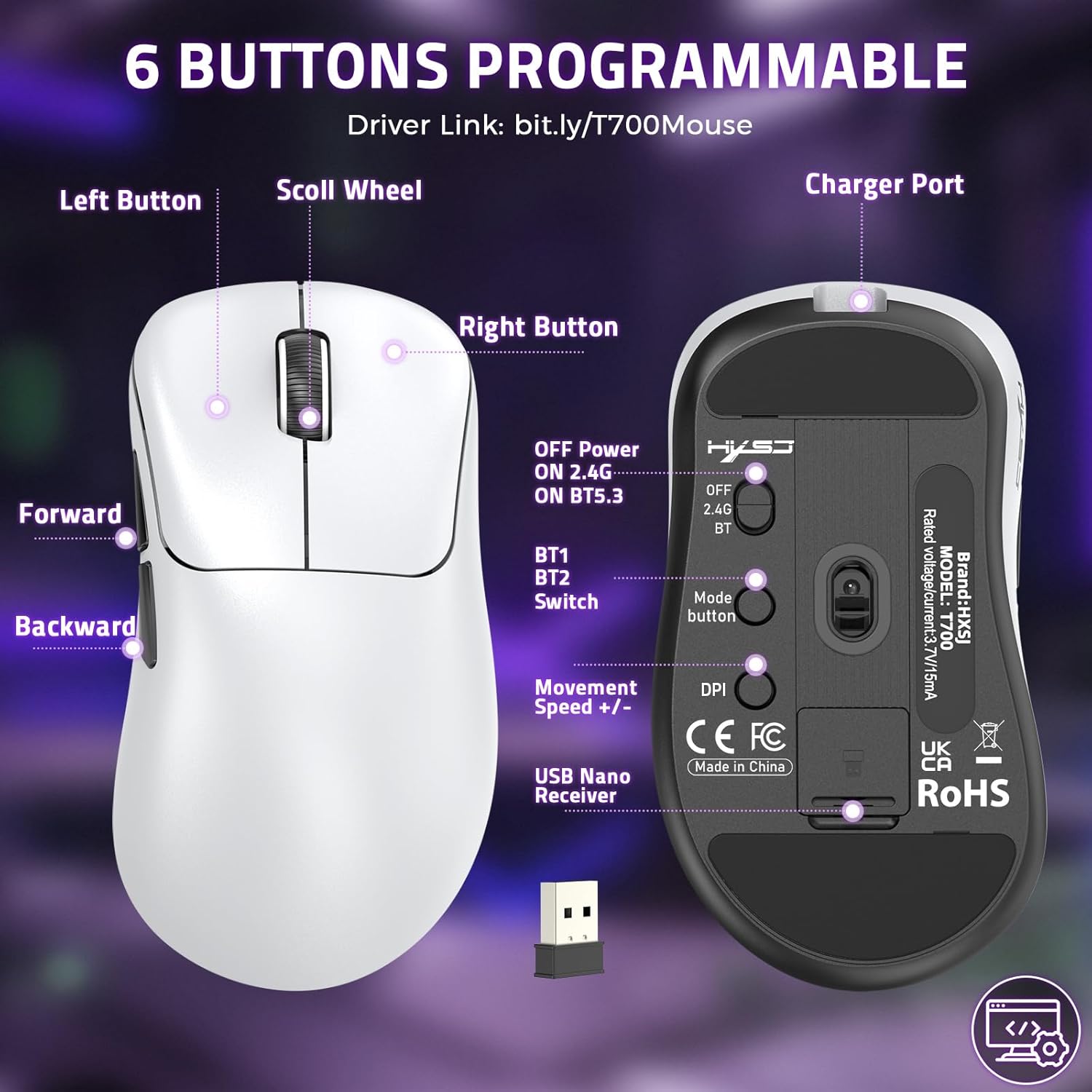
Image: Diagram showing the layout of the 6 programmable buttons (Left, Right, Scroll Wheel, Forward, Backward, DPI) and other controls on the HXSJ T700 mouse.
3.1. Button Functions:
- Left Button: Primary click function.
- Right Button: Secondary click function (context menu).
- Scroll Wheel: Scroll up/down, middle click.
- Forward Button: Navigates forward in web browsers or file explorers.
- Backward Button: Navigates backward in web browsers or file explorers.
- DPI Button: Cycles through DPI settings.
3.2. DPI Adjustment:
Press the DPI button (located on the top of the mouse, behind the scroll wheel) to cycle through the preset DPI levels. The available DPI settings are 1200, 2000, 3200, 6400, and 10000. Each press will change the sensitivity, allowing you to adjust cursor speed to your preference.
3.3. Programmable Buttons (Software Support):
To customize the 6 programmable buttons and adjust advanced settings like polling rate, visit the official driver download link:
Download and install the driver software to access full customization options for your mouse.

Image: Screenshot of the HXSJ T700 mouse software interface, showing options for button customization and DPI settings.
4. Maintenance
4.1. Charging the Battery:
The mouse is equipped with a 500mAh rechargeable battery. When the battery is low, an indicator light on the mouse will signal. Connect the provided USB-C cable to the mouse and a USB power source (e.g., computer, wall adapter) to charge. A full charge provides up to 200 hours of usage.
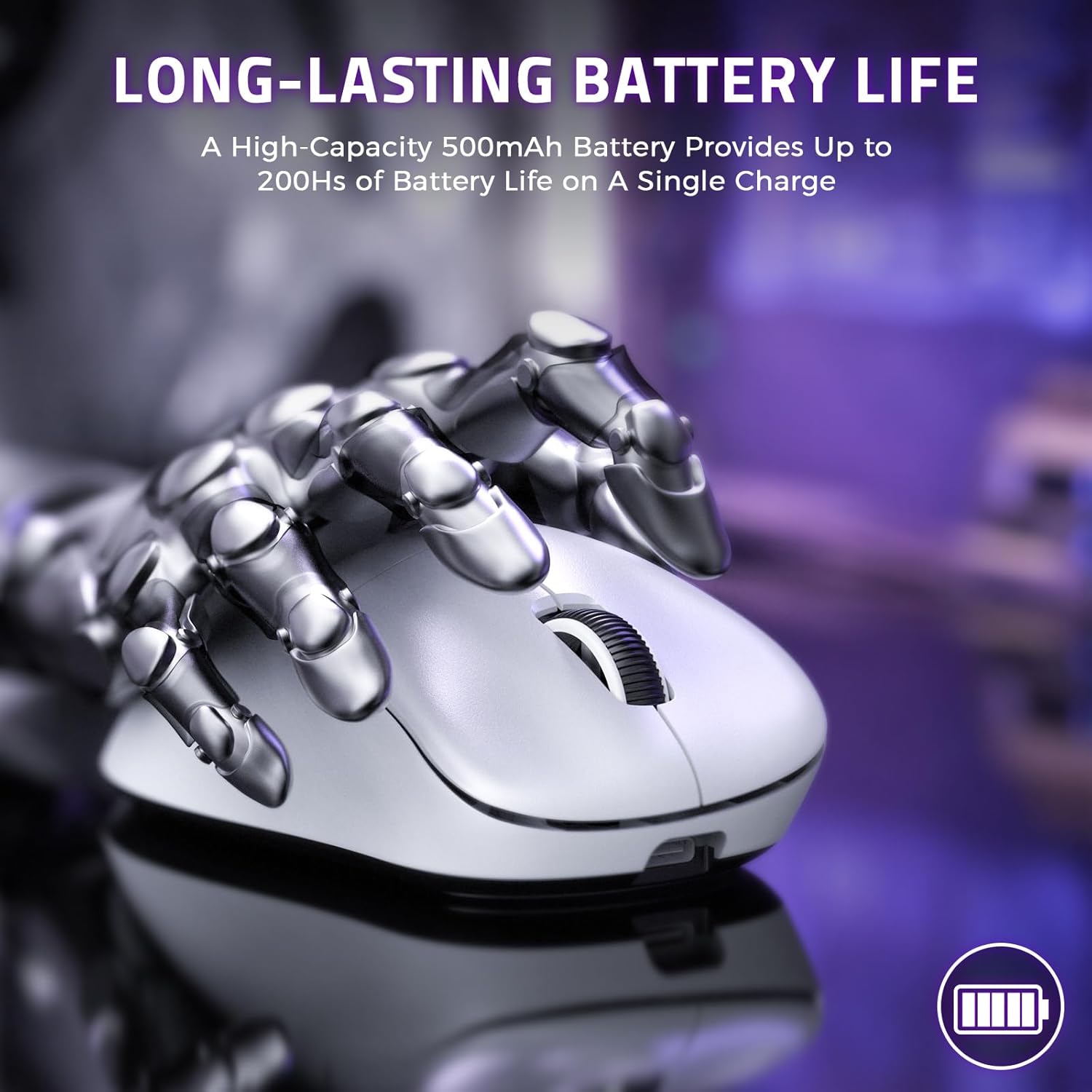
Image: The HXSJ T700 mouse highlighting its long-lasting 500mAh battery, capable of up to 200 hours of use.
4.2. Cleaning:
- Use a soft, dry cloth to clean the surface of the mouse.
- For optical sensor, use a cotton swab lightly dampened with isopropyl alcohol to gently clean the sensor area.
- Avoid using harsh chemicals or abrasive materials that could damage the mouse.
4.3. Storage:
When not in use for extended periods, turn off the mouse using the switch on the bottom to conserve battery life. Store in a cool, dry place away from direct sunlight and extreme temperatures.
5. Troubleshooting
5.1. Mouse Not Responding:
- Check Battery: Ensure the mouse is charged. Connect it via USB-C cable to check if it works in wired mode.
- Check Connection Mode: Verify the mode switch on the bottom of the mouse is set correctly (2.4G for receiver, BT for Bluetooth, or wired for USB cable).
- 2.4GHz Connection: Ensure the USB Nano Receiver is securely plugged into a working USB port. Try a different USB port.
- Bluetooth Connection: Re-pair the mouse with your device. Go to your device's Bluetooth settings, remove the mouse, and then re-initiate pairing mode on the mouse.
- Wired Connection: Ensure the USB-C cable is properly connected to both the mouse and the computer.
5.2. Cursor Movement is Erratic or Inaccurate:
- Clean Sensor: Gently clean the optical sensor on the bottom of the mouse with a soft cloth or cotton swab.
- Check Surface: Ensure you are using the mouse on a clean, non-reflective, and uniform surface. A mouse pad is recommended.
- Adjust DPI: Try changing the DPI setting using the DPI button to see if a different sensitivity improves performance.
5.3. Buttons Not Functioning Correctly:
- Software Interference: If you have installed custom software, try resetting the mouse settings to default via the driver software.
- Physical Issue: If a button feels loose or unresponsive, it might indicate a hardware issue.
6. Specifications
| Brand | LexonElec |
| Model | T700 |
| Connectivity Technology | 2.4GHz Wireless, Bluetooth, USB Wired |
| Special Features | Programmable Buttons, Ergonomic Design, Lightweight, Rechargeable, Wireless |
| Number of Buttons | 6 (Programmable) |
| Hand Orientation | Right |
| Recommended Use | Office, Gaming |
| Compatible Devices | Mac, Personal Computer, PS4, Win, Xbox |
| Operating System | Windows, macOS |
| Battery Life | Up to 200 hours |
| Battery Capacity | 500 mAh |
| Power Source | Rechargeable |
| Max Sensitivity (DPI) | 10000 |
| Polling Rate | Up to 1000 Hz |
| Switch Type | HUANO Silent Micro Switches (20 Million Clicks) |
| Encoder Type | OYTO Silver Encoder (3 Million Cycles) |
| Weight | 56g |
| Country of Origin | China |
7. Warranty Information
This LexonElec HXSJ T700 Wireless Gaming Mouse comes with a 6-month warranty from the date of purchase. This warranty covers manufacturing defects and malfunctions under normal use. It does not cover damage caused by misuse, accidents, unauthorized modifications, or normal wear and tear.
Please retain your proof of purchase for warranty claims.
8. Support
For further assistance, driver downloads, or troubleshooting not covered in this manual, please refer to the official support resources.
Driver and Software:
The latest driver and customization software for the HXSJ T700 mouse can be downloaded from:
This software allows you to configure button assignments, DPI settings, polling rate, and other advanced features.