
1. Introduction
This manual provides essential information for setting up, operating, maintaining, and troubleshooting your ASUS ROG Zephyrus G14 gaming laptop. Designed for high-performance gaming and creative tasks, this laptop features an OLED 3K 120Hz display, AMD Ryzen 9 270 processor, and NVIDIA GeForce RTX 5060 GPU. Please read this manual thoroughly to ensure optimal use and longevity of your device.
2. Key Features
- OLED 3K 120Hz Display: Features a stunning 14-inch OLED ROG Nebula panel with 3K resolution, ultra-fast 120Hz refresh rate, and rapid 0.2ms response times, delivering vibrant colors and smooth visuals.
- Powerful Processor: Equipped with the AMD Ryzen 9 270 processor (8-core, 16-thread) for demanding games and productivity.
- Advanced Graphics: NVIDIA GeForce RTX 5060 GPU with 8GB GDDR7 memory, supporting real-time ray tracing and DLSS 4 AI upscaling.
- Premium and Portable Design: Durable aluminum chassis, ultra-portable at 0.63 inches thin and 3.31 lbs.
- Advanced Cooling System: ROG Intelligent Cooling with liquid metal thermal compound and 2nd Gen Arc Flow Fans for sustained performance.
- Enhanced Audio: Upgraded woofers for 252% volume boost, deep bass, and Dolby Atmos support across 6 speakers.
- Robust Connectivity: Dual USB-C ports, HDMI 2.1, USB 3.2 Gen2 Type-A ports, and a dedicated UHS-II MicroSD card reader.

Figure 2.1: The ASUS ROG Zephyrus G14 laptop, highlighting its overall design and portability.

Figure 2.2: Details of the ROG Nebula Display, showcasing its high-resolution OLED panel and gaming-centric features.
3. Setup Guide
3.1 Unboxing
Carefully remove the laptop and its accessories from the packaging. Ensure all components are present.
- ASUS ROG Zephyrus G14 Laptop
- Power Adapter (200W)
3.2 Initial Power On
- Connect the power adapter to the laptop's power input port and then to a power outlet.
- Open the laptop lid.
- Press the power button, typically located on the keyboard deck, to turn on the laptop.
- Follow the on-screen instructions to complete the Windows 11 Pro setup process.
3.3 Connecting Peripherals
Connect external devices such as a mouse, keyboard, or external display to the available ports on your laptop. Refer to the 'Connectivity' section for port details.
4. Operating Instructions
4.1 Power Management
- Power On: Press the power button.
- Shut Down: Click the Windows Start button, then Power > Shut down.
- Sleep Mode: Close the lid or click the Windows Start button, then Power > Sleep.
4.2 Display Settings
To adjust display settings:
- Right-click on the desktop and select 'Display settings'.
- Here you can change resolution (e.g., 2880x1800), refresh rate (up to 120Hz), and HDR settings.
4.3 Keyboard and Touchpad
- The keyboard features a 1.7mm travel distance and a 240Hz report rate for responsive input.
- The touchpad supports multi-touch gestures for navigation. Refer to Windows settings for customization.
4.4 Audio Settings
Adjust volume using the function keys or through the Windows sound settings. The laptop features 6 speakers with Dolby Atmos support for immersive audio.
4.5 Connectivity
The ROG Zephyrus G14 offers a variety of ports for connecting external devices:

Figure 4.1: Overview of the laptop's robust connectivity ports.
- ASUS Slim Power Jack: For connecting the power adapter.
- HDMI 2.1: For connecting to external displays.
- USB 3.2 Gen2 Type-A: Standard USB ports for peripherals.
- Audio Jack: Combined microphone-in and headphone-out port.
- USB4 Type-C (with DisplayPort 2.1, Power Delivery 3.0): Versatile port for data, video output, and charging.
- USB 3.2 Gen2 Type-C (with DisplayPort 2.1, Power Delivery 3.0): Another versatile port for data, video output, and charging.
- Micro SD Card Reader (UHS II): For reading and writing to Micro SD cards.
- Wireless Connectivity: Supports Wi-Fi 7 and Bluetooth for wireless connections.
5. Maintenance and Care
5.1 Cleaning
- Screen: Use a soft, lint-free cloth slightly dampened with water or a screen cleaner. Avoid harsh chemicals.
- Keyboard and Chassis: Use a soft cloth. For dust, a can of compressed air can be used.
5.2 Battery Care
- Avoid fully discharging the battery frequently.
- Store the laptop in a cool, dry place if not used for extended periods.
- Use the provided ASUS power adapter for charging.
5.3 Software Updates
Regularly update your Windows operating system, graphics drivers, and ASUS utilities to ensure optimal performance and security. Check the ASUS support website for the latest drivers.
5.4 Cooling System
The ROG Intelligent Cooling system uses liquid metal and Arc Flow Fans. Ensure the vents are not obstructed to maintain efficient cooling, especially during intensive tasks.
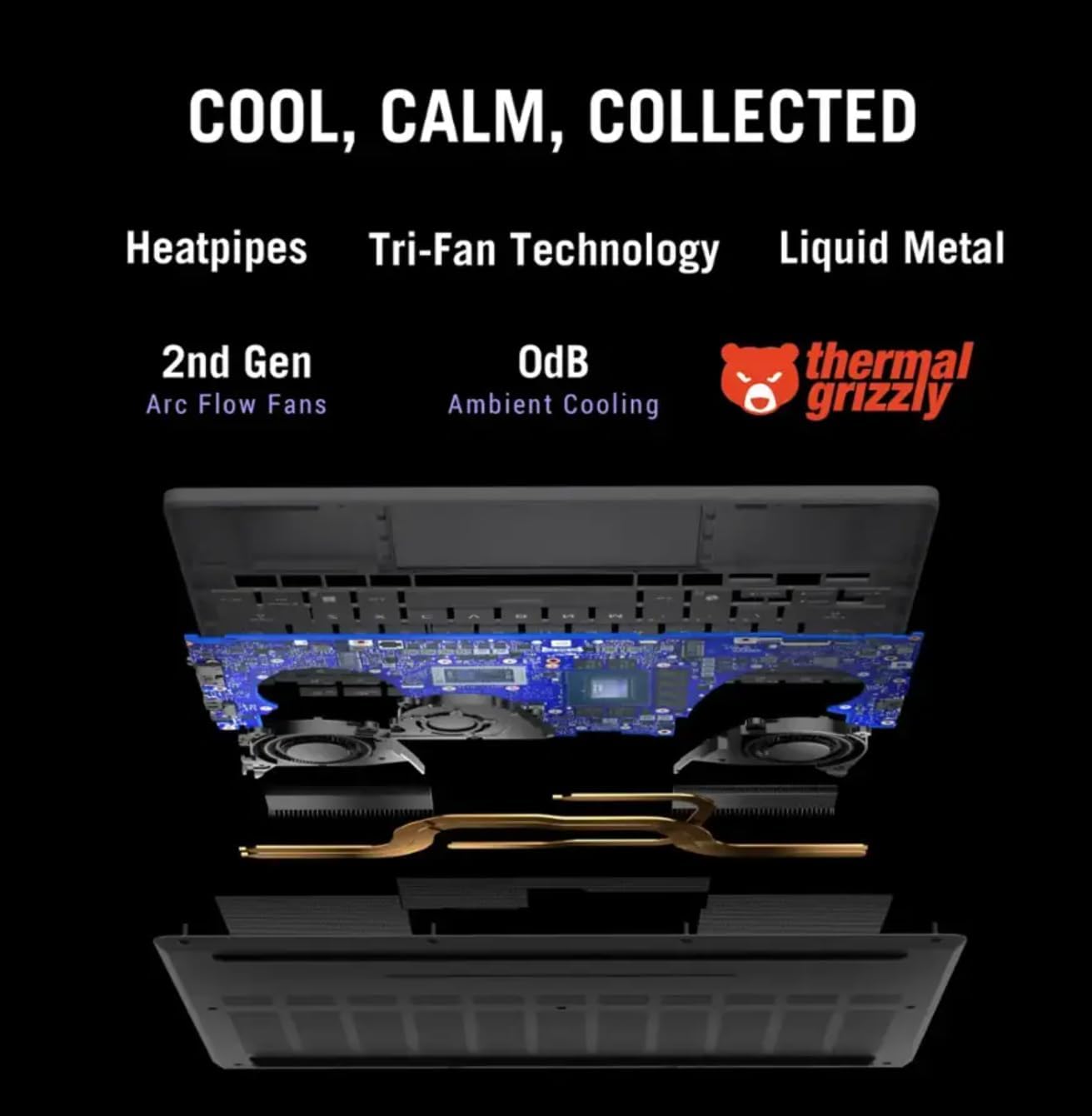
Figure 5.1: Internal view of the ROG Intelligent Cooling system.
6. Troubleshooting
6.1 Common Issues and Solutions
- Laptop does not power on: Ensure the power adapter is securely connected and the outlet is functional. Try a different power outlet.
- Display issues: Check display cable connections if using an external monitor. Update graphics drivers. Adjust display settings in Windows.
- No sound: Check volume levels, ensure speakers are not muted. Verify audio drivers are installed and updated.
- Wi-Fi connectivity problems: Ensure Wi-Fi is enabled. Restart your router and laptop. Update wireless drivers.
- Overheating: Ensure cooling vents are clear. Use the laptop on a hard, flat surface. Consider using a cooling pad.
For more detailed troubleshooting, refer to the ASUS support website or contact customer service.
7. Technical Specifications
| Feature | Specification |
|---|---|
| Brand | ASUS |
| Model Name | ROG Zephyrus G14 |
| Item Model Number | GA403UM-G14.R9HX4 |
| Operating System | Windows 11 Pro |
| Screen Size | 14 Inches |
| Max Screen Resolution | 2880x1800 Pixels (3K) |
| Processor | AMD Ryzen 9 270 (4 GHz, 8 Cores) |
| RAM | 16 GB LPDDR5 |
| Hard Drive | 1 TB PCIe SSD |
| Graphics Card | NVIDIA GeForce RTX 5060 (Dedicated, 8 GB GDDR7) |
| Wireless Type | Bluetooth, Wi-Fi 7 |
| USB 3.0 Ports | 4 (Includes Type-A and Type-C) |
| Product Dimensions (LxWxH) | 12.26 x 0.63 x 8.66 inches |
| Item Weight | 3.31 lbs |
| Special Feature | Lightweight |
8. Warranty and Support
Your ASUS ROG Zephyrus G14 laptop comes with a limited warranty. Please refer to the warranty card included with your product for specific terms and conditions, including coverage duration and service procedures.
For technical support, driver downloads, FAQs, and further assistance, please visit the official ASUS support website: www.asus.com/support/