
Introduction
This manual provides detailed instructions for the installation, operation, and maintenance of your Foxpark 9.26-inch CarPlay Display. Please read this manual thoroughly before using the device to ensure proper functionality and safety. This device offers wireless Apple CarPlay and Android Auto, Bluetooth 5.0, Mirror Link, FM/AUX connectivity, and is designed for easy plug-and-play installation in various vehicles.
1. Setup and Installation
The Foxpark 9.26-inch CarPlay Display is designed for quick and easy installation, requiring no specialized tools or professional assistance. Follow these steps for a seamless setup.
1.1 Unpacking and Components
Before starting, ensure all components are present in the box:
- CarPlay Display Unit
- Display Mount (Suction Cup or Adhesive)
- Car Charger with USB-A Port
- AUX Audio Cable
- User Manual
1.2 Mounting the Display
The device offers flexible mounting options to suit your vehicle's interior. Choose between a suction cup mount for windshields or a dashboard mount for a secure fit.
- Attach the Mount: Securely attach the chosen mount to the back of the CarPlay display unit.
- Positioning: Select a suitable location on your windshield or dashboard that does not obstruct your view or interfere with airbags. The mount provides strong adhesion and can be adjusted for optimal viewing angles.
- Secure the Display: Firmly press the suction cup onto the windshield or apply the adhesive mount to a clean, flat dashboard surface. Ensure it is stable before proceeding.
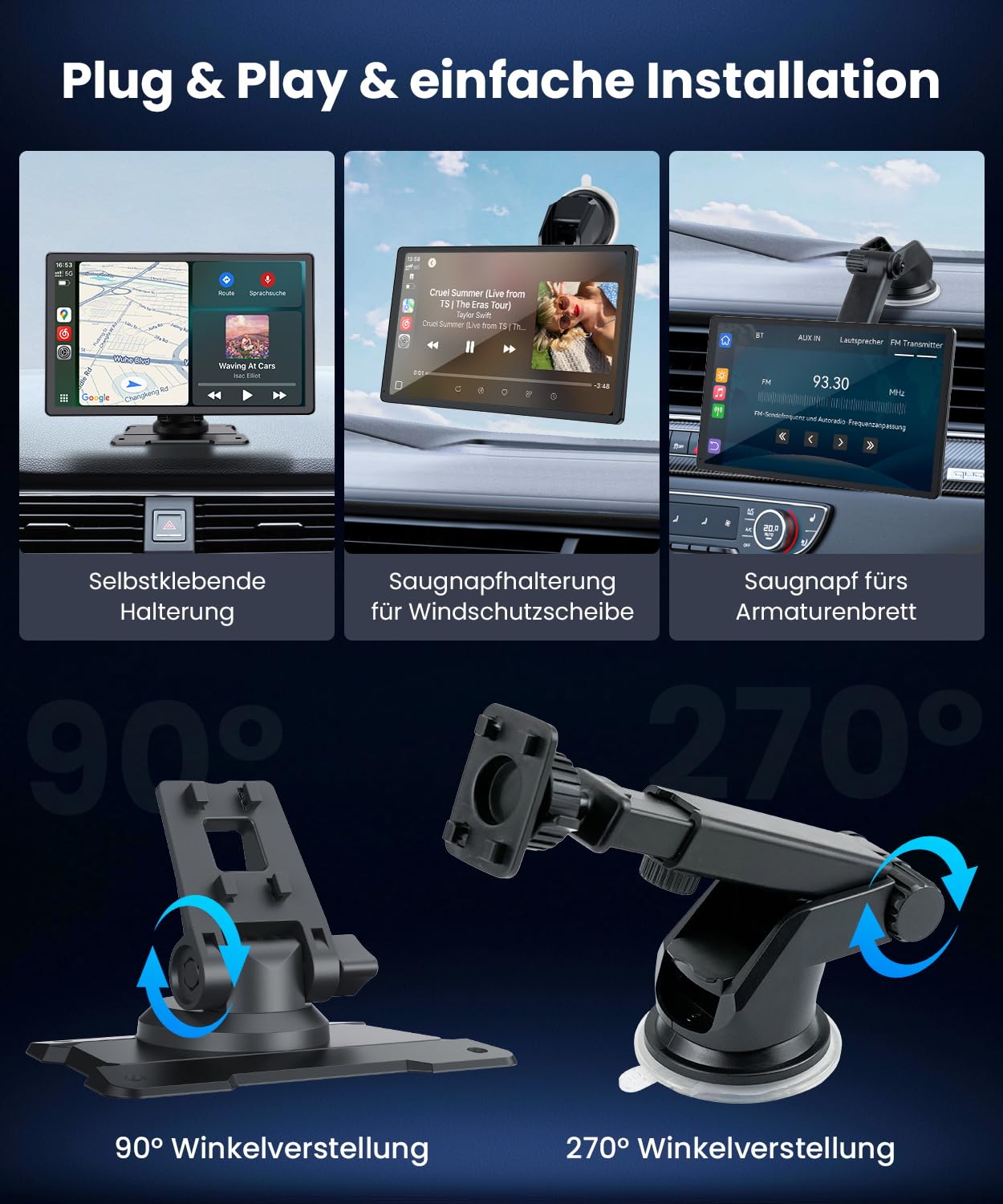
Image: Installation options for the Foxpark CarPlay Display, including self-adhesive and suction cup mounts for windshield or dashboard. The image also illustrates 90-degree and 270-degree angle adjustments for flexible positioning.
1.3 Power Connection
Connect the display to your vehicle's power source using the provided car charger.
- Plug into Cigarette Lighter: Insert the car charger into your vehicle's 12V cigarette lighter socket.
- Connect to Display: Connect the other end of the power cable to the designated power input port on the CarPlay display.
- Power On: The display will power on automatically or can be turned on using the power button.
The car charger also features an additional USB-A port, allowing you to charge your smartphone simultaneously while using the device.
2. Operating Instructions
The Foxpark CarPlay Display offers a range of features for an enhanced in-car experience. This section details how to use its primary functions.
2.1 Wireless Apple CarPlay and Android Auto
Enjoy seamless integration with your smartphone for navigation, music, and communication.
- Initial Pairing:
- On the CarPlay display, navigate to the CarPlay or Android Auto section.
- Enable Bluetooth and Wi-Fi on your smartphone.
- Search for the display's Bluetooth name on your phone and pair them.
- Confirm the pairing code on both devices.
- Once Bluetooth is connected, the device will prompt you to connect via Wi-Fi for wireless CarPlay/Android Auto functionality.
- Automatic Reconnection: After the initial setup, the display will automatically connect to your smartphone when both devices are powered on and within range.
- Using Features: Access Apple Maps, Google Maps, Waze, music streaming apps, and make calls directly from the display.

Image: The Foxpark CarPlay Display showcasing both Apple CarPlay and Android Auto interfaces. It highlights intelligent voice assistant capabilities for directions, music playback, and calls, along with a split-screen navigation view.
2.2 Mirror Link Functionality
Mirror Link allows you to display your smartphone's screen directly onto the CarPlay display.
- Activate Mirror Link: Select the "Mirror Link" option on the display's main menu.
- Follow On-Screen Prompts: The display will provide specific instructions for connecting your iOS or Android device via Mirror Link. This typically involves scanning a QR code or connecting to a specific Wi-Fi network.
2.3 Audio Output Options
The display offers multiple ways to output audio to your vehicle's sound system.
- Built-in Speaker: For basic audio playback directly from the unit.
- AUX Connection: Connect the provided AUX audio cable from the display's AUX output to your car's AUX input for high-quality audio.
- FM Transmitter: Tune your car's FM radio to an unused frequency, then set the display's FM transmitter to the same frequency to broadcast audio wirelessly.
- Bluetooth: If your car stereo supports Bluetooth, you can connect your phone directly to the car stereo for audio, while the display handles CarPlay/Android Auto visuals.

Image: The Foxpark CarPlay Display illustrating four audio output methods: AUX connection, FM transmitter, built-in speaker, and Bluetooth connection to the car's audio system for optimal stereo sound.
2.4 Voice Control and GPS Navigation
Utilize voice assistants for safer driving and integrated GPS navigation.
- Voice Assistant: Activate Siri (for Apple CarPlay) or Google Assistant (for Android Auto) by saying "Hey Siri" or "Hey Google," or by pressing the voice command button on the display.
- Navigation: Use voice commands to get directions, find points of interest, and manage your route through Apple Maps, Google Maps, or Waze.
- Music and Calls: Control music playback, make calls, and send messages hands-free using voice commands.

Image: The Foxpark CarPlay Display demonstrating voice control and GPS navigation. It shows interactions with Siri and Google Assistant for tasks like making calls, playing music, and getting directions, alongside a split-screen navigation view.
2.5 Display Features
- IPS Touchscreen: The 9.26-inch IPS touchscreen provides clear visuals and responsive touch control.
- Brightness Adjustment: The enhanced light sensor automatically adjusts screen brightness for optimal visibility, even in direct sunlight. Manual adjustment is also available in settings.
- Dual Core Processor: The integrated dual-core processor ensures smooth performance and quick response times for all functions.

Image: The Foxpark CarPlay Display demonstrating clear visibility in sunlight. It compares the display's enhanced brightness (550 nits) to traditional car screens (300 nits), showing superior readability even on sunny days.

Image: The Foxpark CarPlay Display highlighting its built-in Dual Core Processor for smooth and powerful performance. It shows the display's responsive touchscreen and seamless navigation capabilities.
3. Maintenance
To ensure the longevity and optimal performance of your Foxpark CarPlay Display, follow these simple maintenance guidelines:
- Cleaning the Screen: Use a soft, lint-free cloth specifically designed for electronic screens. Gently wipe the screen to remove dust and fingerprints. Avoid using harsh chemicals, abrasive cleaners, or excessive moisture.
- Cleaning the Unit: Wipe the exterior of the display unit with a soft, dry cloth.
- Cable Management: Ensure all cables are neatly routed and not pinched or tangled to prevent damage.
- Temperature Exposure: Avoid exposing the device to extreme temperatures (very hot or very cold) for extended periods, as this can affect its performance and lifespan.
- Storage: If storing the device for a long time, disconnect it from power and store it in a cool, dry place.
4. Troubleshooting
If you encounter any issues with your Foxpark CarPlay Display, refer to the following common problems and solutions:
4.1 No Power
- Check Power Connection: Ensure the car charger is securely plugged into the cigarette lighter socket and the power cable is firmly connected to the display.
- Vehicle Power: Verify that your vehicle's cigarette lighter socket is receiving power. Test with another device if possible.
- Fuse: Check the fuse in your vehicle's fuse box related to the cigarette lighter socket.
4.2 Cannot Connect to CarPlay/Android Auto
- Bluetooth and Wi-Fi: Ensure Bluetooth and Wi-Fi are enabled on your smartphone.
- Forget Device: On your smartphone, "forget" the display from your Bluetooth and Wi-Fi settings, then attempt to pair again.
- Restart Devices: Restart both your smartphone and the CarPlay display.
- Proximity: Ensure your smartphone is close to the display.
- Software Updates: Ensure your smartphone's operating system is up to date.
4.3 Poor Audio Quality
- AUX Connection: If using AUX, ensure the cable is fully inserted into both the display and your car's AUX input. Check the cable for damage.
- FM Transmitter: If using FM, try a different, clearer FM frequency. Ensure there is no interference from other radio stations.
- Volume Levels: Adjust volume on both the display and your car stereo.
- Bluetooth Interference: If using Bluetooth, ensure no other devices are interfering with the connection.
4.4 Touchscreen Unresponsive
- Restart: Power off and then power on the display.
- Clean Screen: Ensure the screen is clean and free of debris or moisture that might interfere with touch input.
4.5 Display Freezes or Lags
- Restart: Perform a power cycle by turning the device off and on again.
- Software: Ensure your smartphone's operating system and any relevant apps are updated.
- Overheating: Ensure the device is not exposed to direct sunlight for prolonged periods, which can cause overheating.
5. Specifications
| Feature | Detail |
|---|---|
| Brand | Foxpark |
| Model Name | Foxpark 9.26 Zoll |
| Screen Size | 9.26 Inches |
| Display Type | IPS Touchscreen (in-cell) |
| Special Features | Apple CarPlay, Android Auto, Mirror Link |
| Connectivity Technology | Bluetooth 5.0, Wi-Fi (5GHz), Wired Power |
| Control Method | Touchscreen, Application |
| Mounting Type | Windshield Mount, Dashboard Mount |
| Supported Navigation | GPS (via connected smartphone) |
| Included Components | Display mount, CarPlay display, car charger with USB-A port, AUX audio cable, user manual |
| Package Dimensions | 26.4 x 15.9 x 11.3 cm; 840 grams |
| ASIN | B0FNQZK2T8 |
| International Article Code | 06976737120424 |
6. Warranty and Support
Foxpark provides reliable customer service and support for your product.
- Warranty: The product comes with a twelve-month manufacturer's warranty from the date of purchase. This warranty covers defects in materials and workmanship under normal use.
- Technical Support: Lifetime technical support is available. If you have any questions or require assistance, please contact Foxpark customer service via email or through their official website. Responses are typically provided within one to two business days.
- Contact Information: Refer to the contact details provided in your product packaging or on the official Foxpark website for support.