
1. Introduction
Thank you for choosing the CHOYONG Voyager A9 Bluetooth Speaker and Internet Radio. This device combines a portable Bluetooth speaker with a global internet radio, offering versatile audio entertainment wherever you go. Featuring Wi-Fi, 4G connectivity, Bluetooth 5.3, a responsive touchscreen, and access to thousands of radio stations and millions of podcasts, the Voyager A9 is designed for a rich audio experience.
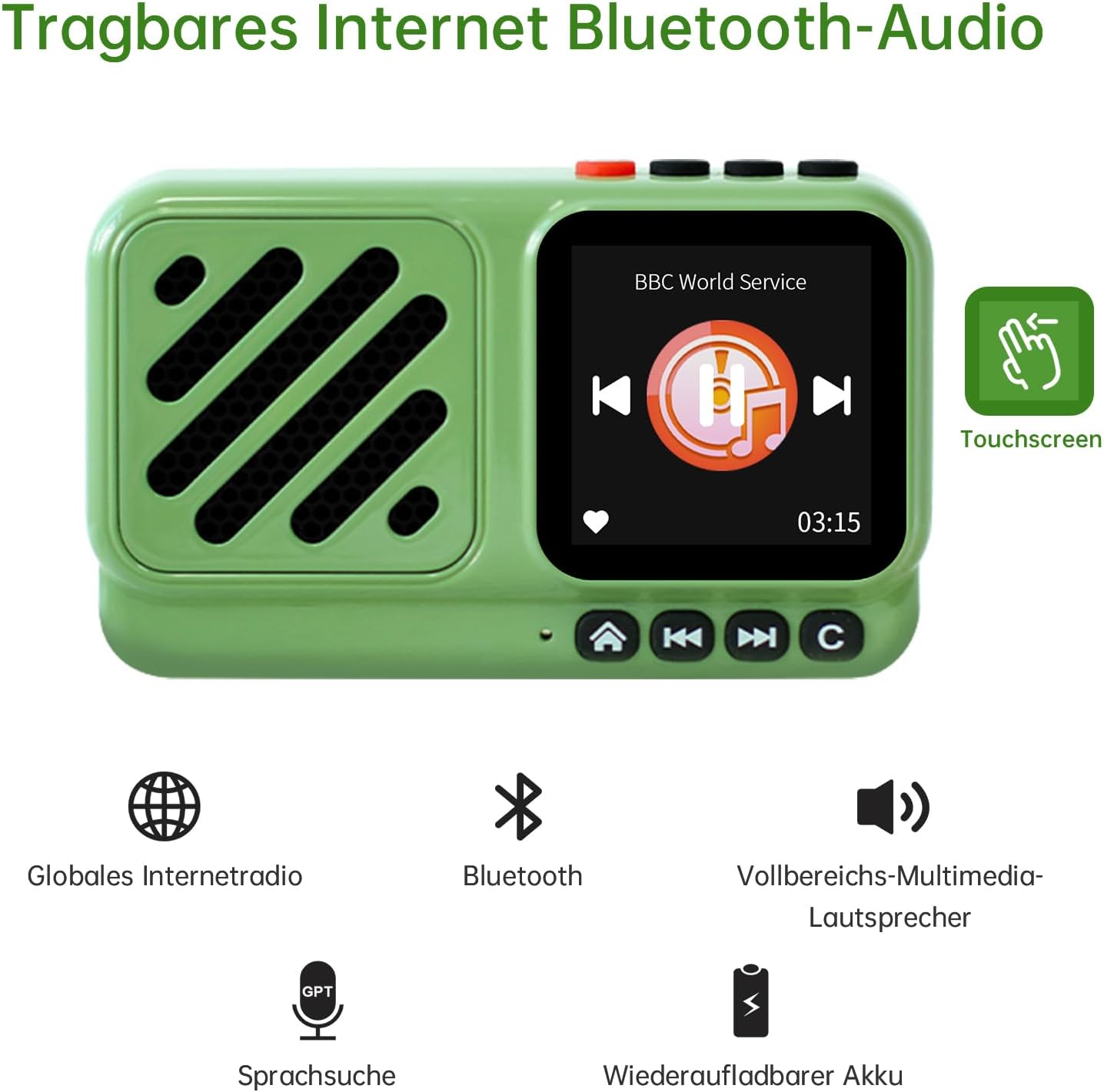
Figure 1: Front view of the CHOYONG Voyager A9.
2. Product Overview
Key Features:
- Touchscreen Bluetooth 5.3 Audio: Compatible with Android phones, smartphones, tablets, and other Bluetooth devices for fast connection. Features a high-definition, responsive touchscreen.
- Compact Design & Clear Audio: Equipped with a high-fidelity full-range speaker, delivering warm and full sound. The wireless radio speaker has a transmission distance of up to 33 feet, providing penetrating sound even outdoors. Audio output is handled by a 5-watt high-power amplifier for lossless wireless sound.
- Extensive Internet Radio Access: Listen to over 40,000 internet radio stations worldwide via 2.4 GHz Wi-Fi or SIM card. Stations are categorized by continent, country, province, city, type, and popularity. Bookmark favorite stations with one click.
- Podcast Library: Access approximately 10 million podcast episodes, including content from Spotify and Apple Podcasts.
- Voice Control with GPT: Directly voice on-demand stations and podcasts.
- Custom Station Addition: Supports independent addition of radio stations by entering a valid URL, compatible with audio formats such as MP3, AAC, and M3U8.
- Portable Design: Mini lightweight design, ideal for home, travel, or outdoor activities like cooking, picnics, walking, hiking, or gardening.
Components:
- CHOYONG Voyager A9 Device
- Owner's Manual (this document)
- USB-C Charging Cable (not explicitly listed but implied for charging)

Figure 2: 4G and Wi-Fi dual-mode networking.
3. Setup
3.1 Charging the Device
Before first use, fully charge your Voyager A9. Connect the provided USB-C cable to the device's USB-C port and the other end to a compatible USB power adapter (not included). The charging indicator will show the charging status.
3.2 Powering On/Off
- To Power On: Press and hold the power button (usually red) located on the top of the device until the screen illuminates.
- To Power Off: Press and hold the power button until a power-off prompt appears on the screen, then confirm your selection.
3.3 Network Connection (Wi-Fi / 4G)
The Voyager A9 supports both Wi-Fi and 4G (via SIM card or eSIM) for internet access.
- Wi-Fi Connection:
- From the main screen, navigate to 'Settings'.
- Select 'Wi-Fi' and turn it 'ON'.
- Choose your desired Wi-Fi network from the list of available networks.
- Enter the Wi-Fi password if prompted and connect.
- 4G (SIM Card / eSIM) Connection:
- For physical SIM card: Locate the SIM card slot on the side of the device. Insert a compatible 4G SIM card.
- For eSIM: The device has a built-in eSIM. Navigate to 'Settings' and select 'Data SIM Card' or 'SIM card selection' to manage eSIM settings and activate a data plan if available.
- Ensure mobile data is enabled in the settings if using a SIM/eSIM.

Figure 3: Side view with USB-C, 3.5mm audio jack, and SIM slot.
3.4 Bluetooth Pairing
To connect your Voyager A9 to other Bluetooth devices (e.g., headphones, external speakers):
- From the main screen, navigate to 'Settings' or swipe down to find the Bluetooth option.
- Select 'Bluetooth' and turn it 'ON'.
- Ensure your external Bluetooth device is in pairing mode.
- The Voyager A9 will scan for available devices. Select your device from the list to pair.
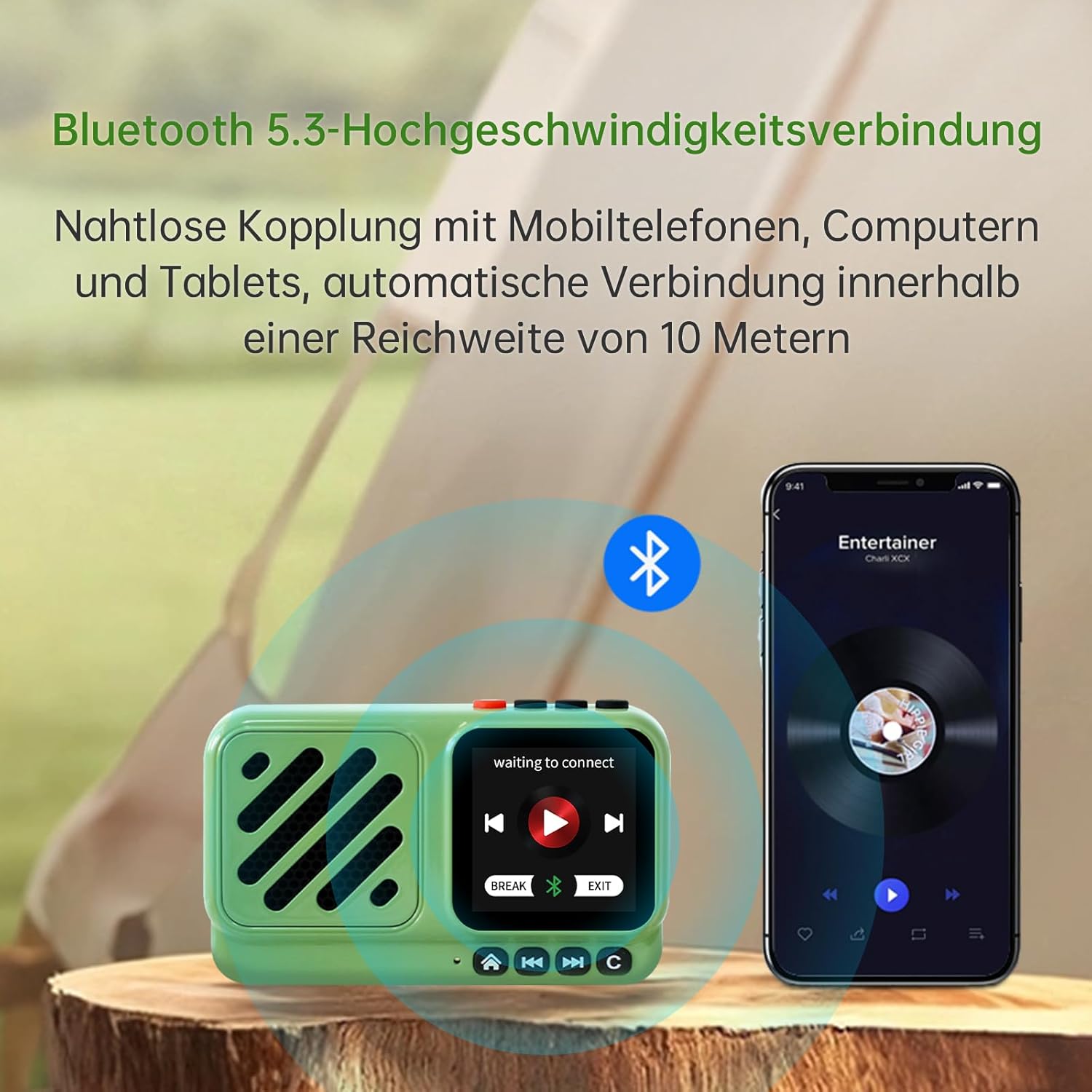
Figure 4: Bluetooth 5.3 high-speed connection.
4. Operating Instructions
4.1 Touchscreen and Physical Controls
The Voyager A9 features a responsive touchscreen for intuitive navigation and physical buttons for essential functions.
- Touchscreen: Swipe left/right or up/down to navigate menus and select options. Tap to confirm.
- Physical Buttons: Use the dedicated buttons for power, volume control (+/-), play/pause, and navigation (home, back, forward, menu).
4.2 Internet Radio
Access over 40,000 internet radio stations:
- From the main menu, select 'Internet Radio' or 'World Radio'.
- Browse stations by continent, country, genre, or popularity.
- Use the 'Search' function to find specific stations.
- Tap on a station to begin playback.
- To add a station to favorites, select the heart icon or 'Favorite' option.
- To manually add a station, select the 'Add' option and enter the valid URL (supports MP3, AAC, M3U8, etc.).
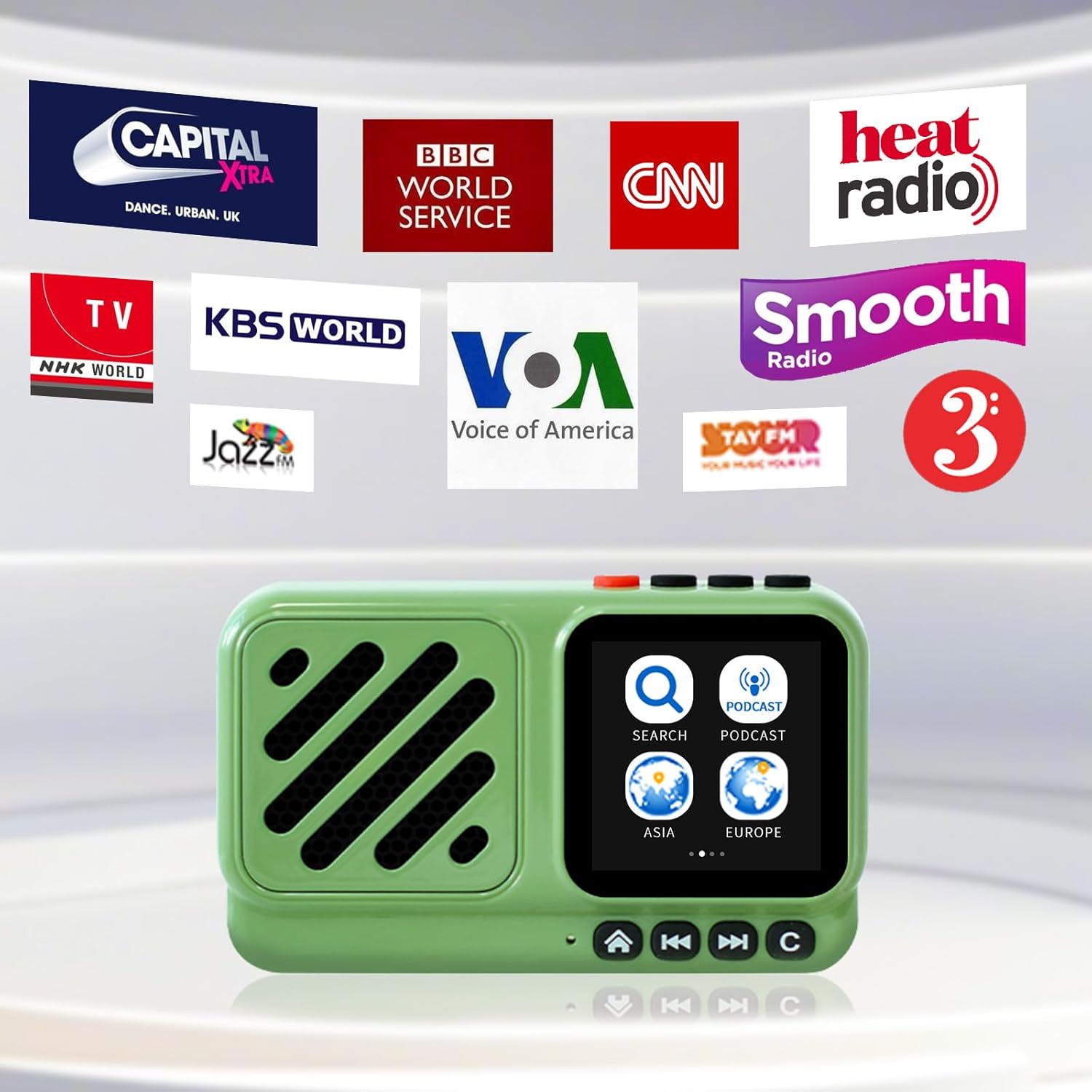
Figure 5: Access to global internet radio stations.
4.3 Podcasts
Explore millions of podcast episodes:
- From the main menu, select 'Podcasts'.
- Browse by category (e.g., Music, News, Technology, Interviews) or use the 'Search' function.
- Tap on a podcast to view available episodes and select one to play.
4.4 Voice Search (GPT Integration)
Utilize the integrated GPT feature for voice-activated search:
- Press the dedicated voice search button (often integrated with the play/pause button or a microphone icon).
- Speak clearly to request a specific radio station, podcast, or genre.
- The device will process your request and display relevant results.

Figure 6: Quick and accurate voice search.
4.5 Clock Display
The touchscreen can display various clock faces:
- Swipe on the clock display to cycle through different clock styles (analog, digital, themed).
5. Maintenance
To ensure the longevity and optimal performance of your CHOYONG Voyager A9, follow these maintenance guidelines:
- Cleaning: Use a soft, dry, lint-free cloth to clean the device. Do not use abrasive cleaners, solvents, or aerosol sprays.
- Water Resistance: The device is not waterproof. Avoid exposure to water or excessive moisture.
- Storage: Store the device in a cool, dry place away from direct sunlight and extreme temperatures.
- Battery Care: To preserve battery life, avoid fully discharging the battery frequently. Charge the device regularly, even if not in use for extended periods.
6. Troubleshooting
If you encounter any issues with your Voyager A9, refer to the following common troubleshooting steps:
- Device Not Powering On: Ensure the device is fully charged. Connect it to a power source and try again.
- No Sound: Check the volume level on the device and any connected Bluetooth accessories. Ensure the correct audio source (Internet Radio, Podcast, Bluetooth) is selected.
- Cannot Connect to Wi-Fi/4G: Verify that your Wi-Fi network is active and you have entered the correct password. For 4G, ensure the SIM card is properly inserted and has an active data plan. Try restarting the device.
- Bluetooth Pairing Issues: Ensure both the Voyager A9 and the external device are in pairing mode and within range. Try unpairing and re-pairing the devices.
- Unresponsive Touchscreen: Try restarting the device. If the issue persists, ensure the screen is clean and dry.
- Poor Audio Quality: Check your internet connection stability for streaming services. For Bluetooth, ensure the devices are within optimal range and there are no obstructions.
7. Specifications
| Feature | Detail |
|---|---|
| Product Dimensions | 3.54 x 1.38 x 2.09 inches (92 x 57 x 36mm) |
| Item Weight | 4.4 ounces (135g) |
| Item Model Number | A9 |
| Batteries | 1 Nonstandard Battery (1200mAh rechargeable lithium battery, included) |
| Connectivity Technology | 4G network, Bluetooth 5.3, Wi-Fi (2.4G) |
| Tuner Technology | Internet Radio |
| Speaker Output | 5W |
| Screen Size | 1.55 inch touch screen |
| Special Features | Addable internet radio stations, Global network radio station, Portable, Voice search station |
| Audio Jack | 3.5mm |
| Power Source | Battery Powered |
| Estimated Playback Time | Approximately 5 hours (varies with volume and screen brightness) |

Figure 7: Battery capacity and estimated playback.
8. Warranty and Support
8.1 Warranty Information
For specific warranty details, please refer to the warranty card included with your product or contact the seller directly. Keep your purchase receipt as proof of purchase for any warranty claims.
8.2 Customer Support
If you require further assistance or have questions not covered in this manual, please contact CHOYONG customer support through the official website or the contact information provided by your retailer.
9. Product Video
Video 1: Official product introduction video demonstrating the CHOYONG Voyager A9's design, features, and various functionalities including touchscreen navigation, connectivity options, and audio performance.


