1. Introduction
Thank you for choosing the RUIZU X55 64GB USB MP3 Player. This portable music player is designed for convenience and high-quality audio, featuring Bluetooth 5.3 connectivity, an integrated clip for active use, FM radio, voice recording, and direct phone file transfer capabilities. This manual provides detailed instructions to help you get the most out of your device.
The RUIZU X55 offers a seamless audio experience with its Bluetooth 5.3, ensuring quick pairing and stable connection to wireless headphones or speakers. Its clip-on design makes it ideal for sports and on-the-go activities. With 64GB of internal storage, you can carry thousands of songs. The device also supports various audio formats, including MP3, WMA, APE, FLAC, WAV, DRM, ACELP, and OGG, providing flexibility for your music library.
2. What's in the Box
- 1 x RUIZU USB Stick MP3 Player with Bluetooth
- 1 x 3.5mm Wired Stereo Headphones
- 1 x USB to USB-C Adapter Cable
- 1 x English & Japan User Manual
3. Product Overview
3.1 Device Layout and Controls
The RUIZU X55 features a compact design with a built-in clip and intuitive controls. The device includes a small LCD screen, touch-sensitive buttons for navigation and playback, and physical buttons for volume control and power.
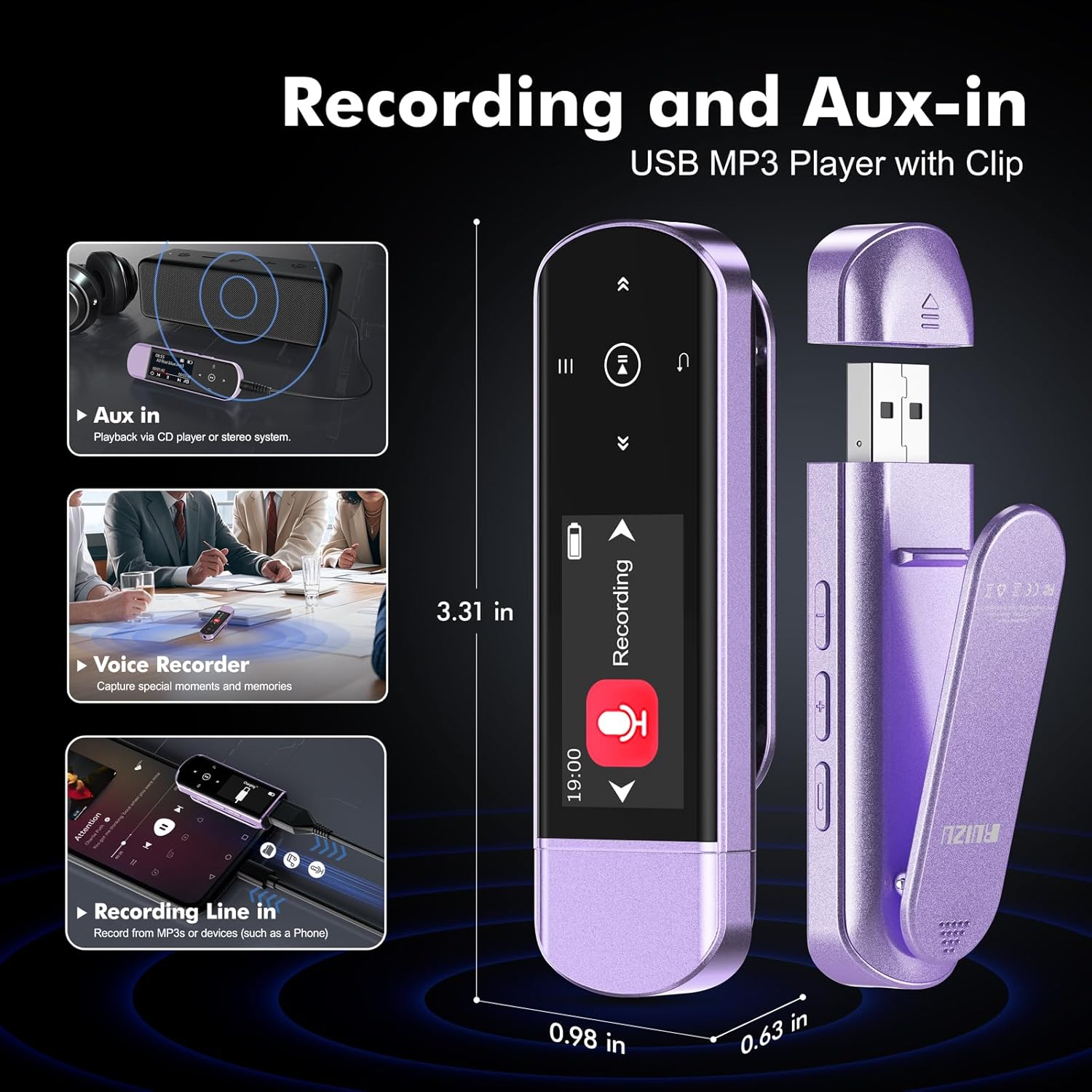
Image: RUIZU X55 MP3 Player showing its compact size (3.31 inches long, 0.98 inches wide, 0.63 inches thick) and key features like Aux In, Voice Recorder, and Recording Line In.
3.2 Key Features
- Bluetooth 5.3: For stable and quick connection to wireless headphones and speakers.
- Built-in Clip: Securely attach the player to clothing or bags for hands-free use during activities.
- 64GB Internal Storage: Ample space for over 15,000 MP3 songs or 2,000 lossless FLAC files.
- Direct USB Plug: Integrated USB-A connector for direct connection to computers for file transfer and charging.
- Phone File Transfer (OTG): Transfer music directly from smartphones using an OTG cable/adapter (not included).
- FM Radio: Enjoy local radio stations (requires wired headphones as antenna).
- Voice Recorder: Capture audio with the built-in microphone.
- HiFi Sound Quality: Supports various audio formats for an immersive listening experience.
- Multiple Play Modes: Shuffle, playlist loop, sequential play, folder repeat, and more.
- Long Battery Life: Up to 20 hours of playtime on a 2-hour charge.
4. Setup
4.1 Charging the Device
Before first use, fully charge your RUIZU X55 MP3 player. The device features a direct USB-A plug for convenient charging.
- Remove the protective cap from the USB-A connector.
- Plug the MP3 player directly into a USB port on your computer or a USB wall adapter.
- The screen will indicate 'Charging'. A full charge typically takes about 2 hours.

Image: The RUIZU X55 MP3 Player connected to a laptop via its integrated USB plug, displaying 'Charging' on its screen. This image also illustrates the 64GB memory, 20 hours playing time, and 2 hours charging time.
4.2 Transferring Music Files
You can transfer music files from your computer or smartphone.
From a Computer:
- Plug the MP3 player directly into a USB port on your computer.
- The computer will recognize the device as a removable disk.
- Drag and drop your desired music files (MP3, WMA, APE, FLAC, WAV, DRM, ACELP, OGG) into the player's storage.
- Safely eject the device from your computer after transfer is complete.
From a Smartphone (OTG Function):
This feature allows direct transfer from your smartphone. Ensure your phone supports OTG (On-The-Go) functionality.
- Connect the MP3 player to your smartphone using an OTG cable or adapter (not included).
- Your phone should recognize the MP3 player as external storage.
- Use your phone's file manager to transfer music files to the MP3 player.
- Note: For best results, transfer files in batches under 1GB.

Image: The RUIZU X55 MP3 Player demonstrating file transfer capabilities from both a smartphone via an OTG adapter and a laptop via its direct USB connection.
5. Operating Instructions
5.1 Power On/Off and Screen Lock
- Power On: Press and hold the Power button (usually the top physical button on the side) for a few seconds.
- Power Off: Press and hold the Power button. The device will display a countdown before shutting down.
- Screen Lock/Unlock: A quick press of the Power button will toggle the screen and touch controls active or inactive.
5.2 Music Playback
Navigate to the 'Music' icon on the main menu to access your audio files.
- Select 'Music' from the main menu.
- Browse through 'All Songs', 'Artists', 'Albums', 'Genres', or 'Folders'. Using the 'Folders' option allows you to navigate your music as organized on your computer.
- Use the touch controls (Play/Pause, Next/Previous, Menu, Return) to manage playback.
- Adjust volume using the physical volume buttons on the side of the device.
Playback Modes:
The RUIZU X55 supports various playback modes to customize your listening experience:
- Loop Single: Repeats the current song.
- Shuffle Repeat: Plays songs in a random order and repeats the shuffled list.
- List Loop: Repeats the entire playlist.
- Sequential Play: Plays songs in order.
- Multiple Folder Repeat: Repeats songs within multiple selected folders.
- Single Folder Repeat: Repeats songs within the current folder.

Image: The RUIZU X55 MP3 Player screen showing various playback modes (Loop Single, Shuffle Repeat, List Loop, Sequential Play, Multiple Folder Repeat, Single Folder Repeat) and highlighting its HiFi Lossless Sound capability.
5.3 Bluetooth Connection
The RUIZU X55 features Bluetooth 5.3 for connecting to wireless audio devices.
- From the main menu, select the 'Bluetooth' icon.
- Ensure your Bluetooth headphones or speaker are in pairing mode.
- The MP3 player will scan for available devices. Select your device from the list to pair.
- Once paired, audio will be routed to your Bluetooth device.
Important Note: The Bluetooth function of the RUIZU X55 CANNOT connect to computers, cars, or smartphones. It is designed for connecting to Bluetooth headphones or speakers only.

Image: The RUIZU X55 MP3 Player demonstrating stable Bluetooth 5.3 connectivity with various audio devices, including over-ear headphones, earbuds, and a portable speaker.
5.4 FM Radio
To use the FM radio, you must connect wired headphones, which act as the antenna.
- Plug the included 3.5mm wired headphones into the player's headphone jack.
- From the main menu, select the 'FM Radio' icon.
- Use the menu options to perform an auto-tune scan to find available stations.
- You can save up to 30 preset stations. Use the Play/Pause button to scan through presets and the Fast-Forward/Rewind buttons to manually search for stations.

Image: A person using the RUIZU X55 MP3 Player with wired headphones, illustrating the FM radio function with a frequency range of 80.5-108MHz displayed on the player's screen.
5.5 Voice Recorder
The RUIZU X55 includes a built-in voice recorder.
- From the main menu, select the 'Recording' icon.
- Press the Play/Pause button to start recording.
- Press the Play/Pause button again to pause/resume recording.
- Press the Back button to stop and save the recording. Recordings are automatically named by date and time.
- Recordings can be saved in MP3 or WAV format at different bit rates, configurable in the settings.
5.6 AUX and USB in Car
The RUIZU X55 can be used to play music in your car through its 3.5mm AUX port or standard USB plug.
AUX Connection:
- Connect the MP3 player to your car's audio system using a 3.5mm audio cable (not included).
- Select the AUX input on your car's stereo.
- Play music on the MP3 player, and it will output through your car's speakers.
USB Connection:
- Plug the MP3 player directly into your car's USB port.
- Your car's audio system may recognize the player as a USB drive and allow direct playback.
- If your car has a USB-C port, use the provided USB to USB-C adapter cable.
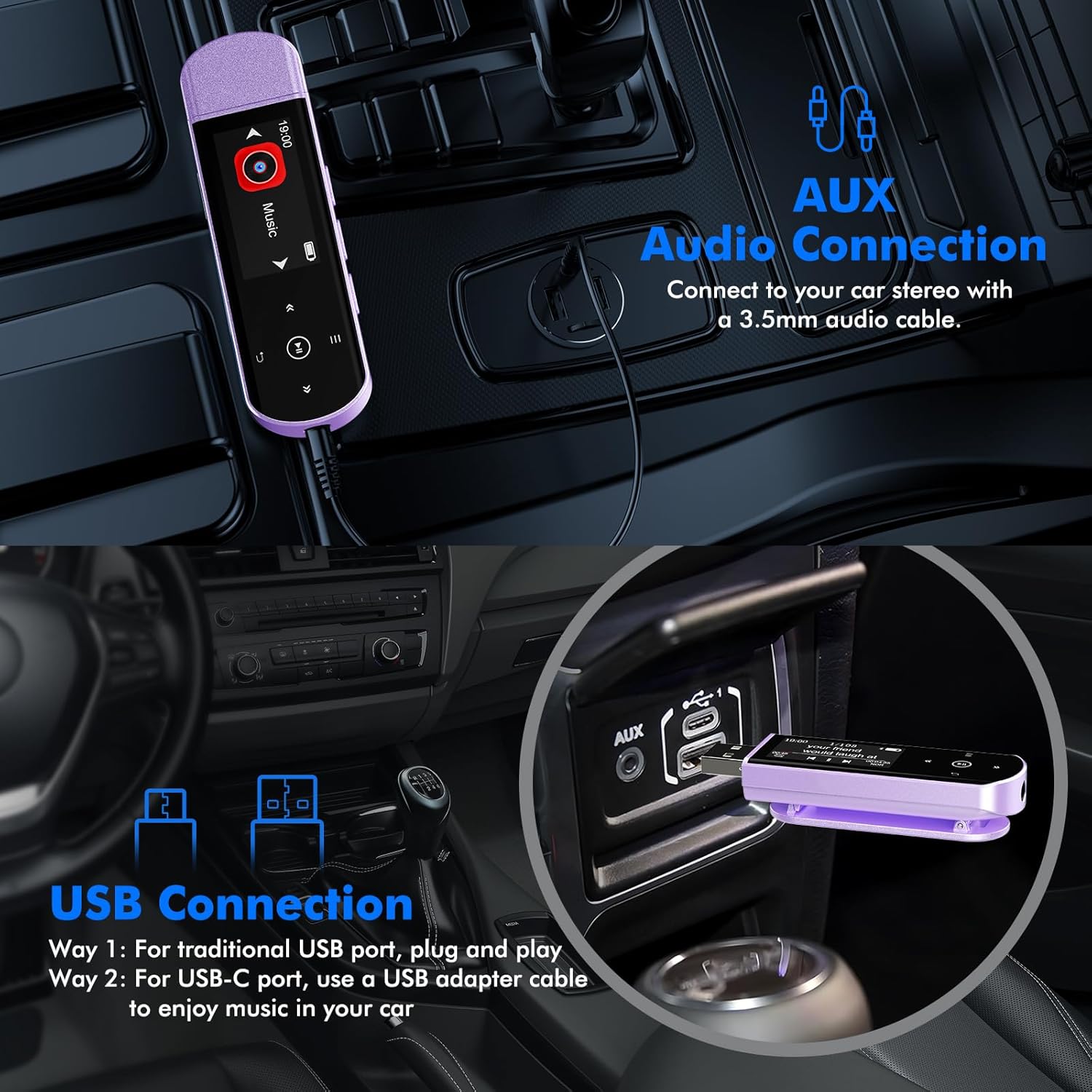
Image: The RUIZU X55 MP3 Player demonstrating connectivity options in a car, showing both a 3.5mm AUX audio connection and a USB connection (direct plug and via USB-C adapter).
5.7 Other Functions
The RUIZU X55 offers additional features accessible through its menu:
- Equalizer: Adjust audio settings for different sound profiles.
- Bookmarks: Mark specific points in audio files for easy return.
- Volume Limit: Set a maximum volume level.
- Line-in Function: Record music directly from a phone or other device to the MP3 player (requires appropriate cable, not included).
- Flash Drive: The device can also be used as a standard USB flash drive for data storage.

Image: The RUIZU X55 MP3 Player displaying its main menu with icons for Music, FM Radio, Recording, Settings, File Folder, and Equalizer, indicating its multi-functional capabilities.
6. Maintenance
- Keep the device dry. Moisture can damage electronic components.
- Avoid extreme temperatures. High temperatures can shorten the life of electronic devices and distort plastic parts.
- Do not drop, knock, or shake the device. Rough handling can break internal circuit boards.
- Clean the device with a soft, dry cloth. Do not use harsh chemicals or cleaning solvents.
- Protect the USB connector with its cap when not in use to prevent dust and damage.
7. Troubleshooting
Device Not Turning On:
- Ensure the device is fully charged. Connect it to a power source for at least 30 minutes.
- Try resetting the device by pressing and holding the power button for an extended period (e.g., 10-15 seconds).
Cannot Connect via Bluetooth:
- Confirm that your target device (headphones/speaker) is in pairing mode.
- Ensure the MP3 player's Bluetooth is enabled and scanning.
- Remember, the MP3 player's Bluetooth cannot connect to computers, cars, or smartphones.
- Move the devices closer to each other to ensure they are within range.
Files Not Transferring or Appearing:
- Verify that the music files are in a supported format (MP3, WMA, APE, FLAC, WAV, DRM, ACELP, OGG).
- Ensure the device is properly connected to your computer or smartphone.
- When transferring from a phone, confirm your phone supports OTG and use an OTG cable/adapter.
- Try transferring files in smaller batches, especially from a smartphone.
FM Radio Signal is Poor:
- Ensure wired headphones are securely plugged in, as they function as the antenna.
- Try moving to an open area or adjusting the position of the headphone cable to improve reception.
8. Specifications
| Feature | Detail |
|---|---|
| Brand | RUIZU |
| Model Name | X55 |
| Memory Storage Capacity | 64 GB |
| Connectivity Technology | Aux, Bluetooth 5.3, USB |
| Special Features | Built-In Clip, Equalizer, FM Radio, Voice Recorder |
| Screen Size | 1 Inch |
| Compatible Devices | Headphones, Speakers |
| Supported Media Type | Micro SD (internal 64GB) |
| Supported Audio Formats | MP3, WMA, APE, FLAC, WAV, DRM, ACELP, OGG |
| Battery Average Life | 20 Hours |
| Charging Time | Approx. 2 Hours |
| Display Technology | LCD |
9. Warranty and Support
For warranty inquiries or technical support, please contact RUIZU customer service.
- Email Support: support@ruizutek.com
Please refer to the official RUIZU website or your purchase documentation for the most up-to-date warranty information.
10. Product Videos
Watch these official videos for a visual guide on using your RUIZU X55 MP3 Player.
RUIZU 64GB USB MP3 Player with Bluetooth 5.3 Overview
Video: This video provides an overview of the RUIZU 64GB USB MP3 Player with Bluetooth 5.3, highlighting its features and ease of use for daily activities and workouts.
RUIZU USB MP3 Player with Bluetooth, Clip Music Player
Video: This video showcases the RUIZU USB MP3 Player with Bluetooth, focusing on its clip design and suitability as a portable music player.