1. Introduction
This manual provides essential information for setting up, operating, and maintaining your Samsung 27" Odyssey G5 G53F QHD Gaming Monitor. Designed for an immersive gaming experience, this monitor features QHD resolution, a 200Hz refresh rate, IPS panel technology, HDR10 support, AMD FreeSync™ Premium, Black Equalizer, and Auto Source Switch+ for optimal performance and visual clarity.
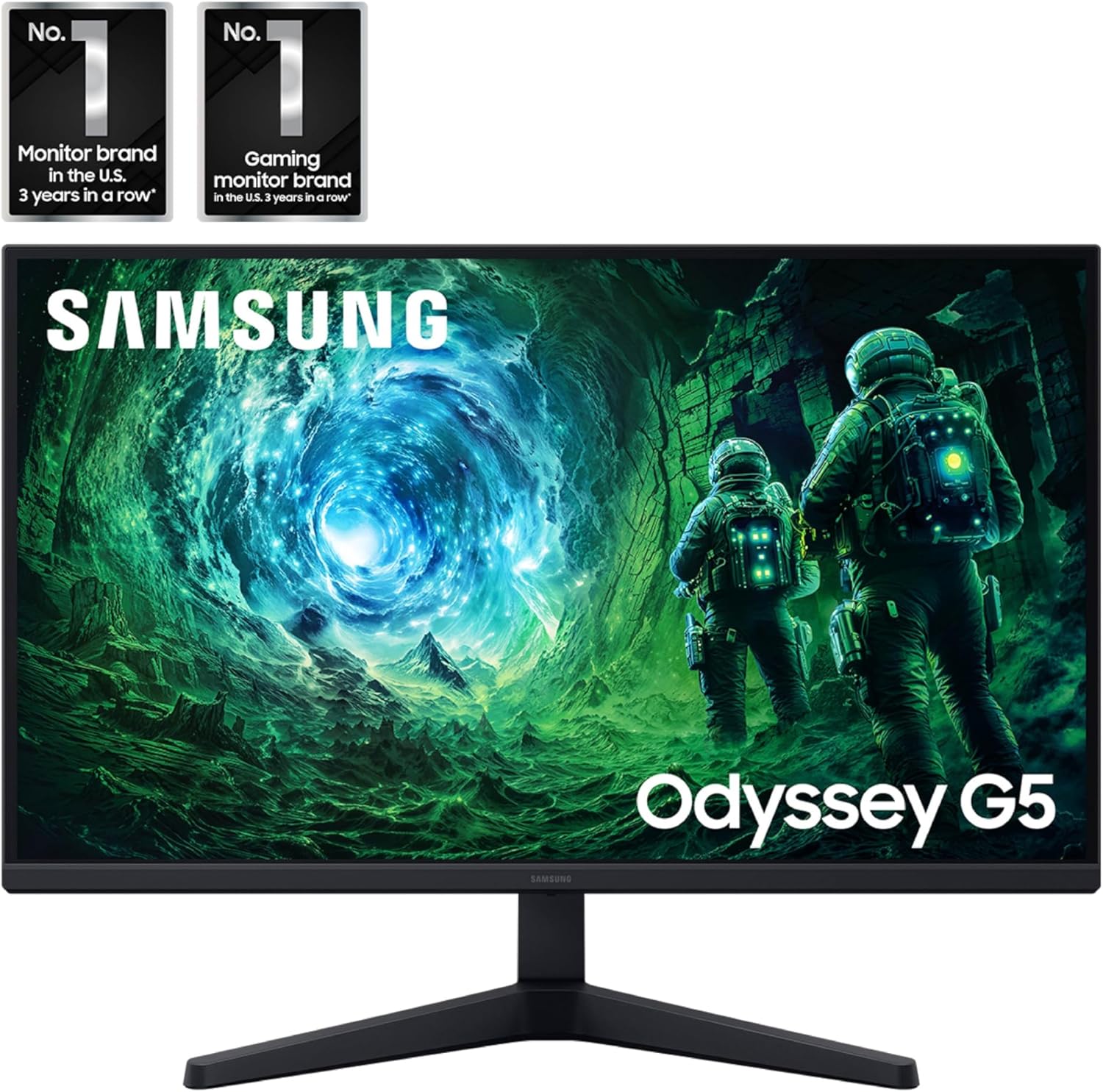
Image: Front view of the Samsung 27" Odyssey G5 G53F QHD Gaming Monitor.
2. What's in the Box
Upon unboxing your Samsung Odyssey G5 monitor, please ensure all the following components are present:
- Samsung 27" Odyssey G5 G53F QHD Gaming Monitor
- Monitor Stand (Base and Neck)
- Power Cable
- HDMI Cable
- DisplayPort (DP) Cable
- User Guide / Instruction Manual
- Mounting Screws (for stand assembly)
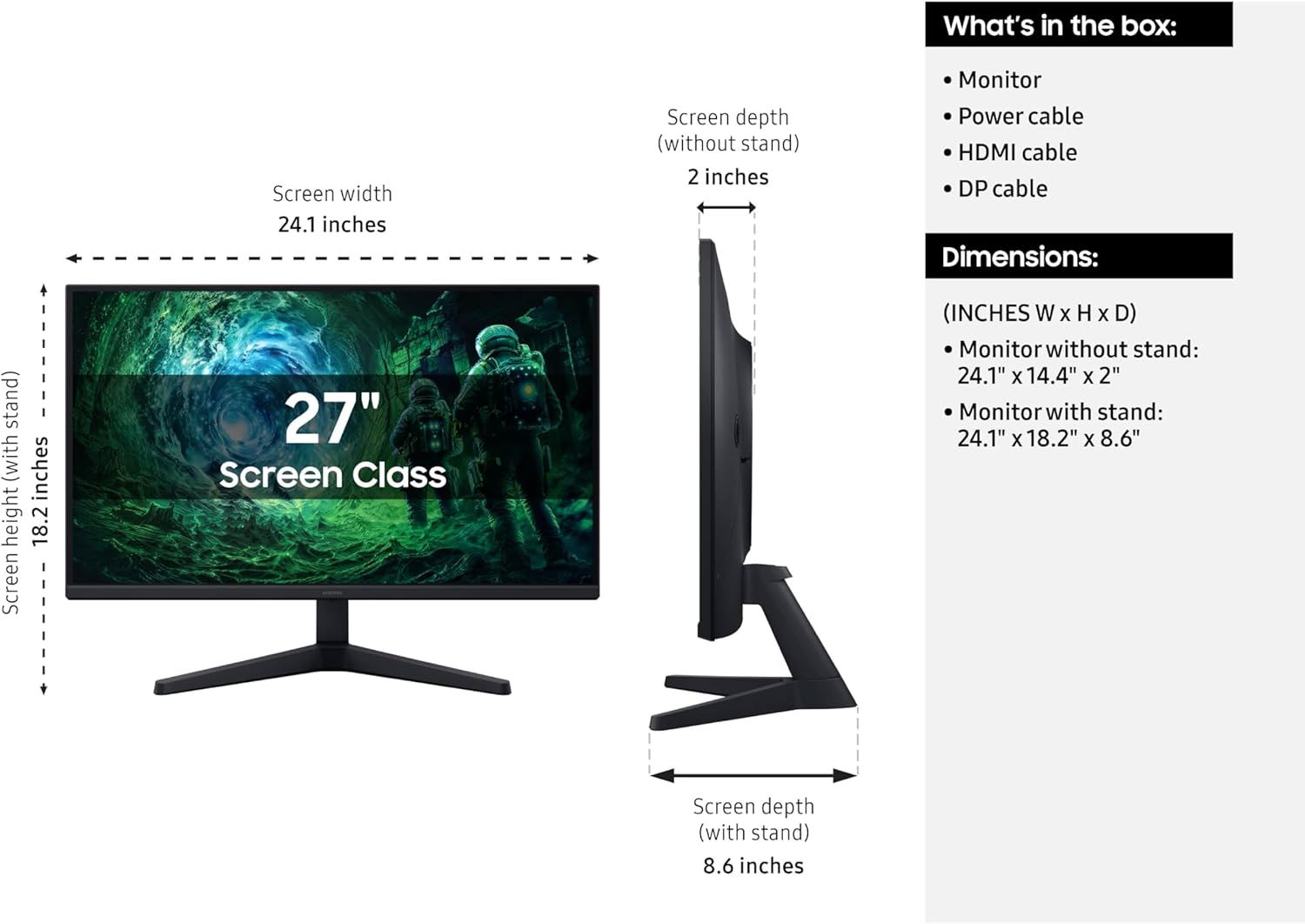
Image: Diagram showing the monitor, stand, and included cables, along with dimensions.
3. Setup
3.1 Assembling the Stand
- Carefully remove the monitor and stand components from the packaging.
- Attach the stand neck to the stand base. Secure it with the provided screw, typically located at the bottom of the base.
- Align the assembled stand with the mounting area on the back of the monitor.
- Gently push the stand into the monitor until it clicks into place. Ensure it is securely fastened.
- Tighten any additional screws if provided, to further secure the stand to the monitor.
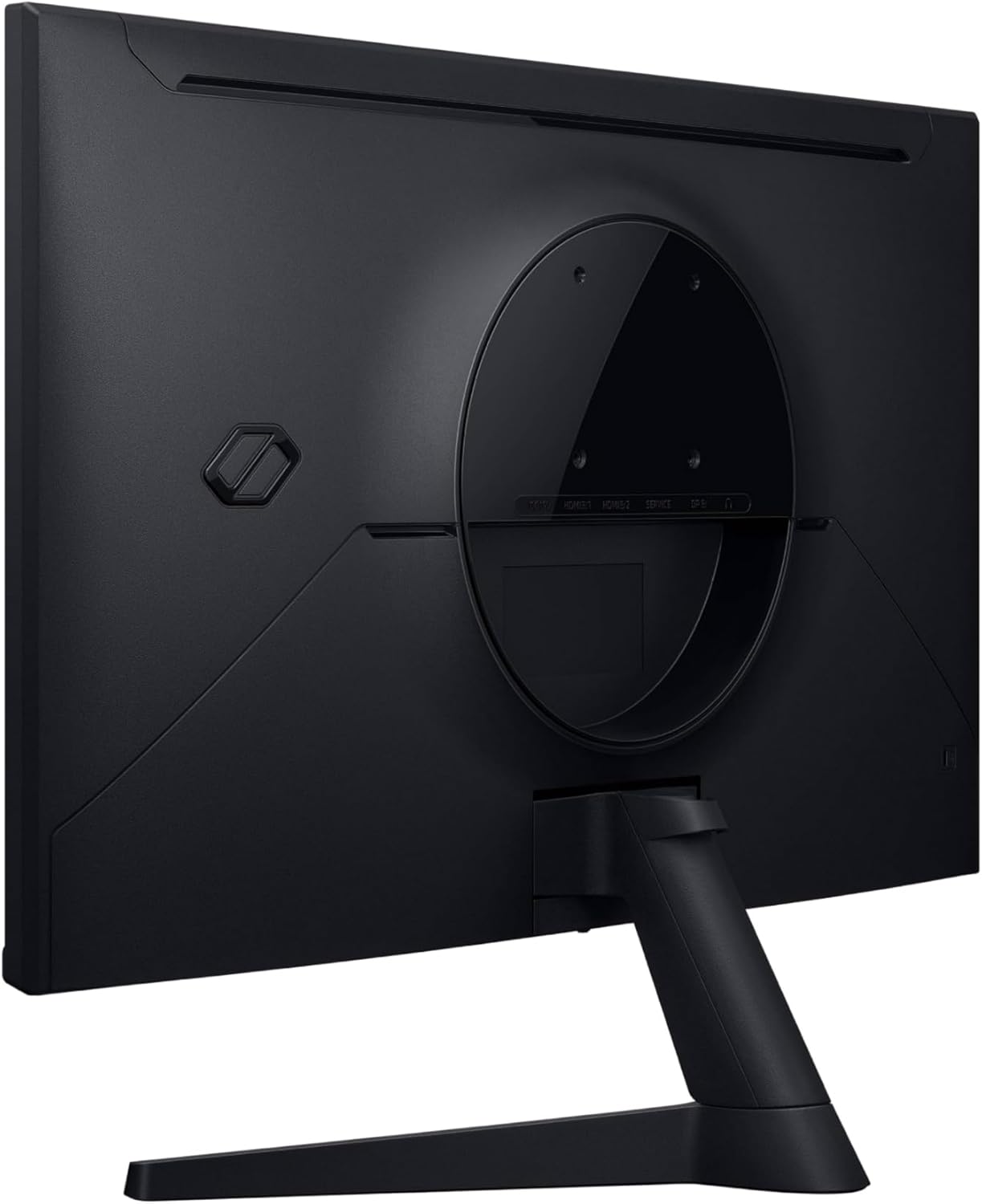
Image: Rear view of the monitor showing the stand attachment point.
3.2 Connecting Cables
Connect the necessary cables to your monitor and computer/device.
- Power Cable: Connect one end of the power cable to the monitor's power input (DC 19V) and the other end to a power outlet.
- Video Cable: Connect either an HDMI cable or a DisplayPort (DP) cable from your computer's graphics card to the corresponding input on the monitor (HDMI IN 1, HDMI IN 2, or DP IN). For optimal performance, especially for 200Hz refresh rate and QHD resolution, use the DisplayPort connection.
- Audio (Optional): If you are using external speakers or headphones, connect them to the Headphone OUT port on the monitor.
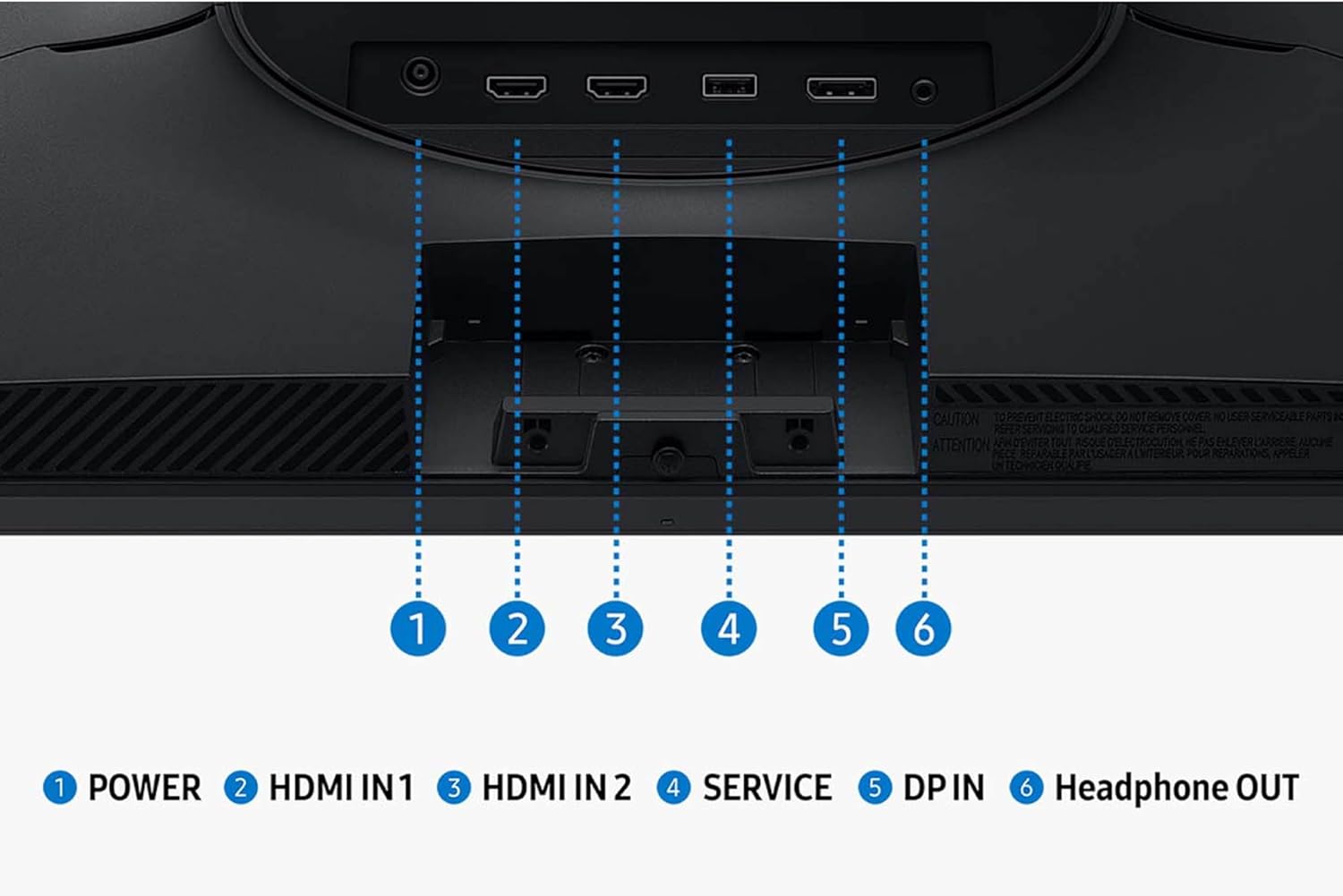
Image: Detailed view of the monitor's input and output ports.
3.3 Initial Power-On
Once all cables are connected, press the power button on the monitor to turn it on. The monitor should automatically detect the input signal. If not, you may need to manually select the input source using the monitor's OSD (On-Screen Display) menu.
4. Operating the Monitor
4.1 On-Screen Display (OSD) Menu Navigation
The monitor's settings can be adjusted using the OSD menu, typically accessed via a joystick or buttons located on the bottom or rear of the monitor. Navigate through the menu options to customize your viewing experience.
4.2 Key Features and Settings
- QHD Resolution (2560x1440): Enjoy incredibly detailed and sharp images with 1.7 times the pixel density of Full HD.
- 200Hz Refresh Rate: Experience ultra-smooth gaming with fast reactions and reduced motion blur.
- 1ms Response Time (MPRT): Ensures movements are captured in real-time for precise gaming.
- IPS Panel with 178° Viewing Angle: Consistently delivers precise and radiant colors across various viewpoints.
- AMD FreeSync™ Premium: Reduces choppiness, screen lag, and image tearing during intense gaming sessions. Ensure your graphics card supports AMD FreeSync™ Premium for this feature to function.
- HDR10: Provides brighter highlights and nuanced shadows for added depth, making scenes feel more realistic.
- Black Equalizer: Improves visibility in the deepest shadows, allowing you to spot enemies or details in dark areas.
- Virtual Aim Point: Increases the accuracy of the player’s aim by displaying crosshairs on the screen.
- Auto Source Switch+: Allows instantaneous switching between connected devices, automatically detecting and switching to a new signal source.
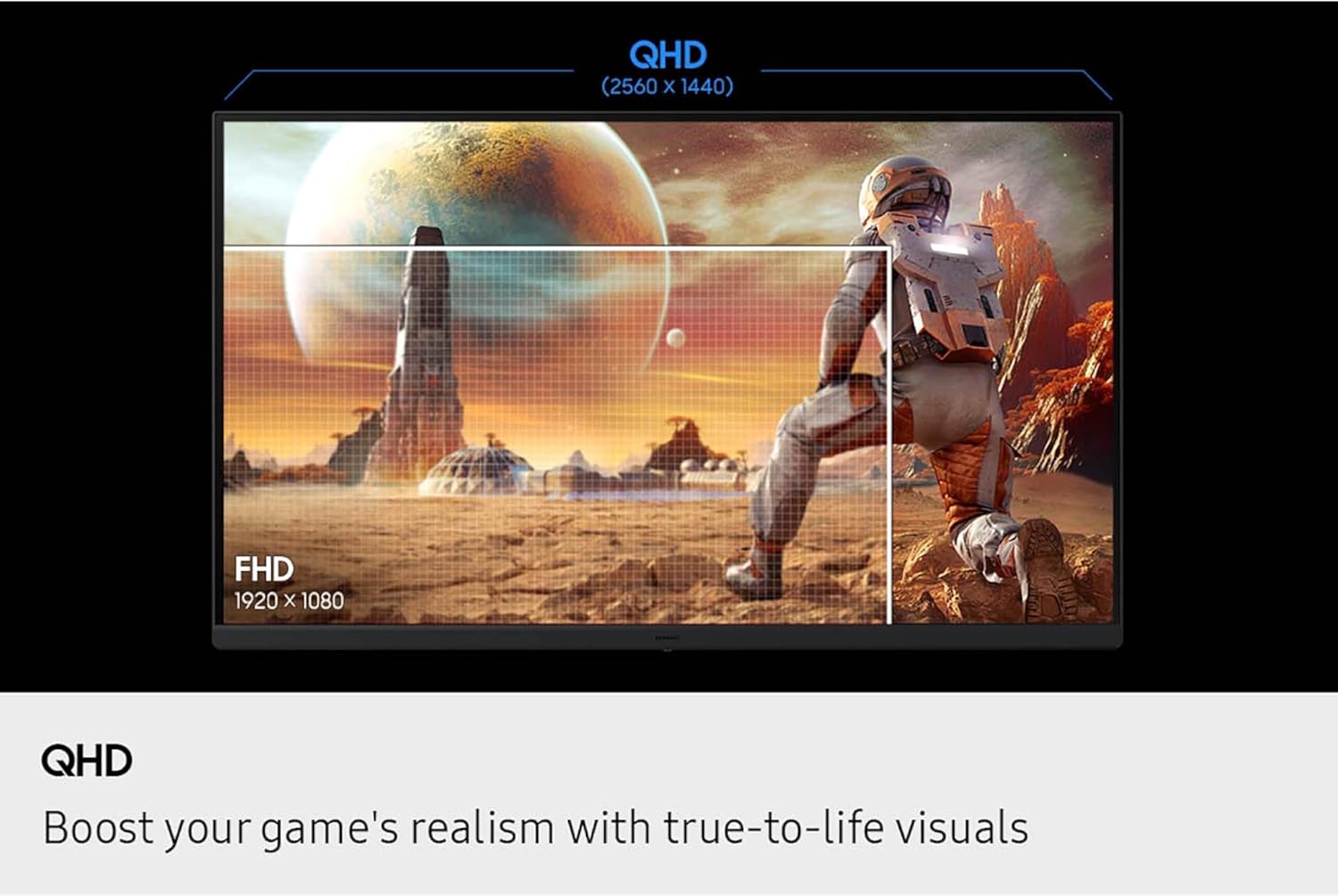
Image: Visual comparison of QHD vs. FHD resolution.

Image: Monitor displaying 200Hz refresh rate for swift and smooth gameplay.

Image: Illustration of the wide 178° viewing angle of the IPS panel.
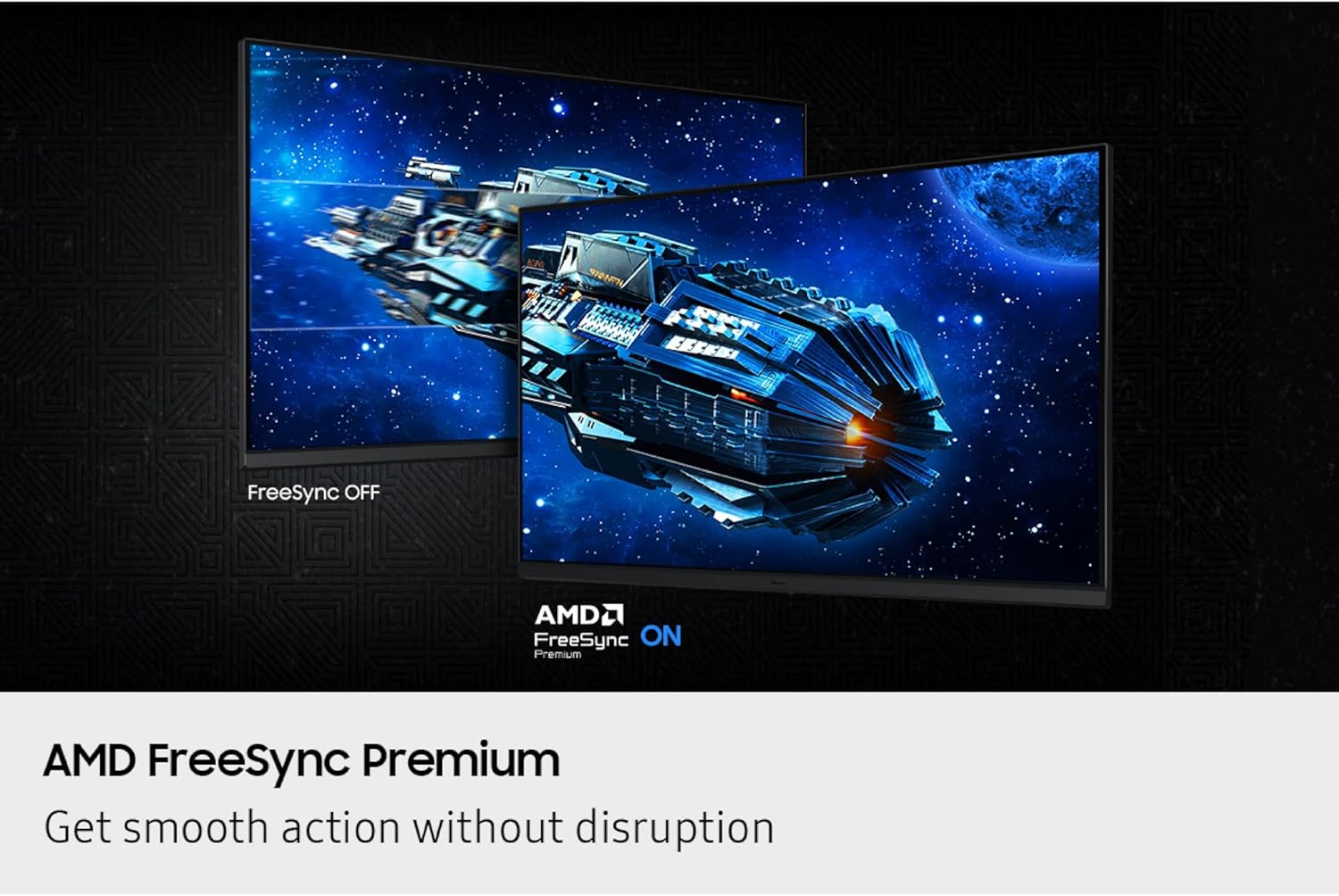
Image: Comparison of FreeSync OFF vs. FreeSync ON, demonstrating smooth action without disruption.
5. Maintenance
To ensure the longevity and optimal performance of your Samsung Odyssey G5 monitor, follow these maintenance guidelines:
- Cleaning the Screen: Gently wipe the screen with a soft, lint-free cloth. For stubborn smudges, lightly dampen the cloth with water or a screen-safe cleaning solution. Avoid harsh chemicals, abrasive materials, or direct spraying onto the screen.
- Cleaning the Casing: Use a soft, dry cloth to wipe the monitor's casing.
- Ventilation: Ensure the monitor's ventilation openings are not blocked to prevent overheating.
- Storage: When not in use for extended periods, store the monitor in a cool, dry place, ideally in its original packaging to protect it from dust and physical damage.
6. Troubleshooting
If you encounter issues with your monitor, refer to the following common troubleshooting steps:
- No Power:
- Check if the power cable is securely connected to both the monitor and the power outlet.
- Ensure the power outlet is functional.
- Press the power button on the monitor.
- No Signal / Blank Screen:
- Verify that the video cable (HDMI or DisplayPort) is securely connected to both the monitor and your computer/device.
- Ensure the correct input source is selected in the monitor's OSD menu.
- Check if your computer/device is powered on and outputting a signal.
- Try a different video cable or port.
- Image Quality Issues (Blurry, Distorted, Incorrect Colors):
- Ensure the monitor's resolution is set to its native QHD (2560x1440) in your computer's display settings.
- Adjust settings like brightness, contrast, and color balance through the OSD menu.
- Check the video cable for damage or loose connections.
- Flickering or Tearing:
- Ensure AMD FreeSync™ Premium is enabled in both the monitor's OSD and your graphics card settings.
- Verify that your graphics card drivers are up to date.
- Check the refresh rate setting in your computer's display settings to ensure it matches the monitor's capabilities (up to 200Hz).
7. Specifications
| Feature | Detail |
|---|---|
| Brand | Samsung |
| Model Name | Odyssey G5 G53F |
| Item Model Number | S27FG532EN |
| Screen Size | 27 Inches |
| Screen Resolution | QHD 2560x1440 Pixels |
| Max Screen Resolution | 2560 x 1440 Pixels |
| Refresh Rate | 200Hz |
| Response Time | 1ms (MPRT) |
| Panel Type | IPS |
| Viewing Angle | 178° (Horizontal/Vertical) |
| HDR Support | HDR10 |
| Adaptive Sync Technology | AMD FreeSync™ Premium |
| Aspect Ratio | 16:9 |
| Screen Surface | Matte |
| Color | Black |
| Item Weight | 8.59 pounds |
| Product Dimensions (LxWxH) | 8.55 x 24.14 x 18.23 inches |
| Connectivity | 2x HDMI, 1x DisplayPort, 1x Headphone Out |
8. Warranty & Support
For warranty information, technical support, or service inquiries, please refer to the warranty card included with your product or visit the official Samsung support website. Keep your purchase receipt as proof of purchase for warranty claims.
You can find additional support and resources on the Samsung Store on Amazon.