
1. Introduction
This manual provides detailed instructions for setting up, operating, and maintaining your ULTIMEA Skywave X70 7.1.4ch Professional Wireless Surround Sound System. Please read this manual thoroughly before use to ensure optimal performance and safety.
Video: ULTIMEA Skywave X70 7.1.4ch Professional Wireless Surround Sound System Overview. This video provides a general overview of the product and its capabilities.
2. Package Contents
Ensure all items listed below are present in your package:
- 1 x 10" Wireless Subwoofer
- 1 x Soundbar (Assembled in three parts)
- 2 x Surround Speakers
- 1 x HDMI Cable
- 1 x Digital Optical Cable
- 1 x Remote Control (Batteries not included)
- 1 x Soundbar Power Adaptor
- 1 x Subwoofer Power Cord
- 2 x Surround Power Adaptors
- 1 x User Manual
- 1 x Wall Mounting Guide
- 12 x Bracket Screws
- 6 x Brackets
- 6 x Wall Anchors

Image: All components included with the ULTIMEA Skywave X70 system.
Video: ULTIMEA Skywave X70 Unboxing and Initial Setup Guide.
3. Setup
3.1 Soundbar Assembly
The soundbar comes in three parts. Align the joints and twist to connect them securely.
3.2 Subwoofer Connection and Pairing
Connect the subwoofer to a power outlet. The subwoofer is pre-paired with the soundbar from the factory. If there is no sound from the subwoofer, you may need to re-pair it:
- Press and hold the "Xupmix" button on the remote and the "ON/Standby" button on the subwoofer simultaneously for about 5 seconds.
- Once paired, the subwoofer's indicator light will remain solid.
3.3 Surround Speaker Connection and Pairing
Connect each surround speaker to its respective power adapter and then to a power outlet. The surround speakers are pre-paired with the soundbar from the factory. If there is no sound from the surround speakers, you may need to re-pair them:
- Press and hold the "Surround Level" button on the remote and the "PAIR" button on the surround speaker for about 5 seconds.
- Once successfully paired, the indicator light on the surround speaker will stay solid.
3.4 Optimal System Placement
For the best immersive experience, position the soundbar below your TV, the subwoofer in a corner or near a wall, and the surround speakers behind your listening position, as shown in the diagram below.

Image: Optimal 7.1.4 Surround Sound System Layout.
4. Connectivity
The Skywave X70 offers multiple connectivity options for your TV and other devices. Please note that Dolby Atmos is exclusively supported through HDMI eARC. Optical and Bluetooth connections do not support Dolby Atmos.
4.1 HDMI eARC Connection (Preferred for Dolby Atmos)
For optimal performance and Dolby Atmos support, use the HDMI eARC connection:
- Insert one end of the provided HDMI cable into your TV's HDMI ARC/eARC OUTPUT port.
- Insert the other end into the HDMI to TV (eARC) port on the soundbar.
- Connect the soundbar's power cord and plug it into a power supply.
- Use the remote control to switch the soundbar mode to "eARC" by pressing the input button once. The soundbar's LED will display "eARC".
- On your TV, navigate to Settings → Sound Output → Receiver (HDMI-eARC).
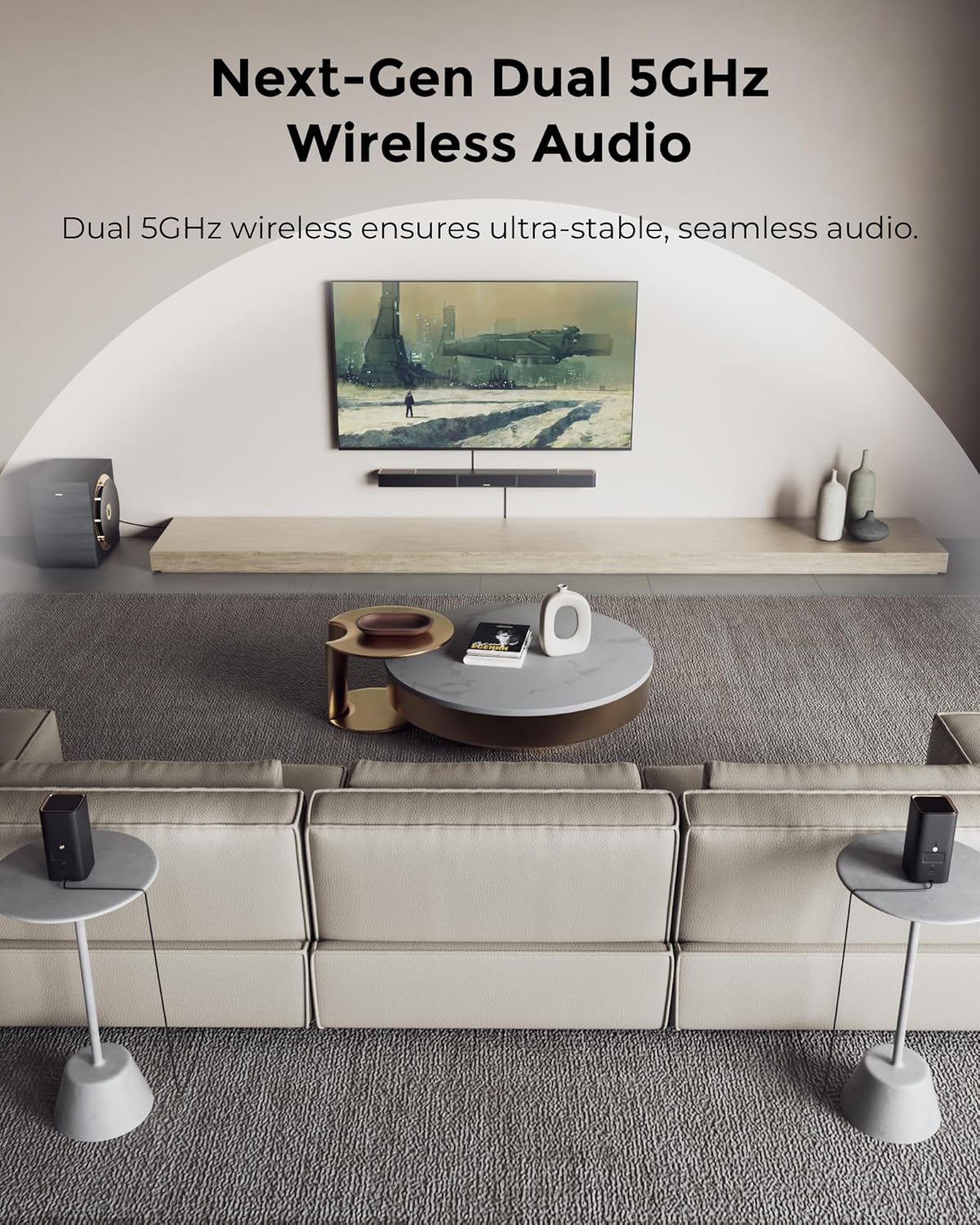
Image: 4K HDR Pass-Through Connectivity Diagram.
4.2 Optical Connection
To connect via optical cable (Dolby Atmos not supported):
- Remove the protective caps from both ends of the provided optical cable.
- Insert one end of the optical cable into your TV's Optical OUT port. (Note: Optical IN ports on the TV are not supported).
- Insert the other end into the OPTICAL port on the soundbar.
- Connect the soundbar's power cord and plug it into a power supply.
- Using the remote control, switch the soundbar mode to "OPT" by pressing the input button twice. The soundbar's LED will display "OPT".
- On your TV, navigate to Settings → Sound Output → Optical.
4.3 Bluetooth Connection
To connect via Bluetooth (Dolby Atmos not supported):
- Using the remote control, short press the Bluetooth button to select Bluetooth channel. The soundbar's LED will display "BT".
- On your smartphone or TV, turn on Bluetooth and select "ULTIMEA Skywave X70" from the list of available devices.
- When you hear the voice prompt "Dingdong" from the soundbar, it indicates a successful Bluetooth connection.
5. Operating Instructions
5.1 Remote Control Functions
The included remote control allows you to manage various functions of your Skywave X70 system, including:
- Power On/Off
- Volume Adjustment
- Input Source Selection (HDMI eARC, HDMI IN, Optical, USB, Bluetooth)
- EQ Mode Selection (Standard, Cinema, Music, Voice, Game, Night)
- Bass Level Adjustment
- Up-Firing Level Adjustment
- Surround Level Adjustment
- Xupmix (Surround Sound Enhancement)
5.2 ULTIMEA Smart App
The ULTIMEA Smart App provides advanced control and customization options for your sound system:
- Over-The-Air (OTA) updates for firmware.
- 10-band EQ for precise audio tuning.
- 121 sound presets for various content types.
- Full control over volume, input, and sound effects.
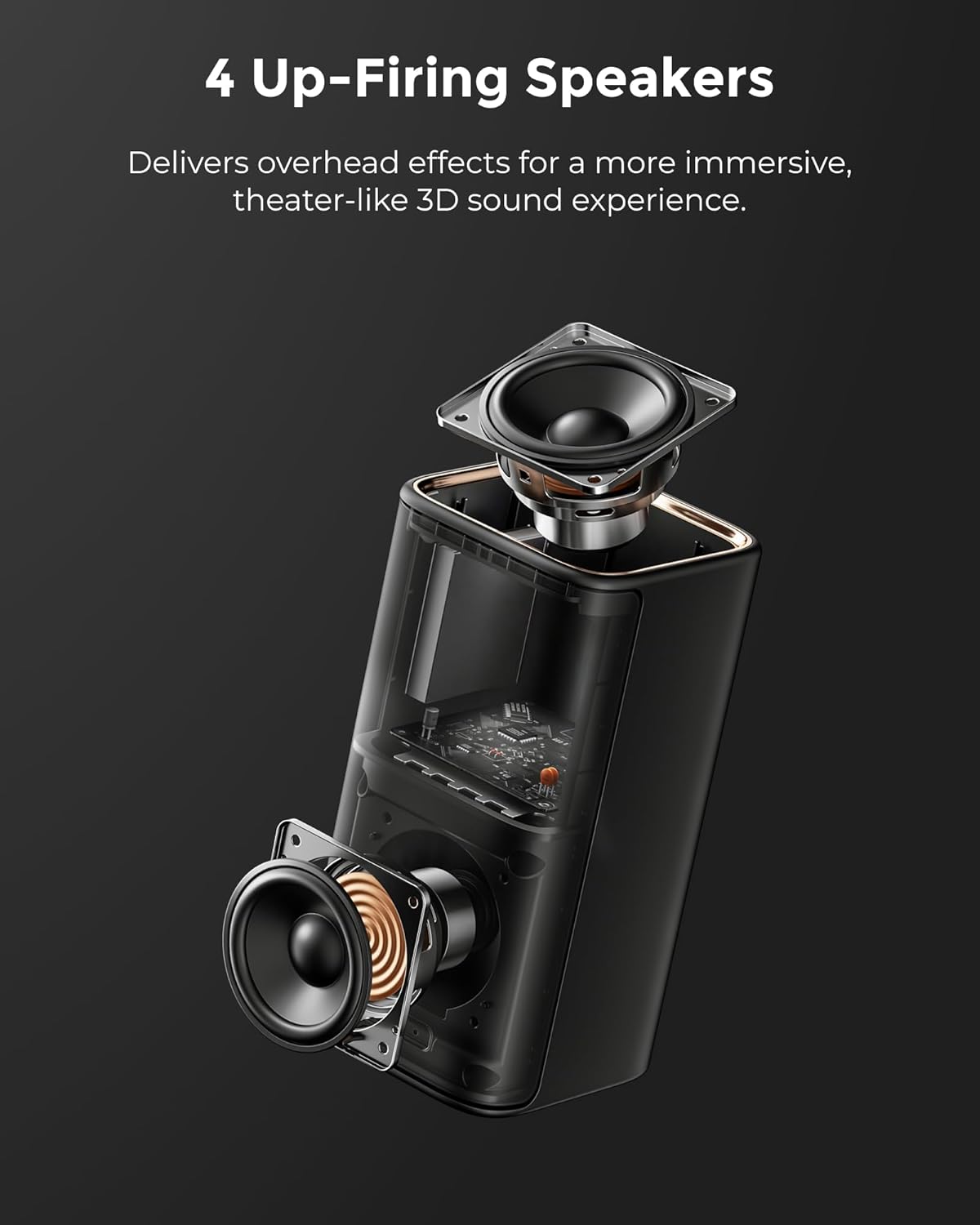
Image: ULTIMEA Smart App Interface.
6. Troubleshooting: No Sound?
If you have connected your soundbar but are experiencing no sound, check your TV's audio format settings. Different TVs may have different setup steps, but generally, you will need to adjust the Digital Output Audio Format.
- For general audio (Preference): Select "Auto" in your TV's audio settings (Settings → Sound → Expert Settings → Digital Output Audio Format → Auto).
- For Atmos Audio (Only works with HDMI-eARC): Select "Passthrough" in your TV's audio settings (Settings → Sound → Expert Settings → Digital Output Audio Format → Passthrough).
- For DTS Audio: Select "PCM" in your TV's audio settings (Settings → Sound → Expert Settings → Digital Output Audio Format → PCM).
Video: Troubleshooting No Sound - TV Audio Format Settings.
7. Key Features
- Next-Gen Wireless Freedom: The Skywave X70 features a fully wireless setup powered by dual 5GHz wireless transmission, ensuring stable connectivity, minimal interference, and no dropouts.
- 7.1.4 Professional Immersive Home Theater Experience: Delivers a new dimension of home theater sound, with audio moving freely around and above you for breathtaking realism and deep, impactful bass down to 20Hz.
- 10" Wireless Subwoofer with Gravus Ultra-Linear Bass: Equipped with a large 10" driver, the subwoofer provides deep bass down to 20Hz with 980W peak output. Ultra-linear motion ensures clean, powerful, and distortion-free bass.
- Industry-Leading GaN Amplifier: Experience up to 98% efficiency and 8x faster response than traditional silicon amplifiers. The GaN amp ensures low heat, high power, and ultra-clean audio, revealing vivid details and expansive dynamics.
- NEURACORE Multi-Channel Audio Engine: Driven by a triple-core DSP and dual-core MCU, NEURACORE delivers ultra-precise 24-bit/192kHz audio with less than 0.5% distortion. With up to 2,000 MIPS processing power, it supports up to 17 channels for pinpoint surround imaging and cinematic height realism.
- 4K HDR Pass-Through & App Connectivity: Seamlessly pass 4K Ultra HD and HDR content from your source to your TV without signal loss. CEC syncs TV power, volume, and input. The ULTIMEA App supports OTA updates, 10-band EQ, and 121 sound presets for fully customizable audio.
- Sleek, Contemporary Design: The Skywave X70 features a refined metal grille, rose gold accents, and a wood-crafted subwoofer, blending modern elegance with premium materials.
8. Specifications
| Feature | Specification |
|---|---|
| Brand | ULTIMEA |
| Model Name | Skywave X70 |
| Item Model Number | U442A |
| Speaker Type | Surround Sound |
| Surround Sound Channel Configuration | 7.1.4 |
| Speaker Maximum Output Power | 980 Watts |
| Frequency Response | 20 Hz |
| Subwoofer Diameter | 10 Inches |
| Subwoofer Connectivity Technology | Wireless |
| Connectivity Technology | HDMI eARC / Optical / Bluetooth / USB |
| Bluetooth Version | 5.4 |
| Control Method | App, Remote |
| Product Dimensions (Soundbar) | 43.31"D x 3.94"W x 2.76"H |
| Item Weight | 48.5 Pounds |
| Material | Metal, Wood |
| Color | Black & Gold |
9. Warranty and Support
ULTIMEA provides comprehensive support for your Skywave X70 system:
- After-Sales Service: 12 months of after-sales service.
- Technical Support: 24/7 online technical support.
- Replacement Policy: 60-day hassle-free replacement policy.
- Trade-in Service: Available for loyal ULTIMEA users to upgrade to the latest Skywave series.