
Basike Ba-CAM315
Basike Digital Camera Ba-CAM315 Instruction Manual
Model: Ba-CAM315
Introduction
Thank you for purchasing the Basike Digital Camera Ba-CAM315. This manual provides detailed instructions on how to set up, operate, and maintain your camera to ensure optimal performance. Please read this manual thoroughly before using the product and keep it for future reference.
Package Contents
Verify that all items listed below are included in your package:
- 1x Basike Digital Camera
- 1x 1200mAh Battery
- 1x 32GB Memory Card
- 1x USB-C Charging Cable
- 1x Lanyard
- 1x Cleaning Cloth
- 1x Carrying Case
- 1x User Manual

Figure 1: Included accessories with the Basike Digital Camera.
Product Overview
Familiarize yourself with the main components of your Basike Digital Camera.

Figure 2: Front and rear views of the Basike Digital Camera, highlighting key features like the lens, flash, and control panel.
- Front Screen: 1.4-inch display for selfies and vlogging.
- Rear Screen: 2.8-inch display for general operation and playback.
- Lens: Fixed 3.76mm, F/3.2 aperture.
- Flash: Integrated for low-light conditions.
- Control Buttons: Power, Shutter, Zoom, Menu, OK, Mode, Playback.
- USB-C Port: For charging and data transfer.
- Memory Card Slot: For SD/TF cards.
Setup
1. Battery Installation and Charging
- Open the battery compartment cover located on the bottom of the camera.
- Insert the 1200mAh lithium-ion battery, ensuring the correct polarity.
- Close the battery compartment cover securely.
- Connect the camera to a power source using the provided USB-C cable. The charging indicator will illuminate.
- Charging typically takes approximately 2 hours. The indicator will change or turn off once fully charged.
2. Memory Card Installation
- Locate the memory card slot on the side of the camera.
- Insert the SD/TF card (8GB to 128GB supported, 32GB card included) with the metal contacts facing the correct direction until it clicks into place.
- To remove, gently press the card until it springs out.
3. Initial Power On
Press and hold the Power button to turn on the camera. The rear screen will display the main interface.
Operating Instructions
1. Basic Photography
- Power On: Press the power button.
- Mode Selection: Use the 'M' (Mode) button to switch between photo, video, and playback modes.
- Focus: The camera features automatic focus. Half-press the shutter button to focus, then fully press to capture the image.
- Zoom: Use the 'W' (Wide) and 'T' (Telephoto) buttons to adjust the 18X digital zoom.
- Flash: Press the flash button to cycle through flash modes (Auto, On, Off). The integrated flash has an effective range of less than 1.5m.
- Image Resolution: Access the menu to select photo resolutions from 3MP to 64MP (JPG format).

Figure 3: Examples of 64MP image capture and 18X digital zoom.
2. Video Recording
- Switch to video mode using the 'M' button.
- Press the shutter button to start recording. Press again to stop.
- Supported video resolutions include 4K@30FPS, 2.7K@30FPS, 1080P@60/30FPS, and 720P@120/60/30FPS (MP4 format).

Figure 4: The camera interface in 4K video recording mode.
3. Dual Screen Functionality
The camera features a 1.4-inch front screen and a 2.8-inch rear screen. The front screen is ideal for self-portraits and vlogging, allowing you to frame yourself accurately. The rear screen is used for general shooting, menu navigation, and playback.

Figure 5: Using the front screen for self-portraits.
4. Webcam Function
To use the camera as a webcam:
- Connect the camera to your computer using the USB-C cable.
- Select "Webcam Mode" on the camera's screen if prompted.
- Your computer should recognize the camera as a webcam, allowing its use in video conferencing applications.
5. Camera Settings
Access the camera's menu to adjust various settings:
- ISO: Auto / 100 / 200 / 400 / 800 / 1600 / 3200
- Exposure: Adjustable from -3.0 to +3.0 EV.
- Timer: 3s / 5s / 10s / 20s / Off.
- Auto Power Off: After 1, 3, 5 minutes, or manual.
- White Balance: Auto, Sunny, Cloudy, Incandescent, Fluorescent.
- Creative Filters: Explore various built-in filters for artistic effects.
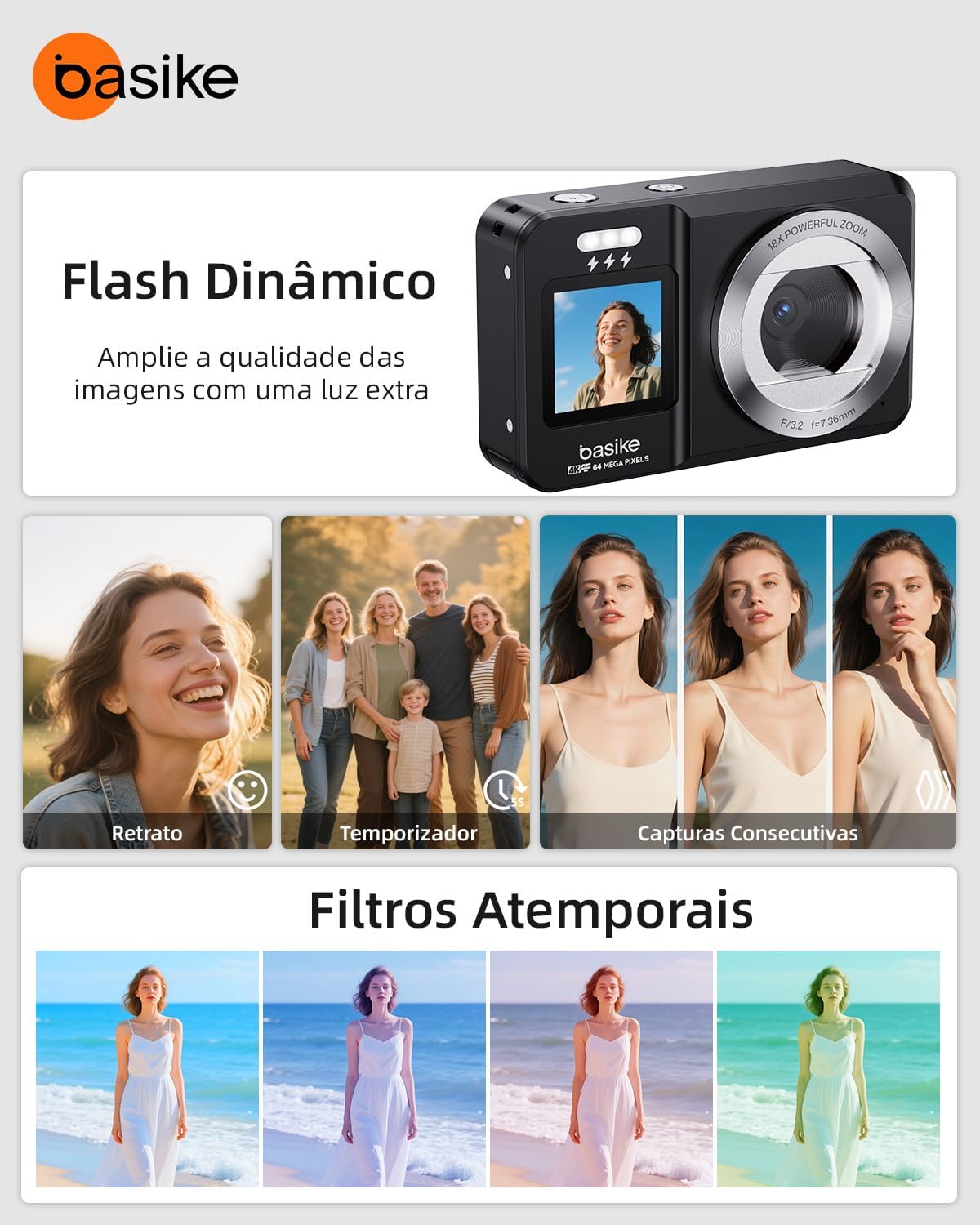
Figure 6: Dynamic flash and creative filter options.
6. Playback
In playback mode, you can review your captured photos and videos. Use the navigation buttons to scroll through files and the zoom buttons to enlarge images.
Maintenance
1. Cleaning
- Use the provided cleaning cloth to gently wipe the camera body and screens.
- For stubborn smudges, slightly dampen the cloth with water or a lens cleaning solution. Avoid harsh chemicals.
- Do not touch the lens directly with your fingers. Use a lens brush or air blower to remove dust.
2. Storage
- When not in use, store the camera in its carrying case to protect it from dust and scratches.
- Keep the camera in a cool, dry place, away from direct sunlight and extreme temperatures.
- If storing for an extended period, remove the battery.
Troubleshooting
This section addresses common questions and issues you might encounter.
- Q1: Does the 18X digital zoom affect image quality?
- The zoom magnifies up to 18 times. At very high magnifications, there may be a slight loss of sharpness, but the automatic focus helps maintain clarity.
- Q2: Can I use the camera as a webcam on my computer?
- Yes. Simply connect via USB cable and use it for video calls, meetings, or online classes.
- Q3: Does the dual screen facilitate selfies and vlogs?
- Yes. The front screen shows the framing in real-time, ideal for selfies, recordings, and vlogs, even in low-light environments thanks to the integrated flash.
- Q4: How long does the battery last?
- The 1200mAh rechargeable battery provides 30-45 minutes of continuous use and can be recharged via USB cable or power bank.
- Q5: Does the camera come with a memory card?
- Yes. It comes with a 32GB card ready for use, and it is also compatible with cards up to 128GB.
- Q6: The camera is not charging.
- Ensure the USB-C cable is securely connected to both the camera and the power source. Try a different USB port or power adapter. Verify that the battery is correctly inserted. If the issue persists, contact customer support.
Specifications
| Feature | Detail |
|---|---|
| Model | Ba-CAM315 |
| Sensor | CMOS, up to 64MP |
| Photo Resolution | JPG (3MP to 64MP) |
| Video Resolution | MP4 — 4K@30FPS, 2.7K@30FPS, 1080P@60/30FPS, 720P@120/60/30FPS |
| Zoom | 18X Digital Zoom |
| Focus Range | 1 meter to infinity |
| Lens | Fixed 3.76mm, F/3.2 aperture |
| ISO | Auto / 100 / 200 / 400 / 800 / 1600 / 3200 |
| Screens | Dual — Front 1.4", Rear 2.8" |
| Flash | Integrated, effective range <1.5m |
| Exposure Compensation | -3.0 to +3.0 EV |
| Timer | 3s / 5s / 10s / 20s / Off |
| Auto Power Off | 1, 3, 5 minutes, or manual |
| White Balance | Auto, Sunny, Cloudy, Incandescent, Fluorescent |
| Storage | SD/TF cards (8GB to 128GB) |
| Battery | 1200mAh, up to 30-45 min continuous use |
| Charging | USB-C, approx. 2 hours |
| Dimensions | 98 × 59 × 26 mm |
| Weight | 135g (camera only) |
| Material | Acrylonitrile Butadiene Styrene (ABS) |

Figure 7: Physical dimensions of the camera.
Warranty and Support
Your Basike Digital Camera comes with a 1-year warranty against manufacturing defects. For any technical assistance, product inquiries, or warranty claims, please contact our customer support team.
Customer Support: Available 24 hours a day, 7 days a week.
Please refer to the contact information provided on the Basike official website or your purchase documentation for specific support channels.