
1. Introduction
The Womier SK80 PRO is a 75% layout wireless mechanical gaming keyboard designed for versatility and performance. It features a vibrant color multimedia screen, 3-mode connectivity, hot-swappable switches, and customizable RGB lighting. This manual provides instructions for setup, operation, and maintenance of your keyboard.

Image: The Womier SK80 PRO keyboard in pink, shown with its matching wrist rest and mouse pad. Key features such as the multimedia screen, programming software, 3 connection modes, 4000mAh battery, hot-swappable switches, 16.8 million RGB, POM linear switches, and Mac/Win compatibility are highlighted.
2. Package Contents
Ensure all items are present in your package:
- Womier SK80 PRO 75% Mechanical Keyboard
- Wrist Rest
- Mouse Pad
- USB-C Cable
- 2.4G Wireless Receiver
- Keycap Puller
- Switch Puller
- User Manual

Image: Close-up of the included keycap and switch puller tools, essential for customization and maintenance.
3. Setup
3.1 Connectivity Modes
The Womier SK80 PRO supports three connection modes: Wired (USB-C), 2.4G Wireless, and Bluetooth.

Image: The keyboard is shown connected to a PC via USB-C, a laptop via 2.4G wireless, and a tablet via Bluetooth, illustrating its multi-device compatibility.
3.1.1 Wired Connection (USB-C)
- Locate the switch on the back of the keyboard. Set it to the 'USB' position.
- Connect the provided USB-C cable to the keyboard and your computer. The keyboard will automatically enter wired mode.
3.1.2 2.4G Wireless Connection
- Locate the switch on the back of the keyboard. Set it to the '2.4G' position.
- Press and hold FN + 0 for 3 seconds to enter pairing mode. The corresponding key will flash.
- Insert the 2.4G wireless receiver into a USB port on your computer.
- The keyboard will connect automatically. If no device is found after 20 seconds, the keyboard will enter sleep mode.
3.1.3 Bluetooth Connection
- Locate the switch on the back of the keyboard. Set it to the 'BT' position.
- Press and hold FN + W/E/R for 3 seconds to switch between Bluetooth devices (BT1/BT2/BT3). The corresponding key will flash rapidly, indicating pairing mode.
- On your device (computer, tablet, phone), search for Bluetooth devices and select 'Womier SK80 PRO'.
- The keyboard will connect automatically. If no device is found after 7 seconds, the keyboard will enter sleep mode.

Image: Close-up of the physical switches on the back of the keyboard for selecting Mac/Win mode and connectivity (BT, USB, 2.4G).
3.2 Operating System Mode Switch
Use the switch on the back of the keyboard to select between MAC and WIN modes for optimal compatibility with your operating system.
3.3 USB Receiver Storage
The 2.4G wireless USB receiver is magnetically stored in a dedicated slot on the underside of the keyboard for convenience and to prevent loss.

Image: A view of the underside of the keyboard, showing the magnetic storage slot for the 2.4G USB receiver.
4. Operating Instructions
4.1 Multimedia Screen Functions
The built-in color multimedia smart display screen can show time, connection status, battery level, and custom GIF images. The screen is ergonomically angled at 11° for better visibility.
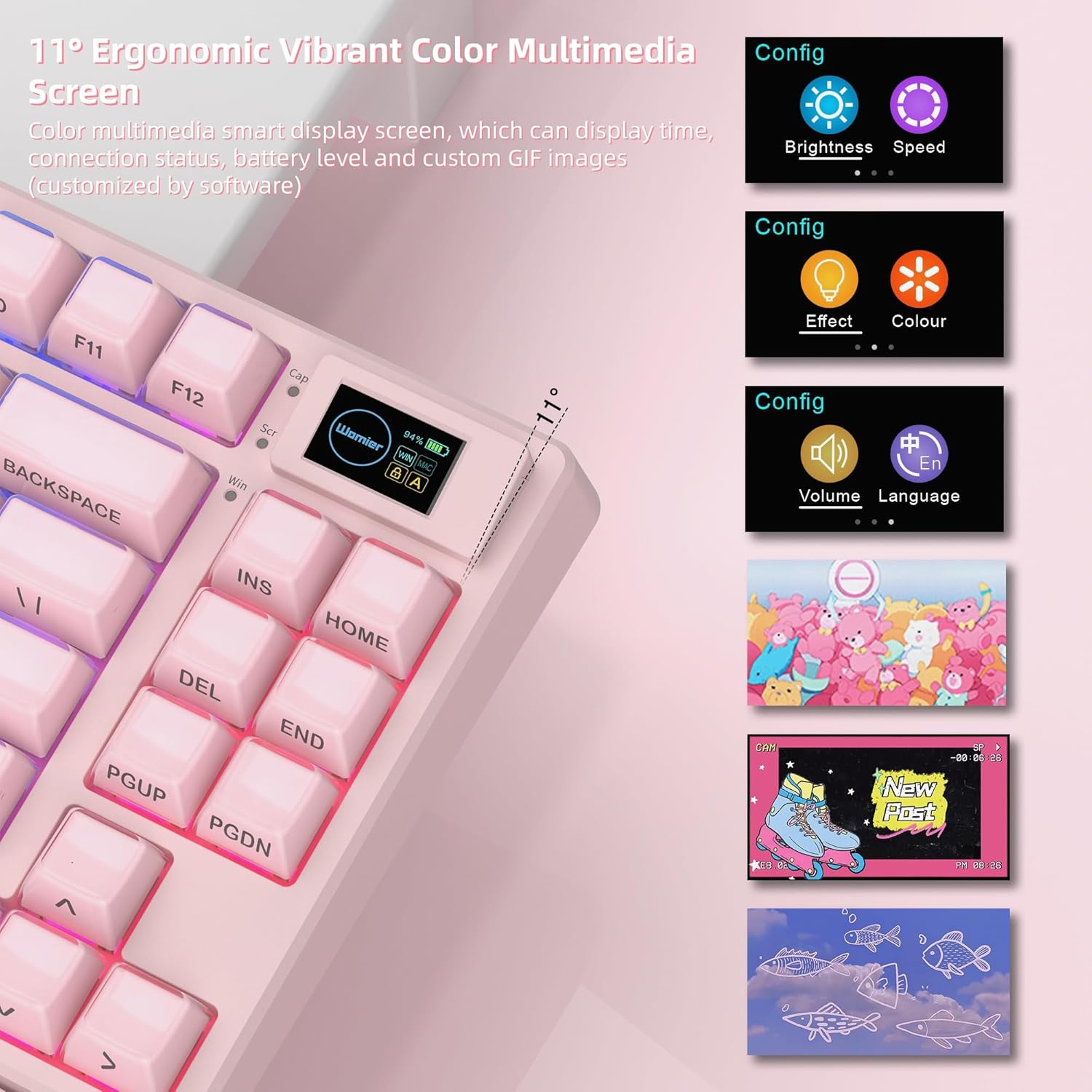
Image: Close-up of the keyboard's multimedia screen showing battery level and connection status, alongside examples of customization options for brightness, speed, lighting effects, color, volume, language, and custom GIF images.
4.2 RGB Customization and Programming Software
The keyboard features 16.8 million RGB backlight colors with south-facing LEDs for enhanced illumination. Dedicated programming software (for Windows systems) allows you to:
- Redefine key functions.
- Set up macros.
- Customize RGB lighting effects.
- Upload custom GIF images to the multimedia screen.

Image: A screenshot of the Womier SK80 PRO programming software, showing options for lighting modes, brightness, color palette, and macro settings. The keyboard's RGB lighting is visible.
Video: This video demonstrates the various RGB lighting effects and customization options available through the Womier SK80 PRO's software, showcasing how users can personalize their keyboard's appearance.
Video: This video provides a detailed overview of the Womier SK80 PRO keyboard, highlighting its pink design, multimedia screen, and various features including RGB lighting and hot-swappable switches.
4.3 Hot-Swappable Switches
The keyboard is equipped with Womier customized pre-lubed linear cream switches (POM material) that offer fast response and long keystroke life. The PCB supports 3-pin/5-pin switches, allowing you to replace switches according to your preferences without soldering.

Image: A close-up view of the keyboard with several keycaps removed, revealing the hot-swappable mechanical switches and the PCB. An illustration details the components of a Womier POM Linear Switch.
4.4 Gasket Mount Design
The keyboard features a gasket mount design with an EVA positioning plate and bottom filling. This construction provides a soft and responsive typing feel, enhancing the overall user experience.

Image: An exploded diagram illustrating the internal layers of the keyboard, including PE case foam, IXPE switch pad, EVA plate foam, PC plate, gasket, and pre-lubed stabilizers, which contribute to the gasket mount design.
5. Maintenance
To ensure the longevity and optimal performance of your Womier SK80 PRO keyboard, follow these maintenance guidelines:
- Cleaning: Use a soft, dry cloth to wipe down the keyboard surface. For deeper cleaning, remove keycaps using the provided keycap puller and clean the switches and plate with compressed air or a soft brush.
- Switch Care: If replacing switches, use the switch puller carefully to avoid damaging the PCB or switch pins. Ensure new switches are aligned correctly before pressing them into place.
- Battery: The keyboard is equipped with a 4000mAh battery. For best battery life, avoid fully discharging the battery frequently. Charge the keyboard using the provided USB-C cable.
6. Troubleshooting
6.1 Connectivity Issues
- Wireless Disconnection: Ensure the keyboard is within range of your device. Check battery level on the multimedia screen. Re-pair the device if necessary.
- 2.4G Receiver Not Detected: Try plugging the receiver into a different USB port. Ensure the keyboard is set to 2.4G mode and in pairing mode.
- Bluetooth Pairing Failure: Ensure Bluetooth is enabled on your device. Remove previous pairings of the keyboard from your device's Bluetooth settings and attempt to re-pair.
6.2 Key Functionality Issues
- Keys Not Responding: Check if the keyboard is in the correct operating system mode (Mac/Win). If using wireless, check battery level. If a specific key is not working, consider hot-swapping the switch with a known working one to diagnose if the issue is with the switch or the PCB.
- Incorrect Key Output: Ensure the keyboard is in the correct operating system mode. If using custom keybinds, check your programming software settings.
6.3 RGB Lighting Issues
- Lights Not Working: Ensure RGB lighting is enabled via the keyboard's function keys or programming software. Check brightness settings.
- Incorrect Colors/Effects: Use the programming software to reset or reconfigure your desired RGB settings.
7. Specifications
| Feature | Detail |
|---|---|
| Model | SK80 PRO |
| Layout | 75% |
| Connectivity | 2.4G Wireless, Bluetooth, USB-C Wired |
| Switches | Womier Pre-lubed Linear Cream Switches (POM) |
| Hot-Swappable | Yes (3-pin/5-pin) |
| Backlighting | 16.8 Million RGB, South-facing LED |
| Multimedia Screen | Color Smart Display (Time, Connection, Battery, Custom GIF) |
| Battery Capacity | 4000mAh Lithium Polymer |
| Compatible Devices | PC, Mac, Android, iOS |
| Package Dimensions | 15.35 x 6.73 x 2.91 inches |
| Item Weight | 2.99 pounds |
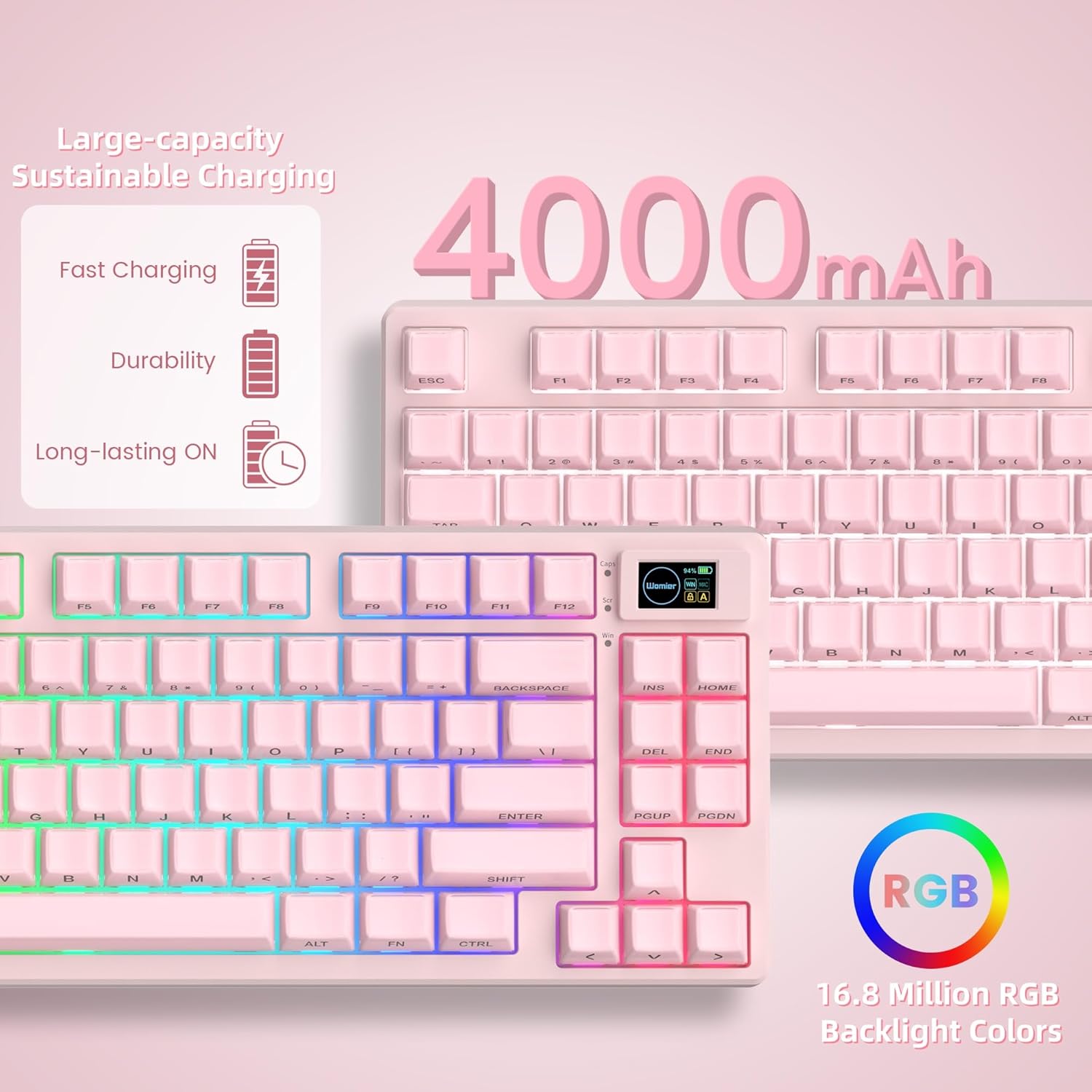
Image: The keyboard is shown with an overlay highlighting its 4000mAh battery, emphasizing fast charging, durability, and long-lasting operation.
8. Warranty and Support
For warranty information and technical support, please refer to the official Womier website or contact their customer service directly. Keep your purchase receipt for warranty claims.


