
1. Introduction and Overview
The ATK Wireless Dongle Series VXE 4K is designed to enhance the performance of compatible ATK wireless gaming mice. This dongle provides ultra-low latency and high polling rates, crucial for competitive gaming. This manual will guide you through the setup, operation, and maintenance of your VXE 4K dongle to ensure optimal performance.
2. Key Features
- Ultra-Low Latency Performance: Unlocks true esports-grade response with polling rates up to 4000 Hz.
- Model-Specific Compatibility: Specifically designed for select ATK wireless gaming mice, such as the VXE Dragonfly R1 Pro and Pro Max.
- USB-C Plug & Play: Compact form factor with a Type-C connection for easy setup on laptops or desktops; no drivers required for basic functionality.
- Stable & Reliable Connection: Built for competitive gaming, ensuring smooth tracking and consistent response during intense matches.
3. Setup Guide
Follow these steps to set up your ATK Wireless Dongle VXE 4K:
- Unpack the Dongle: Carefully remove the VXE 4K dongle from its packaging.
- Connect to PC: Insert the USB-C end of the dongle into an available USB-C port on your computer. If your computer only has USB-A ports, use a compatible USB-C to USB-A adapter (not included).
- Power On Mouse: Ensure your compatible ATK wireless gaming mouse is powered on and in pairing mode (refer to your mouse's manual for specific instructions).
- Automatic Pairing: The dongle and mouse should automatically pair. A successful connection is usually indicated by a steady light on the dongle or mouse (check device indicators).
- Software Installation (Optional): For advanced customization, such as adjusting DPI or polling rates, download and install the ATK software from the official ATK website.
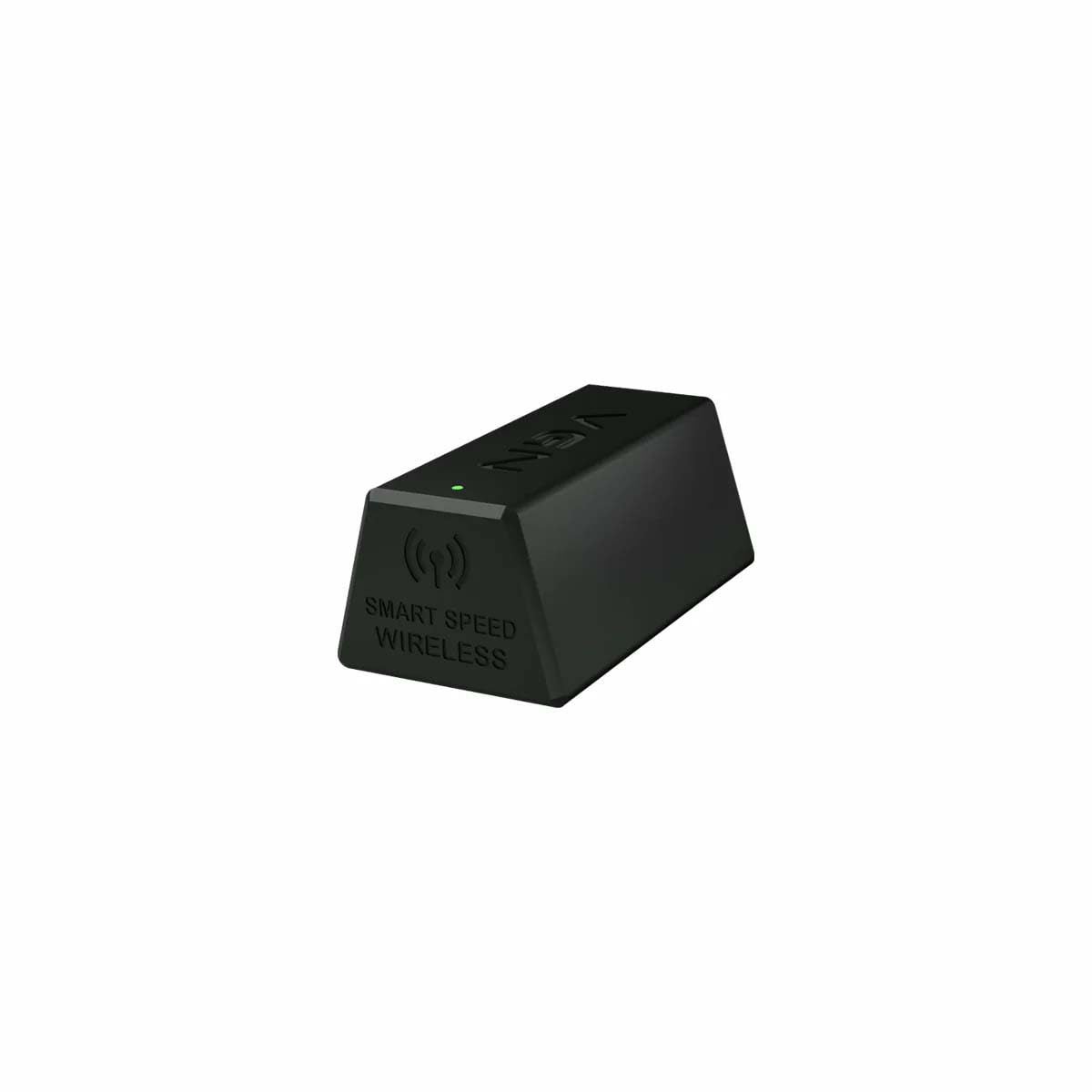
Image: The ATK Wireless Dongle VXE 4K, a compact USB-C device designed for high-performance wireless connectivity with gaming mice.
4. Operating Instructions
Once connected, your ATK Wireless Dongle VXE 4K operates seamlessly with your compatible ATK gaming mouse. The dongle facilitates the high-speed communication between your mouse and computer.
- Polling Rate: The VXE 4K dongle supports a polling rate of up to 4000 Hz, providing extremely fast response times. This setting can typically be adjusted via your mouse's dedicated software.
- DPI Adjustment: DPI (Dots Per Inch) settings are managed through your connected ATK gaming mouse or its accompanying software. The dongle transmits these settings to your computer.
- Stable Connection: Maintain a clear line of sight between the dongle and your mouse for the most stable connection. Avoid placing the dongle near other wireless devices that may cause interference.
5. Compatibility
The ATK Wireless Dongle VXE 4K is specifically designed to work with the following ATK wireless gaming mice:
- VXE Dragonfly R1 Pro
- VXE Dragonfly R1 Pro Max
For other ATK mice, please check the product specifications or the official ATK website for compatibility with other dongle variants (e.g., 1K, 8K, Nano 8K).
6. Specifications
| Feature | Detail |
|---|---|
| Brand | ATK |
| Model Number | VXE 4K |
| Hardware Interface | USB 3.0 Type C |
| Data Link Protocol | USB |
| Compatible Devices | Desktop (with compatible ATK mice) |
7. Troubleshooting
If you encounter issues with your ATK Wireless Dongle VXE 4K, try the following:
- No Connection:
- Ensure the dongle is fully inserted into a working USB-C port.
- Verify your ATK mouse is powered on and in pairing mode.
- Try a different USB-C port or a different USB-C to USB-A adapter.
- Restart your computer.
- Lag or Disconnections:
- Move the dongle closer to your mouse.
- Ensure there are no large metal objects or other wireless devices (e.g., Wi-Fi routers, other dongles) directly between the dongle and mouse that could cause interference.
- Update your mouse's firmware and software via the ATK application.
- Incorrect Polling Rate/DPI:
- Adjust settings using the official ATK mouse software.
- Ensure the software is up-to-date.
8. Maintenance
To ensure the longevity and optimal performance of your ATK Wireless Dongle VXE 4K:
- Keep the dongle clean and free from dust and debris. Use a soft, dry cloth for cleaning.
- Avoid exposing the dongle to extreme temperatures or moisture.
- Do not attempt to disassemble the dongle, as this will void the warranty.
9. Warranty and Support
The ATK Wireless Dongle VXE 4K comes with a 6-Month Warranty from the date of purchase. This warranty covers manufacturing defects under normal use.
For warranty claims, technical support, or further assistance, please contact ATK Gaming Gears directly through their official Amazon store or website. Please have your proof of purchase and model number (VXE 4K) ready when contacting support.
Online Resources:
- Visit the ATK Store on Amazon for product information and support.
10. Related Product Videos
ATK VXE Dragonfly R1 Gaming Mouse
Video: This video showcases the ATK VXE Dragonfly R1 Gaming Mouse, a compatible device for the ATK Wireless Dongle VXE 4K. It highlights the mouse's features and design, which benefits from the dongle's ultra-low latency connection.
ATK R1 Gaming Mouse Unboxing Video
Video: An unboxing video for the ATK R1 Gaming Mouse, demonstrating the contents of the mouse package. This video may show the ATK Wireless Dongle VXE 4K as an included accessory or its integration with the mouse.


