
1. Introduction
This manual provides detailed instructions for the installation, operation, and maintenance of your VECHTEL 4G+64G Android 15 2 DIN Car Radio. Please read this manual thoroughly before using the product to ensure proper function and safety. Keep this manual for future reference.
2. Package Contents
Carefully unpack the box and check that all items listed below are present and in good condition. If any items are missing or damaged, please contact VECHTEL customer support.
- 2 DIN Car Radio Unit
- Rear Camera
- External Microphone
- Instruction Manual
- GPS Antenna
- Power Cable
- RCA Cable
- USB Cable
- Rear Camera Input Cable
- 4G Module (if applicable)
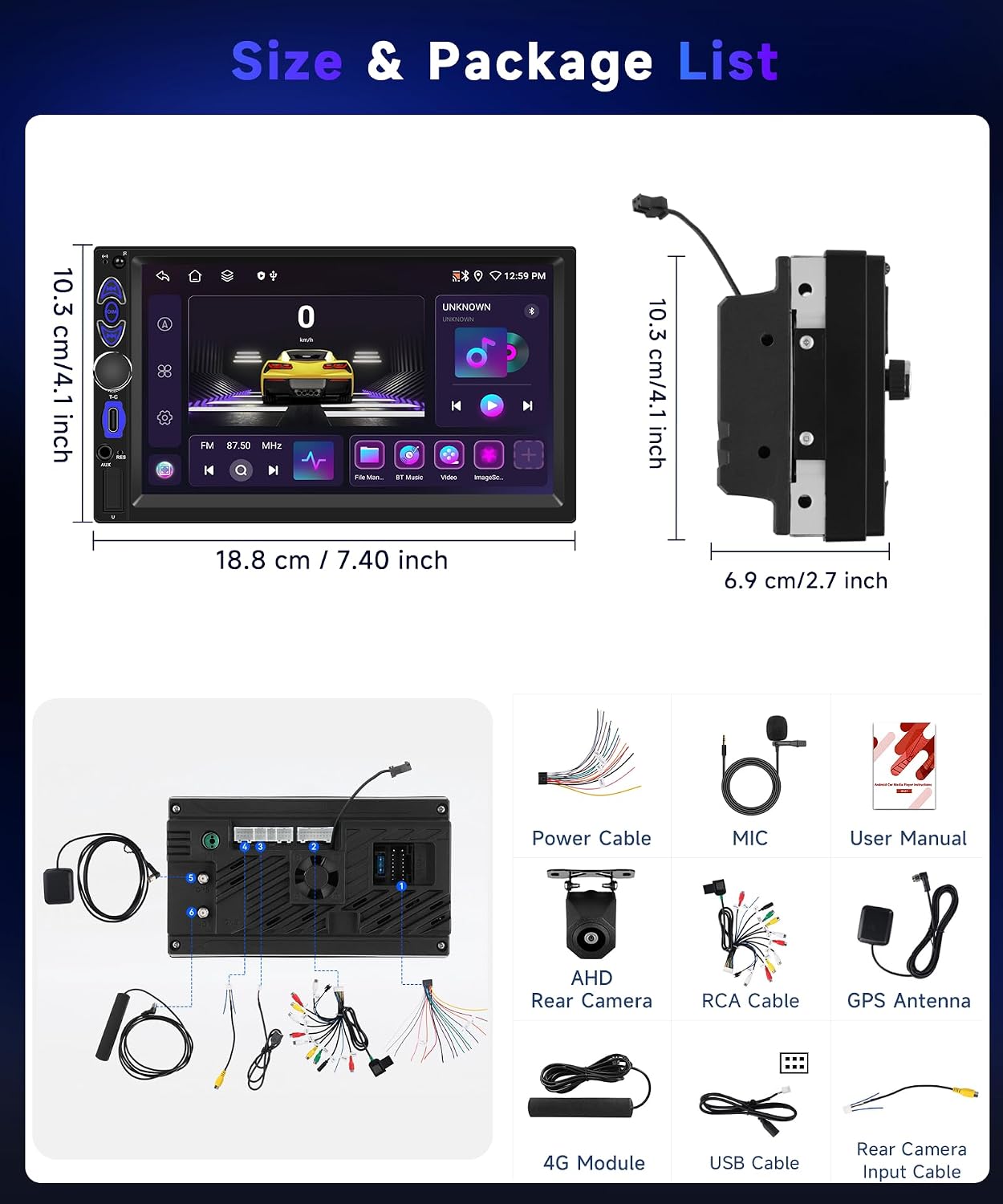
Image: Detailed view of the VECHTEL 2 DIN Car Radio and its included accessories, such as the power cable, GPS antenna, USB cable, RCA cables, rear camera, and external microphone.
3. Product Specifications
Below are the key technical specifications for your VECHTEL car radio:
| Operating System | Android 15 |
| RAM | 4 GB |
| Storage | 64 GB |
| Display | 7-inch HD Touchscreen (1024x600P) |
| Connectivity | Bluetooth 5.0, Wi-Fi, 4G, USB, Type-C |
| Special Features | Wireless CarPlay, Wireless Android Auto, GPS Navigation, DSP, Mirror Link, AM/FM/RDS Radio, Steering Wheel Control Support, Split Screen |
| Audio Output Power | 50 Watts per channel (4 channels), Total 200 Watts |
| Compatible Devices | Smartphone |
| Dimensions (L x W x H) | 17.8 x 6.9 x 10.3 cm (7.0 x 2.7 x 4.1 inches) |
| Weight | 700 g |
| Supported Formats | .jpg, AVI, Audio MP3, MPEG, WAV, WMA |
4. Installation Guide
Proper installation is crucial for the optimal performance and safety of your car radio. If you are unsure about any steps, it is recommended to seek professional assistance.
4.1. Pre-Installation Checks
- Ensure your vehicle's dashboard opening matches the standard 2 DIN size (178mm x 103mm or 7.0 x 4.1 inches).
- Disconnect the vehicle's battery before starting installation to prevent electrical shorts.
- Identify your vehicle's wiring harness. Adapters may be required for specific car models.
Image: Dimensions of the VECHTEL car radio unit, illustrating its 18.8 cm (7.40 inch) width, 10.3 cm (4.1 inch) height, and 6.9 cm (2.7 inch) depth.
4.2. Wiring Connections
Connect the provided cables according to the diagram and your vehicle's wiring. Ensure all connections are secure.
- Power Cable: Connect the yellow wire to constant 12V, red wire to accessory 12V, and black wire to ground.
- Speaker Wires: Connect the speaker wires to your vehicle's speakers, ensuring correct polarity.
- GPS Antenna: Mount the GPS antenna in a location with a clear view of the sky, typically on the dashboard or windshield.
- External Microphone: Plug the external microphone into the designated port for improved call quality.
- Rear Camera Input: Connect the rear camera's video output to the 'CAM IN' port and the trigger wire to your vehicle's reverse light circuit.
- USB/Type-C: Connect USB devices or charging cables to the respective ports.

Image: Front panel interface description showing buttons for power, next song, previous song, volume, USB card slot, AUX input, RES, and NAVI. Also shows USB and Type-C charging ports.
4.3. Backup Camera Installation
The included backup camera provides enhanced safety when reversing. Mount the camera at the rear of your vehicle, ensuring a clear view. Connect the camera's power to the reverse light circuit and its video cable to the car radio's rear camera input.

Image: Backup camera features including HD image, IP69 water resistance, wide-angle view, and night vision, with an example of its display on the car radio screen.
5. Operating Instructions
This section details the various functions and features of your VECHTEL car radio.
5.1. Basic Controls
- Power On/Off: Press the power button on the front panel to turn the unit on or off.
- Volume Control: Use the volume knob or on-screen controls to adjust the audio level.
- Navigation: The touchscreen allows for intuitive navigation through menus and applications.
5.2. Android 15 System
Your car radio runs on Android 15, providing a familiar smartphone-like interface. You can download and install various applications from the Google Play Store via Wi-Fi or 4G connection.

Image: Overview of key features including Android 15, Bluetooth 5.0, AM/FM/RDS radio, voice control, and steering wheel control.
5.3. Wireless CarPlay & Android Auto
Connect your iPhone or Android smartphone wirelessly to access CarPlay or Android Auto. This allows you to use navigation, make calls, send messages, and listen to music directly from your phone's interface displayed on the car radio screen.
- Ensure Bluetooth and Wi-Fi are enabled on your smartphone.
- On the car radio, select the CarPlay or Android Auto application.
- Follow the on-screen prompts to pair your device. Once paired, the connection will be automatic upon entering the vehicle.

Image: Wireless CarPlay and Android Auto functionality, demonstrating seamless smartphone integration for navigation, music, and calls.
5.4. GPS Navigation
The unit supports GPS navigation with both offline and online map capabilities. Online maps update automatically via Wi-Fi for real-time traffic information.
- Ensure the GPS antenna is properly installed.
- Access the navigation application from the main menu.
- For online maps, ensure a stable Wi-Fi or 4G connection.
5.5. Wi-Fi & 4G Connectivity
Connect to Wi-Fi networks or insert a 4G SIM card (if 4G module is present) to access online features such as streaming music, videos, app downloads, and real-time traffic updates.

Image: Wi-Fi and 4G connectivity features, enabling online video streaming, app downloads, and online map navigation. Also shows the customizable 7-color button lighting.
5.6. Bluetooth 5.0
Bluetooth 5.0 enables hands-free calling and wireless music streaming, enhancing driving safety and convenience.
- Enable Bluetooth on your smartphone and the car radio.
- Search for available devices on your phone and select the car radio's Bluetooth name to pair.
- Once paired, you can make/receive calls and play music wirelessly.
5.7. Mirror Link
Mirror Link allows you to project your smartphone's screen (both iOS and Android) onto the car radio display. This feature is useful for viewing videos, images, or using navigation apps directly from your phone.
- Connect your smartphone via USB or Wi-Fi (depending on the Mirror Link app).
- Follow the instructions on the car radio screen and your phone to establish the connection.
5.8. AM/FM/RDS Radio
The built-in radio supports AM, FM, and RDS (Radio Data System) functions, allowing you to listen to your favorite stations and view station information.
- Select the Radio application from the main menu.
- Use the scan function to find available stations or manually tune to a frequency.
- RDS provides information like station name, song title, and traffic announcements.
- DAB+ is supported with an optional DAB adapter (not included).

Image: Radio features including AM/FM/RDS, DAB+ (requires adapter), and split-screen mode for multitasking.
5.9. DSP Audio Processing
The Digital Sound Processor (DSP) allows for advanced audio customization, including equalizer settings, sound field adjustments, and bass enhancements, to optimize your listening experience.
- Access the DSP settings from the audio menu.
- Adjust the equalizer presets or create custom sound profiles.
5.10. Split Screen Function
The split-screen feature allows you to run two applications simultaneously on the display, for example, navigation on one side and music on the other.
- While an app is open, long-press the recent apps button or drag from the side (depending on Android version) to activate split-screen mode.
- Select a second app to open in the other half of the screen.
5.11. Steering Wheel Control
The unit supports steering wheel controls, allowing you to manage audio, calls, and other functions without taking your hands off the wheel. This requires proper wiring and configuration in the settings menu.
- Connect the steering wheel control wires from your vehicle to the corresponding inputs on the car radio.
- Navigate to the 'Steering Wheel Control' settings in the system menu to program the buttons.
5.12. Button Lighting
Customize the color of the physical buttons on the unit. There are 7 available colors and a cycle change option.
- Access the 'Button Lighting' settings in the system menu.
- Choose your preferred color or enable the automatic color cycling mode.
6. Maintenance
To ensure the longevity and optimal performance of your VECHTEL car radio, follow these general maintenance guidelines:
- Cleaning: Use a soft, dry cloth to clean the screen and exterior. For stubborn smudges, slightly dampen the cloth with water or a screen-safe cleaner. Avoid abrasive materials or harsh chemicals.
- Temperature: Avoid exposing the unit to extreme temperatures, direct sunlight for prolonged periods, or high humidity.
- Software Updates: Periodically check for software updates through the system settings to ensure you have the latest features and bug fixes.
- Power: Ensure the vehicle's electrical system is stable. Avoid frequent power fluctuations.
7. Troubleshooting
If you encounter any issues with your car radio, refer to the following common troubleshooting steps:
- No Power: Check all power connections (yellow, red, black wires). Ensure the vehicle's battery is charged and fuses are intact.
- No Sound: Verify speaker connections. Check volume levels and DSP settings. Ensure the mute function is not active.
- Touchscreen Unresponsive: Try restarting the unit. If the issue persists, a factory reset might be necessary (note: this will erase all user data).
- GPS Signal Lost: Ensure the GPS antenna is properly connected and has a clear view of the sky.
- Bluetooth/Wi-Fi Connection Issues: Ensure Bluetooth/Wi-Fi is enabled on both the car radio and your device. Try unpairing and re-pairing devices.
- Rear Camera Not Displaying: Check the camera's power and video connections. Ensure the reverse trigger wire is correctly connected.
If these steps do not resolve the issue, please contact VECHTEL technical support for further assistance.
8. Warranty and Technical Support
Your VECHTEL car radio comes with a 2-year warranty from the date of purchase, covering manufacturing defects.
VECHTEL specializes in automotive electronics and provides professional technical assistance. If you have any problems related to compatibility, installation, or usage, please do not hesitate to contact us at any time. Our team is dedicated to providing specialized support.
For support, please refer to the contact information provided with your purchase or visit the official VECHTEL website.
