1. Introduction
Thank you for choosing the CAMECHO 5-inch Motorcycle Wireless CarPlay & Android Auto Screen. This device is designed to enhance your riding experience by providing seamless integration with your smartphone, offering navigation, music, communication, and more, all accessible through a waterproof touchscreen display. This manual provides essential information for proper installation, operation, and maintenance of your new device.
2. Safety Information
- Always prioritize road safety. Do not operate the device in a manner that distracts you from riding.
- Ensure the device is securely mounted and all connections are firm before riding.
- The device is IP67 waterproof, meaning it is protected against dust and temporary immersion in water. However, avoid prolonged submersion or high-pressure water jets.
- Operating temperature range is between -4°F and 158°F (-20°C and 70°C). Do not expose the device to temperatures outside this range.
- Consult a professional for installation if you are unsure about electrical wiring.
3. Package Contents
Please verify that all items listed below are included in your package:
- CAMECHO 5-inch Motorcycle Display Unit
- Power Cable (ACC +12V and Ground)
- Mounting Bracket Kits and Accessories
- Installation Tool (Screwdriver)
- User Manual (this document)

Image: Detailed view of the package contents, showing the display unit, power cable, mounting hardware, user manual, and a screwdriver.
4. Setup and Installation
Follow these steps to install your CAMECHO motorcycle display:
- Mounting the Display: Use the provided bracket kits and tools to securely mount the 5-inch display on your motorcycle's handlebars. The bracket is designed for easy adjustment to achieve an optimal viewing angle.
- Power Connection: Connect the power cable. The wiring is simple: connect the ACC wire to a switched +12V power source on your motorcycle, and the Ground wire to a suitable ground point. Ensure all connections are secure to prevent power interruptions.
- Initial Power On: Once connected, turn on your motorcycle's ignition. The display should power on automatically.

Image: Illustration of the display's adjustable mounting stand and its placement on a motorcycle handlebar, highlighting ease of installation.
5. Operating Instructions
5.1 Wireless CarPlay & Android Auto
The device supports wireless Apple CarPlay and Android Auto, allowing you to access your phone's features safely while riding.
- Ensure your smartphone's Bluetooth and Wi-Fi are enabled.
- On the CAMECHO display, select the CarPlay or Android Auto icon.
- Follow the on-screen prompts to pair your phone. Once paired, your phone's interface will appear on the display.
- Use the touchscreen or voice commands (Siri/Google Assistant) to navigate apps, make calls, and play music.

Image: The 5-inch display showing active Wireless CarPlay and Wireless Android Auto screens with various application icons.
5.2 Bluetooth Connection
Connect your Bluetooth helmet or earpiece for audio output and hands-free communication.
- On the display, navigate to the Bluetooth settings.
- Enable Bluetooth on your helmet or earpiece and set it to pairing mode.
- Select your device from the list on the CAMECHO display to pair.
- Once connected, audio from the display (e.g., navigation, music, calls) will be routed to your Bluetooth audio device.
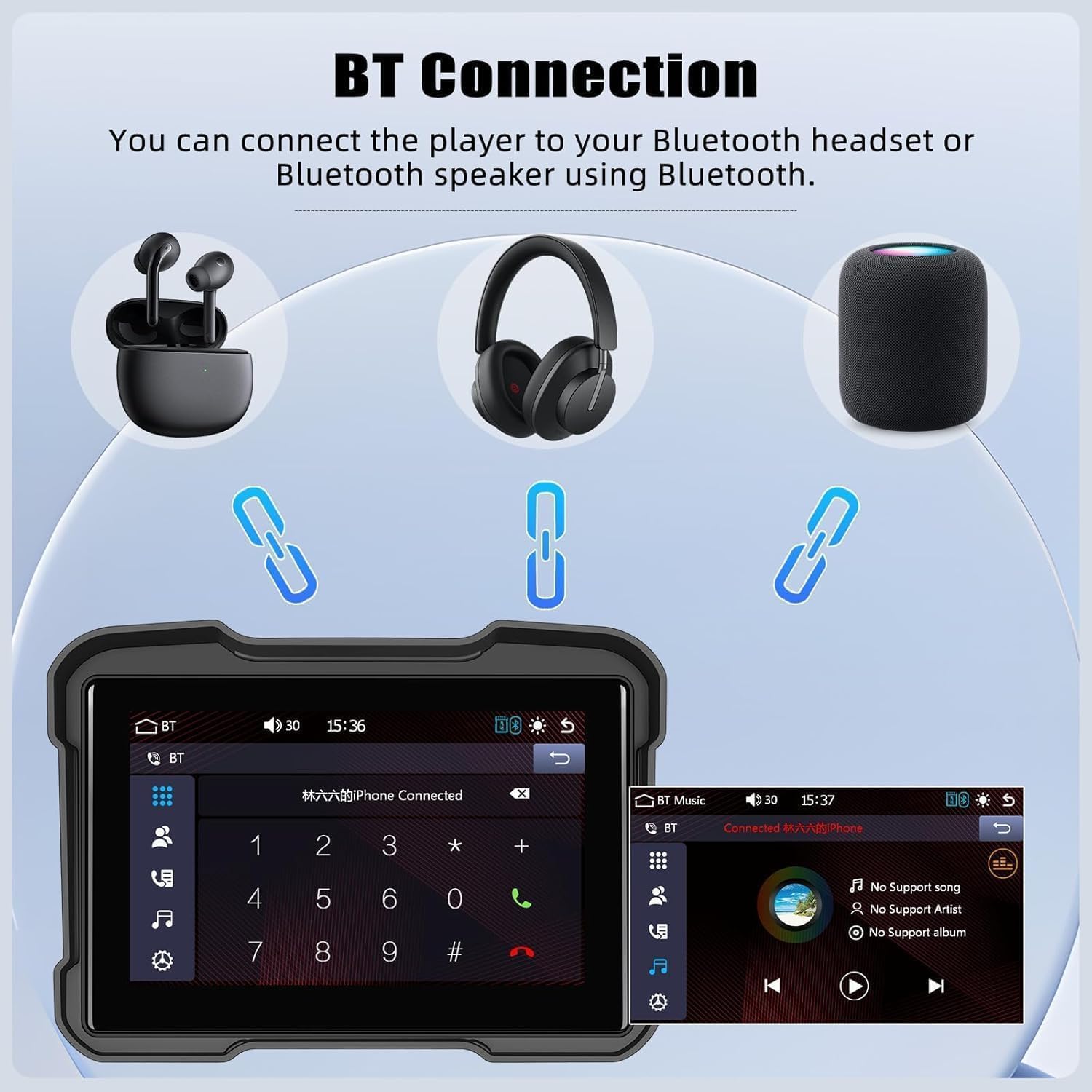
Image: The display's Bluetooth interface, illustrating connection to a Bluetooth headset and a Bluetooth speaker.
5.3 Voice Control (Siri/Google Assistant)
Utilize voice commands for safer operation while riding.
- When CarPlay or Android Auto is active, you can activate Siri or Google Assistant by saying "Hey Siri" or "Hey Google" (if enabled on your phone) or by tapping the voice assistant icon on the screen.
- Issue commands such as "Navigate home," "Call Jackson," or "Play music."

Image: The display demonstrating voice control functionality with Siri and Google Assistant, showing example commands like 'Hey Siri, open the map' and 'Google, navigate home'.
5.4 EQ Function
Customize your audio experience with the built-in equalizer.
- Access the EQ settings through the display's menu.
- Adjust different frequency ranges to tailor the sound output to your preferences.

Image: The display showing the EQ function interface, allowing users to adjust audio frequency bands for a customized listening experience.
5.5 TF Card Reading Function
Play media directly from a TF (MicroSD) card.
- Insert a TF card (optional, not included) into the designated slot on the device.
- The display will detect the card and allow you to browse and play stored images, videos, and music files.

Image: The display unit with a TF card slot indicated, showing media types (images, videos, music) that can be played from the card.
5.6 Mirror Link (Android Cast / Airplay)
Mirror your smartphone screen directly to the display.
For Android Cast:
- Download and open the 'Mirroring' app on your Android phone.
- Turn off Wi-Fi on your phone. Turn on your phone's hotspot, set the hotspot name to 'car', and the password to '12345678'.
- Click 'Start now' in the app to begin casting.
For Airplay (iOS):
- Open your iPhone's Wi-Fi settings and connect to the display's Wi-Fi network.
- Pull down from the top-right corner (or bottom for older models) to access Control Center and find 'Screen Mirroring'.
- Select the display to cast your screen.

Image: Visual guide detailing the steps for connecting Android phones via 'Android Cast' and iPhones via 'Airplay' for screen mirroring.
6. Maintenance
- Cleaning: Use a soft, damp cloth to clean the screen and exterior. Avoid abrasive cleaners or solvents that may damage the surface.
- Waterproof Seal: Regularly inspect the waterproof seals and covers (e.g., for the TF card slot) to ensure they are intact and properly closed to maintain IP67 rating.
- Storage: If storing the motorcycle for an extended period, consider disconnecting the device or ensuring it is protected from extreme temperatures.
7. Troubleshooting
If you encounter issues with your CAMECHO display, refer to the following common problems and solutions:
| Problem | Possible Cause | Solution |
|---|---|---|
| Device does not power on. | Incorrect power wiring; Blown fuse; Loose connection. | Check ACC +12V and Ground connections. Verify the motorcycle's fuse. Ensure all cables are securely connected. |
| Cannot connect to CarPlay/Android Auto wirelessly. | Phone's Wi-Fi/Bluetooth off; Incorrect pairing steps; Interference. | Ensure phone's Wi-Fi and Bluetooth are on. Re-attempt pairing process. Move away from strong interference sources. |
| No audio from Bluetooth helmet/earpiece. | Helmet/earpiece not paired; Volume too low; Intercom conflict. | Confirm successful Bluetooth pairing. Increase volume on both devices. If using an intercom, ensure it's not interfering with the display's Bluetooth audio output. Some intercom systems may require specific settings to allow external audio. |
| Screen is unresponsive or frozen. | Software glitch; Temporary error. | Perform a soft reset by holding the power button (if available) or by turning off and on the motorcycle's ignition. |
| Poor screen visibility in sunlight. | Direct glare. | Adjust the screen angle using the mounting bracket. The display features an anti-glare screen designed for outdoor use. |
8. Specifications
| Feature | Detail |
|---|---|
| Product Dimensions | 10 x 6 x 3 inches |
| Item Weight | 1.32 pounds |
| ASIN | B0FNM6B414 |
| Manufacturer | CAMECHO |
| Brand | CAMECHO |
| Vehicle Service Type | Motorcycle |
| Screen Size | 5 Inches |
| Special Feature | Built-In Bluetooth, Waterproof |
| Connectivity Technology | Bluetooth |
| Map Type | Worldwide (via connected smartphone) |
| Included Components | Dashboard Mount (Motorcycle Handlebar Mount) |
| Audio Output Mode | Stereo |
| Mounting Type | Dashboard Mount (Motorcycle Handlebar Mount) |
| Operating System | Android (Internal OS for device functions, supports CarPlay/Android Auto) |
| Waterproof Rating | IP67 |
| Operating Temperature | -4°F to 158°F (-20°C to 70°C) |
9. Warranty and Support
CAMECHO is committed to providing high-quality automotive intelligent terminals and excellent customer service.
- Return Policy: This product is eligible for a 30-day refund or replacement policy. Please refer to your purchase platform for specific details.
- Technical Support: For any technical assistance, questions, or concerns not covered in this manual, please contact CAMECHO customer support.
You can reach our support team via email at: camechovip@126.com
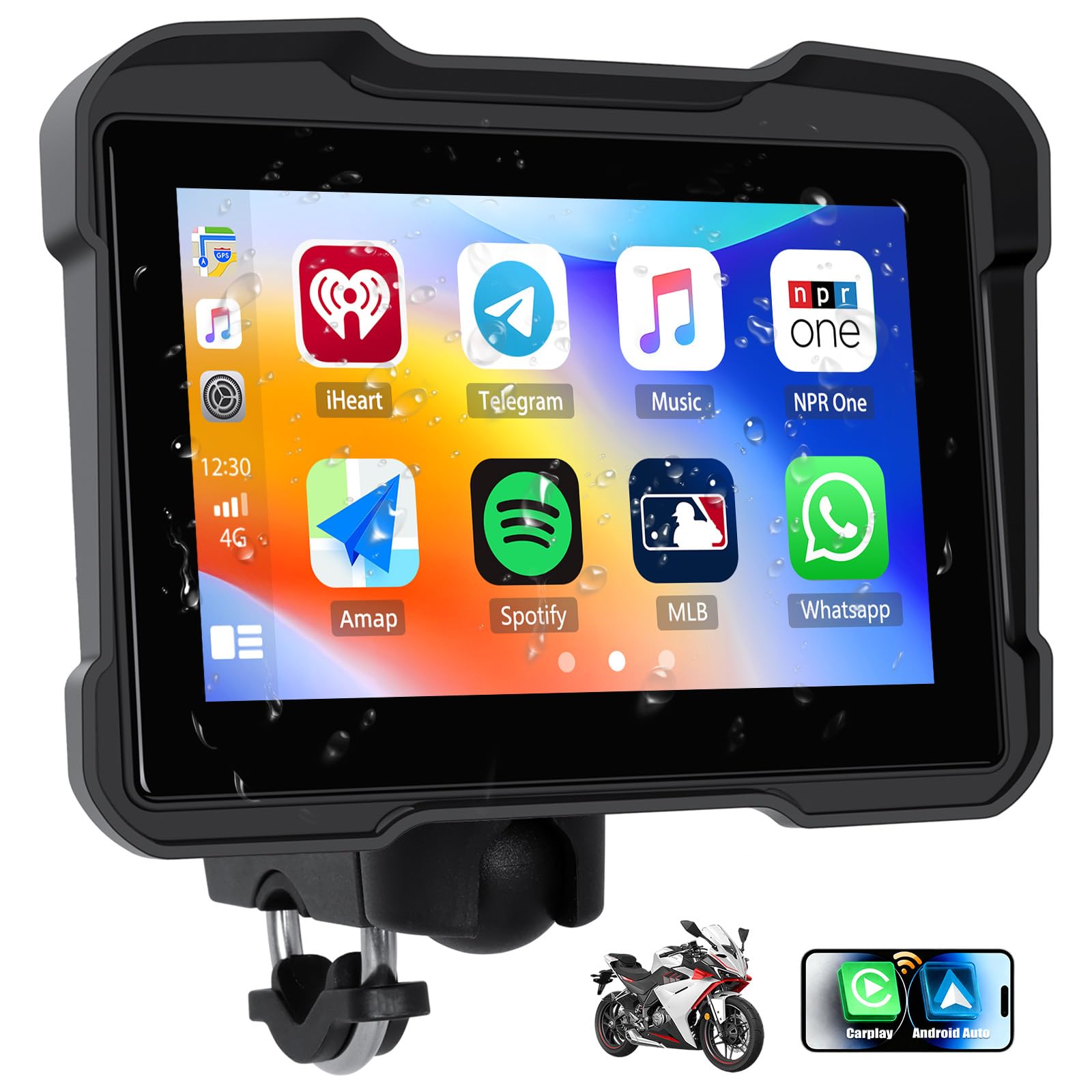
Image: Information regarding CAMECHO's 24-hour premium customer service, highlighting the email address for support inquiries.


