Introduction
This manual provides essential information for the safe and efficient use of your Sony FW-65BZ40L Professional Display. Please read these instructions thoroughly before operating the unit and retain them for future reference. The Sony FW-65BZ40L is a 65-inch professional display designed for various commercial environments, offering 4K resolution, high contrast, and a broad color range for captivating visuals.
Setup
1. Unpacking
Carefully remove the display from its packaging. Ensure all components listed in the packing materials are present. It is recommended to retain the original packaging for potential future transport or service.
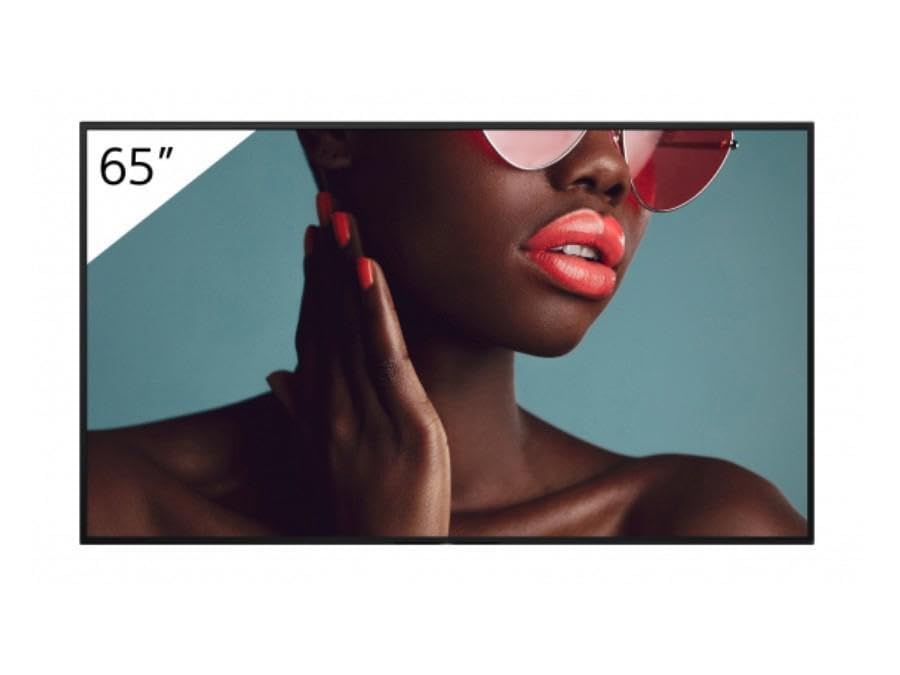
Image: Front view of the Sony FW-65BZ40L Professional Display, showcasing its slim bezel and screen.
2. Mounting and Placement
The FW-65BZ40L offers adaptable mounting options. Refer to the separate mounting guide (if provided) for detailed instructions on wall mounting or stand installation. Ensure the display is placed on a stable, level surface or securely mounted to a wall structure capable of supporting its weight. Allow adequate ventilation around the display.
3. Connections
- Power Connection: Connect the power cord securely to the display's power input and then to a suitable AC power outlet.
- Input Sources: Connect your video sources (e.g., computers, media players) to the display's HDMI or other available input ports. Ensure cables are securely fastened.
- Network Connection: For network features, connect an Ethernet cable to the LAN port or proceed with Wi-Fi setup during initial configuration.
4. Initial Power On
Press the power button on the display or the remote control. Follow the on-screen prompts for initial setup, which may include language selection, network configuration, and basic display settings.
Operating Instructions
1. Basic Operation
- Power On/Off: Use the power button on the display or remote control.
- Input Selection: Use the "Input" or "Source" button on the remote to switch between connected devices (e.g., HDMI 1, HDMI 2).
- Menu Navigation: Use the arrow keys and "Enter" button on the remote to navigate the on-screen menu.
2. Picture Settings
Access the "Picture" or "Display" settings in the main menu to adjust parameters such as brightness, contrast, color, sharpness, and backlight. The display features advanced processing for superior visuals and Motionflow XR for smooth motion in fast scenes.
3. Connectivity (Wi-Fi, Chromecast)
The FW-65BZ40L includes built-in Wi-Fi and Chromecast for easy wireless content sharing. To set up Wi-Fi, navigate to Network Settings in the menu and select your wireless network. For Chromecast, ensure your device is on the same network as the display and use a compatible application to cast content.
4. Professional Modes
This display is equipped with professional modes and settings for easy content management and integration into commercial systems. Refer to the advanced settings menu for options related to scheduling, input locking, and other professional features.
Maintenance
1. Cleaning the Display
- Screen: Gently wipe the screen with a soft, lint-free cloth. For stubborn marks, slightly dampen the cloth with water or a screen-specific cleaning solution. Do not spray liquid directly onto the screen.
- Casing: Wipe the casing with a soft, dry cloth. Avoid using abrasive cleaners or solvents.
2. Continuous Operation
The FW-65BZ40L is engineered for continuous 24/7 operation. Ensure proper ventilation to prevent overheating, especially in enclosed spaces. Regular software updates, when available, can help maintain optimal performance.
Troubleshooting
If you encounter issues with your display, refer to the following common problems and solutions:
| Problem | Possible Cause / Solution |
|---|---|
| No Power | Check if the power cord is securely connected to both the display and the power outlet. Verify the power outlet is functional. |
| No Picture / "No Signal" Message | Ensure the input source (e.g., HDMI cable) is correctly connected. Select the correct input source using the remote control. Check the source device is powered on. |
| Poor Picture Quality | Adjust picture settings (brightness, contrast, sharpness). Ensure the input source is providing a high-quality signal. Check cable connections. |
| Wi-Fi Connectivity Issues | Ensure the Wi-Fi router is on and within range. Re-enter the Wi-Fi password. Restart the display and router. |
If the problem persists after trying these solutions, please contact Sony customer support.
Specifications
| Feature | Detail |
|---|---|
| Brand | Sony |
| Model | FW-65BZ40L |
| Screen Size | 65 Inches |
| Resolution | 4K UHD 2160p |
| Aspect Ratio | 16:9 |
| Image Contrast Ratio | 1200:1 |
| Connectivity | Built-in Wi-Fi, Chromecast |
| Operation | Designed for 24/7 continuous use |
Warranty and Support
Your Sony FW-65BZ40L Professional Display is covered by a limited warranty. Please refer to the warranty card included with your product or visit the official Sony support website for detailed warranty terms and conditions. For technical assistance, troubleshooting beyond this manual, or service requests, please contact Sony customer support through their official channels.
Online Support: Visit the Sony support website for FAQs, drivers, and software updates.
Telephone Support: Contact the Sony customer service hotline for direct assistance.


