
1. Introduction
This manual provides detailed instructions for the setup, operation, and maintenance of your Dragolftie FHD-215T 21.5-inch Touchscreen Monitor. Please read this manual thoroughly before using the product to ensure proper functionality and to prevent damage.

Image 1.1: Overview of the Dragolftie 21.5 Inch FHD Touch Screen Monitor highlighting its main features.
2. Package Contents
Verify that all items listed below are included in your product package. If any items are missing or damaged, please contact customer support.
- 21.5 Inch Touch Monitor
- Power Adapter
- HDMI Cable
- Type-B Cable (for touch functionality)
- Bracket
- Base
- Instruction Manual
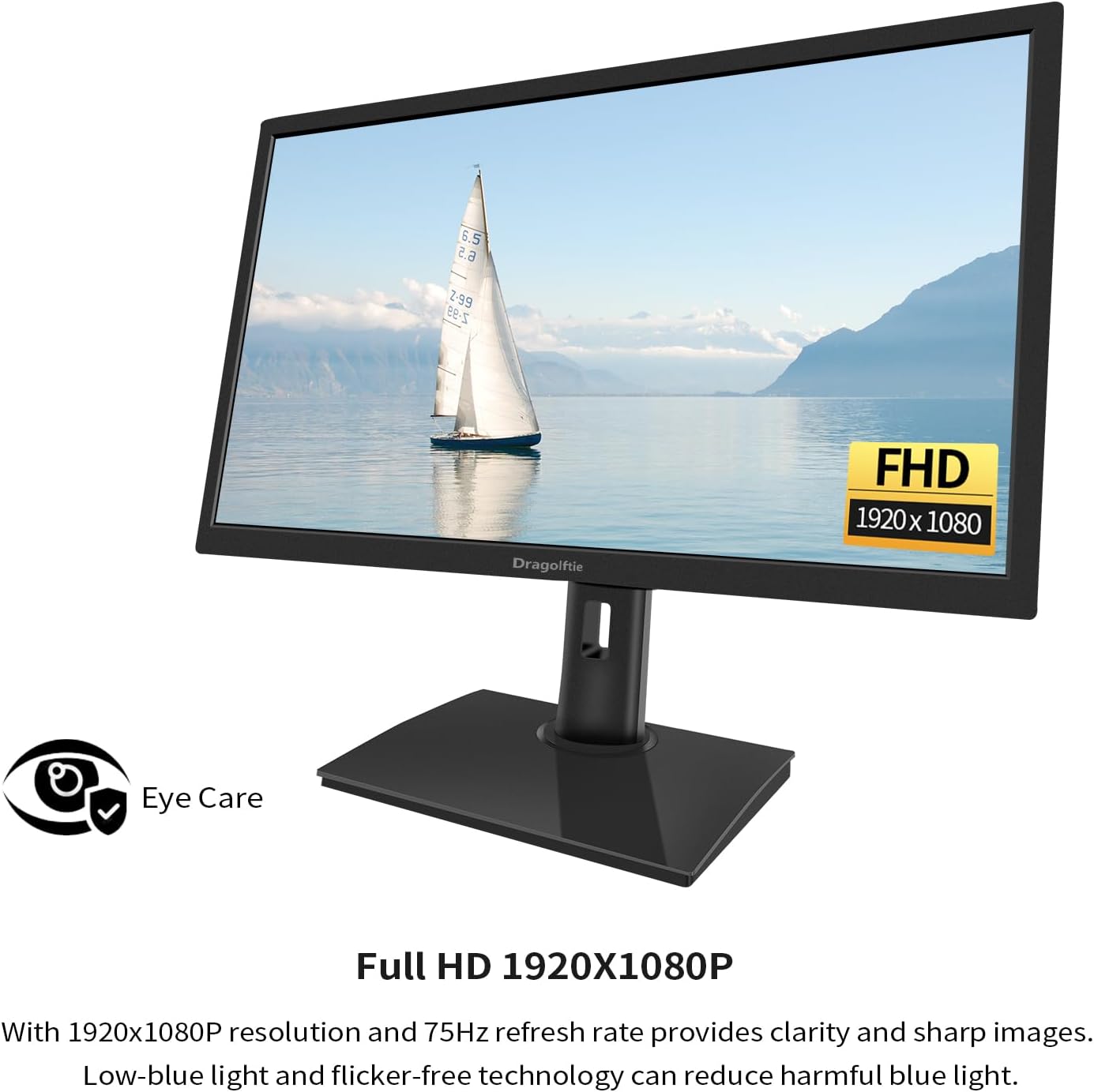
Image 2.1: All components included in the Dragolftie monitor package.
Video 2.1: This video demonstrates the unboxing and identification of all included components for the 21.5-inch Tilt Adjustable Touch Monitor.
3. Setup Instructions
3.1 Stand Assembly
Assemble the monitor stand by attaching the bracket to the base, then securely fasten the monitor to the assembled stand. Ensure all screws are tightened to prevent wobbling.
3.2 VESA Mounting
The monitor supports 75x75mm VESA mounting standards. If you prefer to mount the monitor on a wall or an alternative arm, remove the pre-attached stand and use compatible VESA mounting hardware (not included).

Image 3.1: VESA mounting compatibility for the monitor.
3.3 Connecting Cables
Connect the necessary cables to your monitor and computer:
- Power: Connect the power adapter to the monitor's DC port and then to a power outlet.
- Video: Connect the HDMI cable from your computer's HDMI output to the monitor's HDMI input. Alternatively, use a VGA cable for VGA connections.
- Touch Functionality: To enable touch functionality, connect the Type-A to Type-B cable from your computer's USB-A port to the monitor's Type-B port.
- Audio: If using the built-in speakers, ensure the HDMI cable is connected. An additional audio cable is not required for HDMI audio.

Image 3.2: Monitor interface button and port descriptions.
Video 3.1: This video demonstrates how to connect the cables to enable the touch function of the monitor.
4. Operating Instructions
4.1 Power On/Off
Press the power button located on the monitor's side or rear panel to turn the monitor on or off.
4.2 Touch Functionality
The monitor features responsive 10-point touch technology for intuitive interaction. Use gestures such as tapping, dragging, enlarging, and narrowing directly on the screen.
- Note: Touch functionality is not supported on gaming devices, Apple devices, XP system, and Linux system.

Image 4.1: Demonstration of 10-point capacitive touch on the monitor.
4.3 Adjusting the Stand
The monitor stand offers versatile adjustments for optimal viewing comfort:
- Height: Adjust the monitor height from 0-110mm.
- Pivot: Rotate the screen -90° to 0° for portrait mode.
- Swivel: Swivel the monitor -45° to 45° horizontally.
- Tilt: Tilt the screen -5° to 25° vertically.

Image 4.2: Ergonomic and adjustable stand features.
Video 4.1: This video demonstrates the height, pivot, swivel, and tilt adjustments of the monitor stand.
4.4 Portrait Mode Activation
While the stand supports -90° to 0° rotation, the display mode does not automatically adjust. You must manually change the display settings on your connected device:
- Rotate the monitor physically to the desired portrait orientation (-90°).
- On your device, navigate to display settings.
- Change the display mode from "Landscape" to "Portrait (Flip)".
Image 4.3: Instructions for setting the monitor to portrait mode.
Video 4.2: This video demonstrates how to set the monitor to portrait mode through device settings.
4.5 Using Built-in Speakers
The monitor includes dual built-in speakers for audio output. Ensure your device is connected via HDMI to utilize the speakers. No external audio cables are needed for HDMI audio.

Image 4.4: Monitor with dual built-in speakers for clear audio.
4.6 Display Settings
The monitor offers a 75Hz refresh rate for smooth visuals and 99% sRGB color coverage for accurate color reproduction. It also features low-blue light and flicker-free technology to reduce eye strain during extended use.

Image 4.5: Full HD resolution and eye care features.
5. Maintenance
To ensure the longevity and optimal performance of your monitor, follow these maintenance guidelines:
- Cleaning the Screen: Use a soft, lint-free cloth slightly dampened with water or a specialized screen cleaner. Avoid using harsh chemicals, abrasive materials, or alcohol-based cleaners, as these can damage the screen surface.
- Cleaning the Casing: Wipe the monitor casing with a soft, dry cloth.
- Ventilation: Ensure the monitor's ventilation openings are clear and unobstructed to prevent overheating.
- Storage: When not in use for extended periods, store the monitor in a cool, dry place, ideally in its original packaging to protect it from dust and physical damage.
6. Troubleshooting
If you encounter issues with your monitor, refer to the following common problems and solutions:
| Problem | Possible Cause | Solution |
|---|---|---|
| No display/Power LED off | Power cable disconnected or power outlet issue. | Check power cable connections and try a different power outlet. |
| No signal | Video cable disconnected or incorrect input selected. | Ensure HDMI/VGA cable is securely connected. Select the correct input source using the monitor's menu buttons. |
| Touch function not working | Type-B USB cable disconnected or incompatible operating system. | Verify the Type-A to Type-B USB cable is connected to both the monitor and your computer. Note that touch functionality is not supported on gaming devices, Apple devices, XP, or Linux systems. |
| No sound from built-in speakers | HDMI cable not connected or audio settings on device. | Ensure the HDMI cable is connected. Check your computer's audio output settings to confirm the monitor is selected as the output device. |
| Screen orientation incorrect in portrait mode | Device display settings not adjusted. | After physically rotating the monitor, adjust your device's display settings from "Landscape" to "Portrait (Flip)". |
If the issue persists after attempting these solutions, please contact customer support for further assistance.
7. Specifications
| Feature | Detail |
|---|---|
| Model Number | FHD-215T |
| Screen Size | 21.5 Inches |
| Resolution | 1920 x 1080 Pixels (FHD 1080p) |
| Aspect Ratio | 16:9 |
| Panel Type | TN Panel |
| Refresh Rate | 75Hz |
| Brightness | 250 cd/m² |
| Contrast Ratio | 1000:1 |
| Color Gamut | 99% sRGB |
| Touch Technology | 10-Point Capacitive Touch |
| Screen Surface | Glossy |
| Connectivity | 1x HDMI, 1x VGA, 1x Type-B USB (for touch) |
| Audio | 2x Built-in Speakers |
| Stand Adjustments | Height (0-110mm), Pivot (-90°-0°), Swivel (-45°-45°), Tilt (-5°-25°) |
| VESA Compatibility | 75x75mm |
| Eye Protection | Low-blue light and flicker-free technology |
| Product Dimensions | 1.57 x 20 x 12 inches |
| Item Weight | 11.08 pounds |
8. Warranty and Support
For warranty information or technical support, please refer to the warranty card included in your package or visit the official Dragolftie website. You may also contact your retailer for assistance.
Please retain your proof of purchase for any warranty claims.


