1. Introduction
This manual provides essential information for the setup, operation, and maintenance of your iiyama LEVEL INFINITY Gaming Desktop PC, model LEVEL-M88M-265F-SSSXM-WHITE. Please read this manual thoroughly before using the product to ensure proper and safe operation.
The iiyama LEVEL INFINITY gaming desktop PC features an NVMe M.2 SSD, offering superior high performance and space efficiency. This storage device utilizes large-capacity flash memory, serving as a high-speed alternative to traditional hard drives. Its NVMe connection enables operations significantly faster than standard 2.5-inch SSDs, ensuring quick boot times and rapid application loading.
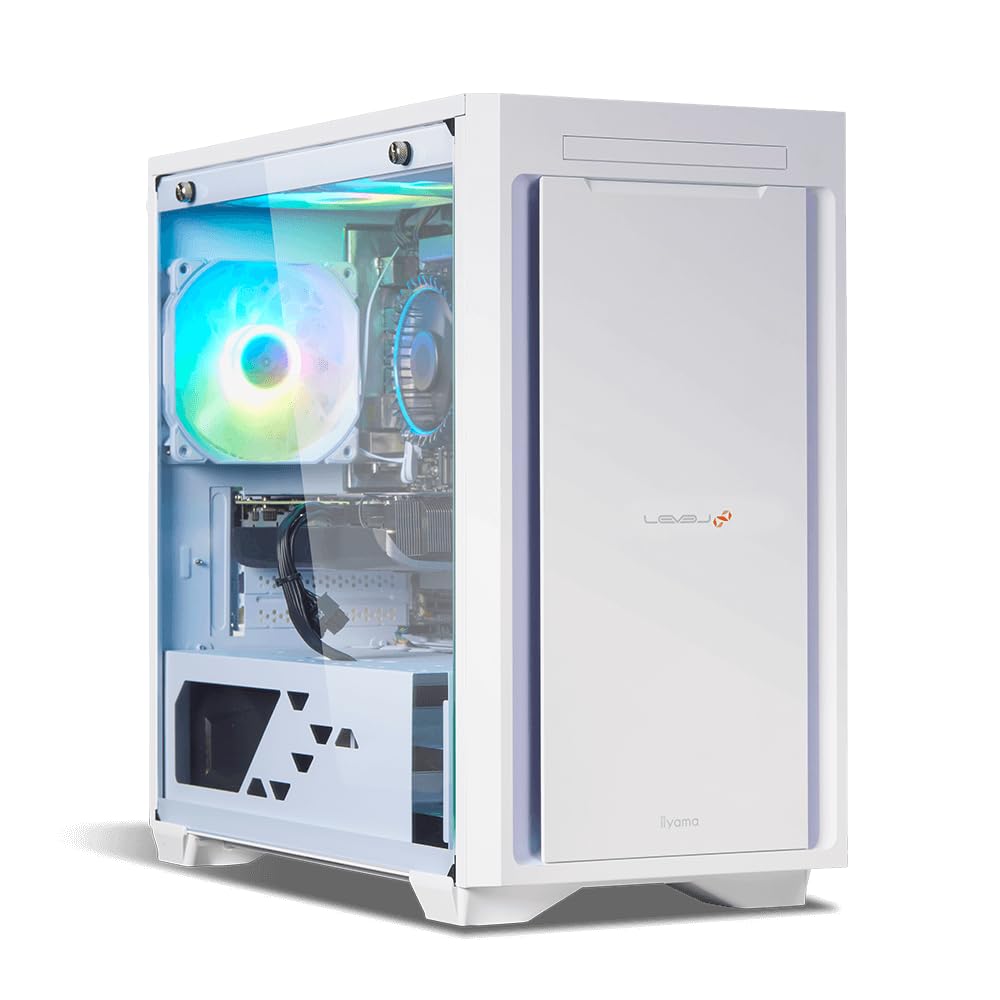
Figure 1: iiyama LEVEL INFINITY Gaming Desktop PC (Model LEVEL-M88M-265F-SSSXM-WHITE). This image shows the front and side of the white desktop tower, highlighting its sleek design and internal components visible through the transparent side panel, including an illuminated fan.
2. Setup
2.1 Unpacking
Carefully remove the PC and all accessories from the packaging. Retain the original packaging for future transport or service needs.
2.2 Connecting Peripherals
Connect your monitor, keyboard, mouse, and other peripherals to the appropriate ports on the rear and front of the PC.
- Monitor: Use DisplayPort or HDMI cables to connect your monitor(s) to the graphics card ports.
- Keyboard & Mouse: Connect to any available USB ports (USB 3.0 recommended for optimal performance).
- Network: Connect an Ethernet cable to the 2.5GBASE-T LAN port for wired internet access.
- Audio: Connect speakers or headphones to the analog 7.1ch sound ports or the front headset terminal.
- Power: Connect the provided power cable to the PC's power input and then to a wall outlet.
2.3 Initial Power On
After connecting all peripherals, press the power button on the front of the PC. The system will boot into Windows 11 Home. Follow the on-screen instructions for initial Windows setup.
3. Operating Instructions
3.1 Power Management
- Turning On: Press the power button.
- Shutting Down: Click the Start button, then Power, and select "Shut down".
- Restarting: Click the Start button, then Power, and select "Restart".
- Sleep Mode: Click the Start button, then Power, and select "Sleep".
3.2 Windows 11 Home
Your PC comes pre-installed with Windows 11 Home. Familiarize yourself with the operating system's interface and features. Regular updates are recommended for security and performance.
3.3 Gaming Performance
This system is equipped with a GeForce RTX 5060 Ti 16GB graphics card and an Intel Core Ultra 7 265F processor, designed for high-performance gaming. Ensure your graphics drivers are up to date for the best gaming experience. You can download the latest drivers from the NVIDIA official website.
4. Maintenance
4.1 Cleaning
- Exterior: Use a soft, damp cloth to clean the exterior of the PC. Avoid abrasive cleaners.
- Dust: Periodically clean dust from the ventilation grilles and internal components using compressed air. Ensure the PC is powered off and unplugged before cleaning.
4.2 Software Updates
Regularly update your Windows operating system, drivers (especially graphics drivers), and antivirus software to maintain system stability and security.
4.3 Data Backup
It is highly recommended to regularly back up your important data to an external drive or cloud storage to prevent data loss.
5. Troubleshooting
5.1 No Power
- Check if the power cable is securely connected to both the PC and the wall outlet.
- Verify the power switch on the power supply unit (if present) is in the 'On' position.
- Test the wall outlet with another device to ensure it has power.
5.2 No Display
- Ensure the monitor is powered on and the video cable (DisplayPort/HDMI) is securely connected to both the PC's graphics card and the monitor.
- Try a different video cable or monitor if available.
- Confirm the correct input source is selected on your monitor.
5.3 System Slowdown
- Check for background applications consuming high CPU or RAM resources using Task Manager.
- Ensure sufficient free space on your 1TB NVMe M.2 SSD.
- Run a virus scan.
- Update drivers and Windows.
5.4 Audio Issues
- Verify speakers/headphones are correctly connected.
- Check audio settings in Windows to ensure the correct output device is selected and volume is not muted.
- Update audio drivers.
6. Specifications
| Component | Detail |
|---|---|
| Model Number | LEVEL-M88M-265F-SSSXM-WHITE |
| Operating System | Windows 11 Home |
| Processor | Intel Core Ultra 7 265F (20 Cores, up to 5.3GHz) |
| Chipset | Intel B860 |
| Main Memory | DDR5 16GB (8GB x 2) |
| Memory Slots | 2 |
| Graphics Accelerator | GeForce RTX 5060 Ti 16GB |
| Storage | 1TB NVMe M.2 SSD |
| Optical Drive | Not equipped |
| Audio Function | High Definition Audio subsystem |
| Wired LAN | 2.5GBASE-T |
| Wireless Function | Not equipped |
| Power Supply | 750W 80PLUS BRONZE ATX |
| Front Ports | Headset x1, USB 3.0 x2 |
| Rear Ports | Analog 7.1ch Sound (Line Out x1, Mic In x1, SPDIF x1), USB 3.1 Type-C x1, USB 3.0 x7, DisplayPort x3, HDMI x1, 2.5GBASE-T LAN x1 |
| Dimensions (W x D x H) | Approx. 206mm x 432mm x 411mm (excluding protrusions) |
7. Warranty and Support
7.1 Standard Warranty
This iiyama LEVEL INFINITY Gaming Desktop PC comes with a standard 1-year warranty from the date of purchase. This warranty covers manufacturing defects and hardware failures under normal use conditions. Please retain your proof of purchase for warranty claims.
7.2 Technical Support
For technical assistance, troubleshooting, or warranty inquiries, please contact iiyama customer support. You can find contact information on the official iiyama website or through the documentation included with your product.
Before contacting support, please have your product model number (LEVEL-M88M-265F-SSSXM-WHITE) and purchase details ready.
Online Resources: For additional support and driver downloads, visit the official iiyama support website: iiyama Support (Japan)


