
1. Introduction
This manual provides essential information for setting up, operating, and maintaining your LG 43UA7700P 43-inch Class UA77 Series LED AI 4K Smart webOS TV. Please read this manual thoroughly before using your TV to ensure safe and optimal performance. This television features an Alpha 7 AI Processor Gen8 for enhanced picture and sound, personalized settings, and the webOS 25 smart platform with access to numerous streaming services and LG Channels.

Image: Front view of the LG 43UA7700P 43-inch Class UA77 Series LED AI 4K Smart webOS TV.
2. What's in the Box
Verify that all components are present in the packaging before proceeding with setup.
- LG 43UA7700P 43-inch Class UA77 Series LED AI 4K Smart webOS TV
- Remote Control
- Remote Control Batteries
- Power Cable
- Stand (and screws for assembly)
- Quick Start Guide
- User Manual (this document)

Image: A diagram illustrating the dimensions of the LG 43UA7700P TV and a list of included accessories such as the remote control, power cable, and stand.
3. Setup
3.1 Unpacking and Placement
- Carefully remove the TV and all accessories from the packaging.
- Place the TV on a stable, level surface or mount it on a wall using a compatible VESA 200 x 200 mm wall mount (sold separately). Ensure adequate ventilation around the TV.
3.2 Stand Assembly (if applicable)
If using the included stand:
- Attach the stand components to the TV using the provided screws, following the instructions in the Quick Start Guide.
- Ensure the stand is securely fastened before placing the TV upright.
3.3 Connecting Peripherals
Connect your external devices (e.g., cable box, Blu-ray player, gaming console) to the TV's input ports.
- HDMI Ports: The TV has 3 HDMI ports. Use HDMI cables for high-definition video and audio.
- USB Ports: The TV has 2 USB 2.0 ports for connecting USB storage devices.
- Ethernet Port: For a wired internet connection.
- RCA Input: For older composite video/audio devices.
3.4 Power Connection
- Connect the power cable to the TV's power input.
- Plug the other end of the power cable into a wall outlet.
4. Operating the TV
4.1 Initial Power On and Setup Wizard
- Press the Power button on the remote control or the TV.
- Follow the on-screen instructions to complete the initial setup, including language selection, network connection (Wi-Fi or Ethernet), and channel scanning.
4.2 Remote Control Functions
The remote control allows you to navigate the TV's interface, adjust settings, and access smart features. Refer to the Quick Start Guide for a detailed diagram of the remote control buttons.
4.3 Picture and Sound Settings
Your LG TV is equipped with an Alpha 7 AI Processor Gen8 and a Personalized Picture & Sound Wizard to optimize your viewing experience.
- Picture Modes: Access the picture settings menu to select various modes (e.g., Standard, Vivid, Cinema, Game) or customize settings like brightness, contrast, color, and sharpness.
- Sound Modes: Adjust sound settings for different content types (e.g., Standard, Cinema, Music, Sports). The TV supports Dolby Atmos for immersive audio.
- HDR10 Pro: This technology enhances color and contrast for a more dynamic visual experience.
- 4K Super Upscaling: Transforms lower-resolution content to near 4K quality.
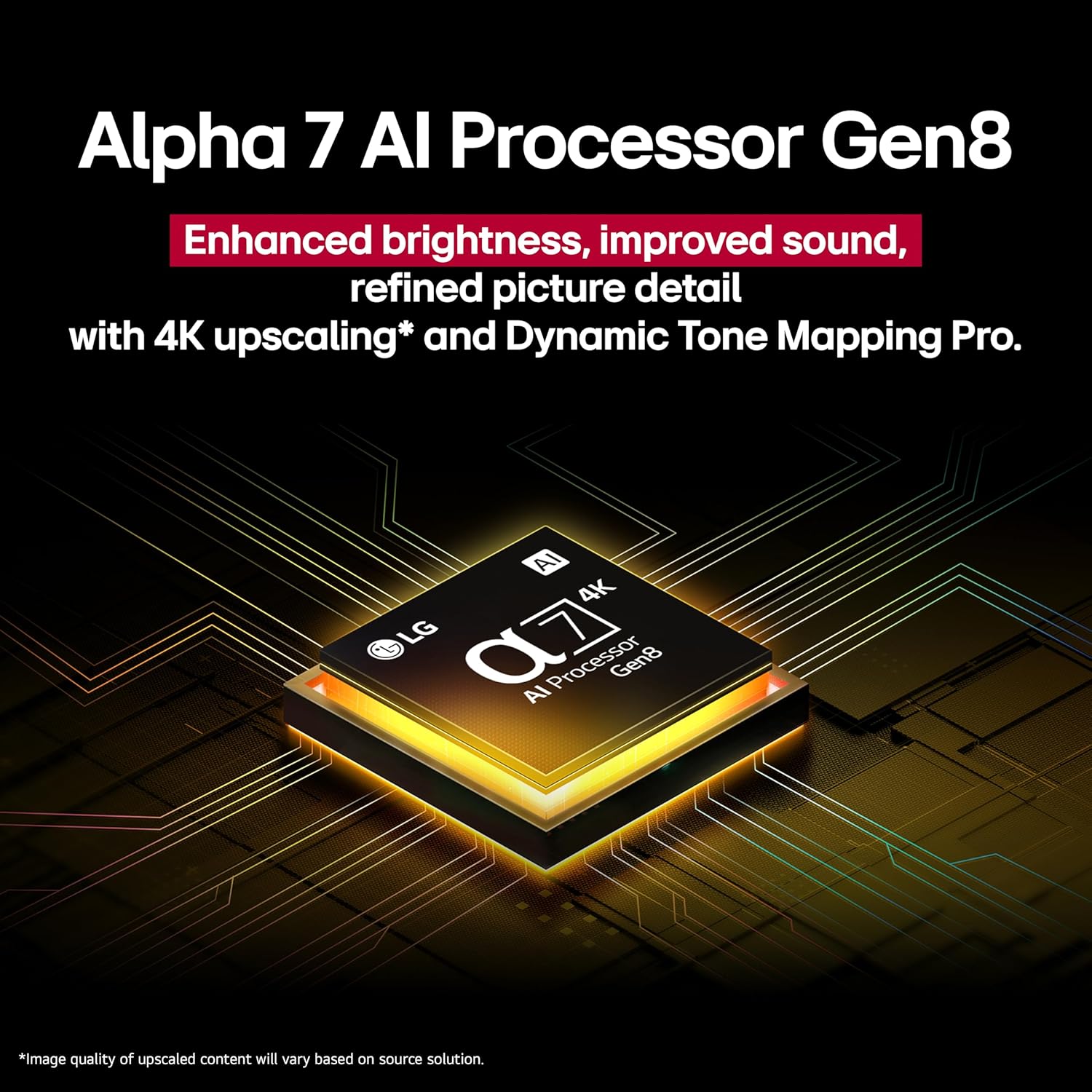
Image: Close-up of the Alpha 7 AI Processor Gen8, highlighting its role in enhancing picture and sound quality.

Image: A visual comparison illustrating the difference between SDR and HDR10 Pro, showcasing the enhanced color and contrast provided by HDR10 Pro.

Image: A graphic illustrating the 4K Super Upscaling feature, showing how it transforms standard definition content into sharper 4K resolution.
5. Smart Features (webOS)
Your LG TV runs on the webOS 25 smart TV platform, offering a wide range of entertainment and smart home integration.

Image: The LG webOS Smart TV platform interface, displaying icons for various streaming services, LG Channels, and gaming options.
5.1 LG Channels
Access over 300 free channels directly through LG Channels, providing a variety of live and on-demand content.
5.2 Streaming Services
Enjoy popular streaming applications such as Apple TV, Disney Plus, HBO Max, Netflix, and Prime Video. Additional apps can be downloaded from the LG Content Store.
5.3 AI Search and Voice Control
Utilize AI Search for personalized recommendations and quick access to content. The TV supports voice control and works with Alexa, Google, and Apple Home ecosystems.

Image: A visual representation of the AI Search feature, demonstrating how it provides personalized recommendations and integrates with services like Microsoft Copilot.
5.4 TV Mirroring and Connectivity
The TV supports Apple AirPlay 2 and Google Cast for mirroring content from compatible devices. It also features Wi-Fi 5 and Bluetooth connectivity.
5.5 webOS Re:New Program
Benefit from the webOS Re:New Program, which provides software updates and feature refreshes for 5 years, ensuring your TV stays current.

Image: Promotional graphic for the webOS Re:New Program, detailing its 5-year software update and feature refresh benefits.
6. Maintenance
6.1 Cleaning the TV
To clean the screen, gently wipe it with a soft, dry, lint-free cloth. For stubborn marks, slightly dampen the cloth with water or a specialized screen cleaner. Avoid using harsh chemicals or abrasive materials.
6.2 General Care
- Do not block the ventilation openings on the TV.
- Avoid exposing the TV to direct sunlight, high temperatures, or excessive humidity.
- Unplug the TV from the power outlet during lightning storms or when it will be unused for extended periods.
7. Troubleshooting
If you encounter issues with your TV, refer to the following common solutions:
| Problem | Possible Solution |
|---|---|
| No power | Ensure the power cable is securely plugged into both the TV and a working wall outlet. Try a different outlet. |
| No picture, but sound is present | Check the input source. Ensure all video cables are properly connected. Try restarting the TV. |
| No sound, but picture is present | Check the volume level and mute status. Verify audio cable connections. Check sound output settings in the TV menu. |
| Remote control not working | Replace the batteries. Ensure there are no obstructions between the remote and the TV's sensor. |
| Cannot connect to Wi-Fi | Check your router and modem. Ensure the Wi-Fi password is correct. Try restarting the TV and your network equipment. |
For more detailed troubleshooting, refer to the TV's on-screen help menu or the LG support website.
8. Specifications
| Feature | Detail |
|---|---|
| Model Name | 43UA7700PUB.AUSQ |
| Screen Size | 43 Inches |
| Display Technology | LED |
| Resolution | 4K (3840 x 2160) |
| Refresh Rate | 120 Hz (Native 60 Hz) |
| Processor | Alpha 7 AI Processor Gen8 |
| Operating System | webOS 25 |
| HDR Format Supported | HDR10, HLG |
| Audio | Dolby Atmos |
| Connectivity | Wi-Fi 5, Bluetooth, Ethernet |
| HDMI Ports | 3 |
| USB Ports | 2 (USB 2.0) |
| Control Method | App, Voice |
| VESA Mount Standard | 200 x 200 mm |
| Item Weight | 19 Pounds |
| Color | Black |
9. Warranty and Support
9.1 Warranty Information
This LG TV comes with a 90-day limited warranty. Please retain your proof of purchase for warranty claims. The warranty covers manufacturing defects under normal use conditions.
9.2 Customer Support
For technical assistance, troubleshooting beyond this manual, or warranty service, please contact LG Customer Support. You can find contact information on the official LG website or in the Quick Start Guide included with your TV.
Online resources, including FAQs and software updates, are also available on the LG support portal.