
1. Introduction
The GoPro MAX2 is a versatile action camera designed to capture immersive 360-degree video and traditional footage. It features True 8K 360 video, 29MP 360 photos, HyperSmooth stabilization, and replaceable lenses, making it suitable for a wide range of activities and environments. This manual provides essential information for setting up, operating, and maintaining your MAX2 camera.

Figure 1.1: Front view of the GoPro MAX2 camera, showcasing its touch screen and primary lens.
2. What's Included
Your GoPro MAX2 package contains the following items:
- MAX2 Camera
- 2 Protective Lens Caps
- 1960mAh Enduro Battery
- Curved Adhesive Mount
- Mounting Buckle + Thumb Screw
- USB-C Cable
- Microfiber Lens Cloth

Figure 2.1: Overview of the GoPro MAX2 camera and its standard accessories.
3. Setup
3.1. Battery Installation and Charging
The MAX2 uses a 1960mAh Enduro Battery, designed for enhanced performance, especially in cold weather. To install, open the battery compartment, insert the battery, and close the compartment securely. To charge, connect the camera to a power source using the provided USB-C cable. Charging requires opening the battery compartment to access the port. Ensure the compartment is sealed after charging to maintain waterproofing.

Figure 3.1: The Enduro battery being inserted into the GoPro MAX2 camera.
3.2. Lens Installation and Replacement
The MAX2 features replaceable, water-repelling optical glass lenses. If a lens becomes damaged, it can be swapped out for a new one. To replace a lens, carefully twist and remove the existing lens, then align and twist the new lens into place until secure.

Figure 3.2: The replaceable lens system of the GoPro MAX2.
3.3. Mounting
The MAX2 includes 1/4-20 mounting threads on the bottom, allowing for attachment to various accessories like extension poles or tripods. Use the provided mounting buckle and thumb screw for secure attachment to compatible GoPro mounts.
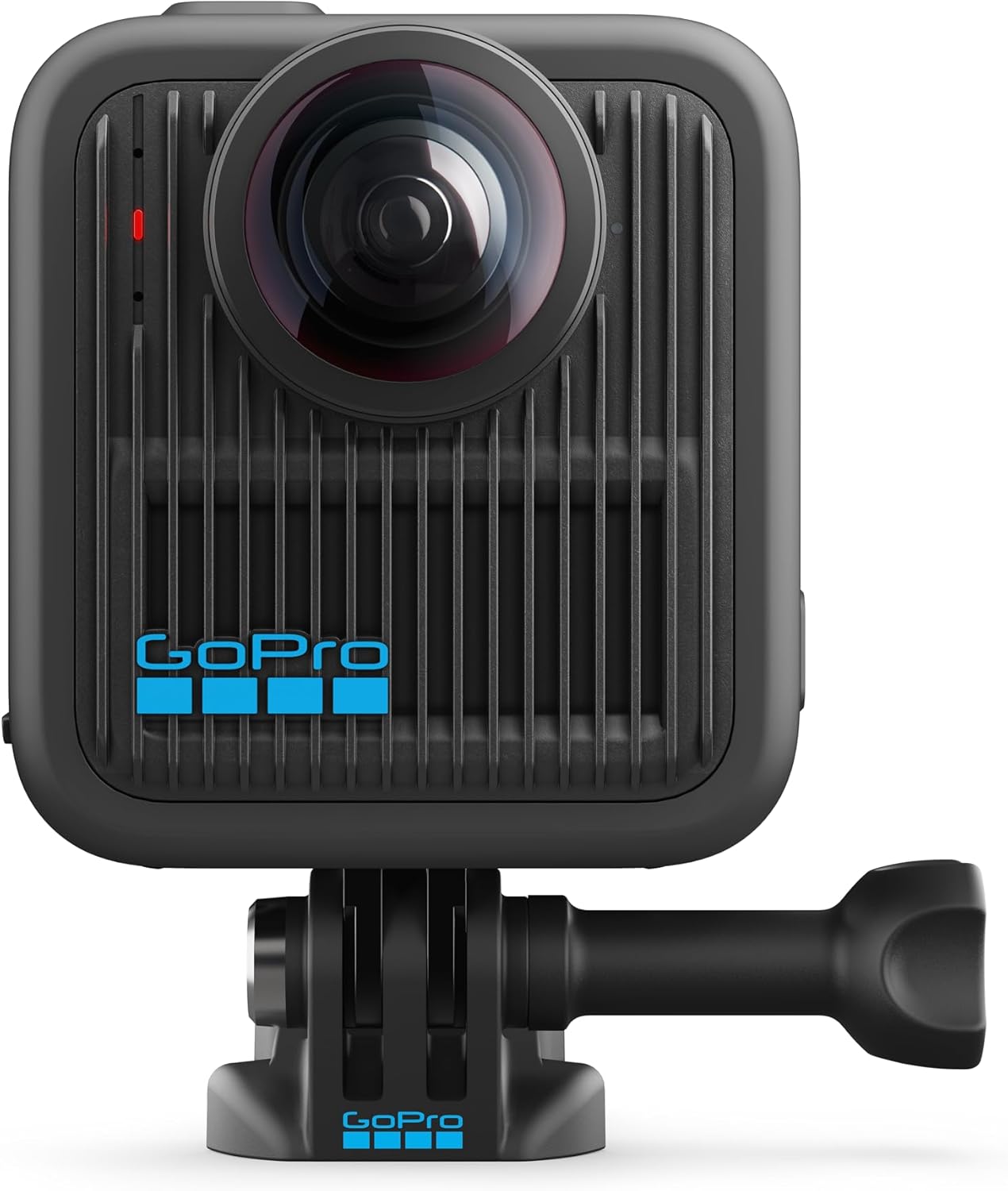
Figure 3.3: The GoPro MAX2 attached to a mounting accessory.
3.4. Memory Card
The MAX2 requires a Micro SD card (not included) for storing photos and videos. Ensure you use a high-speed Micro SD card that meets the camera's specifications for optimal performance, especially when recording 8K video.
3.5. Initial Software Setup
Before first use, download the GoPro Quik app to your smartphone and connect your MAX2 camera to update its software. This ensures you have the latest features and performance enhancements.
4. Operating the Camera
4.1. Basic Controls
- Power/Mode Button: Press to power on/off or switch between modes.
- Shutter Button: Press to start/stop recording or take a photo.
4.2. Video Modes
The MAX2 offers several video capture options:
- True 8K 360 Video: Captures everything around you in stunning 8K resolution. Simply press the shutter button to record without needing to frame the shot.
- 4K60 Single Lens Capture: For traditional video recording, the camera can capture stunning 4K video at 60 frames per second using a single lens.
- 180° in 4K60: Achieve immersive point-of-view (POV) shots from either the front or back lens with a 180-degree field of view in 4K60.
- Super Slo-Mo in 360: Slow down action with 4K100 spherical video for 3x slow motion, or 5.6K60 for up to 2x slow motion.
- 10-bit Color in 8K + GP Log: Capture over 1 billion colors in 8K for enhanced realism and smoother color gradations. GP-Log Encoding with LUT is available for professional users.

Figure 4.1: Example of True 8K 360 video capture.

Figure 4.2: Visual representation of 10-bit color capture in 8K.
4.3. Photo Modes
Capture high-resolution 29MP 360 photos. These spherical photos provide flexibility for cropping, zooming, and reframing within the GoPro Quik app.

Figure 4.3: Example of a 29MP 360 photo displayed on a smartphone.
4.4. Stabilization and Horizon Lock
The MAX2 features Max HyperSmooth stabilization for smooth footage in challenging conditions. Additionally, 360 Horizon Lock keeps your shots level, even during dynamic movements.

Figure 4.4: Comparison of video footage with and without HyperSmooth stabilization.
4.5. POV and Selfie Modes
The camera offers easy POV (Point of View) and Selfie modes. It automatically shows a front-facing 180-degree view or a reverse angle for third-person selfies.

Figure 4.5: MAX2 display showing mode selection options.
4.6. Waterproofing
The MAX2 is rugged and waterproof to 16 feet (5 meters), allowing for use in various wet environments without additional housing.
5. GoPro Quik App and Editing
The GoPro Quik app is essential for maximizing the potential of your MAX2 footage. It allows you to:
- Reframe 360 Footage: Convert 360-degree video into traditional 4K videos, adjusting angles and perspectives.
- Object Tracking: Effortlessly follow and focus on subjects anywhere within the 360-degree capture.
- Keyframes: Easily select specific points in time to define your field of view, with automatic transitions generated between them.
- CameraFX: Apply professional-level motion effects like Spin, Flip, Roll, Wobble, and Tiny Planet.
- Freestyle Edits: Move your phone within 360 footage to find and set the best angles for your edits.
- Aspect Ratio Flexibility: Shoot once and easily grab any aspect ratio for platforms like YouTube (widescreen) or TikTok (vertical) without changing mounting setups.

Figure 5.1: Illustrating aspect ratio flexibility for different social media platforms.

Figure 5.2: Object tracking feature in action.
6. Maintenance
6.1. Cleaning Lenses
Use the provided microfiber lens cloth to gently clean the camera lenses. For stubborn smudges, a small amount of lens cleaning solution designed for optical surfaces can be applied to the cloth, not directly to the lens. Avoid abrasive materials that could scratch the lenses.
6.2. Battery Care
To prolong battery life, store the Enduro Battery in a cool, dry place. Avoid fully discharging the battery frequently. If storing for extended periods, charge the battery to approximately 50-70% capacity.
6.3. Storage
When not in use, store your MAX2 camera in a protective case to prevent scratches and damage. Ensure the camera is dry before storage, especially after use in wet conditions.
7. Troubleshooting
7.1. Overheating
The MAX2 may experience overheating during prolonged recording, especially in warm environments or when recording at higher resolutions like 8K. If the camera becomes too hot, it may automatically shut down. To mitigate this, consider:
- Recording in shorter durations.
- Using the camera in well-ventilated areas.
- Reducing video resolution or frame rate if possible.
7.2. Stitch Line Issues
In 360-degree footage, visible stitch lines or exposure differences between the two lenses can occur, particularly with close-up objects. Ensure lenses are clean and free from obstructions. Experiment with different distances to subjects to optimize stitching.
7.3. Low Light Performance
While the MAX2 performs well in various lighting conditions, low light environments may result in reduced image quality or increased noise. For optimal results, use the camera in adequately lit conditions.
7.4. General Issues
If you encounter other issues, try the following:
- Restart the camera.
- Ensure the camera's firmware is up to date via the GoPro Quik app.
- Format your Micro SD card (this will erase all data, so back up first).
8. Specifications
| Product Dimensions | 9 x 4.5 x 3 inches |
| Item Weight | 13.8 ounces |
| Model Number | CHDHZ-311-TH |
| Batteries | 1 AA battery required (included) |
| Photo Sensor Technology | CMOS |
| Video Capture Resolution | 8K |
| Maximum Focal Length | 26 Millimeters |
| Maximum Aperture | 26 Millimeters |
| Flash Memory Type | Micro SD |
| Video Capture Format | MP4 |
| Supported Audio Format | AAC, MP3 |
| Screen Size | 1.82 Inches |
| Connectivity Technology | USB |
9. Warranty and Support
For warranty information and customer support, please refer to the official GoPro website or contact GoPro customer service directly. You can also visit the GoPro Store on Amazon for additional resources.


